> ## Documentation Index
> Fetch the complete documentation index at: https://help.tiretutor.ai/llms.txt
> Use this file to discover all available pages before exploring further.
# Changing transfer number
> Choose which phone rings when the Phone Agent hands a caller to a person.
When Noah, your Phone Agent, hands a caller to a person, the call rings your
shop's phone number — the number on your shop's record in TireTutor. You can
send those hand-offs to a different phone instead: a cell, a front counter,
a service desk, or whoever answers for several shops at once.
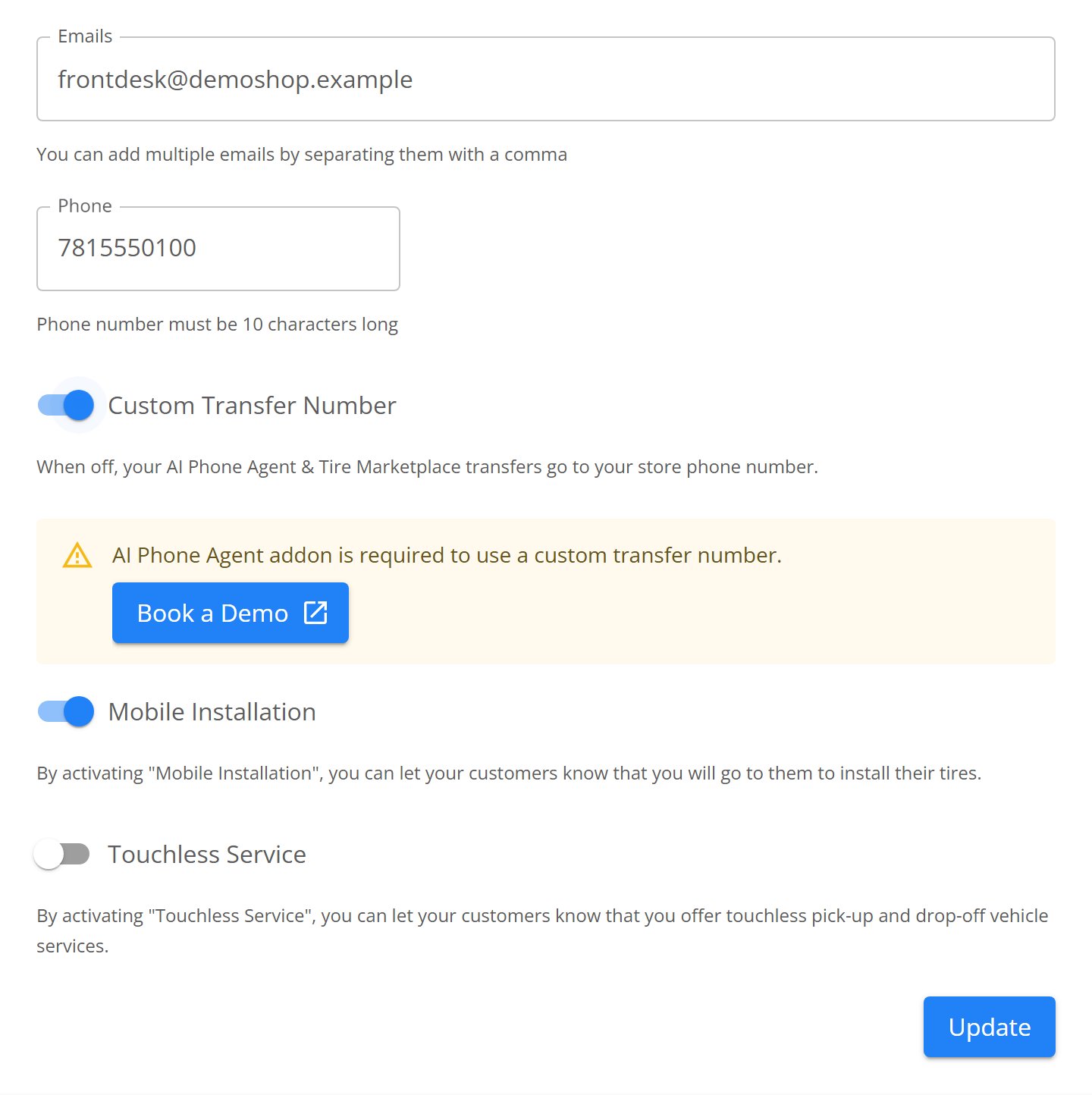
A custom transfer number comes with the AI Phone Agent addon, one shop at a
time. On a shop without the addon, the setting shows a **Book a Demo** link
instead of a number field, and transfers ring that shop's phone number.
 ## What the transfer number covers
Your shop has one TireTutor number. It sits on your marketplace pages and in
your website widget, and it is the number Noah answers. Whatever you set here
is where calls to that number ring once they reach a person — whether the
caller found you on the marketplace or dialled the number from your own site.
Nothing changes about your shop's own phone line. Customers who dial it reach
you the way they always have.
## Set a transfer number
1. Open [**Settings → Organization → Stores**](https://dealers.tiretutor.com/settings/organization/stores).
2. Find the shop you are changing.
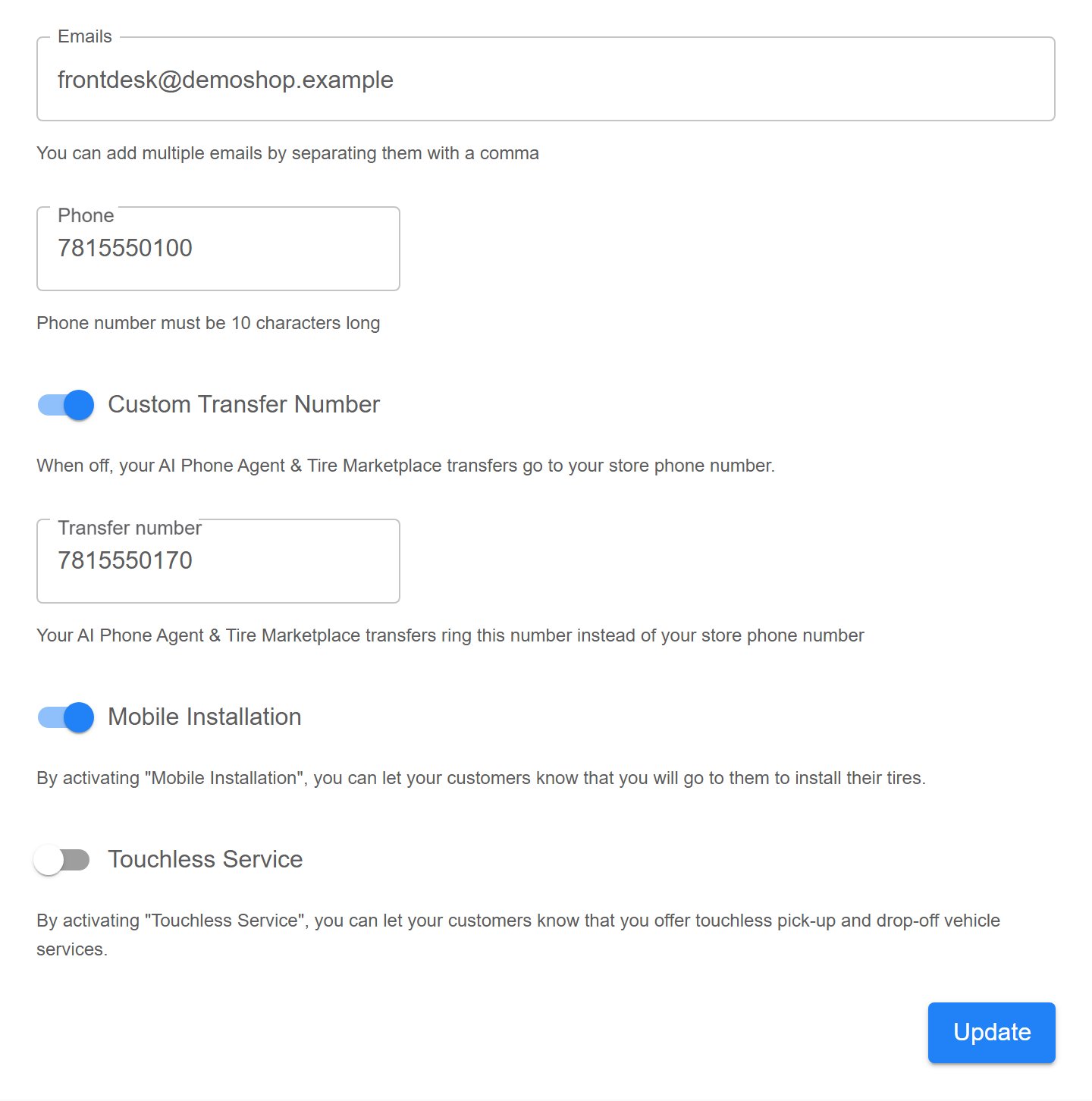
3. Turn on **Custom Transfer Number**.
4. Type the 10-digit number in **Transfer number**.
5. Select **Update**.
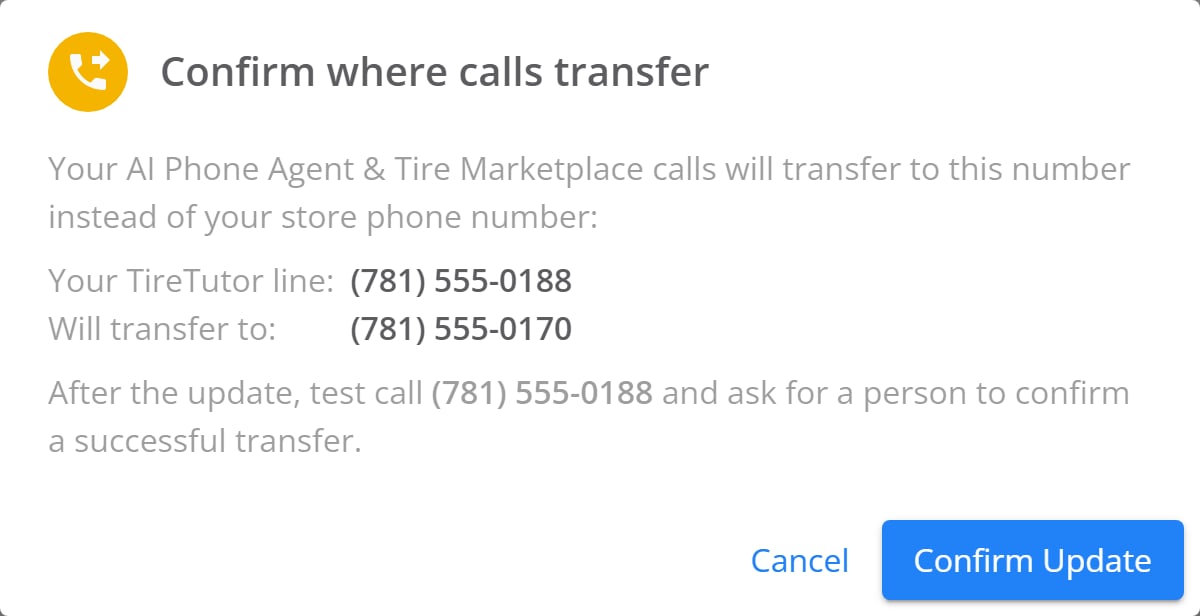
6. Check the confirmation. Under the heading **Confirm where calls transfer**,
TireTutor shows your TireTutor line and the number that rings.
7. Select **Confirm Update**.
## What the transfer number covers
Your shop has one TireTutor number. It sits on your marketplace pages and in
your website widget, and it is the number Noah answers. Whatever you set here
is where calls to that number ring once they reach a person — whether the
caller found you on the marketplace or dialled the number from your own site.
Nothing changes about your shop's own phone line. Customers who dial it reach
you the way they always have.
## Set a transfer number
1. Open [**Settings → Organization → Stores**](https://dealers.tiretutor.com/settings/organization/stores).
2. Find the shop you are changing.
3. Turn on **Custom Transfer Number**.
4. Type the 10-digit number in **Transfer number**.
5. Select **Update**.
6. Check the confirmation. Under the heading **Confirm where calls transfer**,
TireTutor shows your TireTutor line and the number that rings.
7. Select **Confirm Update**.
 The change takes effect as soon as you confirm.
Test it before you rely on it: call your TireTutor line, ask for a person, and
check that the phone you chose is the one that rings.
## Send transfers back to your shop phone
1. Turn **Custom Transfer Number** off.
2. Select **Update**.
3. Confirm the dialog, which reads **Confirm where calls transfer**.
Transfers ring your shop's phone number again.
## What you can use as a transfer number
* **Any ten-digit phone number**, one per shop. For example:
* Your shop's number
* A cellphone
* An IVR routing number
* Voicemail
* An answering service
TireTutor rings the number you give it and hands the call over. What happens
next — a menu, a schedule, a ring group — is whatever you have set up on that
line. If you want hand-offs treated differently at different times of day,
that is where you build it.
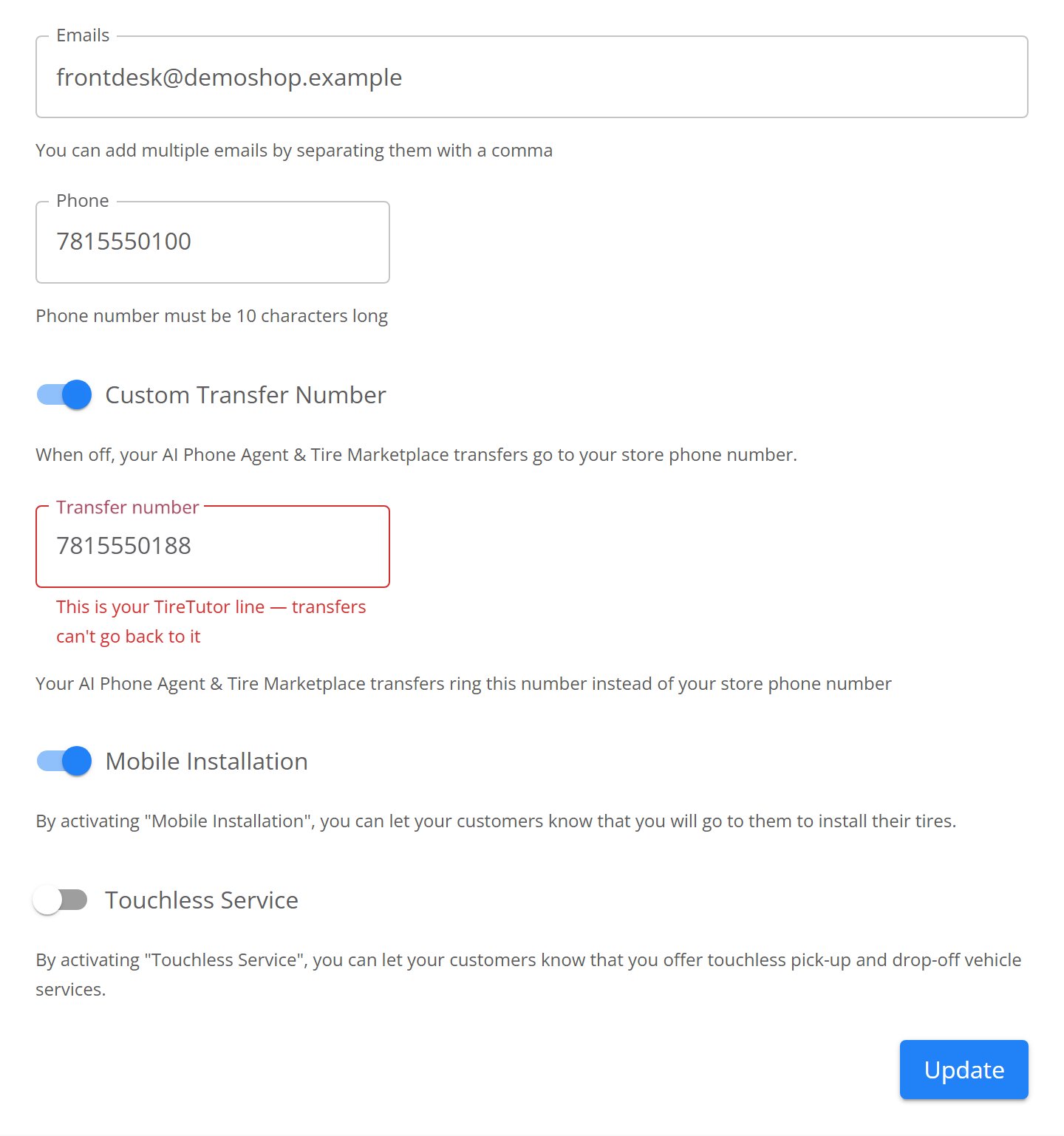
* Not your TireTutor line. That would hand the caller back to Noah, so the
save stops with **This is your TireTutor line — transfers can't go back to
it**.
The change takes effect as soon as you confirm.
Test it before you rely on it: call your TireTutor line, ask for a person, and
check that the phone you chose is the one that rings.
## Send transfers back to your shop phone
1. Turn **Custom Transfer Number** off.
2. Select **Update**.
3. Confirm the dialog, which reads **Confirm where calls transfer**.
Transfers ring your shop's phone number again.
## What you can use as a transfer number
* **Any ten-digit phone number**, one per shop. For example:
* Your shop's number
* A cellphone
* An IVR routing number
* Voicemail
* An answering service
TireTutor rings the number you give it and hands the call over. What happens
next — a menu, a schedule, a ring group — is whatever you have set up on that
line. If you want hand-offs treated differently at different times of day,
that is where you build it.
* Not your TireTutor line. That would hand the caller back to Noah, so the
save stops with **This is your TireTutor line — transfers can't go back to
it**.
 ## If you change your shop's phone number
While no transfer number is set, hand-offs follow your shop's phone number.
Editing that number moves them, so TireTutor warns you — **You could miss
customer calls** — and names the number transfers ring after you save. Place a
test call afterwards.
With a transfer number set, your shop phone number is just a detail on your
record. Editing it does not change where the transfers go.
## Related
* [Transfer call notifications](/dealers/ai-phone-agent/transfer-notifications)
— what you see on screen the moment a call comes over, and the lead Noah
leaves behind.
* [Phone Agent overview](/dealers/ai-phone-agent/overview) — what Noah handles
on his own and when he reaches for a person.
* [Dealer and Store settings](/dealers/settings/dealer-and-store-settings) —
the rest of what you can edit on your shop, including the phone number
transfers fall back to.
## If you change your shop's phone number
While no transfer number is set, hand-offs follow your shop's phone number.
Editing that number moves them, so TireTutor warns you — **You could miss
customer calls** — and names the number transfers ring after you save. Place a
test call afterwards.
With a transfer number set, your shop phone number is just a detail on your
record. Editing it does not change where the transfers go.
## Related
* [Transfer call notifications](/dealers/ai-phone-agent/transfer-notifications)
— what you see on screen the moment a call comes over, and the lead Noah
leaves behind.
* [Phone Agent overview](/dealers/ai-phone-agent/overview) — what Noah handles
on his own and when he reaches for a person.
* [Dealer and Store settings](/dealers/settings/dealer-and-store-settings) —
the rest of what you can edit on your shop, including the phone number
transfers fall back to.