> ## Documentation Index
> Fetch the complete documentation index at: https://help.tiretutor.ai/llms.txt
> Use this file to discover all available pages before exploring further.
# How it works
> Review CRM badge count rules, live refresh behavior, alert sounds, and tab-title changes.
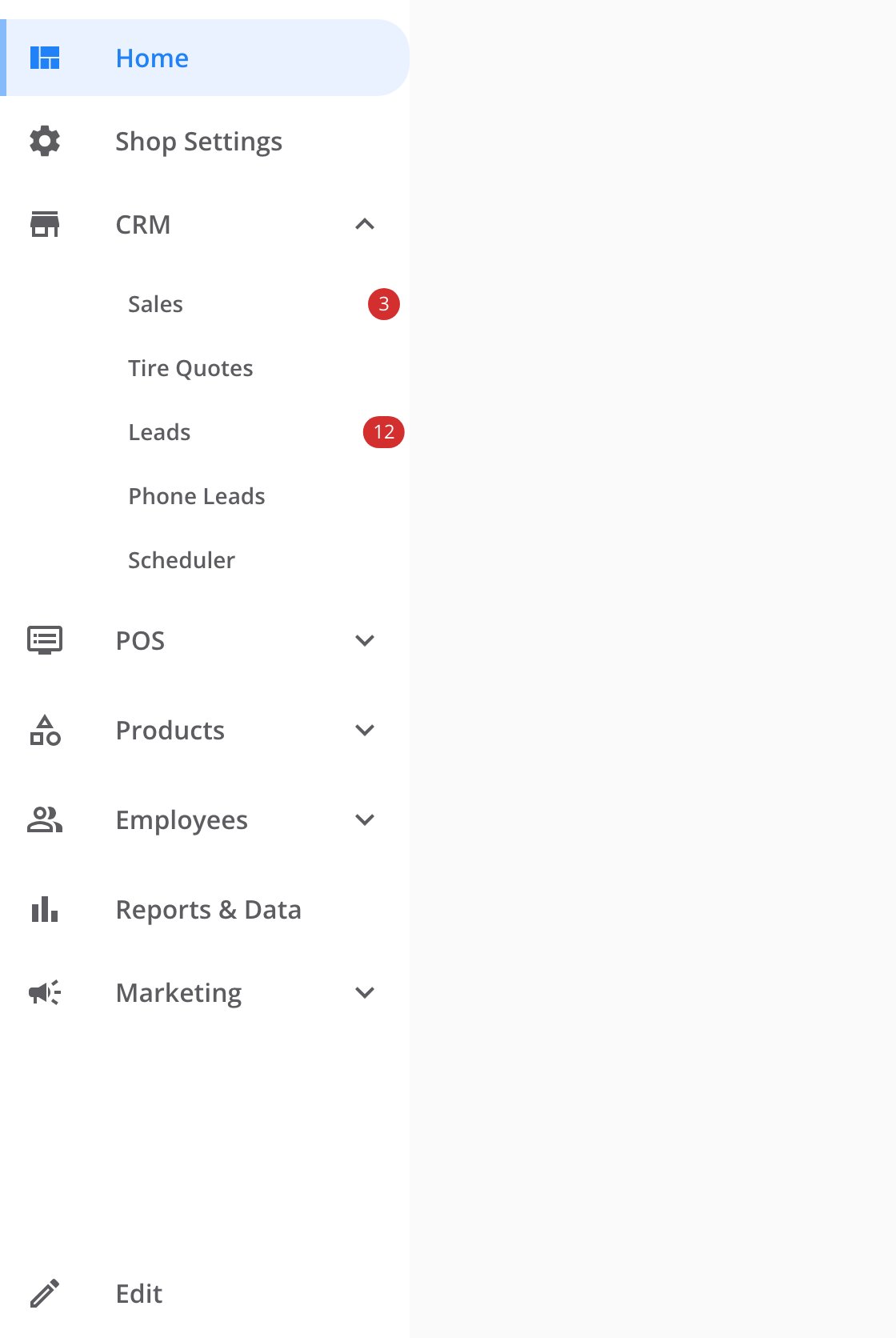
The badges help you find leads and sales orders that still need action. Each badge counts only the shop you have selected.
## What each badge counts
The **Leads** badge counts leads that have no reply recorded. A lead stops counting after you confirm or reject it.
The **Sales** badge counts sales orders with a charged payment that your shop has not claimed. Claimed and canceled orders do not count.
The badge number is the amount of work that meets these rules. It is not the total number of leads or sales orders.
 ## How the counts refresh
CRM loads each count when its sidebar item appears. There is no fixed refresh interval.
Lead and sales-order activity sends a live update to CRM. CRM then fetches the matching count again instead of adding to the badge itself.
The first count sets a quiet baseline. Alerts start only when a later count increases.
## What happens when a count increases
CRM plays your chosen alert sound even when you are looking at the tab. You can [change or mute the sound](/dealers/crm-notifications/managing-alert-sounds).
A message appears in the top-right corner — for example, **3 new leads arrived!** A standard message lasts ten seconds. A message that starts with **Incoming call transfer** lasts thirty seconds. Selecting the message opens the related page.
If a count increases while the tab sits in the background, the tab title alternates every 1.5 seconds. It switches between the original title and the new-item count.
The title returns to normal when you focus the window or open the tab.
If you allow browser notifications, your browser also shows a desktop notification for a count that increases while the tab sits in the background. Selecting it focuses CRM and opens the related page.
## Where to go next
Choose an alert sound or mute notification audio.
Arrange and hide the top-level items in your sidebar.
## How the counts refresh
CRM loads each count when its sidebar item appears. There is no fixed refresh interval.
Lead and sales-order activity sends a live update to CRM. CRM then fetches the matching count again instead of adding to the badge itself.
The first count sets a quiet baseline. Alerts start only when a later count increases.
## What happens when a count increases
CRM plays your chosen alert sound even when you are looking at the tab. You can [change or mute the sound](/dealers/crm-notifications/managing-alert-sounds).
A message appears in the top-right corner — for example, **3 new leads arrived!** A standard message lasts ten seconds. A message that starts with **Incoming call transfer** lasts thirty seconds. Selecting the message opens the related page.
If a count increases while the tab sits in the background, the tab title alternates every 1.5 seconds. It switches between the original title and the new-item count.
The title returns to normal when you focus the window or open the tab.
If you allow browser notifications, your browser also shows a desktop notification for a count that increases while the tab sits in the background. Selecting it focuses CRM and opens the related page.
## Where to go next
Choose an alert sound or mute notification audio.
Arrange and hide the top-level items in your sidebar.