> ## Documentation Index
> Fetch the complete documentation index at: https://help.tiretutor.ai/llms.txt
> Use this file to discover all available pages before exploring further.
# Customizing the menu
> Arrange top-level sidebar items, hide items you do not use, or restore the default layout.
When you select **Edit**, you change only top-level sidebar items. The links inside each group keep their fixed order.
You do not need **Owner** or **Admin** access to customize your menu.
You can arrange these top-level items when they appear in your sidebar:
* **Home**
* **AI Agents**
* **Shop Settings**
* **CRM**
* **POS**
* **Products**
* **Employees**
* **Reports & Data**
* **Marketing**
* **B2B & Fleet Dashboard**
## Change the menu order
**When:** You want a different top-level item closer to the top of the sidebar.
Select **Edit** at the bottom of the sidebar.
Every group collapses. Drag handles replace the menu icons.
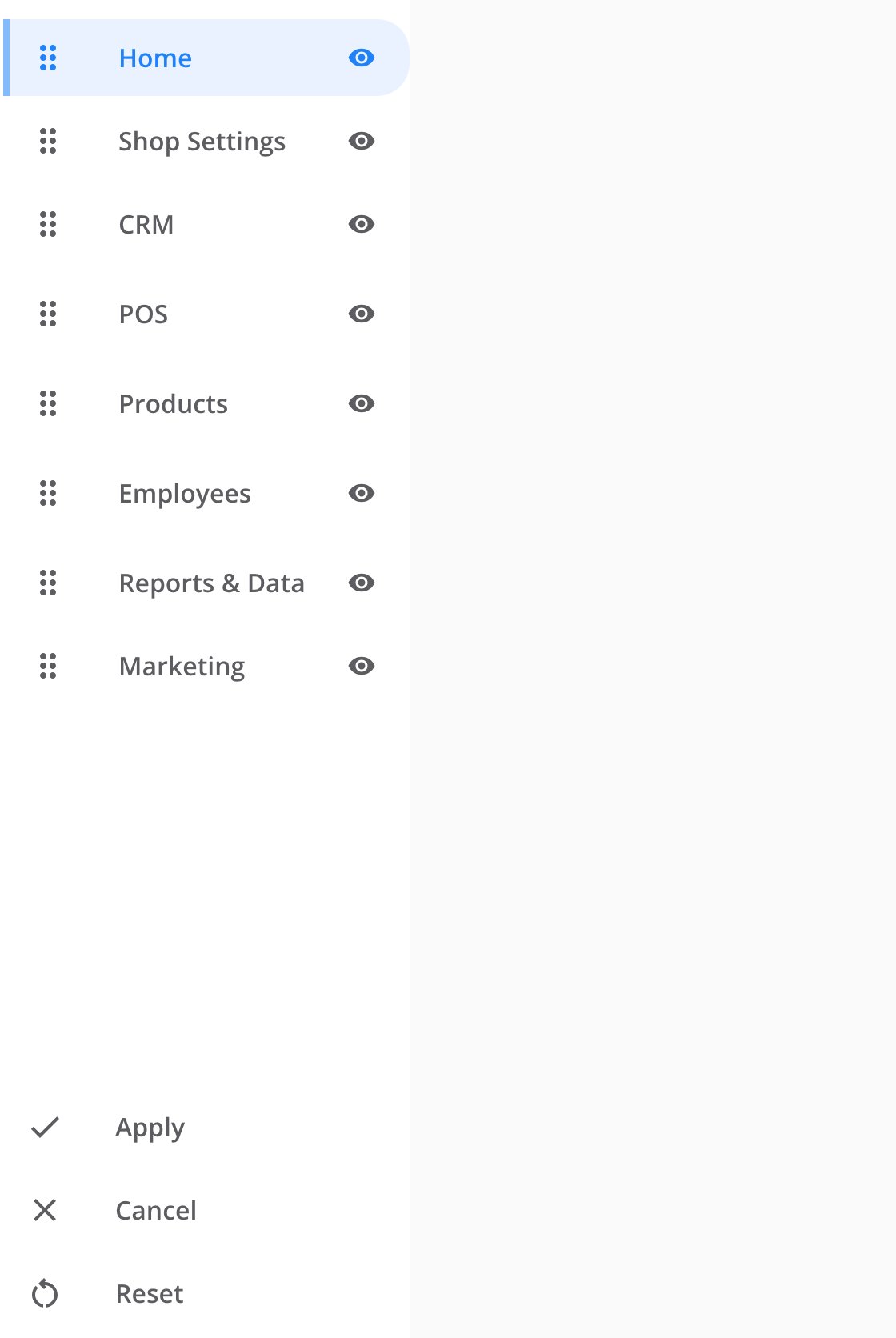 Drag the item's handle to its preferred position.
Select **Apply**.
The sidebar leaves edit mode. The top-level items appear in the order you saved.
## Hide a menu item
**When:** You want to move a top-level item out of the main sidebar.
Select **Edit** at the bottom of the sidebar.
Select the eye icon beside the item.
Select **Apply**.
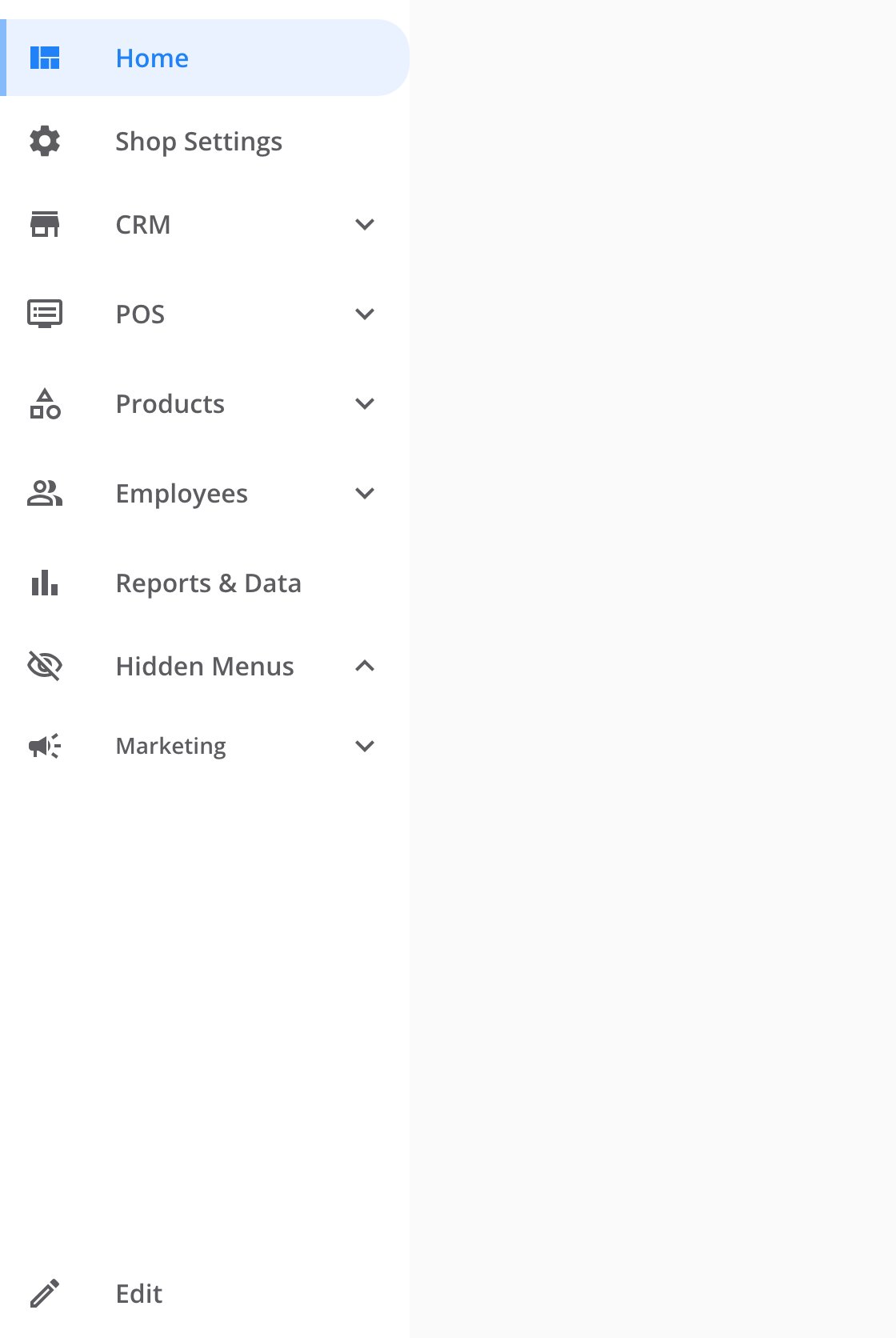
Open **Hidden Menus** at the bottom of the sidebar. The item remains available there.
Drag the item's handle to its preferred position.
Select **Apply**.
The sidebar leaves edit mode. The top-level items appear in the order you saved.
## Hide a menu item
**When:** You want to move a top-level item out of the main sidebar.
Select **Edit** at the bottom of the sidebar.
Select the eye icon beside the item.
Select **Apply**.
Open **Hidden Menus** at the bottom of the sidebar. The item remains available there.
 ## Show a hidden item
**When:** You want to return an item to the main sidebar.
Select **Edit** at the bottom of the sidebar.
Find the dimmed item in the main list.
Select the eye icon beside the item.
Select **Apply**.
The item returns to the main sidebar. **Hidden Menus** disappears when no items remain hidden.
## Cancel your changes
Select **Cancel** to leave edit mode without saving changes to the order or hidden items.
## Reset the menu
**When:** You want the default order and all top-level items visible.
Select **Edit** at the bottom of the sidebar.
Select **Reset**.
Select **Apply**.
The sidebar uses the default order. All available top-level items appear in the main list.
**Reset** does not save by itself. It also keeps your saved expanded or collapsed group choices.
## Where your layout is saved
**Apply** saves the top-level order and hidden items for your user. The layout follows you across shops, browsers, and devices.
Opening or closing a group saves immediately. This choice does not wait for **Apply**.
## Where to go next
Understand the alerts for leads and sales orders.
Learn how TireTutor connects estimates, work orders, and payments.
## Show a hidden item
**When:** You want to return an item to the main sidebar.
Select **Edit** at the bottom of the sidebar.
Find the dimmed item in the main list.
Select the eye icon beside the item.
Select **Apply**.
The item returns to the main sidebar. **Hidden Menus** disappears when no items remain hidden.
## Cancel your changes
Select **Cancel** to leave edit mode without saving changes to the order or hidden items.
## Reset the menu
**When:** You want the default order and all top-level items visible.
Select **Edit** at the bottom of the sidebar.
Select **Reset**.
Select **Apply**.
The sidebar uses the default order. All available top-level items appear in the main list.
**Reset** does not save by itself. It also keeps your saved expanded or collapsed group choices.
## Where your layout is saved
**Apply** saves the top-level order and hidden items for your user. The layout follows you across shops, browsers, and devices.
Opening or closing a group saves immediately. This choice does not wait for **Apply**.
## Where to go next
Understand the alerts for leads and sales orders.
Learn how TireTutor connects estimates, work orders, and payments.