> ## Documentation Index
> Fetch the complete documentation index at: https://help.tiretutor.ai/llms.txt
> Use this file to discover all available pages before exploring further.
# Managing customers
> Find a customer, see what they owe you, and open the work orders they have not paid.
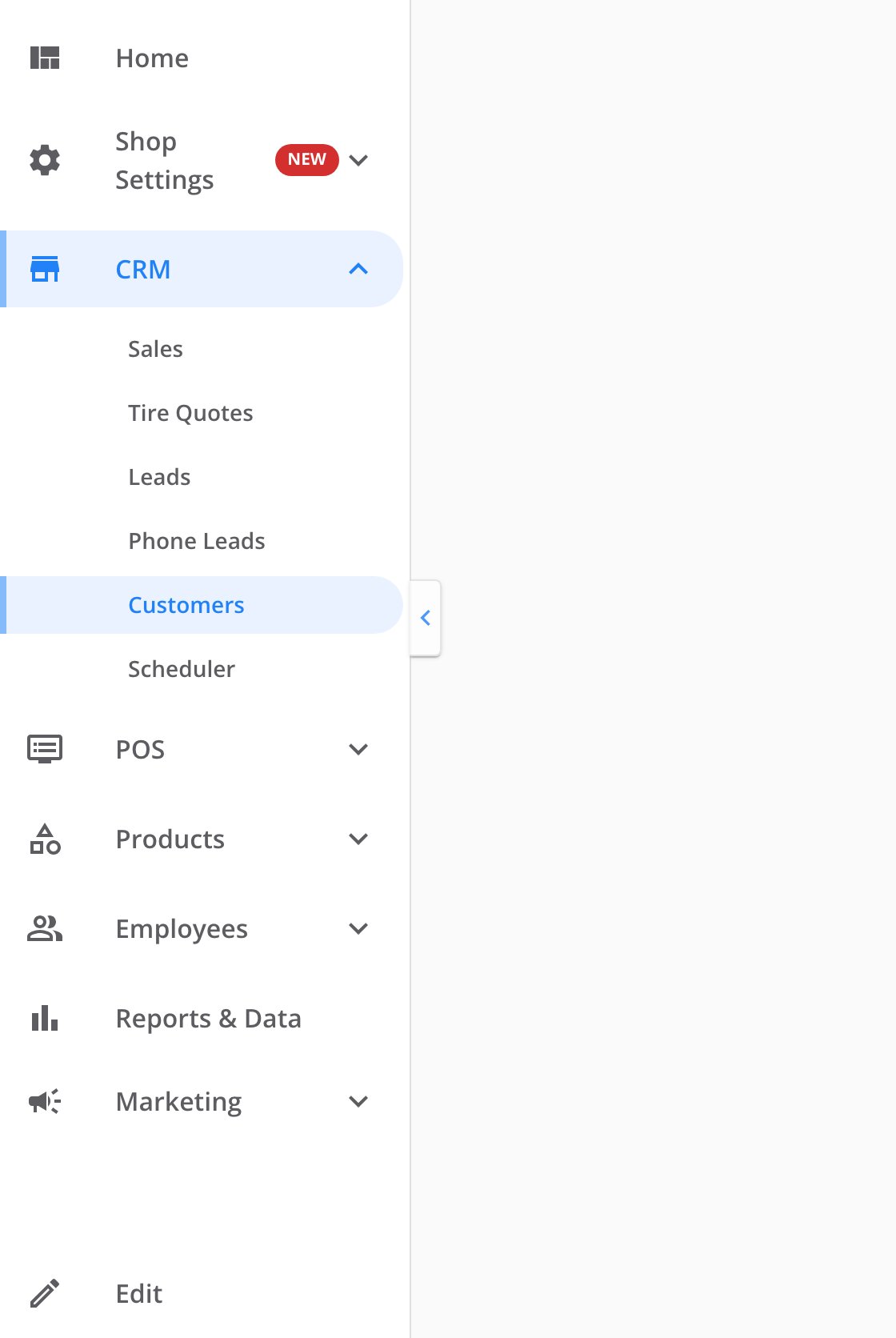
Everything on this page happens in [**CRM → Customers**](https://dealers.tiretutor.com/crm/customers) in your TireTutor dashboard.
 Everyone at your dealer sees **Customers**, whatever their role.
## Find a customer
**When:** A customer calls about their account, or brings in a payment.
Select **CRM** in the side menu, then **Customers**.
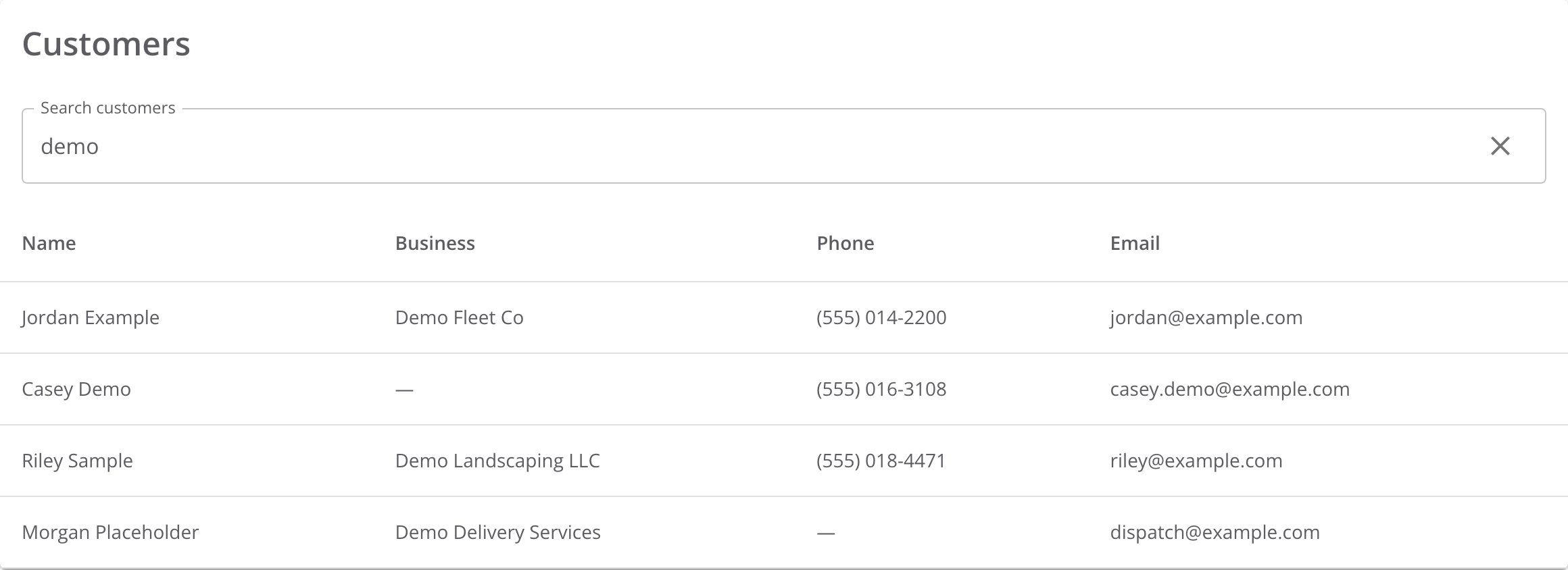
Type a name, business name, phone number, or email address in **Search customers**.
Select the customer's row. Their customer record opens.
The list shows each customer's **Name**, **Business**, **Phone**, and **Email**. It shows a limited number of matches. If the customer you want is not there, type more of their name.
Everyone at your dealer sees **Customers**, whatever their role.
## Find a customer
**When:** A customer calls about their account, or brings in a payment.
Select **CRM** in the side menu, then **Customers**.
Type a name, business name, phone number, or email address in **Search customers**.
Select the customer's row. Their customer record opens.
The list shows each customer's **Name**, **Business**, **Phone**, and **Email**. It shows a limited number of matches. If the customer you want is not there, type more of their name.
 ## Check what a customer owes
**When:** You need the customer's balance before you take a payment.
The customer record shows three figures on the right:
* **Amount due** is the total the customer still owes on finished work.
* **Completed, unpaid work orders** is how many work orders make up that total.
* **Store credit** is the credit the customer holds with you.
Amount due counts each work order that is finished and shows **Unpaid** or **Partially Paid**. Work orders still in progress do not count, and neither do estimates. If your access covers some stores only, the figure counts the work orders at those stores.
The left side of the record shows the customer's details. These include their **Net terms**, **Tax**, **Shop fees**, and **National account**.
## Open an unpaid work order
**When:** The customer asks which jobs make up their balance.
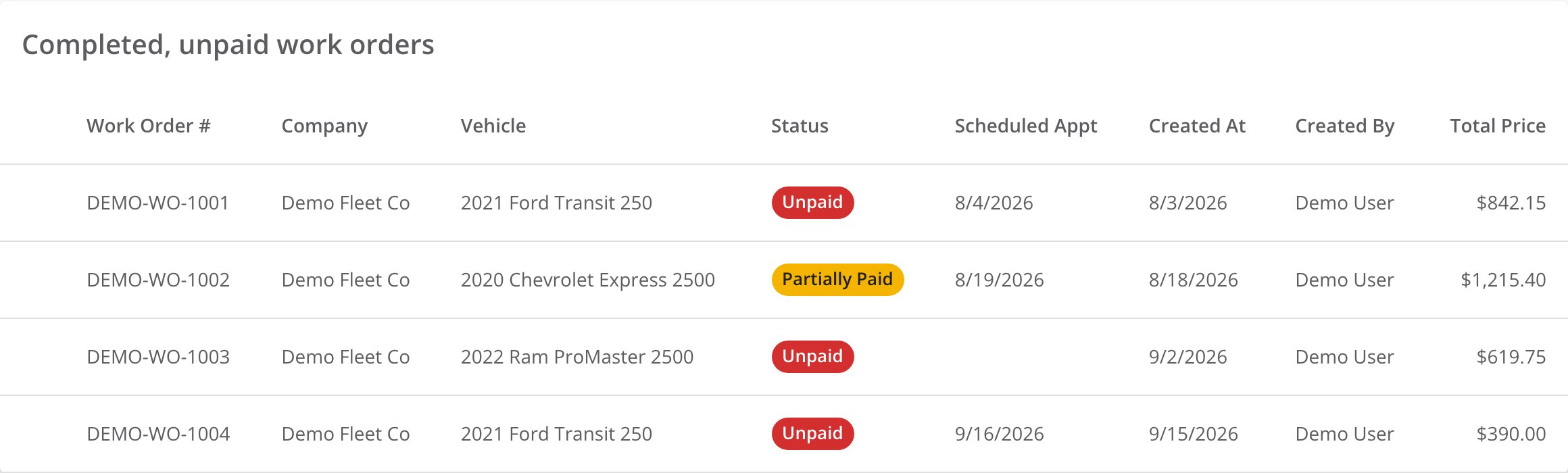
The **Completed, unpaid work orders** table lists the jobs behind **Amount due**. It shows the 100 most recently created, sorted oldest first by the date someone created each one. Each row shows the vehicle, the status, the date created, and the **Total Price**.
## Check what a customer owes
**When:** You need the customer's balance before you take a payment.
The customer record shows three figures on the right:
* **Amount due** is the total the customer still owes on finished work.
* **Completed, unpaid work orders** is how many work orders make up that total.
* **Store credit** is the credit the customer holds with you.
Amount due counts each work order that is finished and shows **Unpaid** or **Partially Paid**. Work orders still in progress do not count, and neither do estimates. If your access covers some stores only, the figure counts the work orders at those stores.
The left side of the record shows the customer's details. These include their **Net terms**, **Tax**, **Shop fees**, and **National account**.
## Open an unpaid work order
**When:** The customer asks which jobs make up their balance.
The **Completed, unpaid work orders** table lists the jobs behind **Amount due**. It shows the 100 most recently created, sorted oldest first by the date someone created each one. Each row shows the vehicle, the status, the date created, and the **Total Price**.
 Look in **Completed, unpaid work orders** on the customer record.
Select the row. The work order opens in Point of Sale.
If the customer has more than 100, older work orders are not in the table yet. Select **Show older completed, unpaid work orders** to add them.
## Take a payment on the account
**When:** The customer pays for several finished work orders at once.
Select **Pay Up** on the customer record to record one payment against everything the customer owes. [Taking charge account payments](/dealers/pos/taking-charge-account-payments) shows each step.
## How you know it worked
The customer record opens with the customer's business name, or their name, at the top. **Amount due** shows a dollar figure, and the table lists the work orders behind it.
## If it doesn't work
**Customers is missing from the side menu.** If **CRM** is missing too, open **Hidden Menus** at the bottom of the side menu. Otherwise, reload the page. If **Customers** is still missing, contact support.
**The customer isn't in the list.** The list shows a limited number of matches. Type more of the name, or search by phone number instead.
**Amount due shows a dash, and Pay Up is grayed out.** TireTutor can't read the balance right now. Reload the page. If the dash stays, contact support.
**Amount due looks too low.** Check the work orders you expected. A work order counts only when it is finished and unpaid. If your access covers some stores only, work orders at other stores don't count.
**The page says Customer not found.** Search for the customer again from **Customers**.
This documentation is built and hosted on [Mintlify](https://mintlify.com), a developer documentation platform.
Look in **Completed, unpaid work orders** on the customer record.
Select the row. The work order opens in Point of Sale.
If the customer has more than 100, older work orders are not in the table yet. Select **Show older completed, unpaid work orders** to add them.
## Take a payment on the account
**When:** The customer pays for several finished work orders at once.
Select **Pay Up** on the customer record to record one payment against everything the customer owes. [Taking charge account payments](/dealers/pos/taking-charge-account-payments) shows each step.
## How you know it worked
The customer record opens with the customer's business name, or their name, at the top. **Amount due** shows a dollar figure, and the table lists the work orders behind it.
## If it doesn't work
**Customers is missing from the side menu.** If **CRM** is missing too, open **Hidden Menus** at the bottom of the side menu. Otherwise, reload the page. If **Customers** is still missing, contact support.
**The customer isn't in the list.** The list shows a limited number of matches. Type more of the name, or search by phone number instead.
**Amount due shows a dash, and Pay Up is grayed out.** TireTutor can't read the balance right now. Reload the page. If the dash stays, contact support.
**Amount due looks too low.** Check the work orders you expected. A work order counts only when it is finished and unpaid. If your access covers some stores only, work orders at other stores don't count.
**The page says Customer not found.** Search for the customer again from **Customers**.
This documentation is built and hosted on [Mintlify](https://mintlify.com), a developer documentation platform.