> ## Documentation Index
> Fetch the complete documentation index at: https://help.tiretutor.ai/llms.txt
> Use this file to discover all available pages before exploring further.
# DVI notification reference
> Every DVI notification, who receives it, when it sends, and what it contains.
This page is for looking things up. If you're setting DVI up for the first time, start with [getting started](/dealers/dvi/getting-started). If you need to change something, see [managing notifications](/dealers/dvi/managing-notifications).
## Every notification
| Notification | Goes to | Channel | Sends when |
| -------------------------- | ---------------------------------------- | ------- | -------------------------------------------- |
| Inspection report | Customer, plus any contacts you added | Email | You send from **Review & Send Report** |
| Inspection report | Customer, plus any contacts you added | Text | Same moment, when you turn **Text** on |
| Report sent | Every address in **Notification Emails** | Email | Right after the customer's report goes out |
| Service choices confirmed | Customer | Email | The customer approves or declines services |
| Service choices confirmed | Customer | Text | Same moment, when a mobile number is on file |
| Customer approved services | Every address in **Notification Emails** | Email | The customer approves or declines services |
| Customer reply | Every address in **Notification Emails** | Email | The customer replies to their report email |
There are no reminders, follow-ups, or scheduled sends. Every notification above is triggered by something you or the customer just did.
## Who receives what
| Recipient | Gets | Set where |
| -------------- | ------------------------------------------------- | ----------------------------------------------------------- |
| Customer | Report, and their approval confirmation | The customer's email and phone on the work order |
| Extra contacts | Report only | **Add Contact** in **Review & Send Report**, per inspection |
| Your team | Report sent, customer approvals, customer replies | **Notification Emails** in **Location** settings |
## Notification emails
| Fact | Detail |
| ------------- | ------------------------------------------------------------------ |
| Where | **Location** settings, reached from the gear beside your shop name |
| How many | Up to five addresses |
| First address | Shown to customers as the reply-to address |
| New location | Starts with no addresses of its own |
| Account tab | Shows addresses too, but view-only here |
### Which addresses get used
Notifications go to the first of these that has anything in it:
1. Your **location's** notification emails
2. Your **account's** notification emails, which cover every location that hasn't set its own
3. A single fallback address held on your location or account record
Only if all three are empty does nobody on your team get notified. In practice a new location inherits
its account's addresses until you set your own — so notifications usually reach *someone*, just maybe
not the people you'd pick. Setting the location list is how you take control of it.
## Report email format
| Element | Content |
| ------------ | ------------------------------------------------------------------------------------------------------------ |
| Heading | Vehicle Inspection Report |
| Greeting | `Hi [customer first name],` — or `Hello,` when no name is on file |
| Summary line | Names the vehicle and the number of service recommendations |
| Badges | `[n] Required` and `[n] Suggested`, shown when the inspection found any |
| Button | **Review & Approve Services** |
| Explanation | Tells the customer the link opens a page where they can review results, approve or decline, and print a copy |
| Sign-off | Your shop name |
## Approval email format, sent to your team
| Element | Content |
| ---------------------- | ----------------------------------------------------------------------------- |
| Heading | `WORK ORDER: [number]` — falls back to the vehicle when there's no work order |
| Subheading | Customer name and vehicle |
| Authorized | Date and time the customer decided |
| Summary | Count and total for approved, and for declined |
| Approved services | Table of service names and prices |
| Declined services | Table of service names and prices |
| Customer authorization | Name, email, and the time they authorized |
| Buttons | **Open Work Order** and **View Inspection** |
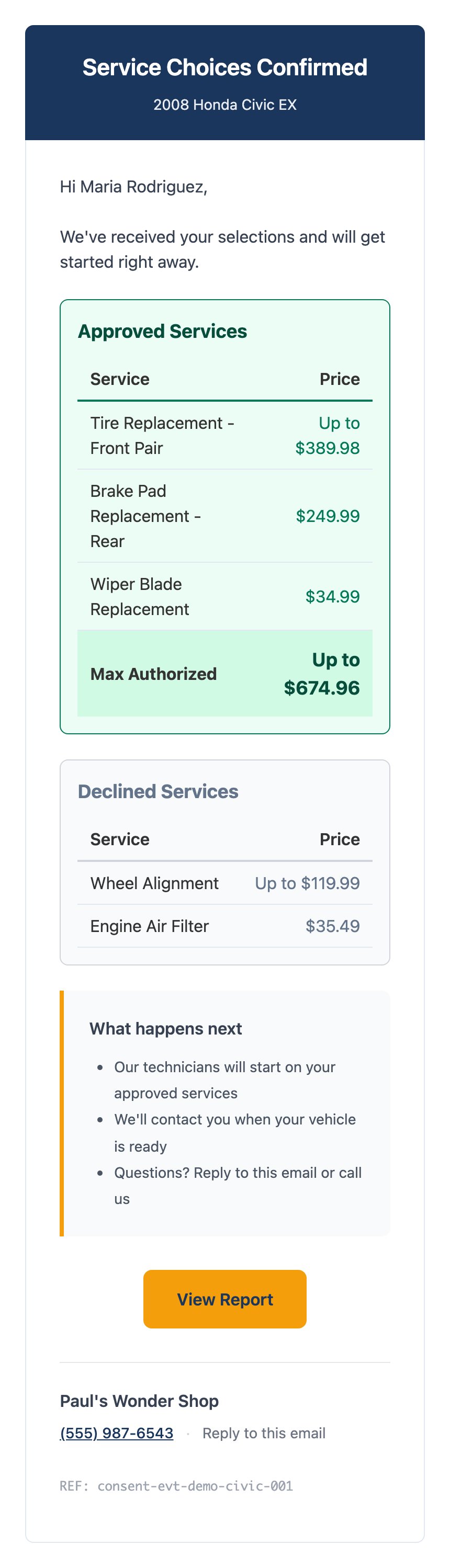 When a price is an estimate rather than a fixed price, it reads **Up to \$X** and the total reads **Max Authorized**. Fixed prices show the exact amount.
## Text message wording
DVI keeps each text under 160 characters, so it arrives as one message rather than being split.
**Inspection report:**
```
[Shop name]: Your vehicle inspection report for your [vehicle] is ready. View it here: [link]
```
**Service choices confirmed:**
```
[Shop name]: Service choices ($X.XX approved) confirmed. Questions? Reply or call [shop phone]. [link]
```
If that message would run past 160 characters, the phone invitation drops out and the link stays. With no shop phone on file, the wording becomes `View details: [link]` instead.
## Report links
| Fact | Detail |
| ---------------------- | ----------------------------------------- |
| Login required | No. The link itself is what grants access |
| Expiry | None. Report links keep working |
| Same link for everyone | Yes. Extra contacts open the same report |
Because the link is the access, treat it like one. Anyone a customer forwards it to can read the report,
and it stays readable indefinitely.
## Timing
| Notification | Timing |
| ------------------------- | --------------------------------------------------- |
| Report to customer | Immediately when you send |
| Report sent, to your team | Immediately after the customer's report goes out |
| Approval confirmations | Immediately when the customer submits their choices |
| Customer reply | Forwarded to your team as it arrives |
## What isn't included
| Not available | Notes |
| ------------------------------------ | ------------------------------------------------------------ |
| Reminders or follow-ups | DVI never contacts a customer on a schedule |
| Per-person notification preferences | Everyone on the list gets the same notifications |
| Editing account-level addresses | View-only in the **Account** tab. Ask your TireTutor contact |
| Turning individual notifications off | The set is fixed. Manage who's on the list instead |
## Where to go next
Recipes for changing addresses and contact methods.
What DVI is for and why customers approve on their own screen.
When a price is an estimate rather than a fixed price, it reads **Up to \$X** and the total reads **Max Authorized**. Fixed prices show the exact amount.
## Text message wording
DVI keeps each text under 160 characters, so it arrives as one message rather than being split.
**Inspection report:**
```
[Shop name]: Your vehicle inspection report for your [vehicle] is ready. View it here: [link]
```
**Service choices confirmed:**
```
[Shop name]: Service choices ($X.XX approved) confirmed. Questions? Reply or call [shop phone]. [link]
```
If that message would run past 160 characters, the phone invitation drops out and the link stays. With no shop phone on file, the wording becomes `View details: [link]` instead.
## Report links
| Fact | Detail |
| ---------------------- | ----------------------------------------- |
| Login required | No. The link itself is what grants access |
| Expiry | None. Report links keep working |
| Same link for everyone | Yes. Extra contacts open the same report |
Because the link is the access, treat it like one. Anyone a customer forwards it to can read the report,
and it stays readable indefinitely.
## Timing
| Notification | Timing |
| ------------------------- | --------------------------------------------------- |
| Report to customer | Immediately when you send |
| Report sent, to your team | Immediately after the customer's report goes out |
| Approval confirmations | Immediately when the customer submits their choices |
| Customer reply | Forwarded to your team as it arrives |
## What isn't included
| Not available | Notes |
| ------------------------------------ | ------------------------------------------------------------ |
| Reminders or follow-ups | DVI never contacts a customer on a schedule |
| Per-person notification preferences | Everyone on the list gets the same notifications |
| Editing account-level addresses | View-only in the **Account** tab. Ask your TireTutor contact |
| Turning individual notifications off | The set is fixed. Manage who's on the list instead |
## Where to go next
Recipes for changing addresses and contact methods.
What DVI is for and why customers approve on their own screen.