> ## Documentation Index
> Fetch the complete documentation index at: https://help.tiretutor.ai/llms.txt
> Use this file to discover all available pages before exploring further.
# Moving your email to Google Workspace
> Copy every old mailbox into Google Workspace with Google's Data import tool, then copy the last messages after you switch.
This page covers the copy into Google Workspace. Do the steps in [Get ready](/dealers/email-transfer/managing-email-transfer#get-ready) first.
**Educational guidance.** TireTutor does not host email. These steps use the import tool that comes with Google Workspace.
## Copy your mailboxes into Google Workspace
You need an administrator account for your Google Workspace.
In the Google Admin console, go to **Menu › Data › Data import & export › Data import**.
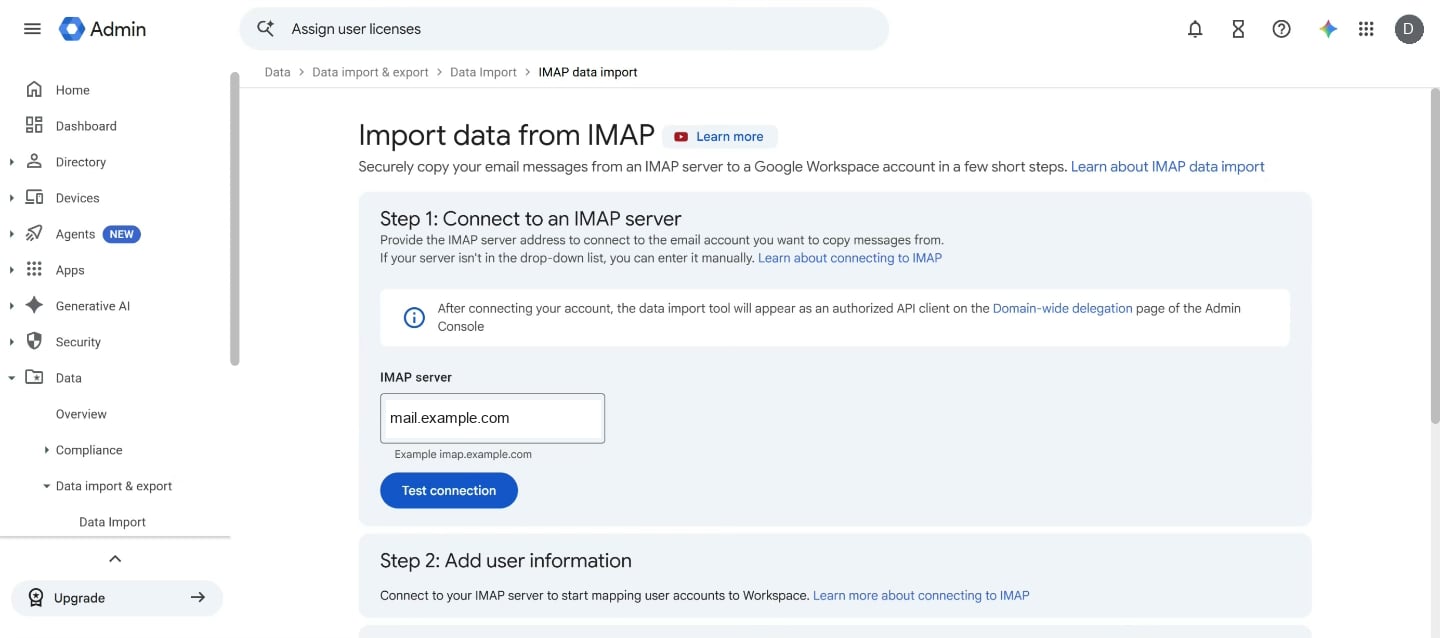
For IMAP, click **Import**. The **Import data from IMAP** page opens.
Enter your old IMAP server name in **IMAP server**.
Click **Test connection**. The server shows **Connected**.
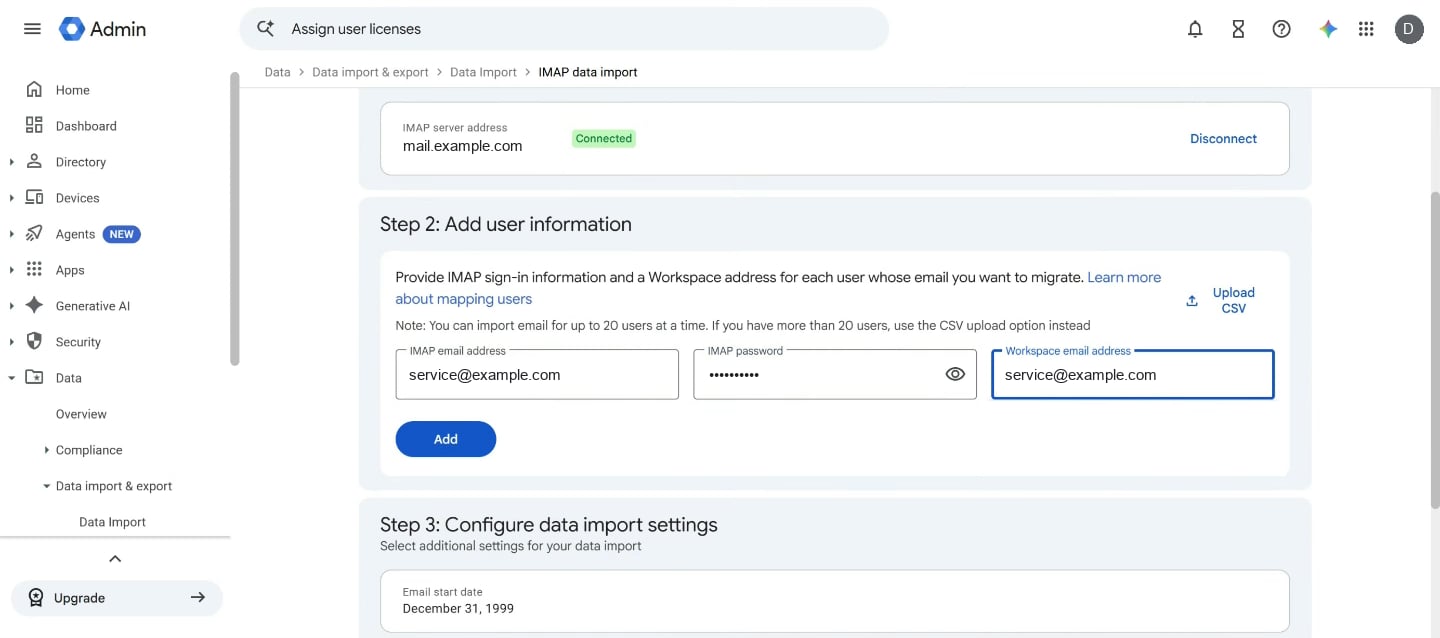
Fill in **IMAP email address**, **IMAP password** and **Workspace email address**.
Click **Add**. The mailbox appears in the list. Repeat the last two steps for each mailbox.
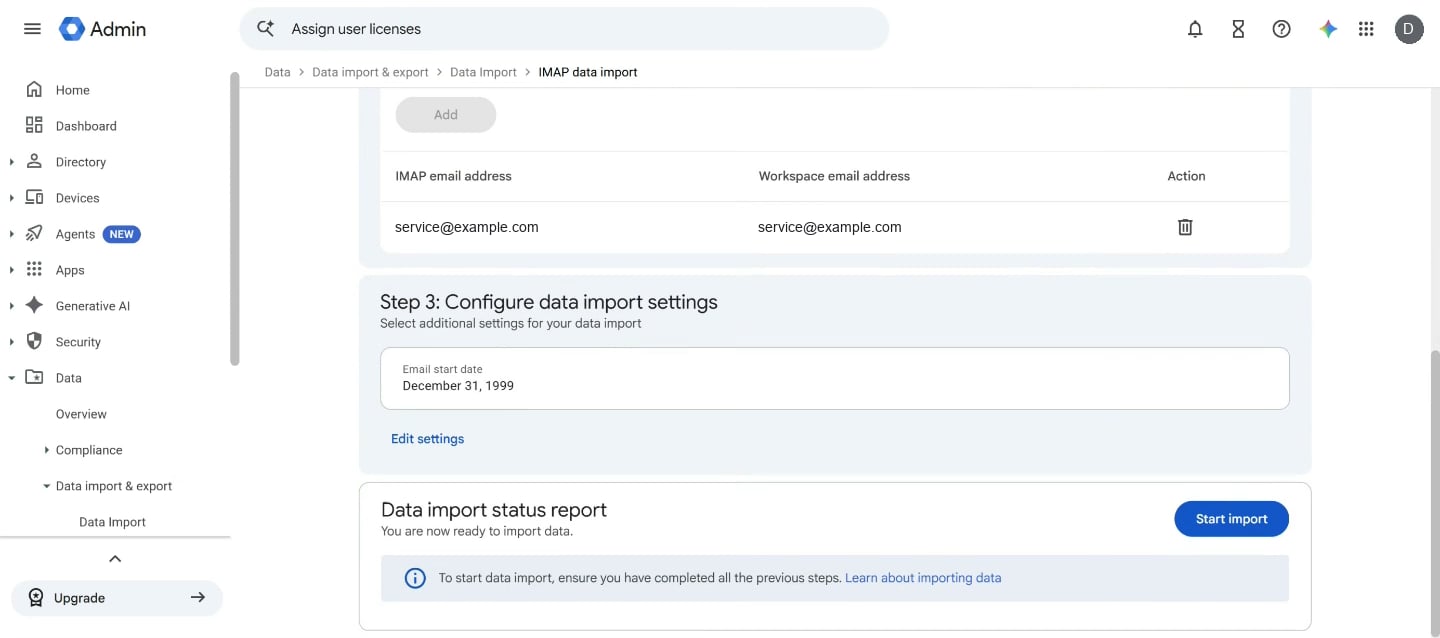
Under Step 3, click **Edit settings**. Check that the settings do not exclude a folder you need.
Click **Start import**. The status report shows **In progress**.
 ## Add more than 20 mailboxes
The form takes up to 20 mailboxes at a time. For more, click **Upload CSV** and upload a CSV file with three columns: `Source ImapUser`, `Source ImapPassword` and `TargetGUser`.
## Check the copy's progress
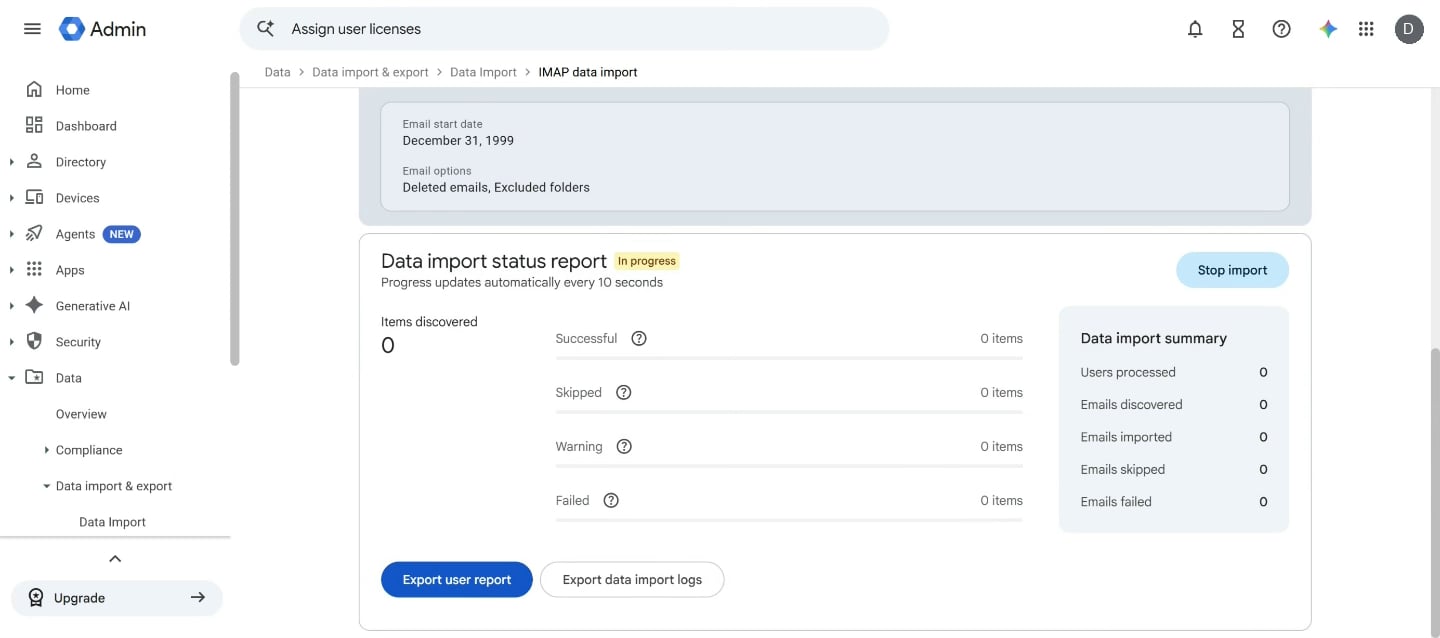
The status report updates every 10 seconds. The **Successful** count shows how many items have copied, and **Failed** shows how many did not. **Stop import** ends the copy.
Large mailboxes take hours or days. Your team keeps using email as usual while it copies.
## Add more than 20 mailboxes
The form takes up to 20 mailboxes at a time. For more, click **Upload CSV** and upload a CSV file with three columns: `Source ImapUser`, `Source ImapPassword` and `TargetGUser`.
## Check the copy's progress
The status report updates every 10 seconds. The **Successful** count shows how many items have copied, and **Failed** shows how many did not. **Stop import** ends the copy.
Large mailboxes take hours or days. Your team keeps using email as usual while it copies.
 When the first copy finishes, switch your email. See [Switch your email to the new provider](/dealers/email-transfer/managing-email-transfer#switch-your-email-to-the-new-provider).
## Copy the last messages after you switch
After you switch your mail records, run a delta import from the same import page. It copies the email that reached your old mailboxes during the change.
## If it doesn't work
| Problem | What to do |
| - | - |
| **Test connection** fails | Check the IMAP server name with your old provider |
| One mailbox will not sign in | Sign in to your old webmail with that address and password. Fix the password, then add the mailbox again |
| A folder is missing after the copy | Check **Edit settings** for an excluded folder. Then run the copy again for that mailbox |
This documentation is built and hosted on [Mintlify](https://mintlify.com), a developer documentation platform.
When the first copy finishes, switch your email. See [Switch your email to the new provider](/dealers/email-transfer/managing-email-transfer#switch-your-email-to-the-new-provider).
## Copy the last messages after you switch
After you switch your mail records, run a delta import from the same import page. It copies the email that reached your old mailboxes during the change.
## If it doesn't work
| Problem | What to do |
| - | - |
| **Test connection** fails | Check the IMAP server name with your old provider |
| One mailbox will not sign in | Sign in to your old webmail with that address and password. Fix the password, then add the mailbox again |
| A folder is missing after the copy | Check **Edit settings** for an excluded folder. Then run the copy again for that mailbox |
This documentation is built and hosted on [Mintlify](https://mintlify.com), a developer documentation platform.