> ## Documentation Index
> Fetch the complete documentation index at: https://help.tiretutor.ai/llms.txt
> Use this file to discover all available pages before exploring further.
# Getting started
> Sign up for the AI Marketing Agent, set your daily budget, and put a line of TireTutor code on your website so the agent can see which ads bring you customers.
Step 5 puts the tag, a line of TireTutor code, on every page of your website.
The tag lets the agent see which ads bring you visits, quotes and calls.
* **TireTutor built your website:** the tag is already on it if your site
offers online tire shopping, service booking or quotes. Select **Verify
installation** in step 5.
* **Someone else built your website:** you need a person who can edit your
website's code. If that is not you, step 5 can email them the
instructions.
Setup runs in five steps. Your progress saves as you go, so you can leave and
come back.
In your TireTutor dashboard, open **Marketing**, then **AI Marketing
Agent**.
 Select **Learn More!** on the welcome screen. A dialog opens with the plan
and the terms.
Read the plan and the terms. Then tick the agreement checkbox.
**Start subscription** stays off until you tick it.
The **Set your advertising preferences** screen holds two sliders.
Move **Preferred Sales Type** toward tires or toward services.
Move **Preferred Contact** toward phone calls or toward online.
Select **Save & Continue**.
Both sliders start in the middle. You can change them later.
Select **Learn More!** on the welcome screen. A dialog opens with the plan
and the terms.
Read the plan and the terms. Then tick the agreement checkbox.
**Start subscription** stays off until you tick it.
The **Set your advertising preferences** screen holds two sliders.
Move **Preferred Sales Type** toward tires or toward services.
Move **Preferred Contact** toward phone calls or toward online.
Select **Save & Continue**.
Both sliders start in the middle. You can change them later.
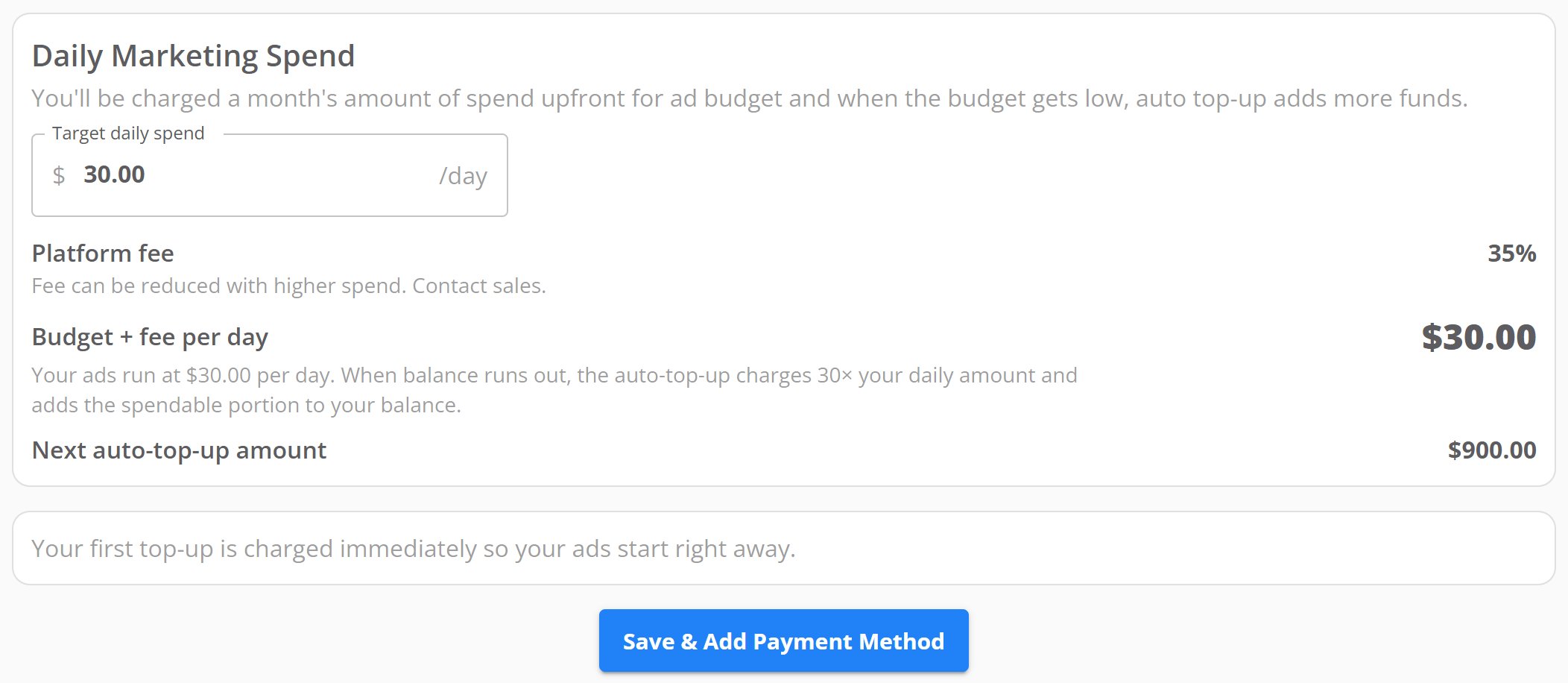
 Enter an amount in **Target daily spend**. The field holds you to the
lowest and highest daily spend TireTutor allows.
Check the summary below the field. It shows the platform fee, your daily
total, and your next top-up amount.
Select **Save & Add Payment Method**.
Your browser opens a secure checkout page. Enter your card details there.
If you close that page without paying, return to **AI Marketing Agent**
and select **Save & Add Payment Method** again.
Enter an amount in **Target daily spend**. The field holds you to the
lowest and highest daily spend TireTutor allows.
Check the summary below the field. It shows the platform fee, your daily
total, and your next top-up amount.
Select **Save & Add Payment Method**.
Your browser opens a secure checkout page. Enter your card details there.
If you close that page without paying, return to **AI Marketing Agent**
and select **Save & Add Payment Method** again.
 If TireTutor built your website, select **Verify installation** first. The
tag may already be on it, and the rest of this step is then done.
The **Get started with the tag installation** card holds a line of code.
Select the copy icon to copy it.
Paste the code into the `` section of every page on your website.
Return to TireTutor and select **Verify installation**.
To hand this to someone else, select **Install with a team member's help**
and enter their email address.
If TireTutor built your website, select **Verify installation** first. The
tag may already be on it, and the rest of this step is then done.
The **Get started with the tag installation** card holds a line of code.
Select the copy icon to copy it.
Paste the code into the `` section of every page on your website.
Return to TireTutor and select **Verify installation**.
To hand this to someone else, select **Install with a team member's help**
and enter their email address.
 ## How you know it worked
The **You're All Set!** screen appears once you finish the five steps.
TireTutor then builds your Google Ads account, your campaigns, and your
tracking. This takes one to two business days. The page refreshes itself when
setup finishes, and you get an email as soon as your account is ready.
## If it doesn't work
**The verify step says it cannot find the script.** The tag is missing from
the page you tested, or it sits outside the `` section. Check the tag on
your home page, then verify again. If it fails a second time, contact support.
**The verify step says the script does not match your dealer ID.** The code on
your site belongs to a different account. Copy the code again from this screen
and replace what is on your site. If it fails a second time, contact support.
**The verify step says something went wrong.** TireTutor could not reach your
site to check. Try again in a few minutes, then contact support.
**Saving your daily spend returns an error.** The amount is too low once the
platform fee comes out of it. Raise it and save again.
**Setup has taken longer than two business days.** Contact support.
## Where to go next
Your daily spend, the pause switch, and the status panel.
What the agent does for your shop, and what it costs.
## Still need help?
Contact support through the [contact form](https://tiretutor.com/contact), or call [855-400-4521](tel:+18554004521).
Say which setup step you are on. If the verify step failed, say whether it
reported a missing script or a mismatch.
## How you know it worked
The **You're All Set!** screen appears once you finish the five steps.
TireTutor then builds your Google Ads account, your campaigns, and your
tracking. This takes one to two business days. The page refreshes itself when
setup finishes, and you get an email as soon as your account is ready.
## If it doesn't work
**The verify step says it cannot find the script.** The tag is missing from
the page you tested, or it sits outside the `` section. Check the tag on
your home page, then verify again. If it fails a second time, contact support.
**The verify step says the script does not match your dealer ID.** The code on
your site belongs to a different account. Copy the code again from this screen
and replace what is on your site. If it fails a second time, contact support.
**The verify step says something went wrong.** TireTutor could not reach your
site to check. Try again in a few minutes, then contact support.
**Saving your daily spend returns an error.** The amount is too low once the
platform fee comes out of it. Raise it and save again.
**Setup has taken longer than two business days.** Contact support.
## Where to go next
Your daily spend, the pause switch, and the status panel.
What the agent does for your shop, and what it costs.
## Still need help?
Contact support through the [contact form](https://tiretutor.com/contact), or call [855-400-4521](tel:+18554004521).
Say which setup step you are on. If the verify step failed, say whether it
reported a missing script or a mismatch.