> ## Documentation Index
> Fetch the complete documentation index at: https://help.tiretutor.ai/llms.txt
> Use this file to discover all available pages before exploring further.
# Managing advertising
> Change your daily spend, pause your ads, and check whether they are running.
Your daily spend cannot rise above your current balance. To spend more per
day, let the next top-up land first.
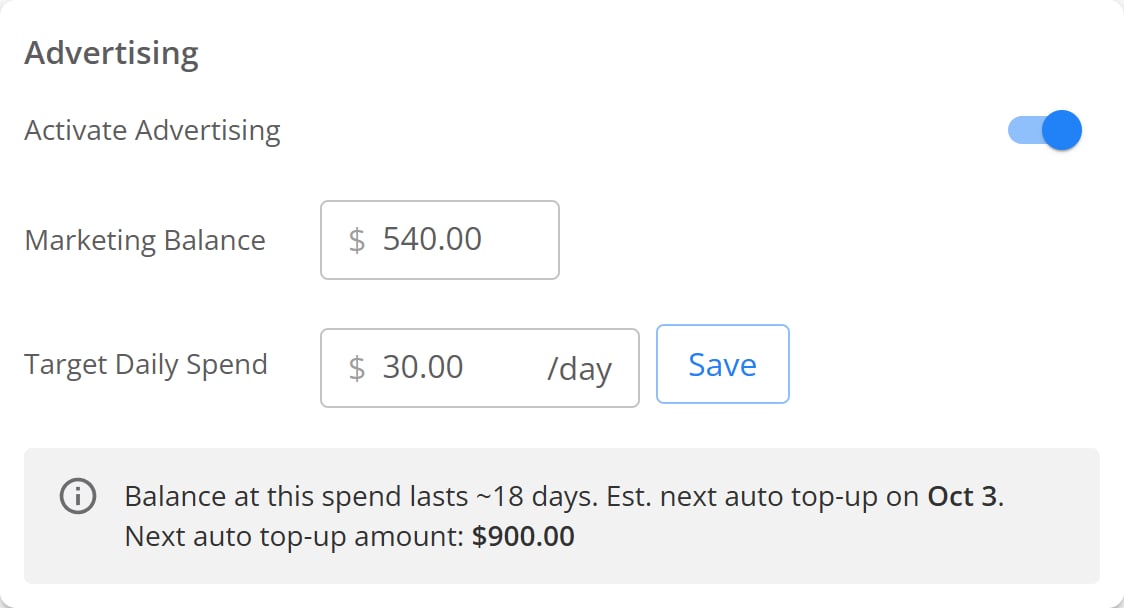
The **Advertising** panel holds your switch, your balance, and your daily
budget. The **AI Marketing Analyst** panel beside it holds your goals.
 ## Change your daily spend
In your TireTutor dashboard, open **Marketing**, then **AI Marketing
Agent**.
Type the amount in **Target Daily Spend**. The field holds you to the
lowest and highest daily spend TireTutor allows.
Select **Save**. A message confirms the change.
Type more than your balance covers and the field rewrites itself as soon as
you click away. It drops to the highest amount your balance supports, without
a message. Check the figure before you select **Save**.
## Pause or restart your ads
Turning **Activate Advertising** off stops every ad for every one of your
shops. Your budget, your goals, and your balance stay as they are, and your
subscription keeps running.
Turn the **Activate Advertising** switch off. An alert then appears in the
panel to confirm the pause.
To start again, turn the switch back on, or select **Enable Advertising** in
that alert.
## Check your ad balance
**Marketing Balance** shows the funds you hold for ads.
When your balance covers fewer than 21 days at your current rate, the panel
warns you. It names the days left, the date of your next top-up, and its
amount. The top-up charges 30 times your daily spend.
## Choose what your ads bring in
Two sliders set your goals. They are the same two settings you chose during
setup, under the names the dashboard uses:
* **Goal of Customer Action** moves between tires and services. You set this
as **Preferred Sales Type** during setup.
* **Preferred Conversion Type** moves between phone calls and online. You set
this as **Preferred Contact** during setup.
**Let AI optimize automatically** decides who sets them.
| Switch | Who sets the sliders | What you can do |
| - | - | - |
| On | The AI Marketing Analyst | Both sliders are greyed out. Read its reasoning with **Why this?** |
| Off | You | Move either slider. A blue dot marks the value the analyst suggests |
Turning the switch off holds your own settings for seven days only. An alert
names the date the analyst takes over again, and offers **Make permanent** to
keep your settings with no end date.
Budget changes reach Google straight away. Changes to these goals can take up
to a month to show in your results.
## Check whether your ads are running
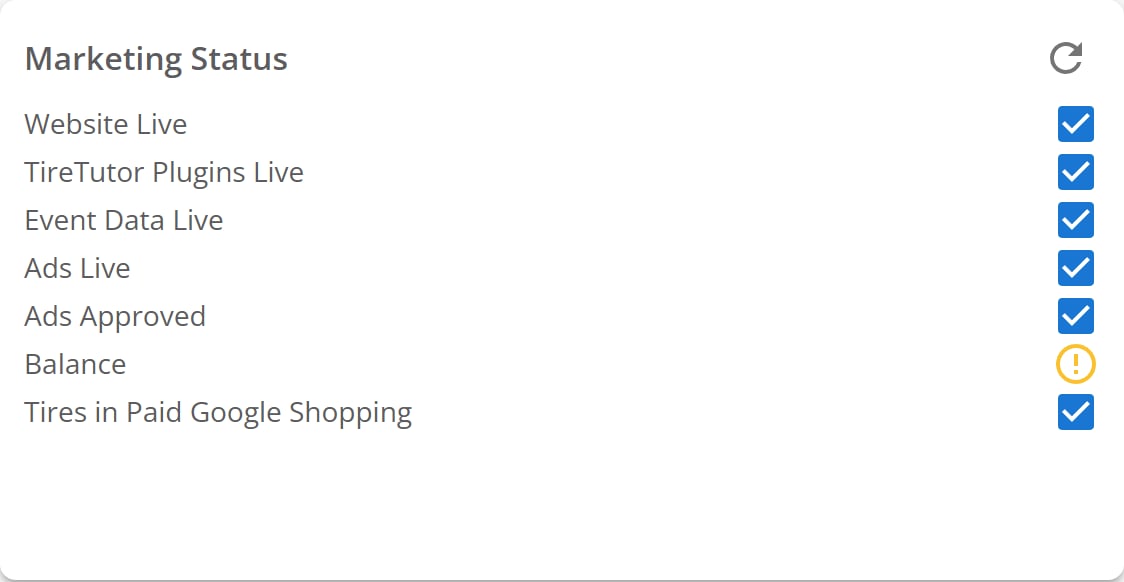
**Marketing Status** carries one row per part of your setup. Each row shows a
mark.
### What each mark means
| Mark | What it means |
| - | - |
| Blue tick | Working |
| Yellow warning | Needs attention soon. Your balance is running down |
| Red cross | Stopped. Fix this row |
| Grey question mark | No reading for this row yet |
### What a red cross means on each row
| Row | What a red cross means |
| - | - |
| **Website Live** | Your website did not answer |
| **TireTutor Plugins Live** | The tag, the line of TireTutor code from setup, is missing from your site or belongs to another account |
| **Event Data Live** | No customer activity is reaching TireTutor |
| **Ads Live** | No ads are running |
| **Ads Approved** | Google stopped every one of your ads |
| **Balance** | Your balance is too low to keep the ads running |
| **Tires in Paid Google Shopping** | Your tires are not listed in Google Shopping |
**Ads Approved** shows a blue tick even when Google has paused *some* of your
ads. Hover the row to read which state it is in, and select it to open **Ads
with Issues**. A blue tick on this row alone does not mean every ad is
running.
Selecting the **Ads Approved** row opens **Ads with Issues**. It lists each ad
Google stopped, and the reason. A grey pause mark on that row means you have no
active ads at all.
## Change your daily spend
In your TireTutor dashboard, open **Marketing**, then **AI Marketing
Agent**.
Type the amount in **Target Daily Spend**. The field holds you to the
lowest and highest daily spend TireTutor allows.
Select **Save**. A message confirms the change.
Type more than your balance covers and the field rewrites itself as soon as
you click away. It drops to the highest amount your balance supports, without
a message. Check the figure before you select **Save**.
## Pause or restart your ads
Turning **Activate Advertising** off stops every ad for every one of your
shops. Your budget, your goals, and your balance stay as they are, and your
subscription keeps running.
Turn the **Activate Advertising** switch off. An alert then appears in the
panel to confirm the pause.
To start again, turn the switch back on, or select **Enable Advertising** in
that alert.
## Check your ad balance
**Marketing Balance** shows the funds you hold for ads.
When your balance covers fewer than 21 days at your current rate, the panel
warns you. It names the days left, the date of your next top-up, and its
amount. The top-up charges 30 times your daily spend.
## Choose what your ads bring in
Two sliders set your goals. They are the same two settings you chose during
setup, under the names the dashboard uses:
* **Goal of Customer Action** moves between tires and services. You set this
as **Preferred Sales Type** during setup.
* **Preferred Conversion Type** moves between phone calls and online. You set
this as **Preferred Contact** during setup.
**Let AI optimize automatically** decides who sets them.
| Switch | Who sets the sliders | What you can do |
| - | - | - |
| On | The AI Marketing Analyst | Both sliders are greyed out. Read its reasoning with **Why this?** |
| Off | You | Move either slider. A blue dot marks the value the analyst suggests |
Turning the switch off holds your own settings for seven days only. An alert
names the date the analyst takes over again, and offers **Make permanent** to
keep your settings with no end date.
Budget changes reach Google straight away. Changes to these goals can take up
to a month to show in your results.
## Check whether your ads are running
**Marketing Status** carries one row per part of your setup. Each row shows a
mark.
### What each mark means
| Mark | What it means |
| - | - |
| Blue tick | Working |
| Yellow warning | Needs attention soon. Your balance is running down |
| Red cross | Stopped. Fix this row |
| Grey question mark | No reading for this row yet |
### What a red cross means on each row
| Row | What a red cross means |
| - | - |
| **Website Live** | Your website did not answer |
| **TireTutor Plugins Live** | The tag, the line of TireTutor code from setup, is missing from your site or belongs to another account |
| **Event Data Live** | No customer activity is reaching TireTutor |
| **Ads Live** | No ads are running |
| **Ads Approved** | Google stopped every one of your ads |
| **Balance** | Your balance is too low to keep the ads running |
| **Tires in Paid Google Shopping** | Your tires are not listed in Google Shopping |
**Ads Approved** shows a blue tick even when Google has paused *some* of your
ads. Hover the row to read which state it is in, and select it to open **Ads
with Issues**. A blue tick on this row alone does not mean every ad is
running.
Selecting the **Ads Approved** row opens **Ads with Issues**. It lists each ad
Google stopped, and the reason. A grey pause mark on that row means you have no
active ads at all.
 ## If it doesn't work
**Saving your daily spend returns an error.** The amount is too low once the
platform fee comes out of it. Raise it and save again.
**A row stays red after you fix it.** The panel refreshes every five minutes.
Select the refresh icon to check again.
**Every status row looks healthy but nothing spends.** Check the **Activate Advertising** switch and your balance. Hover **Ads Approved** to see whether Google paused part of your account. Contact support if all three look right.
**ROI Analytics shows "No analytics available".** Each shop gets its own report, so one shop can work while another shows nothing. Contact support and name the shop you were looking at.
**Anything else.** Contact support.
## Where to go next
What the agent does for your shop, and what it costs.
The five steps of setup, from sign-up to the website tag.
## Still need help?
Contact support through the [contact form](https://tiretutor.com/contact), or call [855-400-4521](tel:+18554004521).
Say which row in **Marketing Status** carries the red mark, and what your
balance reads.
## If it doesn't work
**Saving your daily spend returns an error.** The amount is too low once the
platform fee comes out of it. Raise it and save again.
**A row stays red after you fix it.** The panel refreshes every five minutes.
Select the refresh icon to check again.
**Every status row looks healthy but nothing spends.** Check the **Activate Advertising** switch and your balance. Hover **Ads Approved** to see whether Google paused part of your account. Contact support if all three look right.
**ROI Analytics shows "No analytics available".** Each shop gets its own report, so one shop can work while another shows nothing. Contact support and name the shop you were looking at.
**Anything else.** Contact support.
## Where to go next
What the agent does for your shop, and what it costs.
The five steps of setup, from sign-up to the website tag.
## Still need help?
Contact support through the [contact form](https://tiretutor.com/contact), or call [855-400-4521](tel:+18554004521).
Say which row in **Marketing Status** carries the red mark, and what your
balance reads.