> ## Documentation Index
> Fetch the complete documentation index at: https://help.tiretutor.ai/llms.txt
> Use this file to discover all available pages before exploring further.
# Planning work on Shop Load
> See every open work order by bay and time, and drag each job into place as work moves through your store.
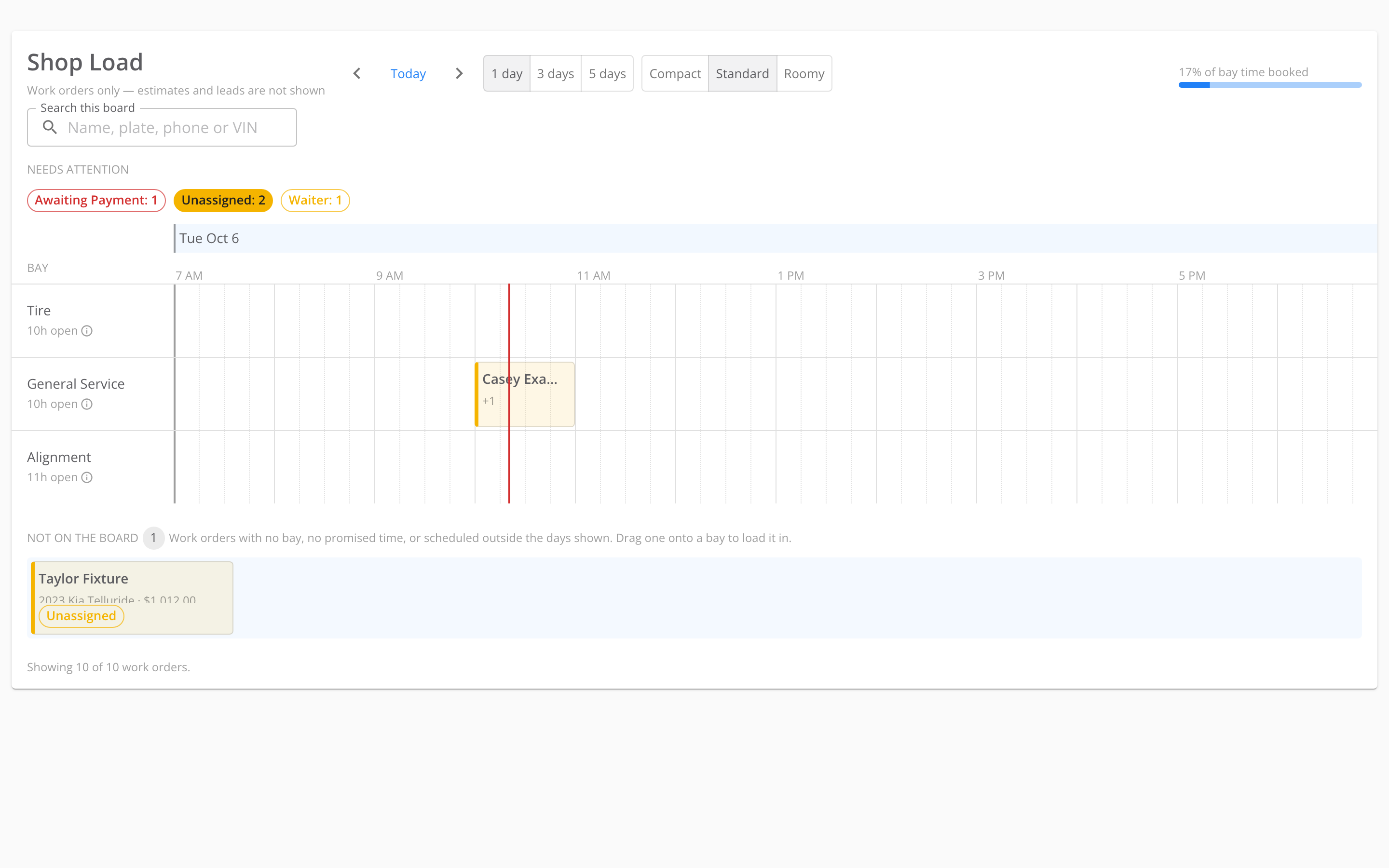
Shop Load lays your open work orders out on a time grid, one row for each bay. Think of the strip along the bottom as the stack of printed work orders in sleeves on your counter. As each job moves into a bay, drag its card into that bay and the time it starts.
Shop Load uses your store's **service categories** as its bays, so it needs at least one set up. See [Set up your bays](#set-up-your-bays).
## Open Shop Load
In the side menu, select **POS** › **Shop Load**.
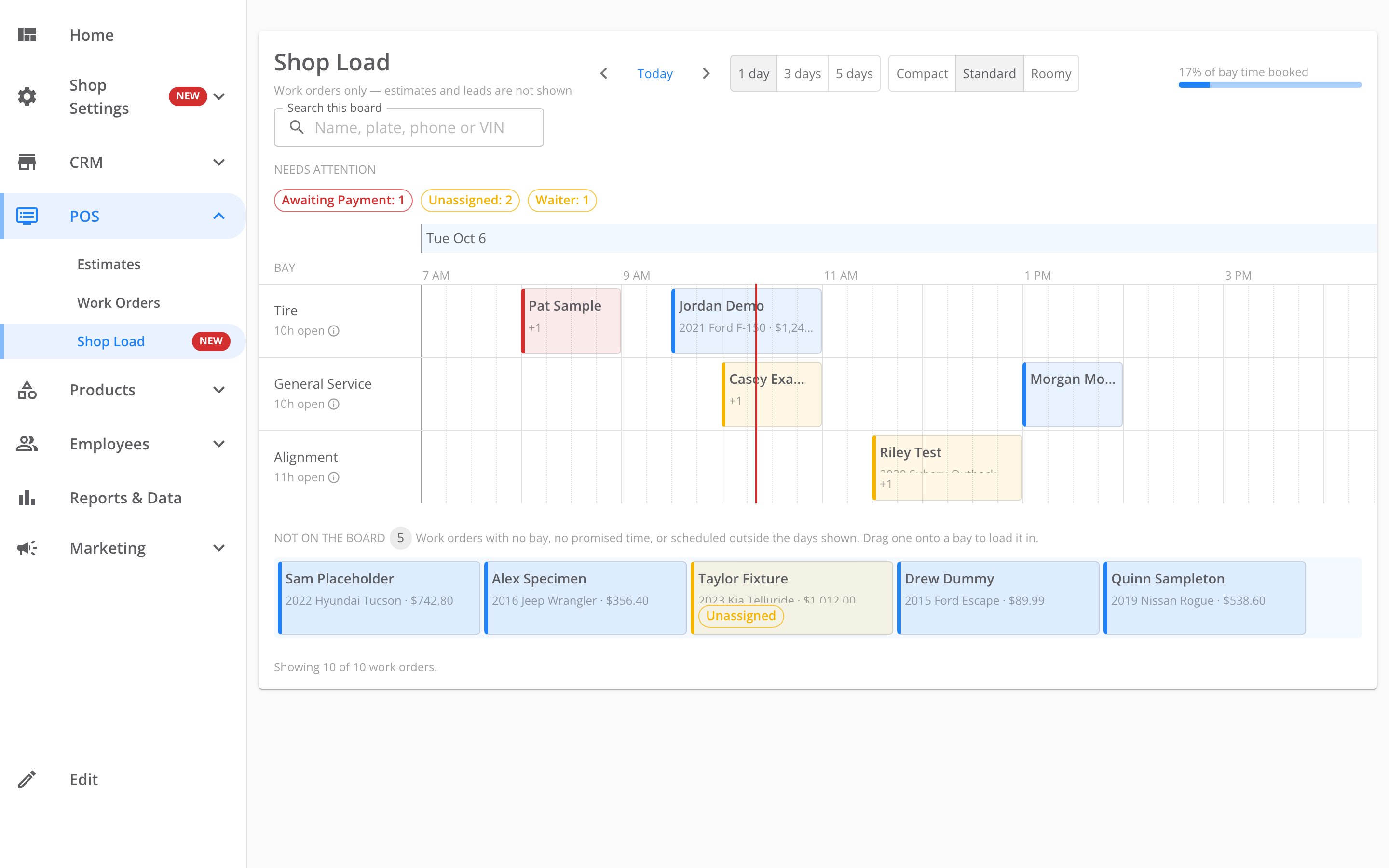 The board shows the store you have open. To see another store, change the store at the top of the page.
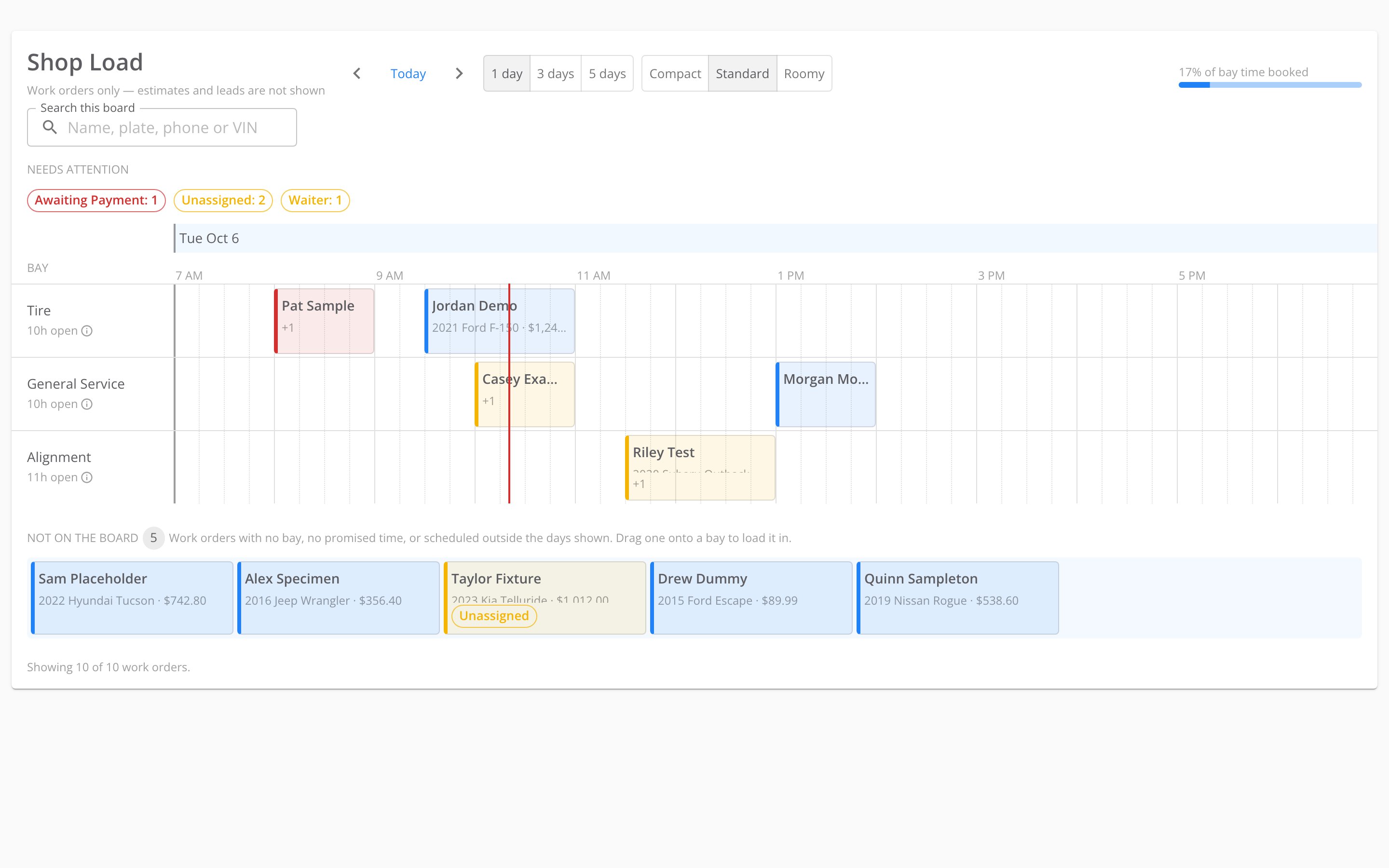 * **Bays.** Each row is one bay, named after a service category: **Tire**, **General Service** or **Alignment**.
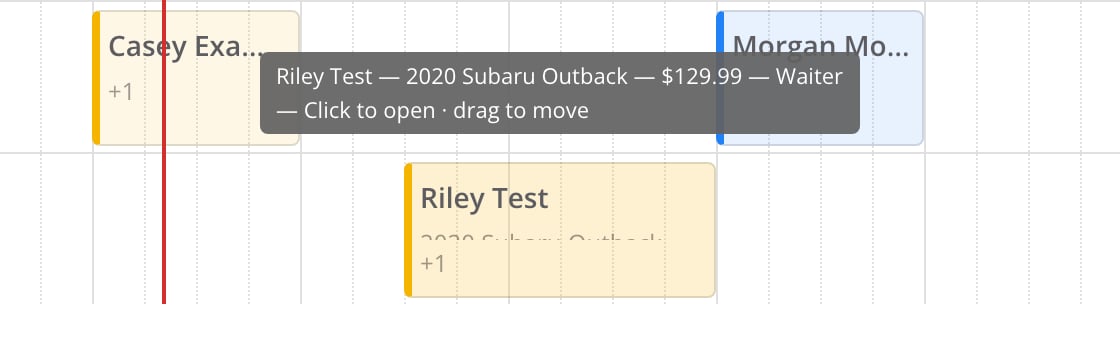
* **Cards.** A card shows the customer's name, the vehicle and the work order total. A tag is a short label below them, such as **Unassigned**, that flags what needs attention. A **+1** means the card has one more tag than it has room for. Hover over the card to see it.
* **Not on the board.** The strip at the bottom holds work orders with no bay, no promised time, or a time outside the days on screen.
## Set up your bays
Your bays are your store's service categories. Set them up under [**Settings › Organization › Service Categories**](https://dealers.tiretutor.com/settings/organization/service-categories). If you cannot find that page, contact support.
You need **Admin** or **Owner** access to the store to change service categories. **Once you add a service category, you cannot remove it.**
A store can have each service category once, so the board shows up to three bays.
* **Bays.** Each row is one bay, named after a service category: **Tire**, **General Service** or **Alignment**.
* **Cards.** A card shows the customer's name, the vehicle and the work order total. A tag is a short label below them, such as **Unassigned**, that flags what needs attention. A **+1** means the card has one more tag than it has room for. Hover over the card to see it.
* **Not on the board.** The strip at the bottom holds work orders with no bay, no promised time, or a time outside the days on screen.
## Set up your bays
Your bays are your store's service categories. Set them up under [**Settings › Organization › Service Categories**](https://dealers.tiretutor.com/settings/organization/service-categories). If you cannot find that page, contact support.
You need **Admin** or **Owner** access to the store to change service categories. **Once you add a service category, you cannot remove it.**
A store can have each service category once, so the board shows up to three bays.
 The message says to add bays in shop settings. The page you need is **Service Categories**.
## Load a job into a bay
Load a job when it goes into a bay, or when you promise the customer a time.
Find its card in the **Not on the board** strip. The strip shows 12 cards at a time. Select **Show more** to see the rest.
The message says to add bays in shop settings. The page you need is **Service Categories**.
## Load a job into a bay
Load a job when it goes into a bay, or when you promise the customer a time.
Find its card in the **Not on the board** strip. The strip shows 12 cards at a time. Select **Show more** to see the rest.
 Drag the card into the row for the bay the job goes in.
Drop the card on the time the work starts.
The card stays where you drop it, and the work order takes that bay and that start time. The start time is the start of the 15-minute slot you dropped it on.
A card's length is the job's appointment length. Without one, it uses the labor hours on the work order. Without those, it takes 60 minutes.
## Move a job to another bay or time
Drag the card to the new bay, the new time, or both.
The job takes the start time of the slot you drop it on. To keep a job's start time while you move it to another bay, drop it in the same time column.
You cannot drag a card back into the **Not on the board** strip.
## Open a work order
Click a card to open its work order.
Drag the card into the row for the bay the job goes in.
Drop the card on the time the work starts.
The card stays where you drop it, and the work order takes that bay and that start time. The start time is the start of the 15-minute slot you dropped it on.
A card's length is the job's appointment length. Without one, it uses the labor hours on the work order. Without those, it takes 60 minutes.
## Move a job to another bay or time
Drag the card to the new bay, the new time, or both.
The job takes the start time of the slot you drop it on. To keep a job's start time while you move it to another bay, drop it in the same time column.
You cannot drag a card back into the **Not on the board** strip.
## Open a work order
Click a card to open its work order.
 ## See how busy each bay is
* **Open time.** Under each bay's name, a figure such as **10h open** shows the unbooked time in that bay across the days on screen.
* **Booked time.** The bar at the top right shows the share of bay time that has work in it, such as **17% of bay time booked**. That means jobs fill 17 of every 100 bookable minutes across your bays. The bar turns red above 90%.
* **The day.** The grid runs from 7 AM to 7 PM in 15-minute slots. A red line marks the current time.
## Spot a double booking
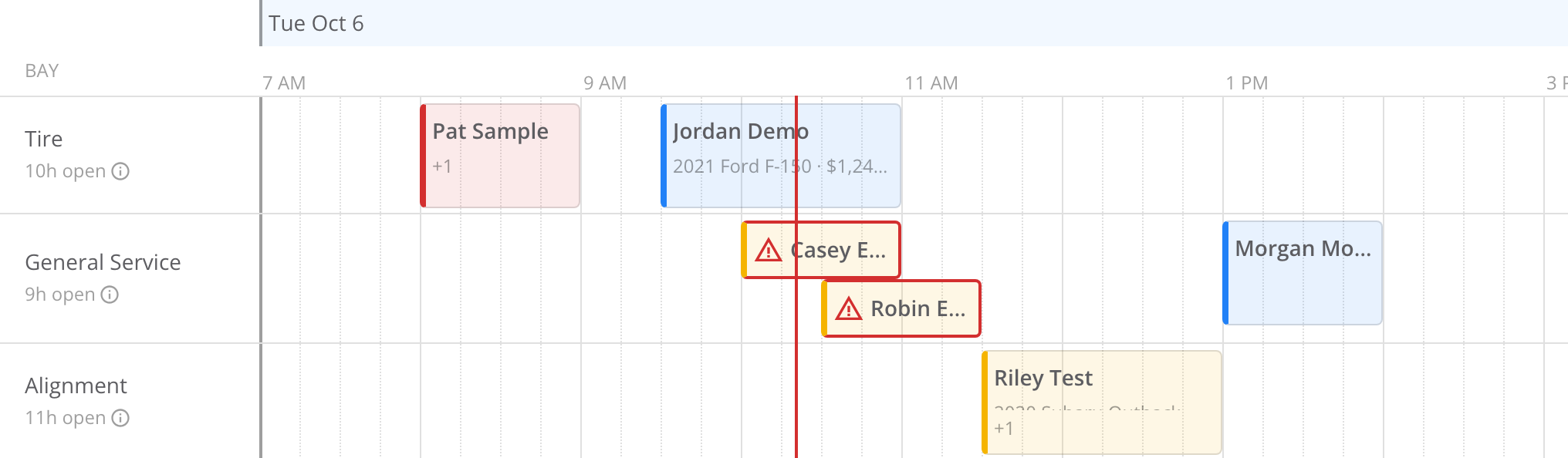
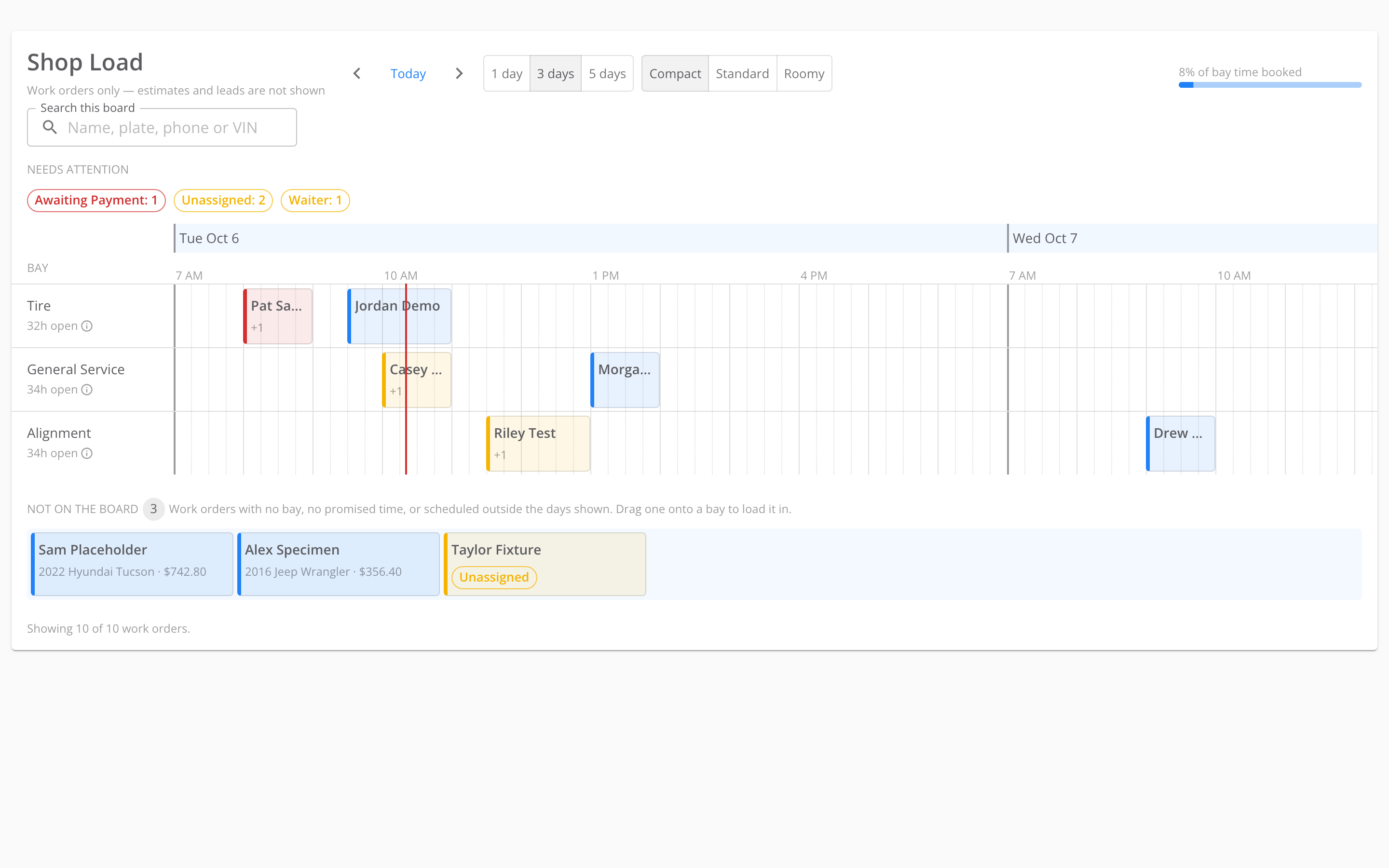
Two jobs can share a bay at the same time. Shop Load does not stop you, but it puts a red outline around both cards and adds a warning icon.
## See how busy each bay is
* **Open time.** Under each bay's name, a figure such as **10h open** shows the unbooked time in that bay across the days on screen.
* **Booked time.** The bar at the top right shows the share of bay time that has work in it, such as **17% of bay time booked**. That means jobs fill 17 of every 100 bookable minutes across your bays. The bar turns red above 90%.
* **The day.** The grid runs from 7 AM to 7 PM in 15-minute slots. A red line marks the current time.
## Spot a double booking
Two jobs can share a bay at the same time. Shop Load does not stop you, but it puts a red outline around both cards and adds a warning icon.
 ## Find a job
Type in **Search this board** to find a job by customer name, license plate, phone number or VIN.
The **Needs attention** chips count the jobs carrying each tag. Select a chip to show only those jobs. Select the same chip again to see every job.
If no job matches, the board says **No work orders match these filters.** Select **Clear filters** in that message.
## Find a job
Type in **Search this board** to find a job by customer name, license plate, phone number or VIN.
The **Needs attention** chips count the jobs carrying each tag. Select a chip to show only those jobs. Select the same chip again to see every job.
If no job matches, the board says **No work orders match these filters.** Select **Clear filters** in that message.
 ### Needs attention tags
| Tag | What it means |
| - | - |
| **Overdue** | The start time plus the job's length has passed, and the work order is not complete. |
| **No Vehicle** | The work order has no vehicle, so nobody can work on it. |
| **Awaiting Payment** | The work is complete, and the customer still owes money. |
| **Waiter** | The job starts within the next two hours, so the customer may be in your waiting area. |
| **Aging** | The work order has been open for more than 48 hours. |
| **Unassigned** | No technician is on the work order. |
| **Invoice Not Sent** | The work is complete, and nobody has emailed or texted the invoice. |
Five more tags describe the kind of job rather than a problem:
* **Refunds**: the work order has refunded items.
* **Digital Lead**: the job came from an online lead.
* **Mobile**: the job is a mobile service job.
* **Delivery**: the work order has delivery details.
* **National Account**: a national account pays for the job.
## Change what you see
* The arrows on either side of **Today** move the board back and forward. Their tooltips read **Earlier** and **Later**. **Today** brings the board back to today.
* **1 day**, **3 days** and **5 days** set how many days the board shows.
* **Compact**, **Standard** and **Roomy** set how much room each row takes.
### Needs attention tags
| Tag | What it means |
| - | - |
| **Overdue** | The start time plus the job's length has passed, and the work order is not complete. |
| **No Vehicle** | The work order has no vehicle, so nobody can work on it. |
| **Awaiting Payment** | The work is complete, and the customer still owes money. |
| **Waiter** | The job starts within the next two hours, so the customer may be in your waiting area. |
| **Aging** | The work order has been open for more than 48 hours. |
| **Unassigned** | No technician is on the work order. |
| **Invoice Not Sent** | The work is complete, and nobody has emailed or texted the invoice. |
Five more tags describe the kind of job rather than a problem:
* **Refunds**: the work order has refunded items.
* **Digital Lead**: the job came from an online lead.
* **Mobile**: the job is a mobile service job.
* **Delivery**: the work order has delivery details.
* **National Account**: a national account pays for the job.
## Change what you see
* The arrows on either side of **Today** move the board back and forward. Their tooltips read **Earlier** and **Later**. **Today** brings the board back to today.
* **1 day**, **3 days** and **5 days** set how many days the board shows.
* **Compact**, **Standard** and **Roomy** set how much room each row takes.
 ## What appears on the board
Shop Load shows work orders only. Estimates and leads do not appear.
A work order stays on the board until it is complete and paid. A payment for the full amount completes the work order, so the job leaves the board. A work order with a partial payment stays.
The board loads up to 200 work orders. A store with more sees a message above the board that starts **Showing only X of Y work orders**. When you see it, the open time, the booked share and the double-booking warnings count only the jobs the board loaded.
## Shop Load limitations
* **Fixed hours.** The grid always runs from 7 AM to 7 PM. It does not use your store's business hours.
* **Up to three bays.** Each bay is a service category, so the board cannot show one row per lift or per technician.
* **No change of length on the board.** To change a job's length, open the [scheduler](/dealers/scheduler/overview). Drag the bottom edge of its block, or set the end time in **Edit appointment**. Shop Load uses the new length.
* **Online booking is separate.** Your website's booking calendar does not read Shop Load. A full bay does not stop a customer booking that time online.
* **Other screens refresh on reload.** A move on Shop Load saves at once. The scheduler and other open screens show it the next time they load.
## How you know it worked
The card stays in the bay and time where you dropped it, and no message appears.
## If it doesn't work
If a move does not save, a message tells you which part saved. For example: **Only the time change saved — the bay change was not confirmed.** The board then puts the card back where the work order says it is. Move the card again.
If the message ends **reload to see what is actually scheduled**, reload the page before you move anything else.
If the board says **We could not load the shop load board. Please refresh to try again.**, reload the page. If it still does not load, contact support.
This documentation is built and hosted on [Mintlify](https://mintlify.com), a developer documentation platform.
## What appears on the board
Shop Load shows work orders only. Estimates and leads do not appear.
A work order stays on the board until it is complete and paid. A payment for the full amount completes the work order, so the job leaves the board. A work order with a partial payment stays.
The board loads up to 200 work orders. A store with more sees a message above the board that starts **Showing only X of Y work orders**. When you see it, the open time, the booked share and the double-booking warnings count only the jobs the board loaded.
## Shop Load limitations
* **Fixed hours.** The grid always runs from 7 AM to 7 PM. It does not use your store's business hours.
* **Up to three bays.** Each bay is a service category, so the board cannot show one row per lift or per technician.
* **No change of length on the board.** To change a job's length, open the [scheduler](/dealers/scheduler/overview). Drag the bottom edge of its block, or set the end time in **Edit appointment**. Shop Load uses the new length.
* **Online booking is separate.** Your website's booking calendar does not read Shop Load. A full bay does not stop a customer booking that time online.
* **Other screens refresh on reload.** A move on Shop Load saves at once. The scheduler and other open screens show it the next time they load.
## How you know it worked
The card stays in the bay and time where you dropped it, and no message appears.
## If it doesn't work
If a move does not save, a message tells you which part saved. For example: **Only the time change saved — the bay change was not confirmed.** The board then puts the card back where the work order says it is. Move the card again.
If the message ends **reload to see what is actually scheduled**, reload the page before you move anything else.
If the board says **We could not load the shop load board. Please refresh to try again.**, reload the page. If it still does not load, contact support.
This documentation is built and hosted on [Mintlify](https://mintlify.com), a developer documentation platform.