> ## Documentation Index
> Fetch the complete documentation index at: https://help.tiretutor.ai/llms.txt
> Use this file to discover all available pages before exploring further.
# Printing tire comparisons
> Compare selected tires and print their prices, sizes, and SKUs for a customer.
Use a printed comparison when a customer wants to review several tire choices.
## Search for tires
If your shop has **Tire Catalog** turned on, open **Products** › **Tire Catalog**. The catalog searches by tire size or by SKU.
### Search by tire size
Select **Tire Size**.
Search for the tire size.
### Search by SKU
Select **SKU**.
Enter the product code in **Search for an SKU**.
Press Enter.
An SKU search checks for the exact product code first. Where it finds none, the results show similar product codes.
## Choose tires to compare
Select the checkbox for each tire that you want to compare.
Select **Compare Quote Prices**.
## Review the comparison
The **Compare Tires** dialog shows **Per Unit**, **Installed**, and **Set of 4** prices. **Quantity** starts at 4.
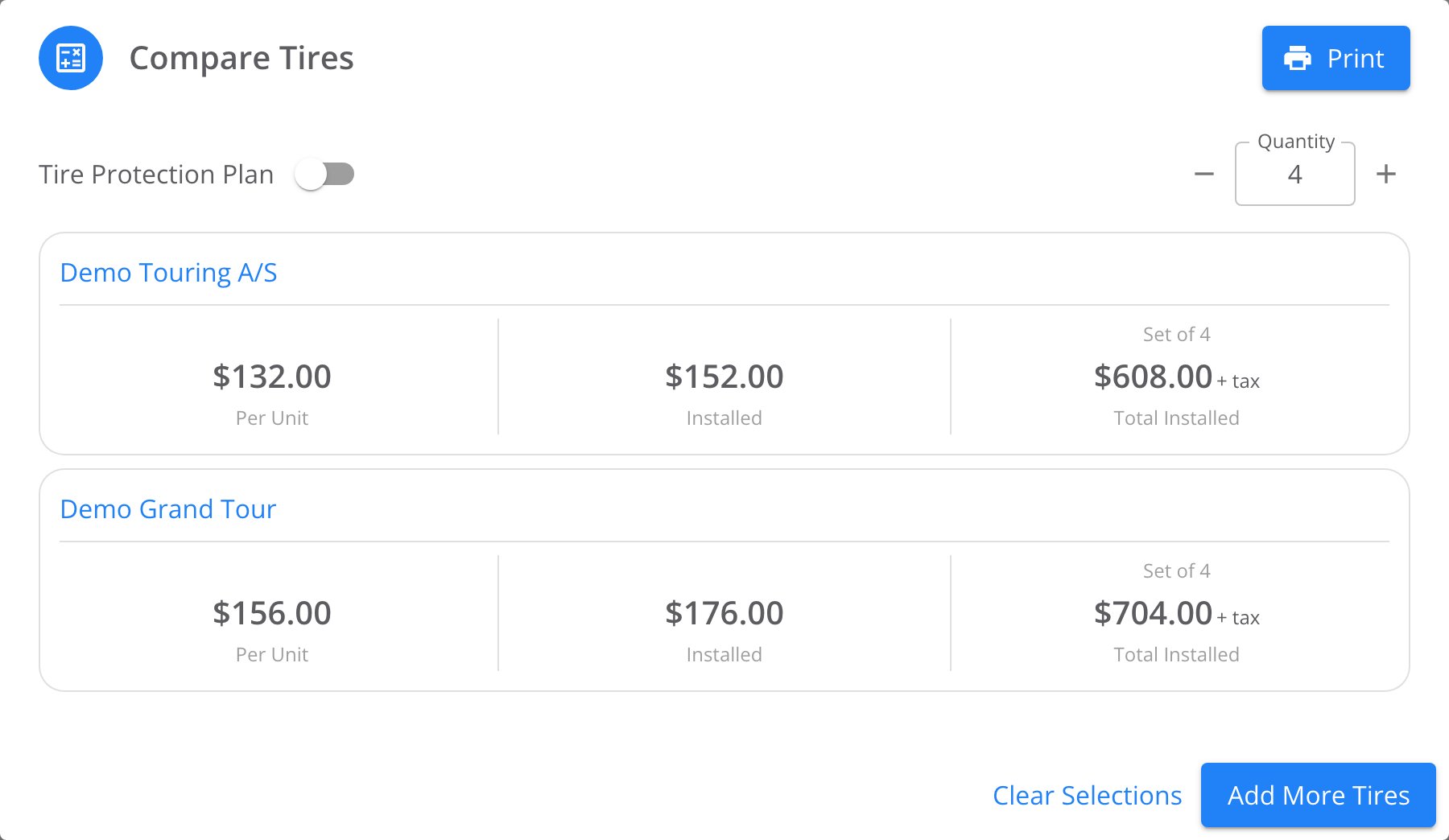 To include a protection plan, turn on **Tire Protection Plan**. Enter the amount in **Rate**. Choose a percentage or flat fee.
## Print the comparison
Review each tire and its prices in **Compare Tires**.
Select **Print** in the dialog's title bar.
The printout has these columns:
* **Image**
* **Name**
* **Tire Size**
* **SKU**
* **Unit Price**
* **Installed Price**
* **QTY**
* **Total Price (without tax)**
It also shows the shop's logo, name, and address. The footer shows the print date, a 30-day expiration, and **Powered by TireTutor**.
The browser print dialog opens with the selected tires and shop details in the preview.
## Where to go next
Send an estimate for the customer to review.
Understand how estimates, work orders, and payments fit together.
To include a protection plan, turn on **Tire Protection Plan**. Enter the amount in **Rate**. Choose a percentage or flat fee.
## Print the comparison
Review each tire and its prices in **Compare Tires**.
Select **Print** in the dialog's title bar.
The printout has these columns:
* **Image**
* **Name**
* **Tire Size**
* **SKU**
* **Unit Price**
* **Installed Price**
* **QTY**
* **Total Price (without tax)**
It also shows the shop's logo, name, and address. The footer shows the print date, a 30-day expiration, and **Powered by TireTutor**.
The browser print dialog opens with the selected tires and shop details in the preview.
## Where to go next
Send an estimate for the customer to review.
Understand how estimates, work orders, and payments fit together.