> ## Documentation Index
> Fetch the complete documentation index at: https://help.tiretutor.ai/llms.txt
> Use this file to discover all available pages before exploring further.
# Reopening a work order
> Reopen a completed work order to enter mileage or change items, then complete it again.
When a work order reaches **Completed**, its items and mileage fields lock. Reopening returns the order to **In Progress** so you can change them, then you complete it again.
Only a dealer Owner or Admin can reopen a work order. Reopening does not change the payments already on the order.
## Before you start
* Sign in as a dealer Owner or Admin.
* Find the completed work order. TireTutor does not reopen a voided order.
## Reopen and enter mileage
**When:** The customer paid the full amount before the install, so the automation completed the order before you had the mileage. For a payment that keeps the order open, see [Taking deposits](/dealers/pos/taking-deposits).
Open the completed work order. Select **More Options**, then **Reopen Work Order**.
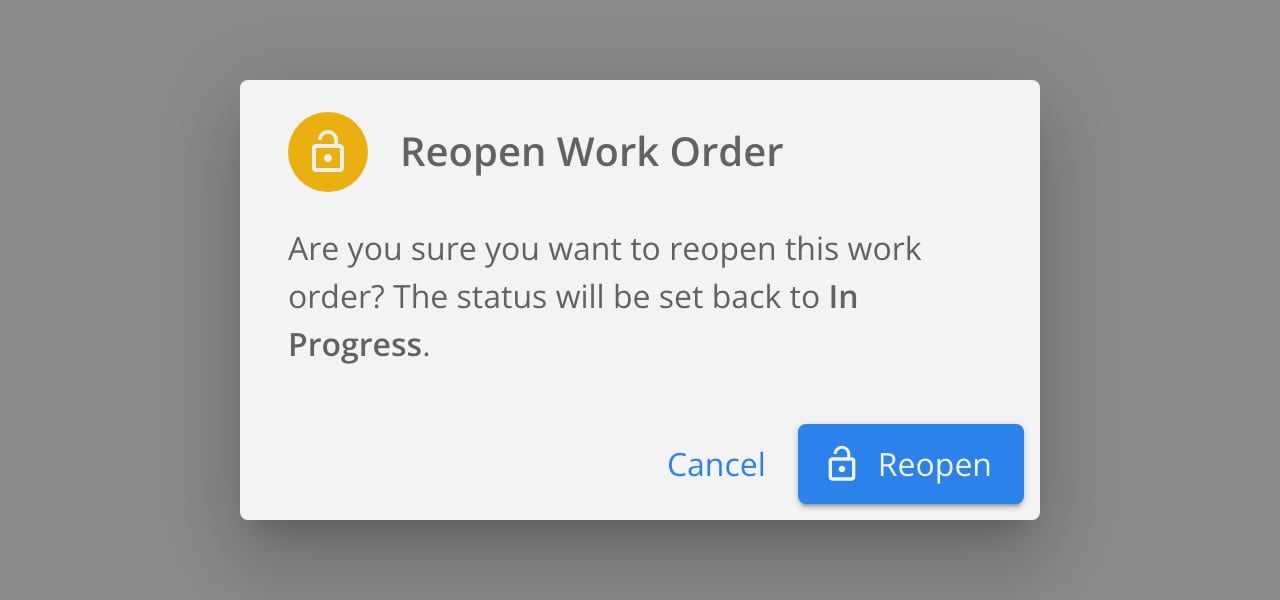
In **Reopen Work Order**, select **Reopen**. The status returns to **In Progress**.
On the **Vehicle Details** card, select the pencil next to **Mileage In**.
In **Edit Mileage Entry**, enter the value in **Mileage**. Select **Update**.
Select **Set Completed**.
In **Set Work Order as "Completed"**, select **Set Completed**.
 The status chip reads **Completed** again and the **Vehicle Details** card shows the mileage.
## Where to go next
Take part of the balance up front and keep the work order open.
Void an unpaid work order and keep the reason on file.
The status chip reads **Completed** again and the **Vehicle Details** card shows the mileage.
## Where to go next
Take part of the balance up front and keep the work order open.
Void an unpaid work order and keep the reason on file.