> ## Documentation Index
> Fetch the complete documentation index at: https://help.tiretutor.ai/llms.txt
> Use this file to discover all available pages before exploring further.
# Square messaging
> Have two-way text conversations with customers through Square Messages — which needs the paid Square Messages Plus upgrade — and know how that differs from texting an invoice link.
Square messaging is a two-way conversation between you and the customer
through **Square Messages**. It stays anchored to the job, with the invoice
link in the thread when they're ready to pay.
**Two-way messaging requires a paid upgrade — buy it before you start.**
Add **Square Messages Plus** in Square. That upgrade is what lets you
*start* a conversation, which is exactly what the TireTutor flow on this
page does. If your shop is on Square Free, Square routes you to **Square
Plus** or **Premium** first.
Without **Square Messages Plus** you can only *reply* to customers who text you first — the
TireTutor dialog still opens, but Square blocks that first
message. See [Which plan you need](#which-plan-you-need).
It is not the same thing as **Text the invoice link**, which sends one
ordinary text with a payment link and nothing more — and needs no Square plan
at all, because TireTutor sends it. That's
[covered below](#text-the-invoice-link-not-square-messaging) so you can tell
the two apart in the send menu.
## Before you start
* **Square Messages Plus, if you want to start conversations.** See the
warning above and [Which plan you need](#which-plan-you-need).
* **Your Square panel shows Connected.** One-time setup — follow
[Square setup](/dealers/pos/square-setup) if the Square panel doesn't show
**Connected**, then confirm **Connection health** passes its invoice-writing
check. No terminal is needed for anything on this page.
* **The customer has a mobile number on file.** Square messaging and the
invoice-link text both go to the number on the customer record, so add one
first. Confirm the customer wants texts before sending.
## Turn on Square Messages
**Square Messages** holds the conversations you send through Square, not
TireTutor. Turn it on once (Square's free tier covers this):
Sign in to Square Dashboard, choose the **Messages** icon, then **Get
started**. On the Square POS app instead: **More → Add-ons → Messages →
Add for free**.
This paid step makes the TireTutor flow below work. Add **Square Messages Plus** in
Square. If your shop is on Square Free, Square routes you to **Square
Plus** or **Premium** first.
Skip this upgrade and you can only *reply* to customers who text you first.
## Which plan you need
Square gates two-way messaging behind the paid tier, so this decides whether
the flow below works at all:
| What you want to do | Plan |
| - | - |
| **Start** a text conversation with a customer — including the TireTutor **Open messages** flow | **Square Messages Plus** (paid) |
| Get a dedicated business number | **Square Messages Plus** (paid) |
| **Reply** to a customer who texted you first, including replies to receipts and invoices | Square's free tier |
| Text an invoice link from TireTutor ([below](#text-the-invoice-link-not-square-messaging)) | No Square plan needed — TireTutor sends it |
On Square's free tier you cannot start a conversation. The TireTutor
dialog still copies the number and opens Square Messages, but Square blocks
the first message.
**Upgrade to Square Messages Plus before
relying on this for customer payments.** The dialog says as much: "Two-way
messaging requires a paid Square upgrade."
Square's own guide: [Set up and manage Messages](https://squareup.com/help/us/en/article/7985-get-started-with-square-messages-plus).
## Message a customer from a work order
**When:** You want a two-way conversation with the customer about the job —
including sharing the invoice link so they can pay from their phone.
This is Square messaging: the message goes out inside a **Square Messages**
conversation, the prepared text already carries the invoice link, and the
customer's reply lands threaded in your Messages inbox.
Open the work order with the balance the customer needs to pay. Check the customer's mobile number.
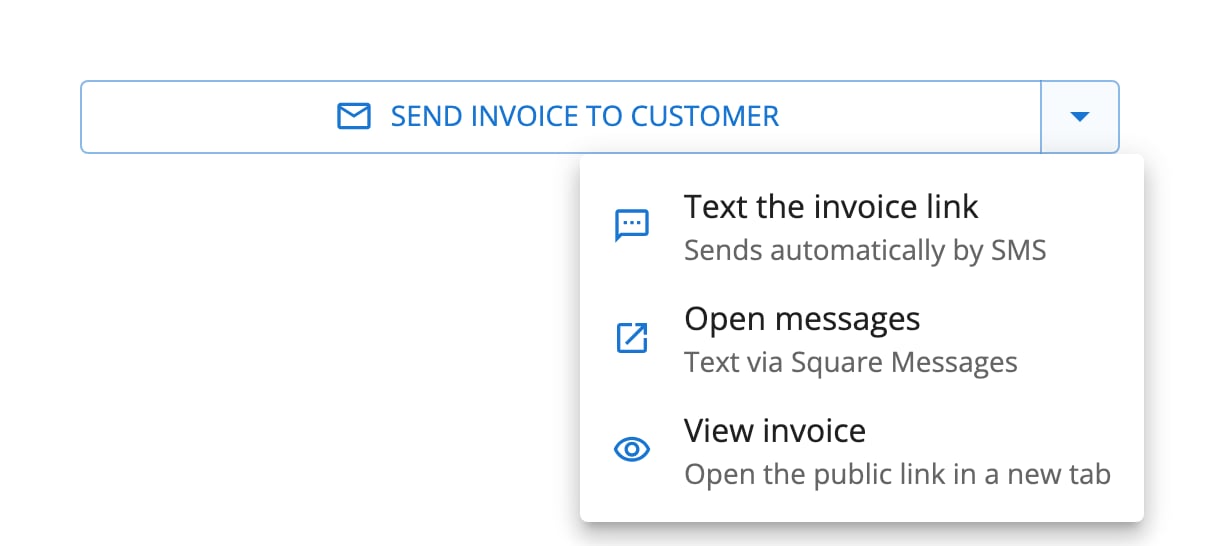
Next to the **Send Invoice to Customer** button, choose the unlabeled
arrow — it opens a menu with more ways to send.
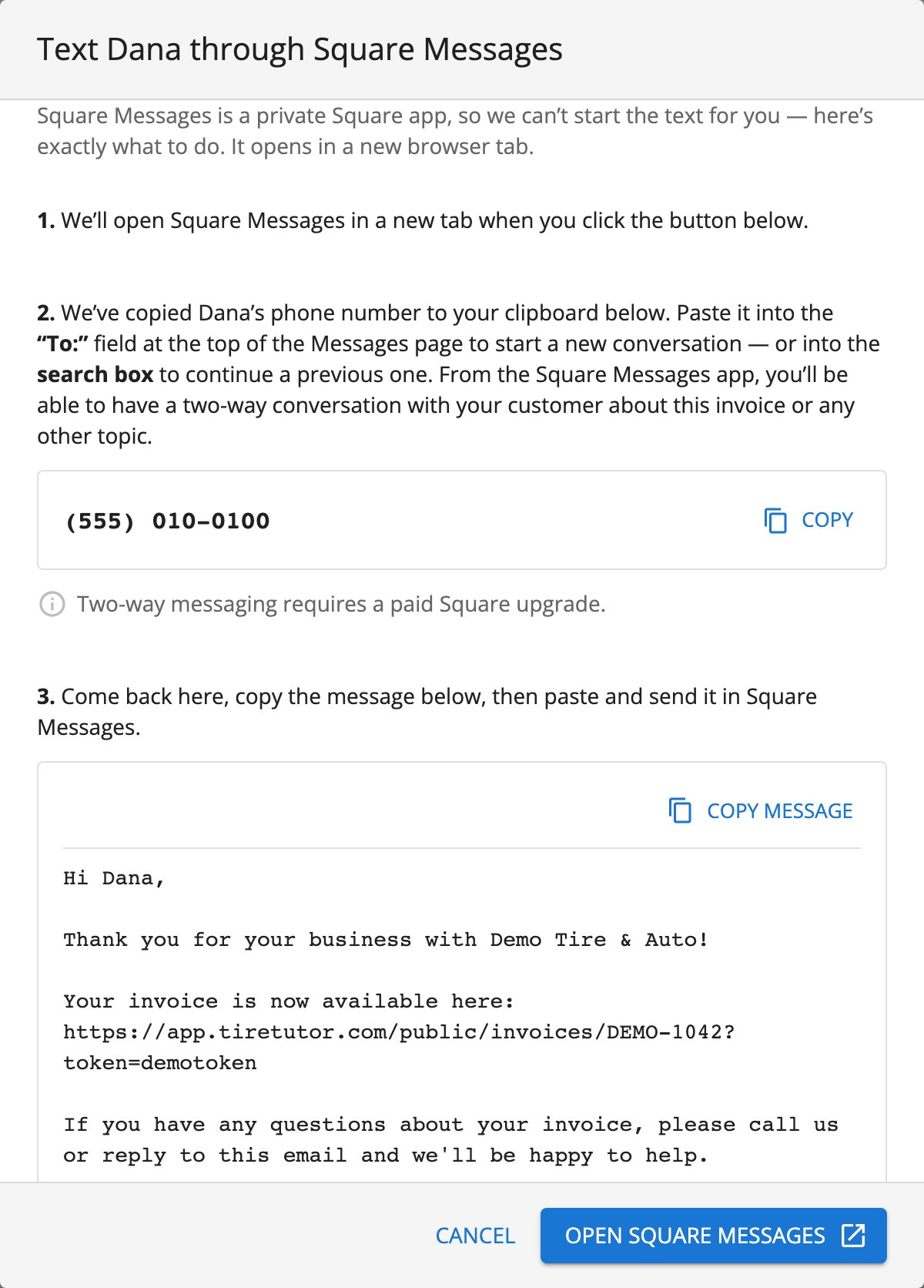
A short guided dialog does the fiddly parts for you.
1. Choose **Open Square Messages** at the bottom of the dialog. TireTutor
copies the customer's phone number to your clipboard and opens Square
Messages in a new browser tab.
2. In Square Messages, paste the number into the **"To:"** field to start
a conversation, or into the **search box** to continue one.
3. Come back to the TireTutor tab, choose **Copy message** on the prepared
text — a greeting with the invoice link already in it — then paste and
send it in Square Messages.
 Your message shows as sent in the Square Messages thread, with the invoice
link in it. The customer's reply appears in the same thread.
Don't see **Open messages** in the menu? Contact support to turn on the Square Messages shortcut for your shop. This TireTutor shortcut is separate from Square's own Square Messages product.
This flow **starts** a conversation, so it needs **Square Messages Plus**. See [Which plan you need](#which-plan-you-need). Replying to a customer who texted you first is free.
Use Square's guides:
* [Set up and manage Messages](https://squareup.com/help/us/en/article/7985-get-started-with-square-messages-plus)
* [Message your customers](https://squareup.com/help/us/en/article/8415-reply-to-customers-with-square-messages)
The same conversation works for anything about the job, not just payment —
the prepared message is a starting point you can edit before sending.
## Text the invoice link (not Square messaging)
**This is not Square Messages.**
The send menu offers **Text the invoice link**, with a sublabel that says the text sends automatically. TireTutor sends one text message with a link to the customer's TireTutor invoice page.
On an estimate, the same item reads **Text the estimate link**. The message sends immediately.
For a Square payment link, use **Contactless Payment Link / Tap to Pay in Square app** under **Process Payment**. Square emails the link when the customer has an email address, and TireTutor texts it when the customer has a phone number. The result dialog tells you which delivery methods it used.
Use it when the customer just needs the link. For a conversation around it, use
[Square messaging](#message-a-customer-from-a-work-order). The two are separate
features, and this one doesn't appear in your Square Messages inbox.
Your message shows as sent in the Square Messages thread, with the invoice
link in it. The customer's reply appears in the same thread.
Don't see **Open messages** in the menu? Contact support to turn on the Square Messages shortcut for your shop. This TireTutor shortcut is separate from Square's own Square Messages product.
This flow **starts** a conversation, so it needs **Square Messages Plus**. See [Which plan you need](#which-plan-you-need). Replying to a customer who texted you first is free.
Use Square's guides:
* [Set up and manage Messages](https://squareup.com/help/us/en/article/7985-get-started-with-square-messages-plus)
* [Message your customers](https://squareup.com/help/us/en/article/8415-reply-to-customers-with-square-messages)
The same conversation works for anything about the job, not just payment —
the prepared message is a starting point you can edit before sending.
## Text the invoice link (not Square messaging)
**This is not Square Messages.**
The send menu offers **Text the invoice link**, with a sublabel that says the text sends automatically. TireTutor sends one text message with a link to the customer's TireTutor invoice page.
On an estimate, the same item reads **Text the estimate link**. The message sends immediately.
For a Square payment link, use **Contactless Payment Link / Tap to Pay in Square app** under **Process Payment**. Square emails the link when the customer has an email address, and TireTutor texts it when the customer has a phone number. The result dialog tells you which delivery methods it used.
Use it when the customer just needs the link. For a conversation around it, use
[Square messaging](#message-a-customer-from-a-work-order). The two are separate
features, and this one doesn't appear in your Square Messages inbox.
 After it sends, the work order shows **Last texted:** with a timestamp, next
to the **Send Invoice to Customer** button.
## View invoice
Select **View invoice — Open the public link in a new tab** from the send menu. TireTutor opens the customer's invoice page in a new tab. This page belongs to TireTutor, not Square.
## Send a receipt by text
Receipts go by text from the Square side at checkout. The customer enters a mobile number on the receipt screen. Follow Square's
[receipt guide](https://squareup.com/help/us/en/article/6139-print-receipts).
## Answer customer replies
When a customer replies to a Square Messages conversation or a Square receipt,
the conversation is in **Messages** in your Square Dashboard, not in TireTutor.
A reply to TireTutor's invoice-link text does not appear there.
Check Messages daily if you message customers through Square — a customer who replies
"does this include the alignment?" is waiting on you there.
## When a payment link won't send
Run **Connection health** in the Square panel first.
[Square setup](/dealers/pos/square-setup) covers what each check means.
TireTutor must write a Square invoice before it can send a payment link. Follow the fix shown for **Payment link enabled**. Then select **I’ve verified in Square — re-check**.
Read **Contactless Payment Link Created**. If the customer has no email address or phone number, use **Copy link** to share it manually.
Check the customer record. Square emails the link to the email address. TireTutor texts it to the phone number.
## Where to go next
Manage a Square payment link.
Take payments and review payment history on a work order.
After it sends, the work order shows **Last texted:** with a timestamp, next
to the **Send Invoice to Customer** button.
## View invoice
Select **View invoice — Open the public link in a new tab** from the send menu. TireTutor opens the customer's invoice page in a new tab. This page belongs to TireTutor, not Square.
## Send a receipt by text
Receipts go by text from the Square side at checkout. The customer enters a mobile number on the receipt screen. Follow Square's
[receipt guide](https://squareup.com/help/us/en/article/6139-print-receipts).
## Answer customer replies
When a customer replies to a Square Messages conversation or a Square receipt,
the conversation is in **Messages** in your Square Dashboard, not in TireTutor.
A reply to TireTutor's invoice-link text does not appear there.
Check Messages daily if you message customers through Square — a customer who replies
"does this include the alignment?" is waiting on you there.
## When a payment link won't send
Run **Connection health** in the Square panel first.
[Square setup](/dealers/pos/square-setup) covers what each check means.
TireTutor must write a Square invoice before it can send a payment link. Follow the fix shown for **Payment link enabled**. Then select **I’ve verified in Square — re-check**.
Read **Contactless Payment Link Created**. If the customer has no email address or phone number, use **Copy link** to share it manually.
Check the customer record. Square emails the link to the email address. TireTutor texts it to the phone number.
## Where to go next
Manage a Square payment link.
Take payments and review payment history on a work order.