> ## Documentation Index
> Fetch the complete documentation index at: https://help.tiretutor.ai/llms.txt
> Use this file to discover all available pages before exploring further.
# Square setup
> Connect Square to TireTutor, map your shop to a Square location, and check payment readiness.
Connect your Square account once, then map each shop to its Square location. The connection supports payment links and card payments on a Square Terminal.
## Connect Square
You need **Admin** or **Owner** access to this shop or its dealer to connect Square or change the location mapping. Otherwise, ask an **Owner** or **Admin** at your shop.
Open [**Settings → Integrations**](https://dealers.tiretutor.com/settings/organization/integrations). Find the Square panel.
Select **Set up Square**.
Complete the connection in Square.
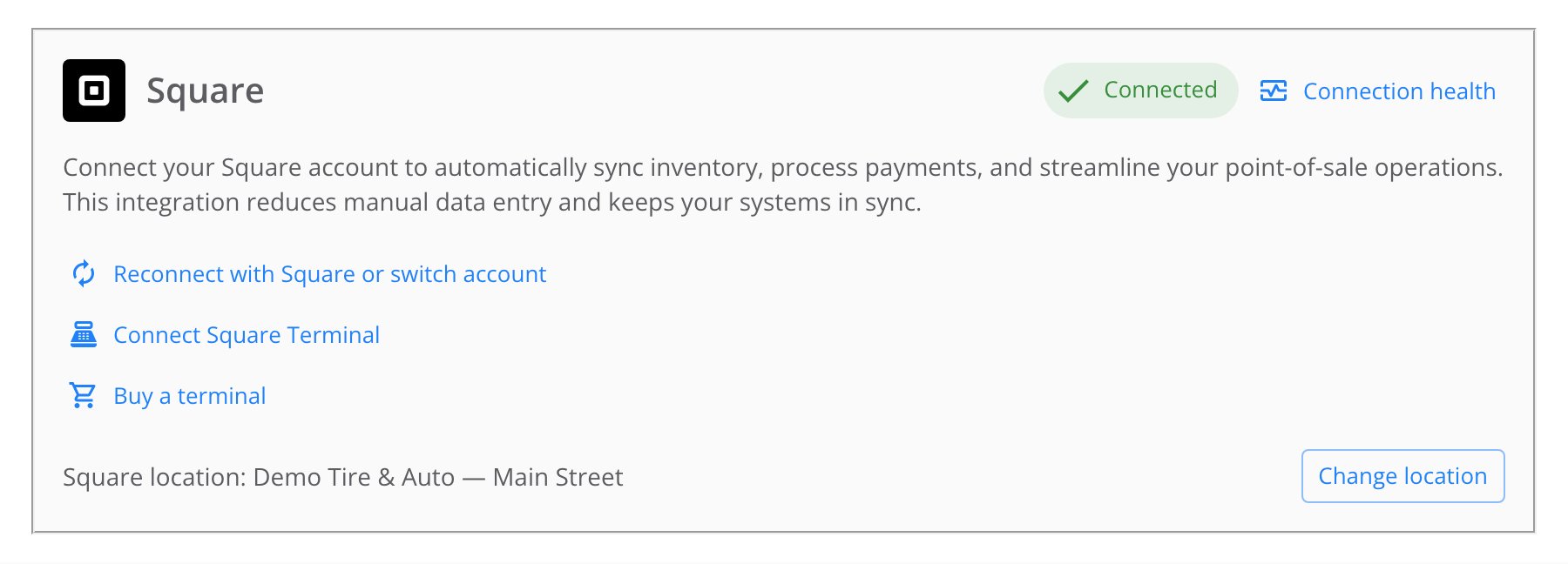
Return to TireTutor. The Square panel shows **Connected**, **Warning**, or **Not Connected**.
Read the **Square location** line in the Square panel.
If the location shows **Not set** or the wrong location, select **Change location**.
In **Map Square location**, select the correct **Square location**. A location already mapped to another shop is unavailable.
Select **Save**.
Select **Connection health**.
Review each row in **Square connection health**.
Follow the action on each row that needs attention.
Select **I’ve verified in Square — re-check** after completing the fixes.
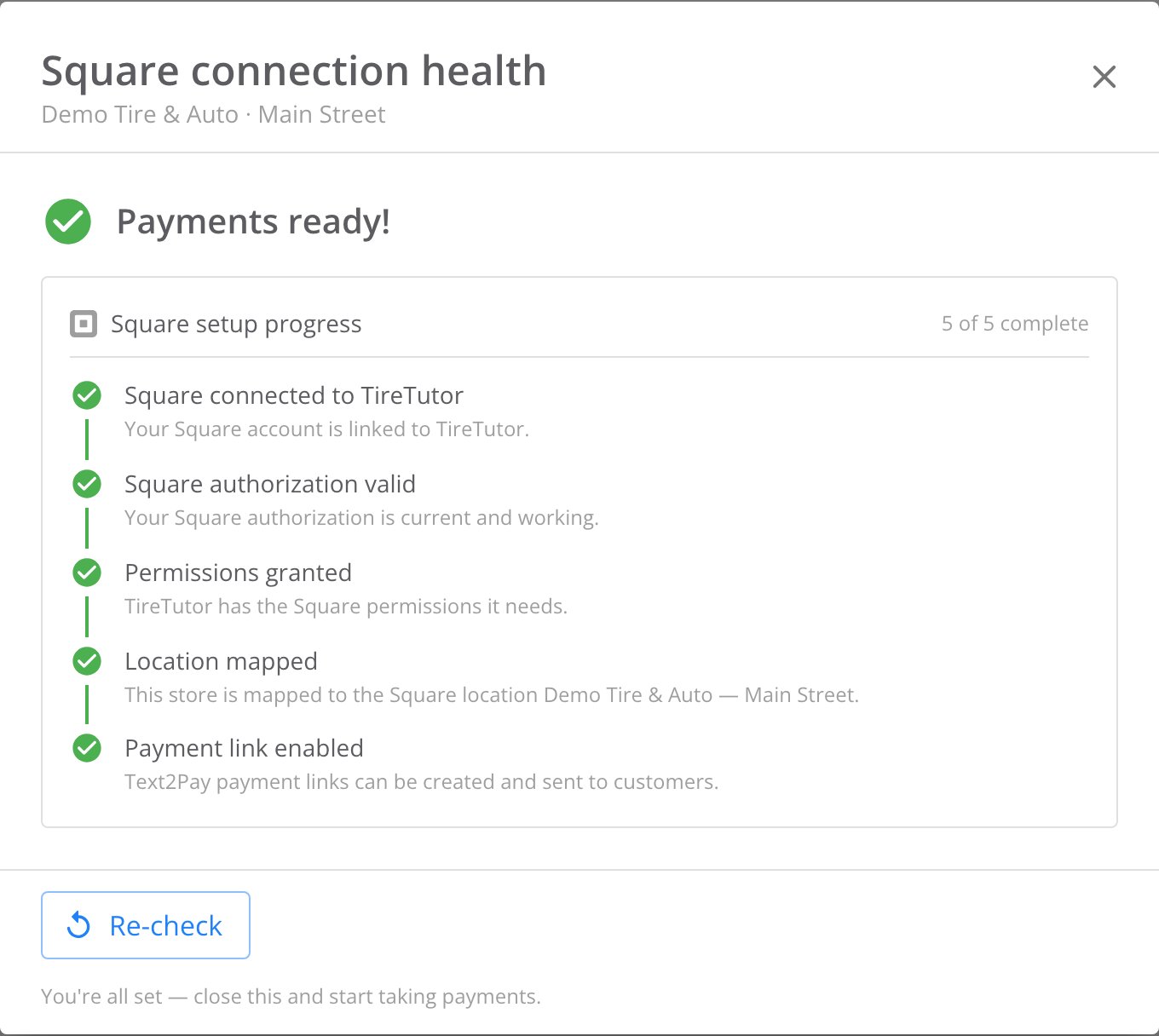 **Square connection health** shows **Payments ready!** Payment links work before you pair a terminal.
## When Connection health flags something
The Square panel shows one of these status chips:
* **Connected**: the required checks passed.
* **Warning**: the Square connection works, but a required check needs attention.
* **Not Connected**: connect or reconnect Square.
Select the chip or **Connection health** to open **Square connection health**.
### Read the checklist
TireTutor runs nine checks in this order:
1. **Square connected to TireTutor**
2. **Square authorization valid**
3. **Permissions granted**
4. **Merchant active**
5. **Location mapped**
6. **Location capable**
7. **Payments observed**
8. **Payment link enabled**
9. **Terminal connected**
A later required row shows **Waiting on an earlier step** until the earlier issue clears, but **Payments observed** runs independently.
**Payments observed** and **Terminal connected** are optional. They do not block payment links, so pair a terminal only when you need card payments on the device.
### Follow the fix on each row
A row can show a fix with a button or link. Follow the action shown on each check.
* A button opens the step in TireTutor: the Square connection, **Map Square location**, or **Connect Square Terminal**.
* A link opens Square or a guide in a new tab. Finish the fix there, then return to TireTutor.
After a Square-side fix, select **I’ve verified in Square — re-check**. When all required rows pass, the footer changes to **Re-check**.
**Square connection health** shows **Payments ready!** Payment links work before you pair a terminal.
## When Connection health flags something
The Square panel shows one of these status chips:
* **Connected**: the required checks passed.
* **Warning**: the Square connection works, but a required check needs attention.
* **Not Connected**: connect or reconnect Square.
Select the chip or **Connection health** to open **Square connection health**.
### Read the checklist
TireTutor runs nine checks in this order:
1. **Square connected to TireTutor**
2. **Square authorization valid**
3. **Permissions granted**
4. **Merchant active**
5. **Location mapped**
6. **Location capable**
7. **Payments observed**
8. **Payment link enabled**
9. **Terminal connected**
A later required row shows **Waiting on an earlier step** until the earlier issue clears, but **Payments observed** runs independently.
**Payments observed** and **Terminal connected** are optional. They do not block payment links, so pair a terminal only when you need card payments on the device.
### Follow the fix on each row
A row can show a fix with a button or link. Follow the action shown on each check.
* A button opens the step in TireTutor: the Square connection, **Map Square location**, or **Connect Square Terminal**.
* A link opens Square or a guide in a new tab. Finish the fix there, then return to TireTutor.
After a Square-side fix, select **I’ve verified in Square — re-check**. When all required rows pass, the footer changes to **Re-check**.
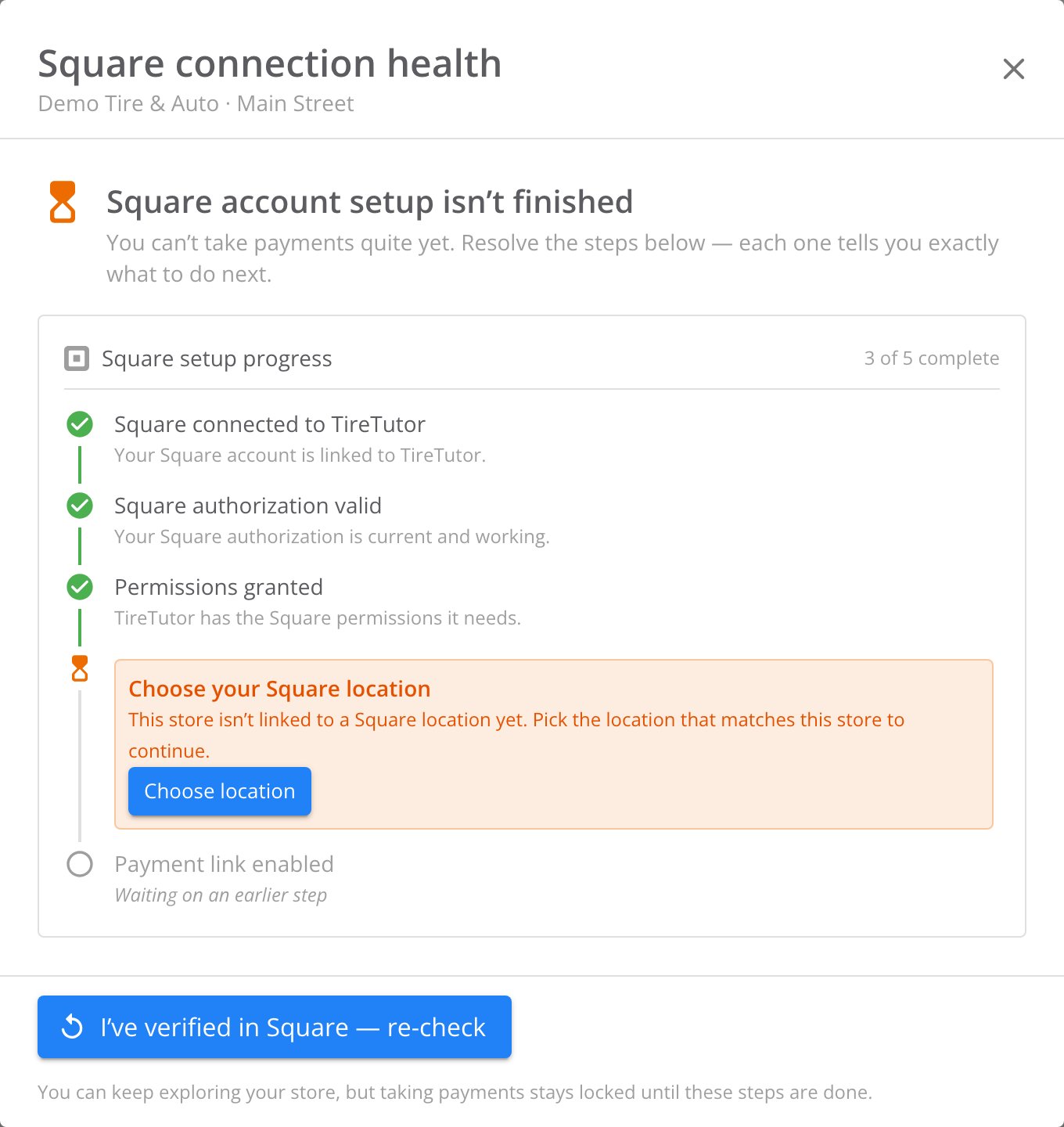 ### Follow the payment warnings
TireTutor also shows setup warnings outside **Settings**:
* **Finish setup to start taking payments** or **Payment setup needs attention** appears in the app banner. Select **View details** to open **Square connection health**.
- **Process Payment** is unavailable on a work order when a required check fails. Select **Please complete Square setup** to open the same dialog.
## Where to go next
Pair a terminal and choose which device takes a payment.
Take payment without a paired terminal.
### Follow the payment warnings
TireTutor also shows setup warnings outside **Settings**:
* **Finish setup to start taking payments** or **Payment setup needs attention** appears in the app banner. Select **View details** to open **Square connection health**.
- **Process Payment** is unavailable on a work order when a required check fails. Select **Please complete Square setup** to open the same dialog.
## Where to go next
Pair a terminal and choose which device takes a payment.
Take payment without a paired terminal.