> ## Documentation Index
> Fetch the complete documentation index at: https://help.tiretutor.ai/llms.txt
> Use this file to discover all available pages before exploring further.
# Taking deposits
> Collect a deposit on a work order without completing it, then record mileage and collect the balance at install.
A deposit is a partial payment. When you record a payment for less than the balance, the work order stays open. Your staff can keep adding items, enter mileage, and collect the rest later.
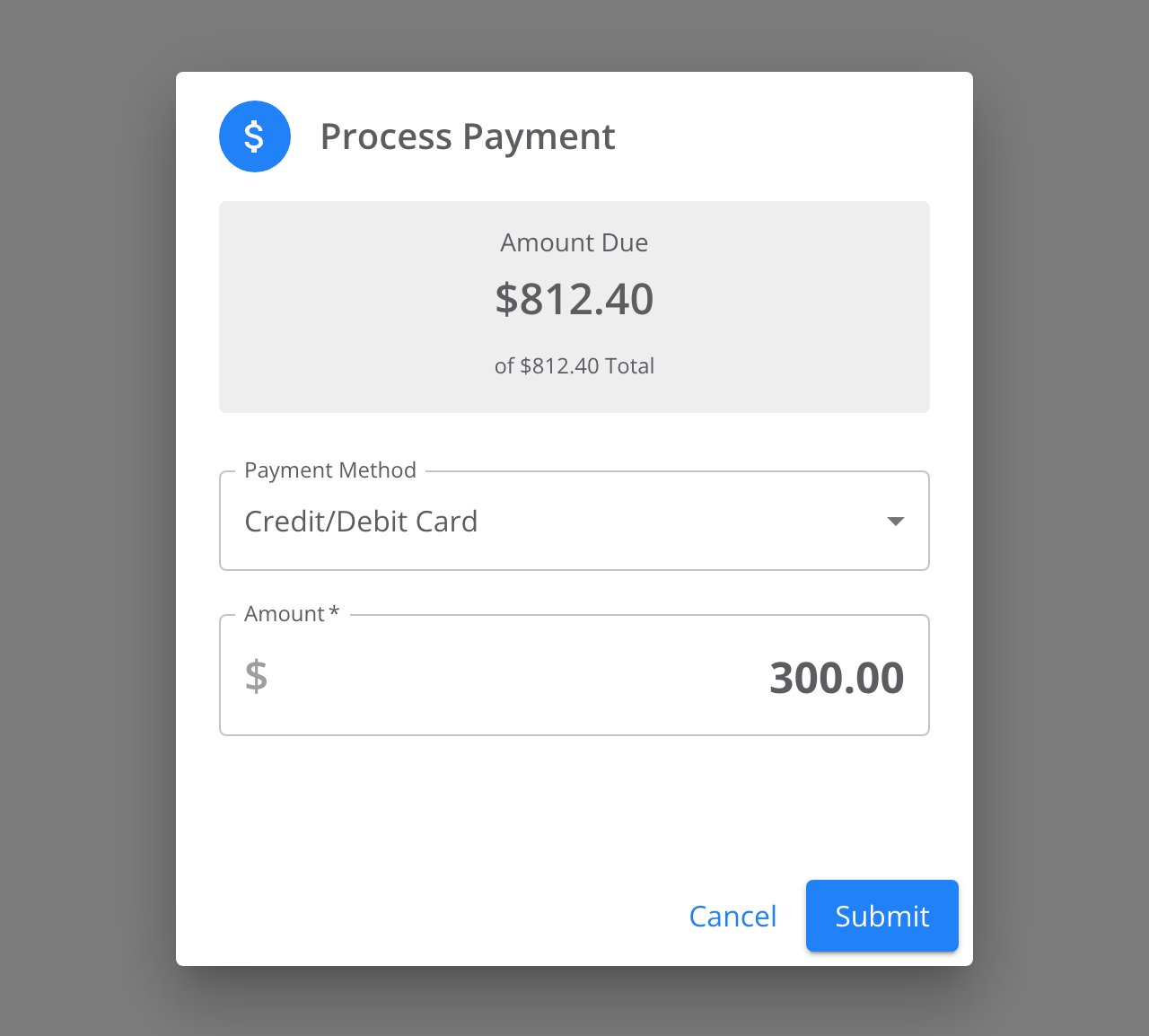
When you record the full balance, automation completes the work order and locks its items and mileage. For every method except **Cash**, the **Amount** field in **Process Payment** starts at the full balance. A deposit needs that value changed before you submit.
## Before you start
* Complete the steps in [Taking payments](/dealers/pos/taking-payments). A deposit uses the same **Process Payment** dialog and payment methods.
* Assign a customer to the work order.
## Take a deposit
**When:** The customer pays part of the balance up front, such as a pre-payment on special-order tires.
A deposit that matches the **Amount Due** triggers the automation that completes the work order. Add the tires, parts, or labor to the order first, so the total is greater than the deposit. If the deposit still covers the whole balance, the automation completes the work order when you submit.
Open the customer's work order. Select **Process Payment**.
Choose the method under **Payment Method**.
In **Amount**, enter the deposit amount. For **Cash**, enter the cash the customer hands you.
Select **Submit**.
 The work order status stays **In Progress** and the payment chip reads **Partially Paid**. The **Payments** line shows the deposit.
## Finish the job and collect the balance
**When:** The tires or parts arrive and the customer returns for the install.
On the **Vehicle Details** card, select the pencil next to **Mileage In**.
In **Edit Mileage Entry**, enter the value in **Mileage**. Select **Update**.
Add labor or parts as normal. The order is still open.
Select **Process Payment**. **Amount** shows the remaining balance.
Select **Submit**.
The payment chip reads **Paid** and the work order status changes to **Completed**.
## When the customer paid in full up front
A full payment triggers the automation that completes the order and locks the mileage fields. A dealer Owner or Admin can reopen it at install. See [Reopening a work order](/dealers/pos/reopening-work-orders).
## Where to go next
Take terminal and manual payments, review payment history, and issue a refund.
Enter the mileage or change items on an order that already completed.
The work order status stays **In Progress** and the payment chip reads **Partially Paid**. The **Payments** line shows the deposit.
## Finish the job and collect the balance
**When:** The tires or parts arrive and the customer returns for the install.
On the **Vehicle Details** card, select the pencil next to **Mileage In**.
In **Edit Mileage Entry**, enter the value in **Mileage**. Select **Update**.
Add labor or parts as normal. The order is still open.
Select **Process Payment**. **Amount** shows the remaining balance.
Select **Submit**.
The payment chip reads **Paid** and the work order status changes to **Completed**.
## When the customer paid in full up front
A full payment triggers the automation that completes the order and locks the mileage fields. A dealer Owner or Admin can reopen it at install. See [Reopening a work order](/dealers/pos/reopening-work-orders).
## Where to go next
Take terminal and manual payments, review payment history, and issue a refund.
Enter the mileage or change items on an order that already completed.