> ## Documentation Index
> Fetch the complete documentation index at: https://help.tiretutor.ai/llms.txt
> Use this file to discover all available pages before exploring further.
# Finding parts on Amazon
> Open an Amazon search for a part number from a work order or estimate.
The search control appears on part rows with a valid part number. Editing a group hides it.
## Search for a part
Open the work order or estimate.
Find the part that you want to search for.
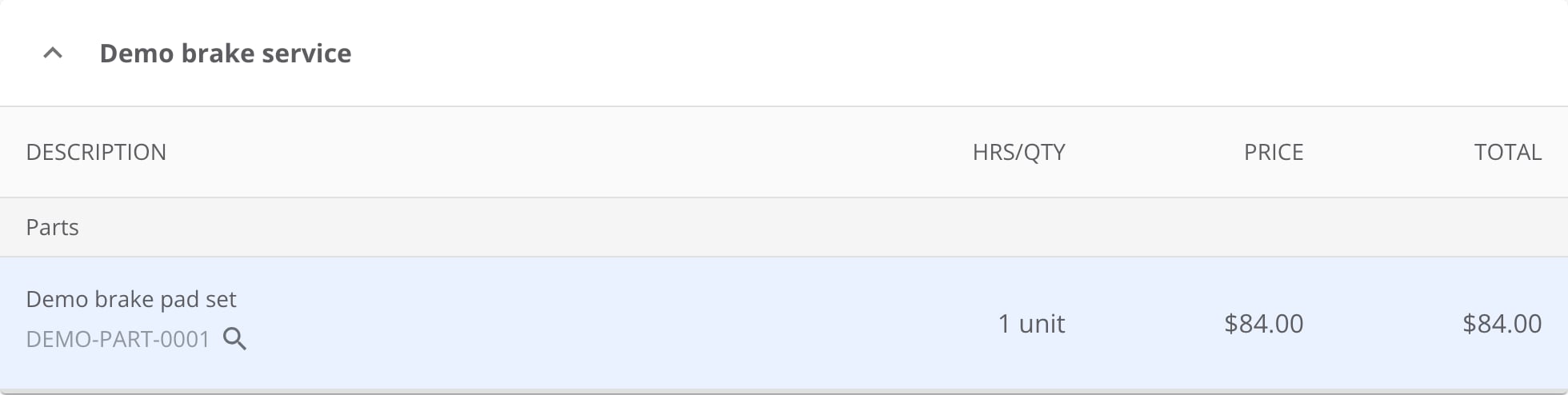 Select the magnifying-glass icon with the **Search Amazon** tooltip.
TireTutor searches Amazon's automotive results for that row's **MPN** only.
Amazon opens the search results in a separate browser tab.
The search sends the part number only. Check the listing's fitment and price before you order.
## Where to go next
Manage PartsTech parts on the work order.
Order and sell a tire outside the inventory catalog.
Select the magnifying-glass icon with the **Search Amazon** tooltip.
TireTutor searches Amazon's automotive results for that row's **MPN** only.
Amazon opens the search results in a separate browser tab.
The search sends the part number only. Check the listing's fitment and price before you order.
## Where to go next
Manage PartsTech parts on the work order.
Order and sell a tire outside the inventory catalog.