> ## Documentation Index
> Fetch the complete documentation index at: https://help.tiretutor.ai/llms.txt
> Use this file to discover all available pages before exploring further.
# Set up your shop after you sign up
> Set your taxes, shop fees, labor rate and distributors right after you create your first shop, so you can start quoting with the right prices.
The setup steps open for an owner or administrator of a new account, right
after they confirm their first shop. If they do not open for you, set up your
taxes, shop fees, labor rate and distributors in **Shop Settings**. See
[Change a setting later](#change-a-setting-later).
Right after you confirm your first shop, the same card continues through four
settings: taxes, shop fees, labor rate and distributors. Each step shows the
same form as its Settings page. Anything you save in a step appears on that
Settings page too.
Every step is optional, and you can change everything later.
## Set up your taxes, fees, labor rate and distributors
Enter your email and a password on **Create your account**. Select
**Create account**.
On **Let's set up your store**, search for your shop on Google. If it is
not there, select **Add "your shop name" Manually** under the search box.
Select **Confirm** under your shop's details. The same card opens **Set up
your taxes**, the first of the four steps.
Check that **Label** and **Description** have a value. Enter the tax rates
your shop charges. TireTutor does not include tax rates.
Select **Save**.
Select **Continue**. The card opens **Add shop fees and service charges**.
Turn on the shop fees you charge, for example **Automatic Tire Shop Fee**,
and enter the amount. Select **Save**.
Select **Continue**. The card opens **Set your labor rate**.
Enter the hourly rate your shop charges. Labor from the labor guide costs
the hours times this rate. Select **Save**.
Select **Continue**. The card opens **Connect your distributors**.
Select **Connect** on each distributor you buy from, or select **Skip for
now** to do it later. A connected distributor shows **Configure**. If the
step shows **Contact support** instead, select it. We help you connect
your distributors.
Select **Continue**. The card opens **Your shop is ready**.
Select **Finish setup**. Your TireTutor dashboard opens.
## Skip a step
Select **Skip for now** to leave a step for later. TireTutor asks you first:
* Select **Skip for now** in the dialog to move on.
* Select **Stay** to go back to the step.
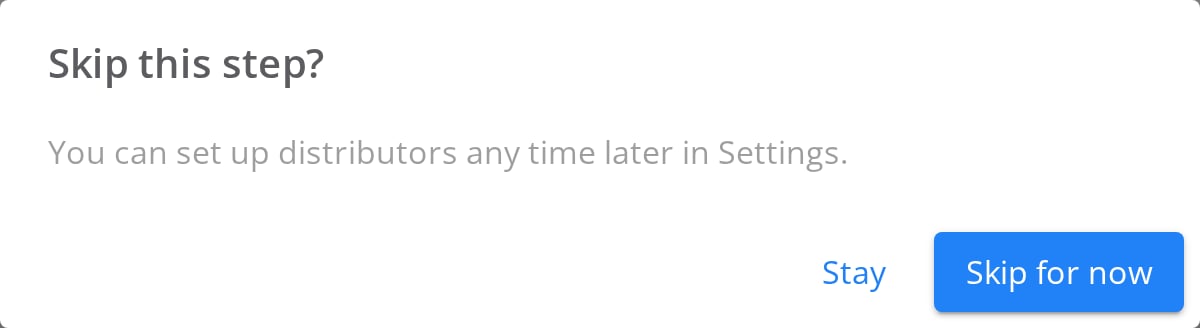 A skipped step keeps its number in the row of steps at the top, with
**Skipped** under its name. A step you saved or continued shows a check mark.
## Move on without saving your changes
A step saves only when you select its save button. If you change a field and
then select **Continue**, TireTutor asks before it moves on:
* Select **Go back** to return to the step. Then save your changes.
* Select **Continue without saving** to leave the changes unsaved.
A skipped step keeps its number in the row of steps at the top, with
**Skipped** under its name. A step you saved or continued shows a check mark.
## Move on without saving your changes
A step saves only when you select its save button. If you change a field and
then select **Continue**, TireTutor asks before it moves on:
* Select **Go back** to return to the step. Then save your changes.
* Select **Continue without saving** to leave the changes unsaved.
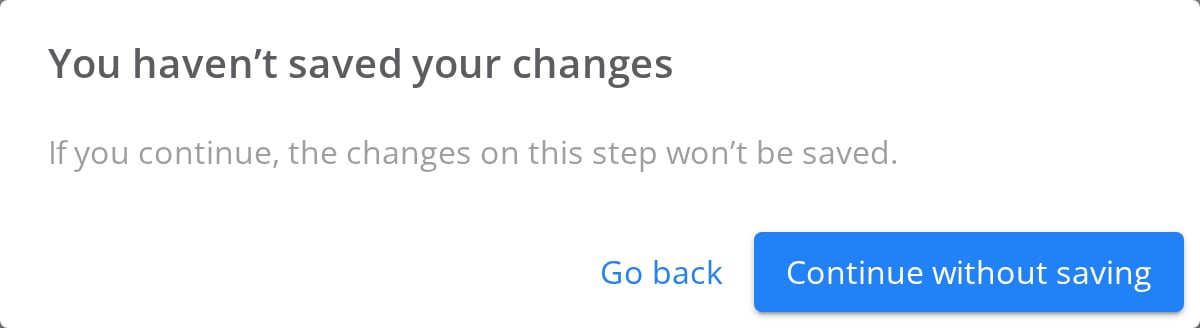 A step that you continue without saving counts as skipped, unless you saved it
earlier.
To go back a step, select **Back** at the bottom left of the card. **Back**
shows from **Add shop fees and service charges** on. It keeps every check mark and **Skipped** label.
## Finish setup now or later
The last step, **Your shop is ready**, lists each setting as set up or skipped.
Each skipped setting has a link, such as **Set up distributors in Settings**, that
opens its Settings page.
A step that you continue without saving counts as skipped, unless you saved it
earlier.
To go back a step, select **Back** at the bottom left of the card. **Back**
shows from **Add shop fees and service charges** on. It keeps every check mark and **Skipped** label.
## Finish setup now or later
The last step, **Your shop is ready**, lists each setting as set up or skipped.
Each skipped setting has a link, such as **Set up distributors in Settings**, that
opens its Settings page.
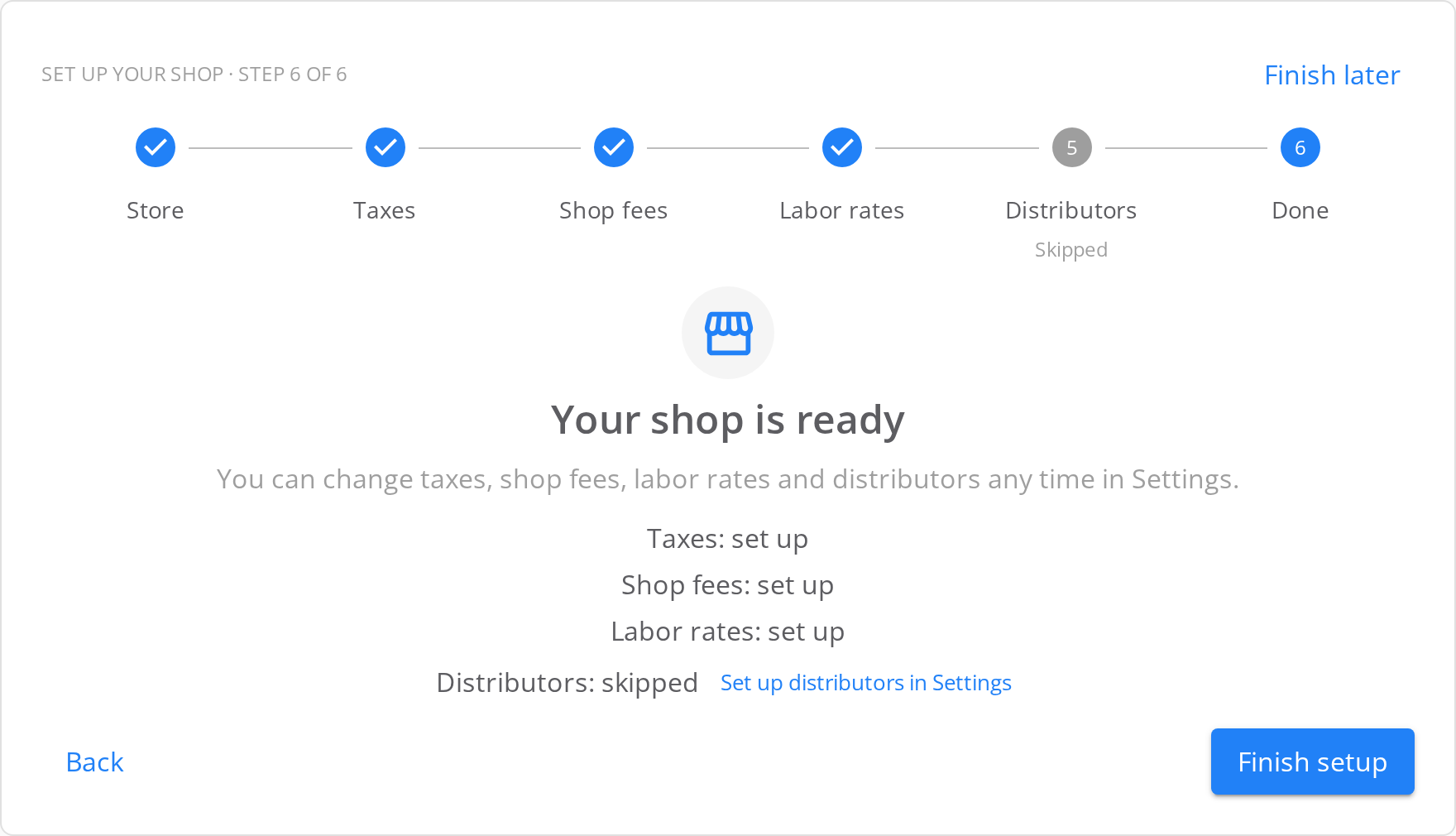 * **Finish setup** completes setup for your whole business. The steps stop
opening by themselves, for you and for every other administrator.
* **Finish later**, at the top of every step, closes the steps for you only.
Another administrator of your business still sees them.
To open the steps again yourself, go to
[dealers.tiretutor.com/onboarding/setup](https://dealers.tiretutor.com/onboarding/setup).
## Change a setting later
To find taxes, shop fees and labor rates:
1. In the left menu, select **Shop Settings → More Settings**.
2. In the settings menu, under **Organization**, select **Taxes**, **Shop
Fees** or **Labor Rates**.
To find distributors, select **Shop Settings → Distributors** in the left
menu.
| Setting | Where to find it | Direct link |
| - | - | - |
| Taxes | **Shop Settings → More Settings → Taxes** | [Taxes](https://dealers.tiretutor.com/settings/organization/taxes) |
| Shop fees | **Shop Settings → More Settings → Shop Fees** | [Shop Fees](https://dealers.tiretutor.com/settings/organization/shop-fees) |
| Labor rates | **Shop Settings → More Settings → Labor Rates** | [Labor Rates](https://dealers.tiretutor.com/settings/organization/labor-rates) |
| Distributors | **Shop Settings → Distributors** | [Distributors](https://dealers.tiretutor.com/settings/distributors) |
## How you know it worked
After **Finish setup**, your TireTutor dashboard opens on the home page. Each
setting you saved shows on its Settings page.
## If it doesn't work
* **The steps do not open.** Set up each setting from its Settings page. See
[Change a setting later](#change-a-setting-later).
* **A step does not save.** Look for a field that the form marks as missing.
Enter a value. Select **Save** again.
* **A reload takes you back to taxes.** The steps start again at taxes after a
reload. Settings you saved stay saved. Select **Continue** to move past them.
## Still need help?
Contact support through the [contact form](https://tiretutor.com/contact), or call [855-400-4521](tel:+18554004521).
Change the business and shop details your customers see.
Set the shop fees and a service charge, and see how they add to an order.
* **Finish setup** completes setup for your whole business. The steps stop
opening by themselves, for you and for every other administrator.
* **Finish later**, at the top of every step, closes the steps for you only.
Another administrator of your business still sees them.
To open the steps again yourself, go to
[dealers.tiretutor.com/onboarding/setup](https://dealers.tiretutor.com/onboarding/setup).
## Change a setting later
To find taxes, shop fees and labor rates:
1. In the left menu, select **Shop Settings → More Settings**.
2. In the settings menu, under **Organization**, select **Taxes**, **Shop
Fees** or **Labor Rates**.
To find distributors, select **Shop Settings → Distributors** in the left
menu.
| Setting | Where to find it | Direct link |
| - | - | - |
| Taxes | **Shop Settings → More Settings → Taxes** | [Taxes](https://dealers.tiretutor.com/settings/organization/taxes) |
| Shop fees | **Shop Settings → More Settings → Shop Fees** | [Shop Fees](https://dealers.tiretutor.com/settings/organization/shop-fees) |
| Labor rates | **Shop Settings → More Settings → Labor Rates** | [Labor Rates](https://dealers.tiretutor.com/settings/organization/labor-rates) |
| Distributors | **Shop Settings → Distributors** | [Distributors](https://dealers.tiretutor.com/settings/distributors) |
## How you know it worked
After **Finish setup**, your TireTutor dashboard opens on the home page. Each
setting you saved shows on its Settings page.
## If it doesn't work
* **The steps do not open.** Set up each setting from its Settings page. See
[Change a setting later](#change-a-setting-later).
* **A step does not save.** Look for a field that the form marks as missing.
Enter a value. Select **Save** again.
* **A reload takes you back to taxes.** The steps start again at taxes after a
reload. Settings you saved stay saved. Select **Continue** to move past them.
## Still need help?
Contact support through the [contact form](https://tiretutor.com/contact), or call [855-400-4521](tel:+18554004521).
Change the business and shop details your customers see.
Set the shop fees and a service charge, and see how they add to an order.