

Put a part you already have on the shelf onto a job without leaving the Inventory page.
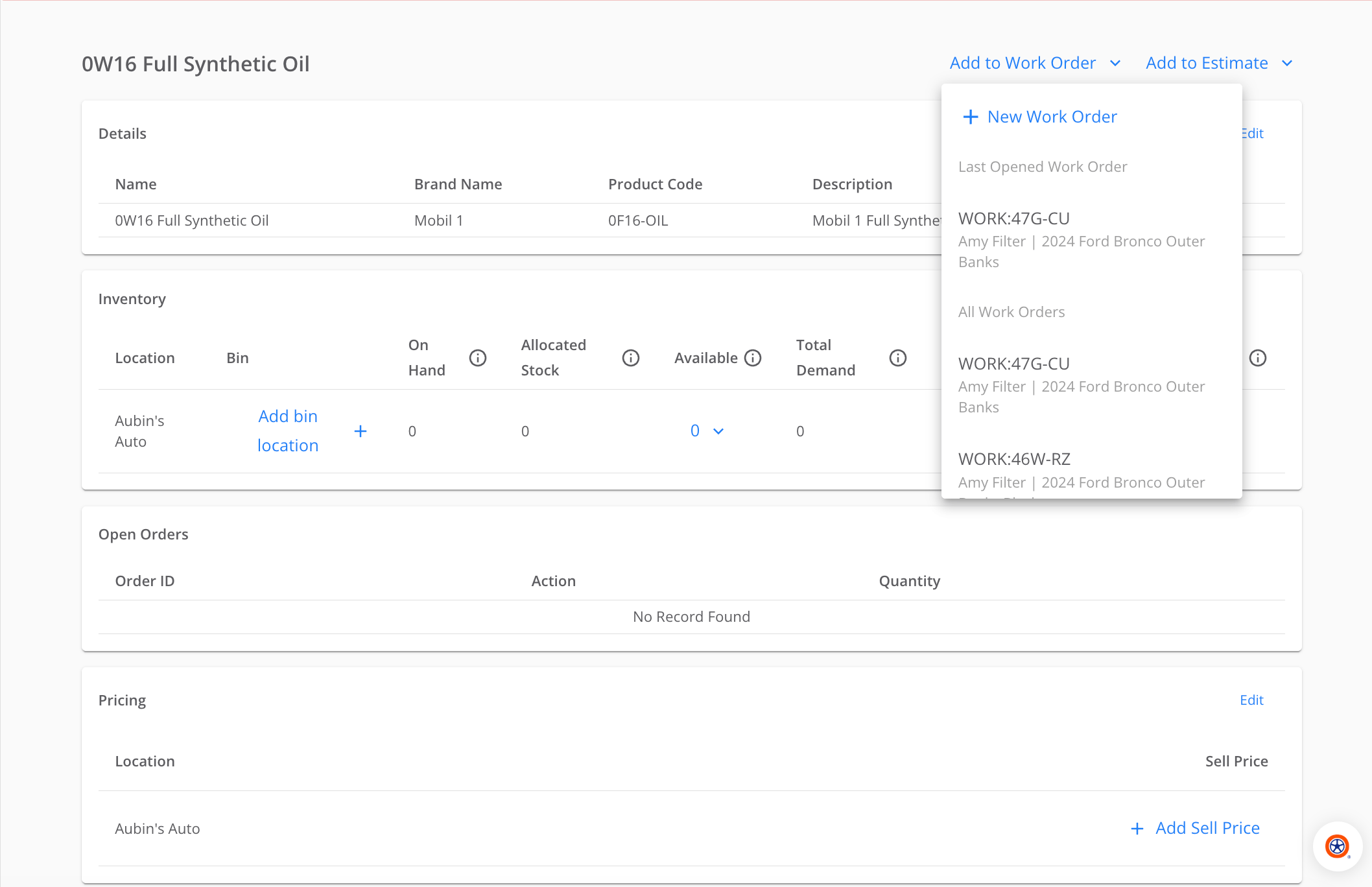
Step 1: Opening an Item in Inventory Go to Inventory and search for the item you want to add — an oil filter, a set of brake pads, a TPMS sensor, a case of 0W16 full synthetic oil. Open the item to get to its page, which is where the add-to-order options live. If you’re looking for tires, use the Tire Catalog instead: it searches by fitment, handles different front and rear sizes, and lets you filter by distributor. Inventory is built to hold your stock; the Tire Catalog is built to find tires.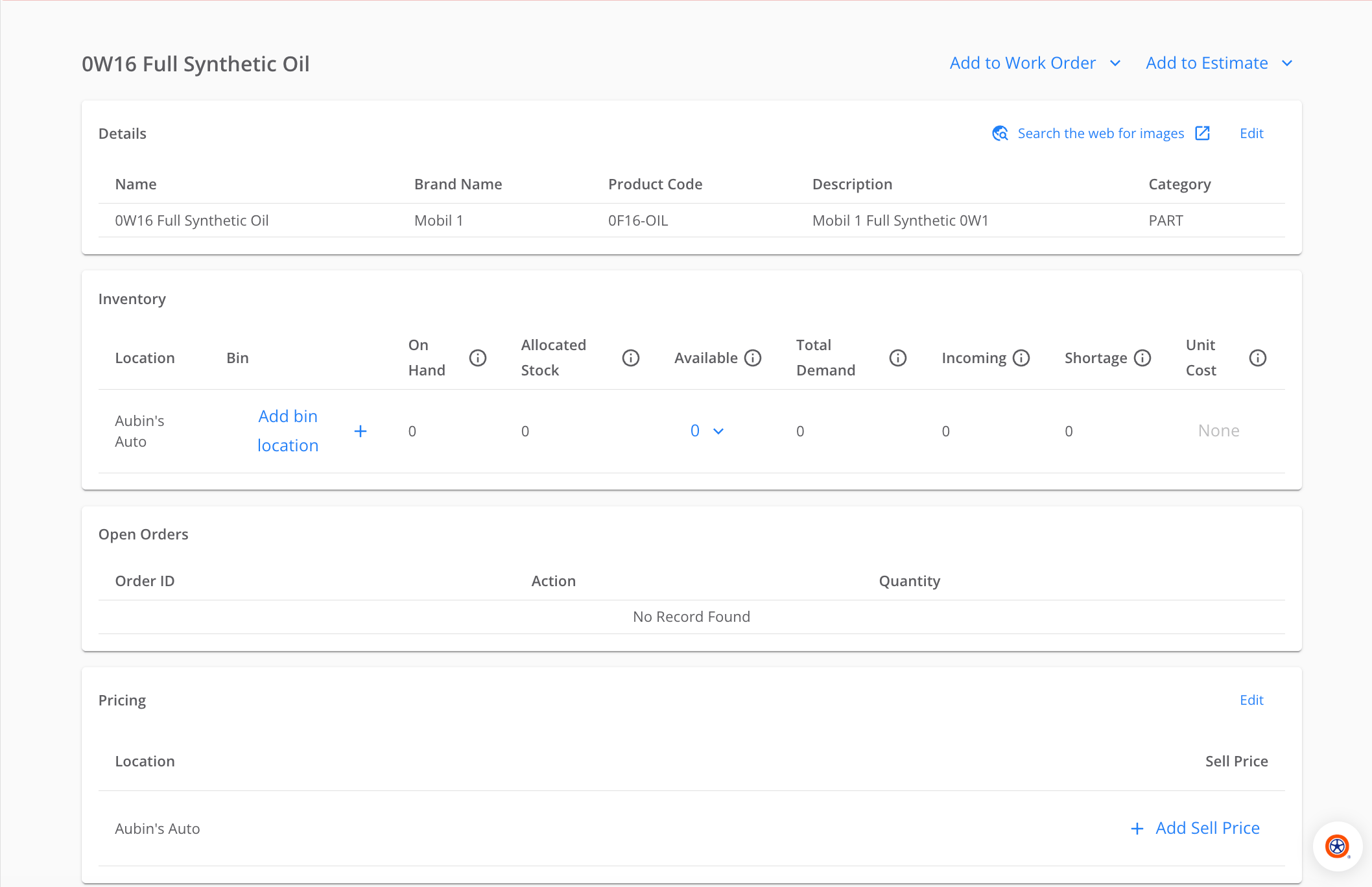
![The work order's service list with a group named simply Parts, marked Pending approval, reading Labor (0) Parts (1) and $0.00. It sits on its own above the separate Oil Change [Menu] group at $250.00, a Tires group at $980.00 and Shop Fees at $76.90. The search bar at the top carries Add Service, Add Tires, PartsTech, Expand All and Edit Services.](https://mintcdn.com/tiretutor/KKLx568cSj-lc6K5/images/resources/how-to/adding-inventory-to-a-work-order-or-estimate-3-desktop.png?fit=max&auto=format&n=KKLx568cSj-lc6K5&q=85&s=d497880a361c41e38d38bb37217f5943)
![The service group Oil Change [Menu] open for editing, with a drag handle at the left of every row. Under Parts are a Filter row at 1 item and $50.00 and the moved-in 0W16 Full Synthetic Oil row, part number 0F16-OIL, at 1 item and $0.00; under Labor is a row of 2.0 hours at $100.00 totalling $200.00. The group header reads Pending approval and Labor (1) Parts (2) $250.00.](https://mintcdn.com/tiretutor/KKLx568cSj-lc6K5/images/resources/how-to/adding-inventory-to-a-work-order-or-estimate-4-desktop.png?fit=max&auto=format&n=KKLx568cSj-lc6K5&q=85&s=ad875ec6d6eabb0d07747e4b4bd70bc3)