Set the per-tire fee your store charges to dispose of a customer’s old tires. Change it yourself when your disposal costs change.

Before you start

Use the disposal fee for a charge your store chooses to add, such as what your hauler or recycler charges you to take old tires away. Do not use it for a tire charge your state requires. Enter required state tire taxes in your state tire tax settings only. An amount entered here is not treated as a tax. Dealer administrators can open the Disposal Fees page. Store administrators can open it for the stores they administer. Counter users and service writers do not see it.

Set your disposal fee

  1. Select Shop Settings in the sidebar, or open the account menu and select Shop Settings.
  2. Select Disposal Fees.
  3. Check which store you are editing. Each store has its own fee.
  4. In Fee per tire, enter the amount you charge to dispose of one tire.
  5. Save your changes.
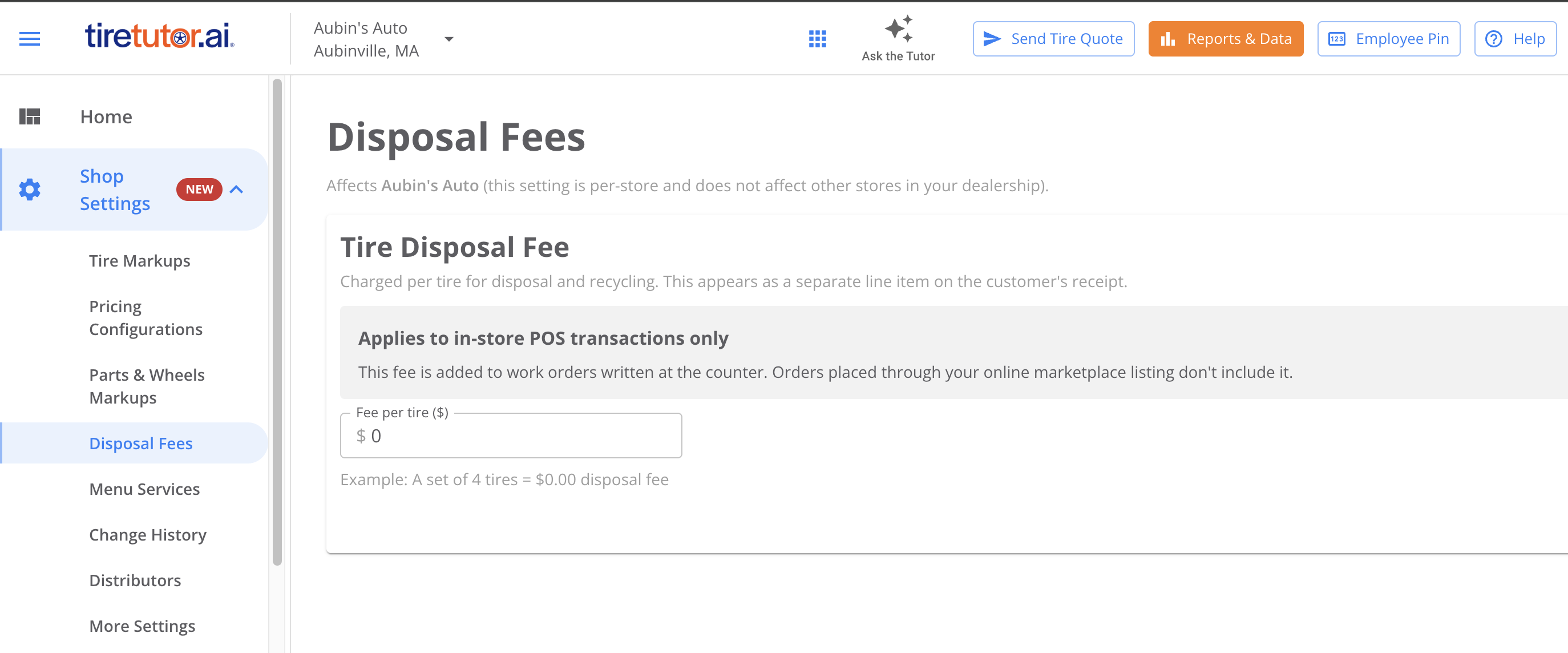
The Disposal Fees settings page for Aubin's Auto, Aubinville MA. The left sidebar shows Shop Settings expanded with a NEW badge, listing Tire Markups, Pricing Configurations, Parts and Wheels Markups, Disposal Fees (selected), Menu Services, Change History, Distributors and More Settings. The page is headed Disposal Fees over the line 'Affects Aubin's Auto (this setting is per-store and does not affect other stores in your dealership).' A Tire Disposal Fee card explains the fee is charged per tire for disposal and recycling and appears as a separate line item on the customer's receipt, carries a gray panel reading 'Applies to in-store POS transactions only', and holds a Fee per tire field set to 0 above the line 'Example: A set of 4 tires = $0.00 disposal fee'.
If you do not see Disposal Fees, contact your customer success representative. Every store starts at $0.00. If you charge $5.50 per tire, enter 5.50. A customer who buys a set of four pays $22.00 in disposal. The page shows the total for a set of four as you type. To change the fee for another store, select that store and save it separately.

How the fee appears on a work order

When you add a tire to a work order, TireTutor adds the disposal fee for that store. You do not add it by hand. The fee is its own line on the work order and on the customer’s receipt. It is not part of the installation price. The fee applies to in-store point-of-sale sales only. Disposal fees are not taxed, whatever tax rates your store has. With a $5.50 fee on four tires, the $22.00 disposal is not taxed. The tires and the labor are taxed at your rates.

When a changed fee takes effect

A new amount applies to tires you add to a work order after you save it. Tires already on an open work order keep the old fee. So one work order can carry both amounts. To charge the whole job at the new fee, remove the earlier tire lines and add them again.

Remove the fee when a customer keeps their tires

If the customer takes their old tires, delete the disposal fee line from the estimate or work order before you check out. The tires, installation, and taxes do not change. Deleting the line on one work order does not change your setting. The next work order still adds the fee.

Change or turn off the fee

To change the amount, open Disposal Fees again, enter the new amount for the store, and save. To stop charging a disposal fee at a store, set the amount to $0.00 and save. Tires added after that have no disposal line. If your store needs disposal charges handled another way, contact your customer success representative.