

Use this when your state requires a percentage-based tire tax but caps the amount at a fixed dollar value per tire (for example, Arizona: 2% of the tire price, up to a maximum of $4.66 per tire).
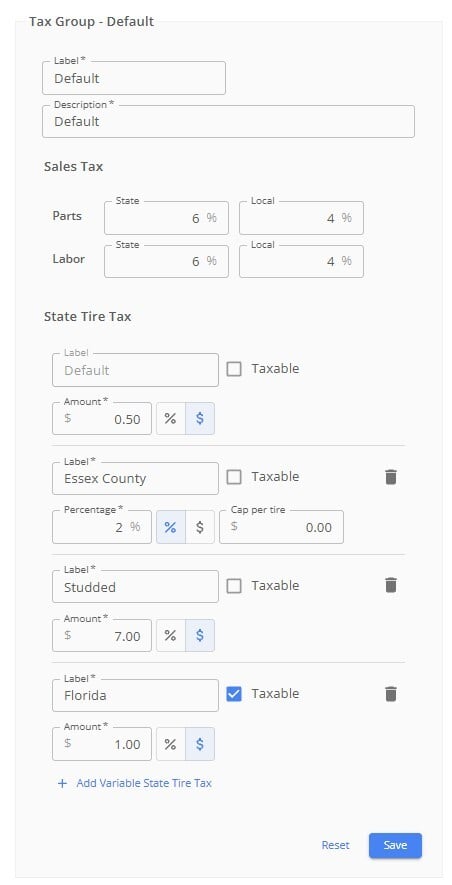
The Tax Group - Default settings panel, with Sales Tax rates of 6% state and 4% local for both Parts and Labor. Below, State Tire Tax lists four rows: Default at $0.50, Essex County at 2% with a Cap per tire field set to $0.00, Studded at $7.00, and Florida (Taxable checked) at $1.00, above an Add Variable State Tire Tax link and Reset and Save buttons.
1. Open Tax Settings. From the left-hand menu, go to Shop Settings, then find the tax settings section. 2. Choose your tax type. Toggle between a flat dollar amount or a percentage. Select which you need and fill in the information. 3. Enter your tax percentage. For Arizona, for example, this would be 2%. 4. Enter the per-tire cap. In the cap field, enter the maximum dollar amount to charge per tire. For Arizona, this would be $4.66. (Leave the cap field empty if you do not want a cap.) 5. Save your settings. TireTutor will now apply the lower of the two values — either the calculated percentage or the cap — to every tire on a work order. How it works on a work order: The tax is applied per tire and multiplied by the tire quantity. If the tire’s percentage-based tax would exceed the cap, the cap is used instead. If it’s under the cap, the percentage is used. To override on an individual work order: Open the work order, click into the tire tax dropdown, and adjust the dollar amount or percentage as needed, then save. This will recalculate the tax for that order only.