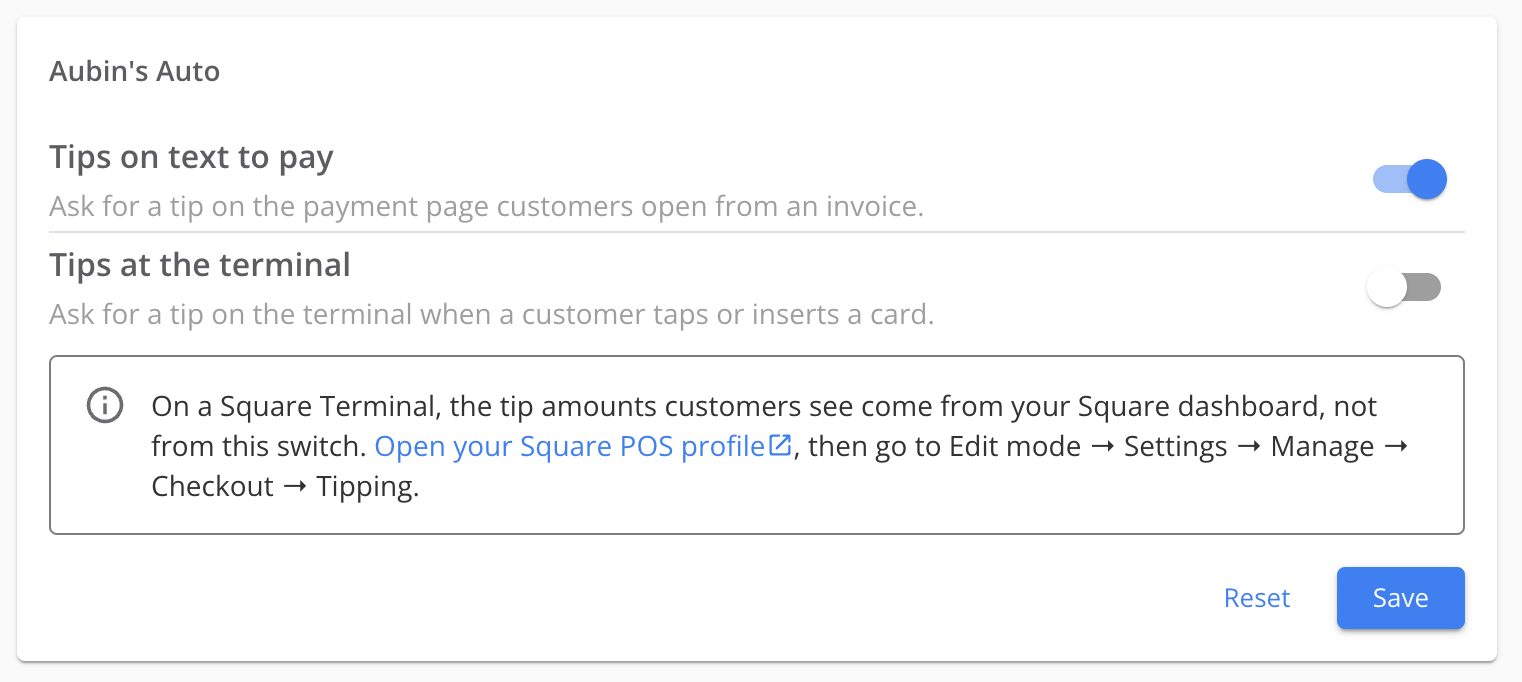
This guide walks you through enabling tipping in TireTutor, choosing where your customers are asked to tip, and understanding what they see when they pay. Tipping works in two separate places — on the physical payment terminal, and on the invoice page a customer opens from a text-to-pay link — and each one is controlled by its own setting. By the end of this guide you will know how to switch tipping on for either or both, and what to expect at checkout.
Step 1: Decide Where You Want to Accept Tips Tipping is off by default for every shop. Nothing changes for your customers until you turn it on, and you can turn it on in one place without turning it on in the other. Terminal tipping asks the customer for a tip on the physical card terminal at the counter or in the van. Text-to-pay tipping adds a tip option to the invoice page a customer opens from the payment link you send them. Many shops want one and not the other. A mobile operation that takes payment at the customer’s driveway may want tipping on the terminal only, while a shop that invoices most work may want it only on text-to-pay. Step 2: Turning On Tipping at the Payment Terminal First, toggle on the setting in the Shop Management System by going to Settings —> Tipping and toggling on the button.