

Tutor answers from your own TireTutor data, so it needs a signed-in account
at your dealership. It answers only for the stores your account can see.
Your home page
Your TireTutor home page is Tutor. It has one column:- The question box. Type your own question here.
- Starter questions under it, in two rows. The first row asks about your numbers. The second row, the questions that start with “How do I”, asks how to do something in TireTutor.
- A card about the AI Phone Agent, under the starter questions. It shows your call numbers when you have the Phone Agent, or an offer to add it.
- Your shop at a glance, as small cards further down. A card shows how many Tutor questions you have left today.
- Talk to our team, at the bottom of the page.
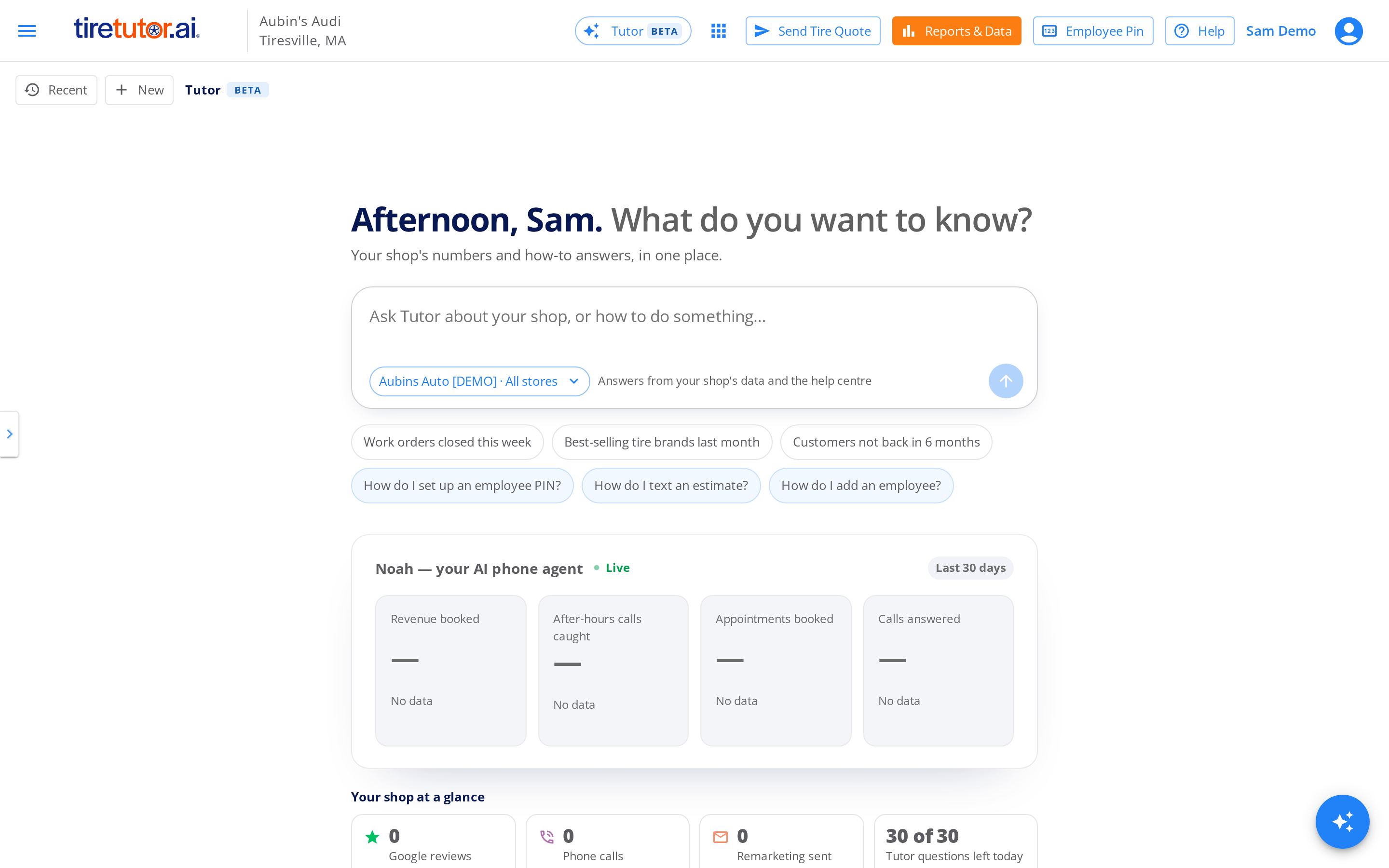
Your home page: the question box, the starter questions, and Your shop at a glance under them.
Ask your first question
1
Sign in
Sign in to your TireTutor dashboard. Your home page is Tutor.
2
Pick a starter question or type your own
Select a starter question, and Tutor asks it at once. Or type your
question in the question box, then select the arrow button (Ask).
3
Watch the answer arrive
A short line shows what Tutor is doing. Then the answer appears.
4
Read the answer
A numbers answer gives the numbers for the dates you asked about. A
“how do I…” answer gives the steps. Under the steps, each Help · link
opens the help page that Tutor used.
5
Ask a follow-up
Type the next question in the same chat, for example “and last month?”.
Tutor reads its earlier answers.
6
Rate the answer
Under the answer, select thumbs up when it is right. Select thumbs down
when it is wrong.
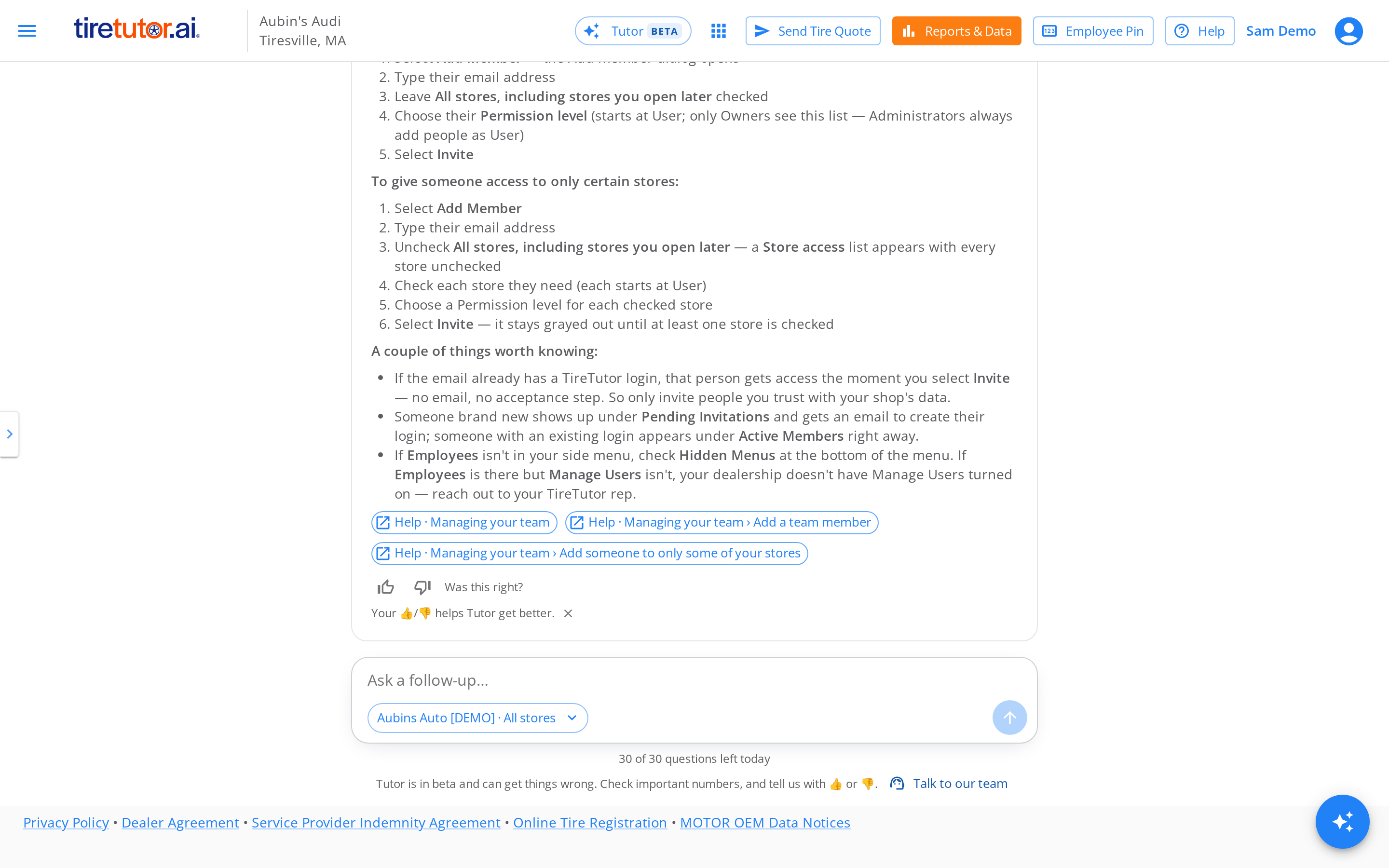
An earlier how-to answer, opened again from Recent, with its Help links and the thumbs. Opening an earlier chat asks no new question.
Open Tutor from another page
Use one of these:- In the top bar, select Tutor.
- In the top bar, select Help.
- At the bottom right of the page, select the round sparkle button (Ask Tutor).
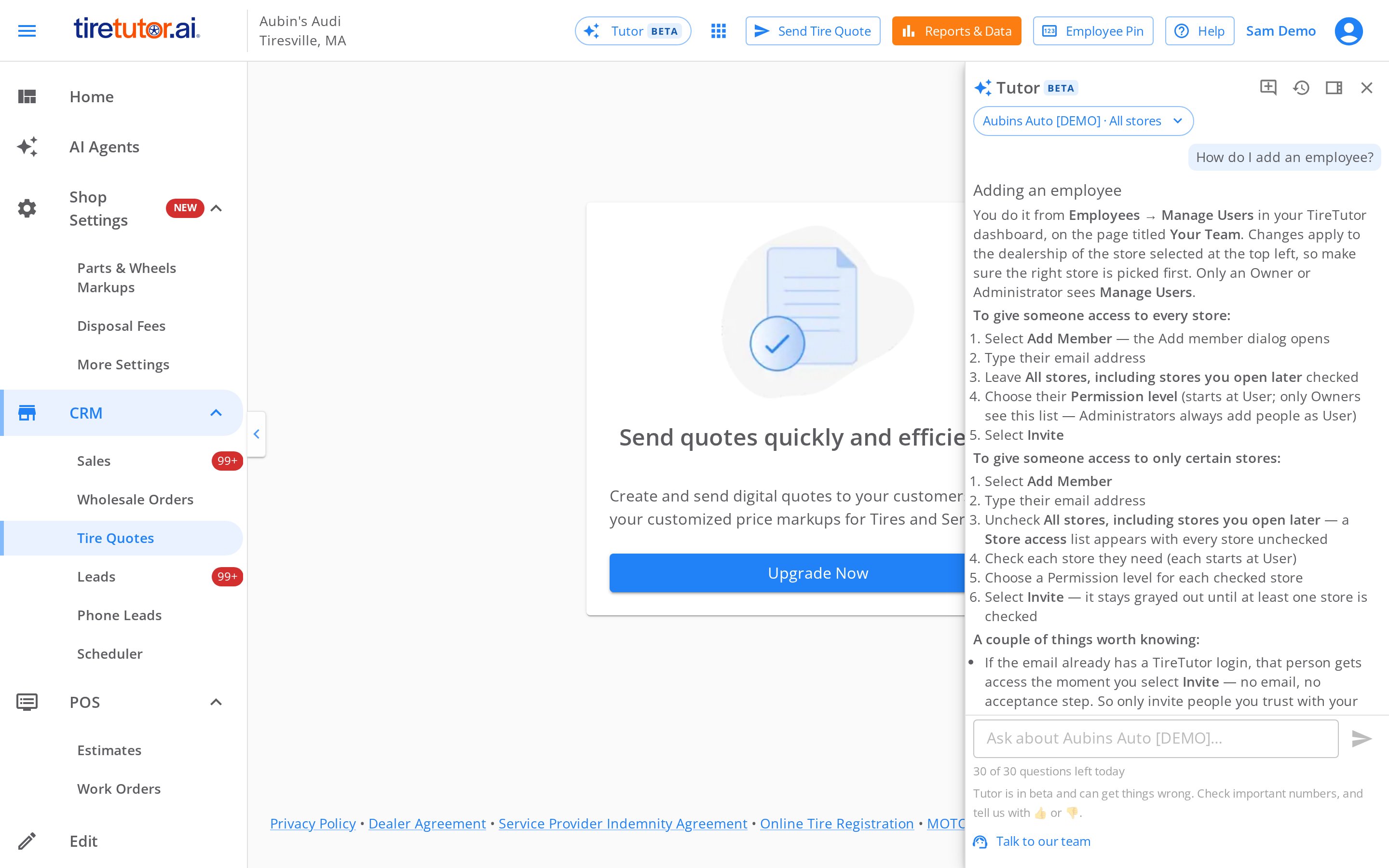
The Tutor panel beside the Tire Quotes page, with an earlier chat opened from Your chats.
Use Tutor on your phone
On a phone, your home page shows the question box first. The starter questions and Your shop at a glance are under it.1
Open your home page
Sign in to your TireTutor dashboard on your phone.
2
Ask
Tap a starter question, and Tutor asks it at once. Or type your own
question.
3
Send a typed question
Tap the arrow button (Ask).
Pick the stores Tutor answers for
The button by the question box shows your dealership and All stores. To ask about one store:- In the store menu at the top left, pick the store.
- Select the button by the question box.
- Select <your store> only.
Find an earlier chat
- On your home page, select Recent. Your earlier chats open.
- Select a chat. It opens again, with its answers.
Ask a better question
- Name the dates. “Last week”, “this month”, “May to September”.
- Name the number. Work orders, revenue, average ticket, gross profit.
- Ask one thing at a time. Then follow up in the same chat.
- “How many work orders did we close this week?”
- “Which tire brands sold best last month?”
- “Which customers haven’t been back in 6 months?”
- “How do I send an estimate by text?”
When an answer looks wrong
Tutor is in beta and can get things wrong. Check an important number the way you check a report.- Under the answer, select thumbs down.
- Pick what is wrong, for example Numbers look wrong or Wrong dates.
- Add a note if you want to.
- Select Send.
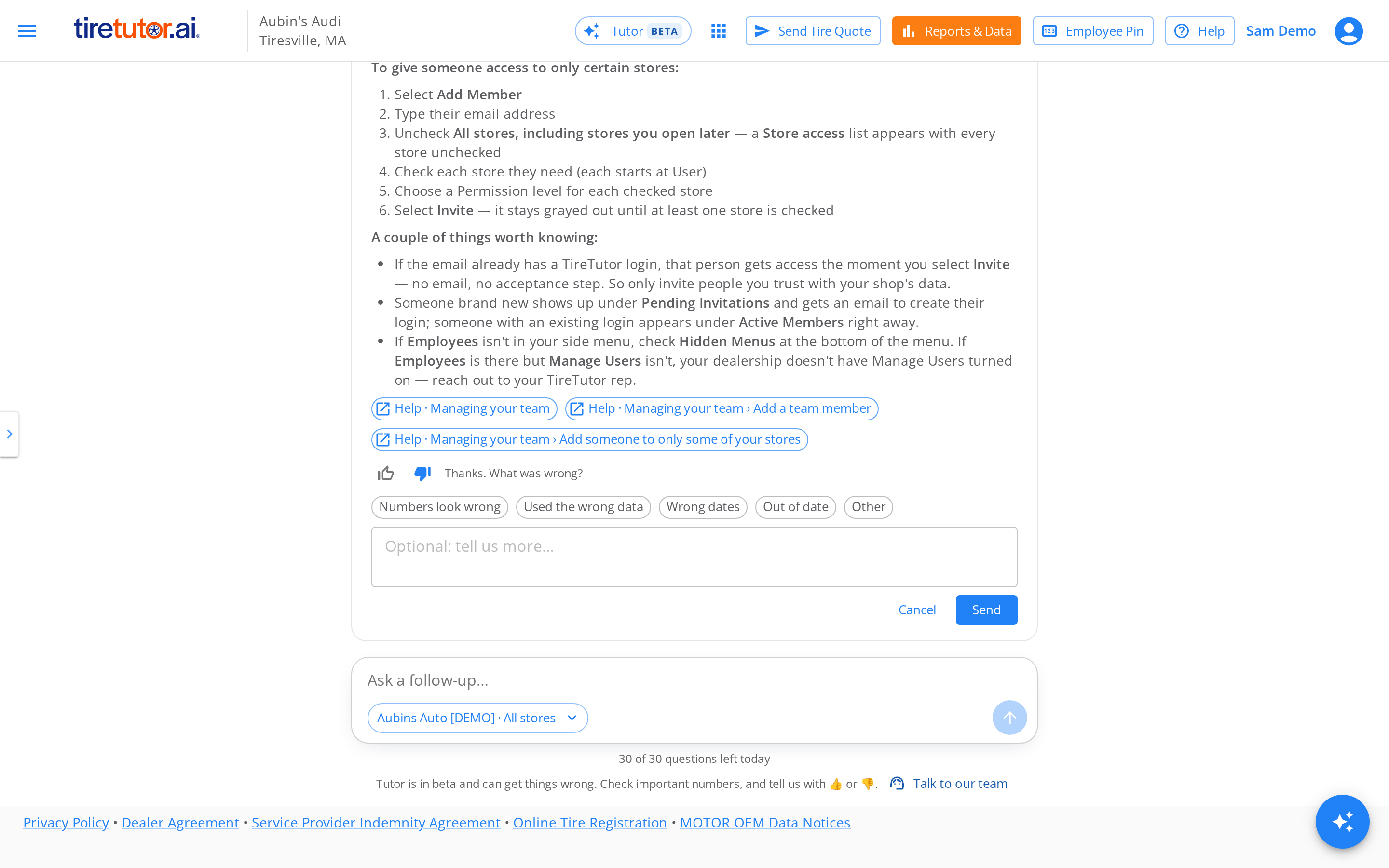
After thumbs down, pick what was wrong, add a note, and select Send.
Talk to a person
- At the bottom of Tutor, select Talk to our team.
- In Contact support, pick one:
- Call, with our support number.
- Send us a message. Our contact form opens.
- Browse the help centre.
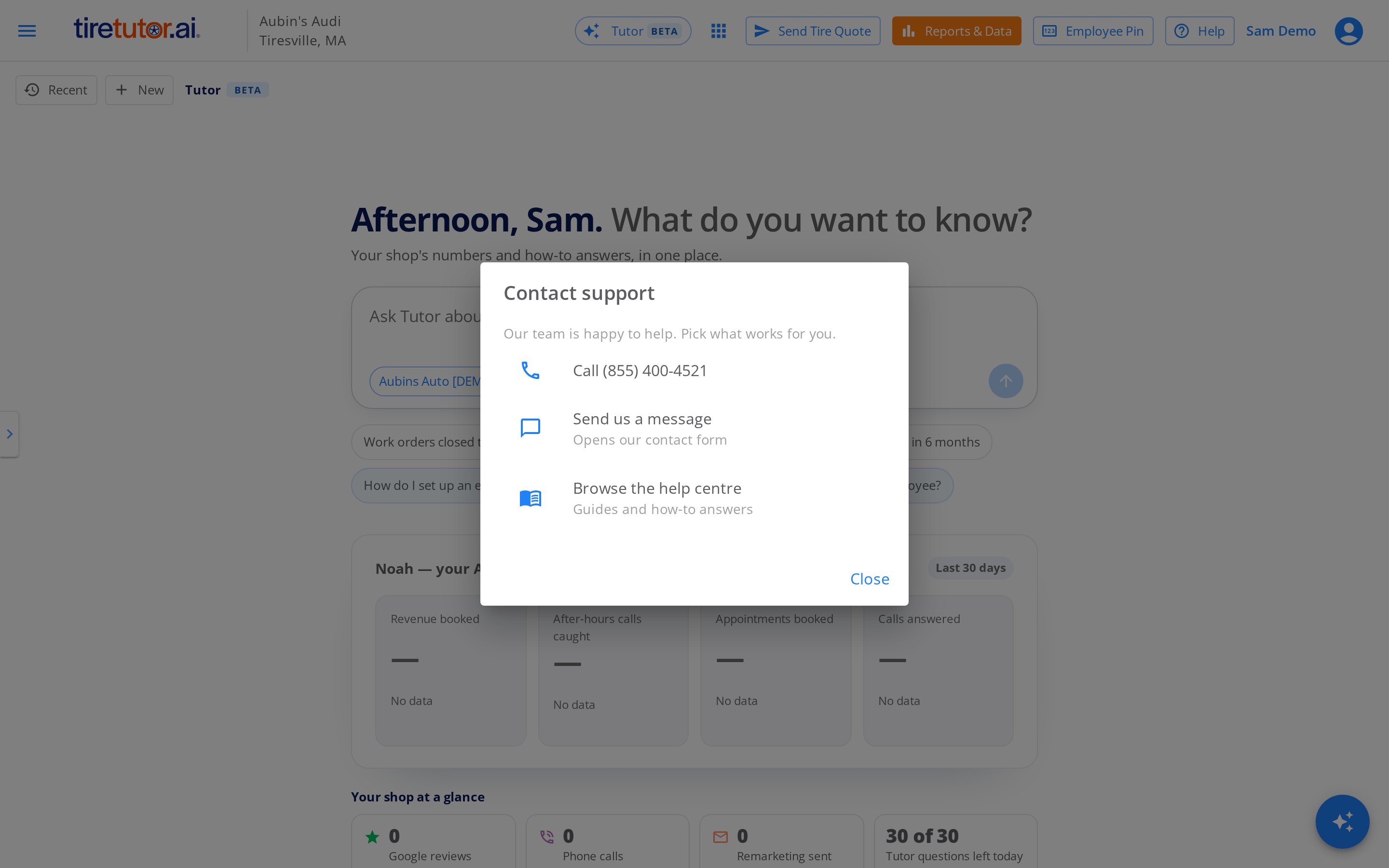
Talk to our team opens Contact support.
If it doesn’t work
- Your home page has no Tutor question box. Reload the page with Ctrl+Shift+R, or Cmd+Shift+R on a Mac. If the box is still missing, contact support.
- Tutor says “You’ve used all of today’s questions.” Everyone at your dealership shares 30 questions a day. The count resets overnight (midnight Central time). Tutor shows that time in your own time zone. To ask more today, select Talk to our team.
- Tutor says “Tutor couldn’t answer that. Try again.” Try once more. If it fails again, select Talk to our team.
- Tutor can’t tell you which suppliers have a tire. Open Products › Tire Catalog, pick the tire, and look at its Wholesaler Availability section.
Overview
What Tutor answers, what it sees, and its limits.