

- Home
- AI Agents
- Shop Settings
- CRM
- POS
- Products
- Employees
- Reports & Data
- Marketing
- B2B & Fleet Dashboard
Change the menu order
When: You want a different top-level item closer to the top of the sidebar.1
Enter edit mode
Select Edit at the bottom of the sidebar.Every group collapses. Drag handles replace the menu icons.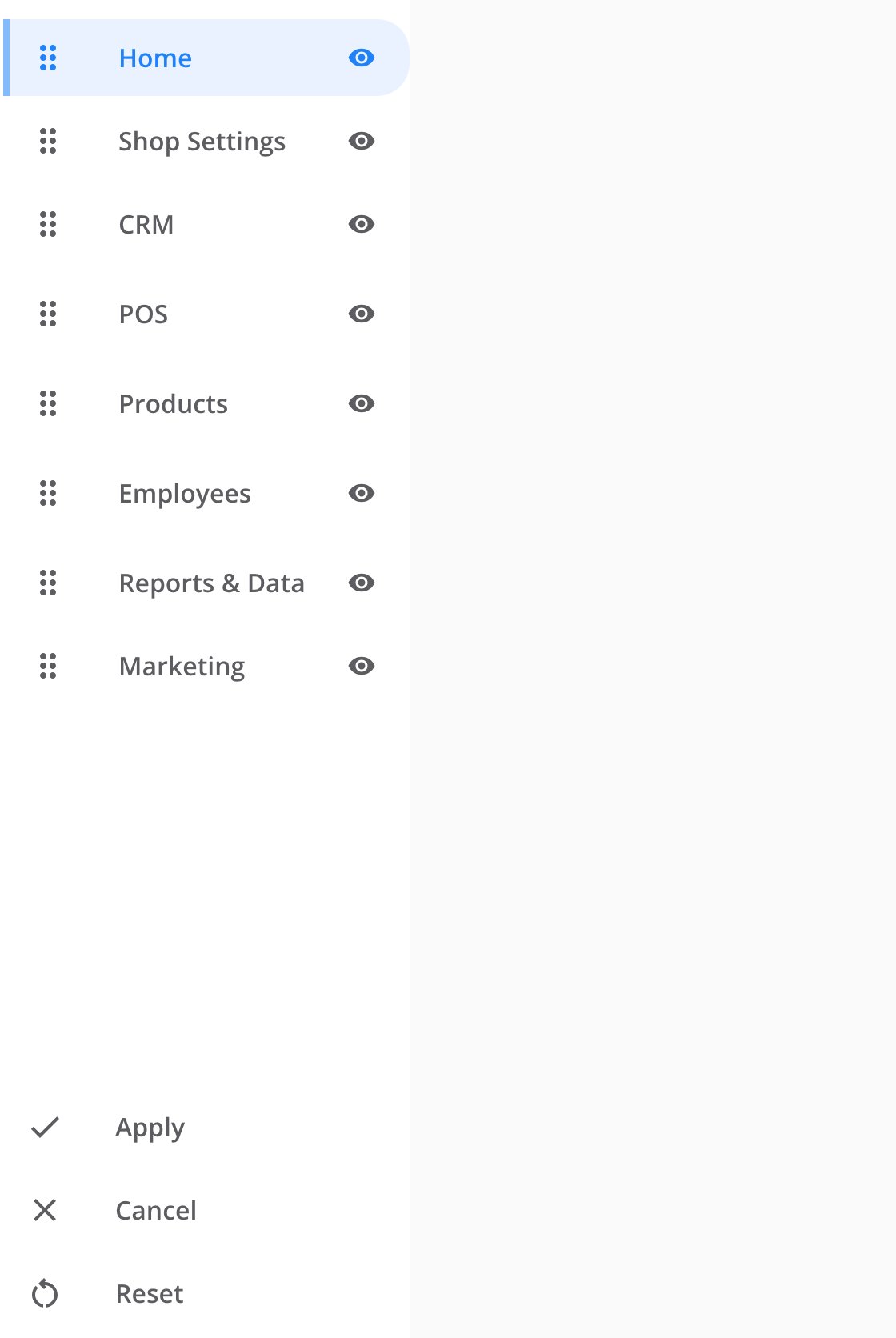
Edit mode: every group is collapsed, a drag handle sits where each icon was, and Apply, Cancel and Reset replace Edit at the bottom.
2
Move an item
Drag the item’s handle to its preferred position.
3
Save the order
Select Apply.
The sidebar leaves edit mode. The top-level items appear in the order you saved.
Hide a menu item
When: You want to move a top-level item out of the main sidebar.1
Enter edit mode
Select Edit at the bottom of the sidebar.
2
Hide the item
Select the eye icon beside the item.
3
Save the change
Select Apply.
Open Hidden Menus at the bottom of the sidebar. The item remains available there.
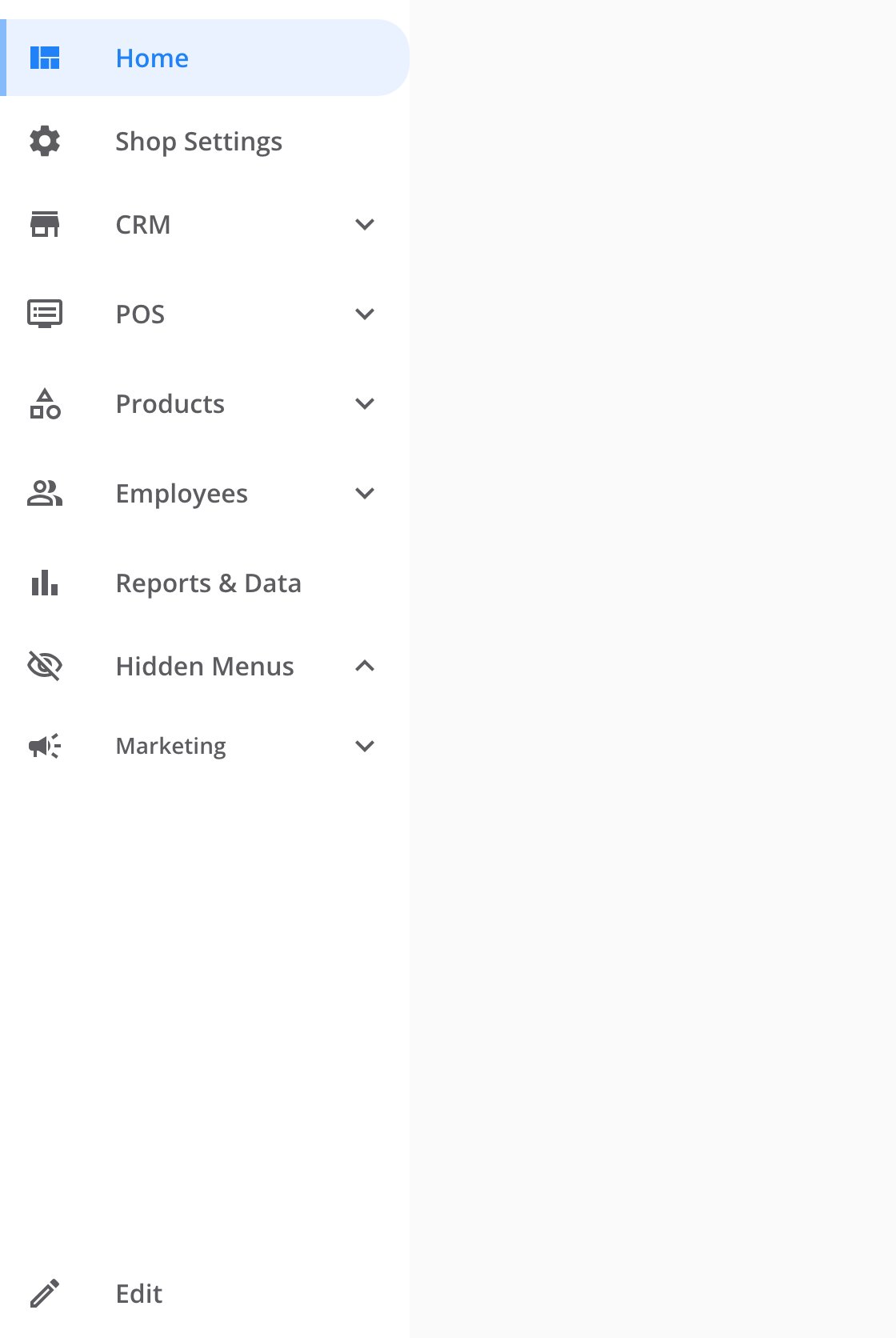
Hidden Menus appears above Edit once at least one item is hidden. Marketing has been hidden here and still opens from inside it.
Show a hidden item
When: You want to return an item to the main sidebar.1
Enter edit mode
Select Edit at the bottom of the sidebar.
2
Find the hidden item
Find the dimmed item in the main list.
3
Show the item
Select the eye icon beside the item.
4
Save the change
Select Apply.
The item returns to the main sidebar. Hidden Menus disappears when no items remain hidden.
Cancel your changes
Select Cancel to leave edit mode without saving changes to the order or hidden items.Reset the menu
When: You want the default order and all top-level items visible.1
Enter edit mode
Select Edit at the bottom of the sidebar.
2
Restore the default draft
Select Reset.
3
Save the reset
Select Apply.
The sidebar uses the default order. All available top-level items appear in the main list.
Where your layout is saved
Apply saves the top-level order and hidden items for your user. The layout follows you across shops, browsers, and devices. Opening or closing a group saves immediately. This choice does not wait for Apply.Where to go next
Notifications
Understand the alerts for leads and sales orders.
Point of Sale
Learn how TireTutor connects estimates, work orders, and payments.