

Two screens hold the details customers see: one for your business as a whole, and one for each shop. You edit both yourself, and every change takes effect as soon as you select Update. Nothing waits for approval.

Dealer settings

Open Settings → Organization → Dealers. These settings apply to your dealership as a whole, so they cover every shop under it. Anything that belongs to one shop, like its phone number, stays under Stores, covered in Store settings below.
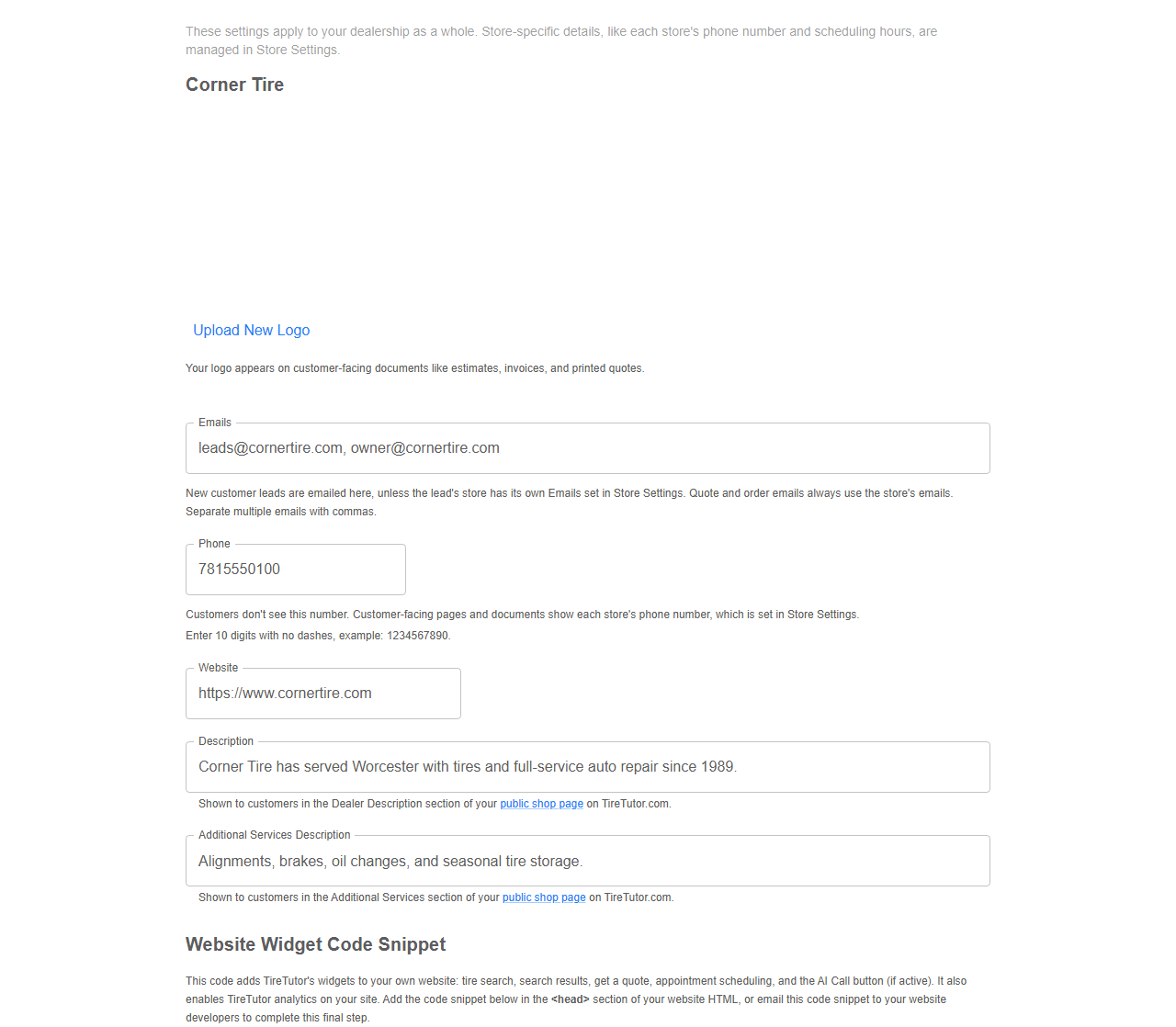
Business settings for a dealership, showing Upload New Logo, Emails, Phone, Website, Description and Additional Services Description, most of them with a line beneath explaining what the field drives, above the Website Widget Code Snippet section

Business details, with the note under each field saying where that detail shows up.

Select Update. A confirmation reading Dealer settings updated means it saved. The same screen carries your Website Widget Code Snippet. This code adds TireTutor’s widgets to your own website: tire search, search results, get a quote, appointment scheduling, and the AI Call button (if active). It also turns on TireTutor analytics for your site. Use the copy button beside it and send it to whoever maintains your site.

What a valid website address looks like

Type the full address, starting with https:// — for example https://www.yourshop.com. When TireTutor cannot accept what you typed, the field names what is wrong and repeats that example:
  • Website cannot contain spaces. Usually a stray space pasted in with the address.
  • Website must start with https:// The address has no https:// in front.
  • Website must include a domain ending such as .com The address stops at the name, with no .com, .net or similar.

Store settings

Open Settings → Organization → Stores. Each shop has its own block, headed by the shop name, so a change to one shop leaves the others alone.
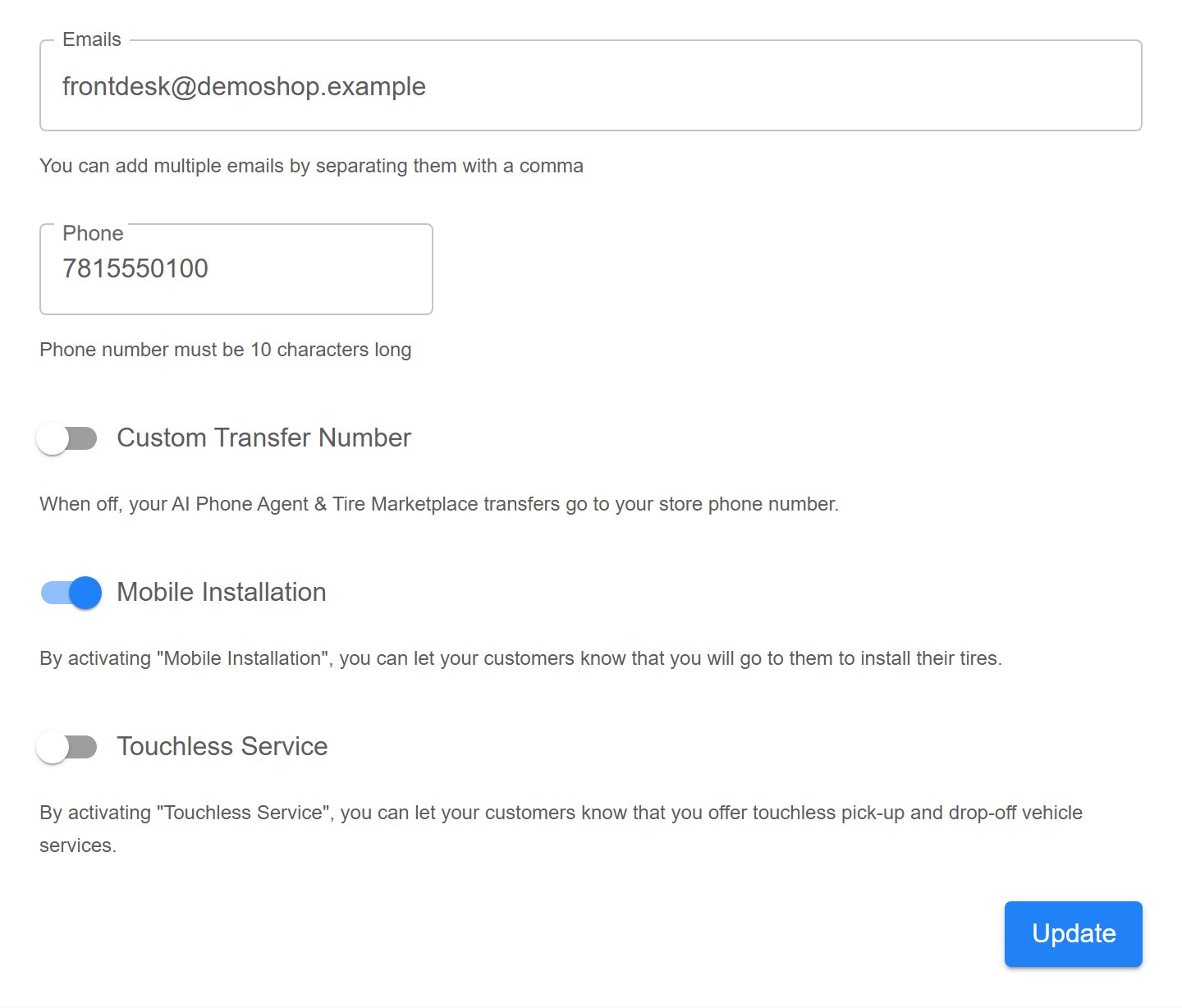
Shop settings form showing Emails, Phone, a Custom Transfer Number toggle turned off, Mobile Installation turned on, Touchless Service turned off, and an Update button

A shop's settings: emails, phone, the transfer setting, and the two service toggles.

Select Update when you are done. A confirmation reading Store settings updated means it saved.
On a shop with a Phone Agent number, editing Phone while no transfer number is set also moves where Phone Agent calls transfer, so TireTutor asks you to confirm first, under the heading You could miss customer calls. Changing transfer number covers what to check afterwards.
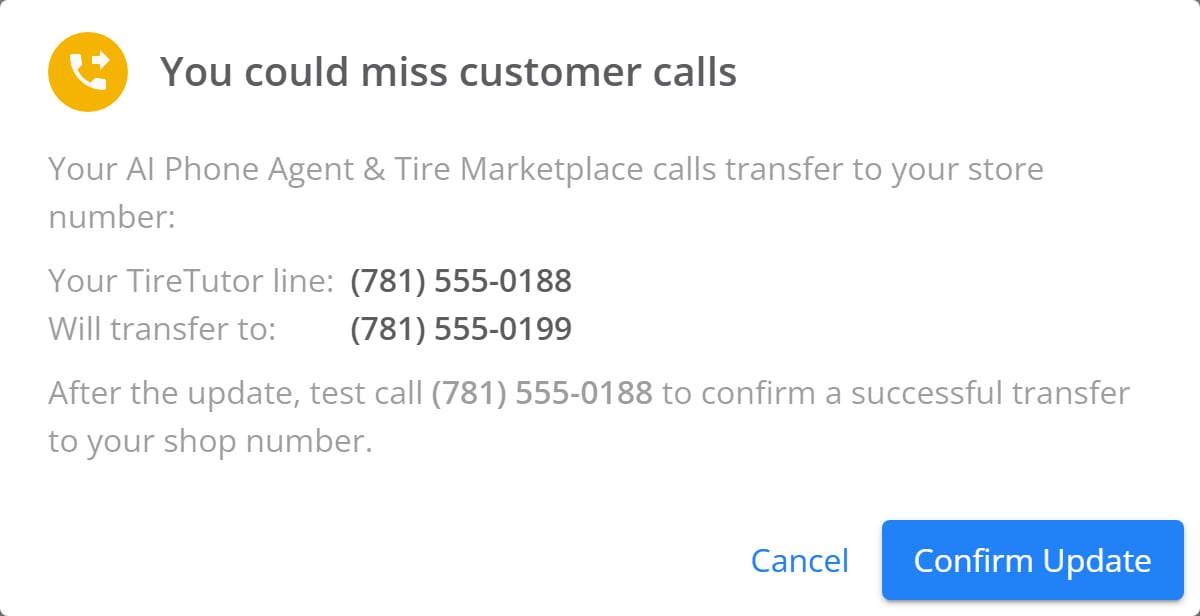
Dialog headed You could miss customer calls, listing Your TireTutor line and Will transfer to with a phone number beside each, and Cancel and Confirm Update buttons

The warning that appears when a shop phone edit moves the transfers with it.

Checking a change went through

Reload the page. Every field reads back what you saved, so the detail you edited is still there. If a field snaps back to its old value, the save did not go through — try it again, and tell your TireTutor contact if it keeps happening.