

Educational guidance. TireTutor does not host email. These steps use the import tool that comes with Google Workspace.
Copy your mailboxes into Google Workspace
You need an administrator account for your Google Workspace.1
Open the import tool
In the Google Admin console, go to Menu › Data › Data import & export › Data import.
2
Choose IMAP
For IMAP, click Import. The Import data from IMAP page opens.
3
Enter your old email server
Enter your old IMAP server name in IMAP server.
4
Test the connection
Click Test connection. The server shows Connected.
5
Fill in a mailbox
Fill in IMAP email address, IMAP password and Workspace email address.
6
Add the mailbox
Click Add. The mailbox appears in the list. Repeat the last two steps for each mailbox.
7
Check the settings
Under Step 3, click Edit settings. Check that the settings do not exclude a folder you need.
8
Start the copy
Click Start import. The status report shows In progress.
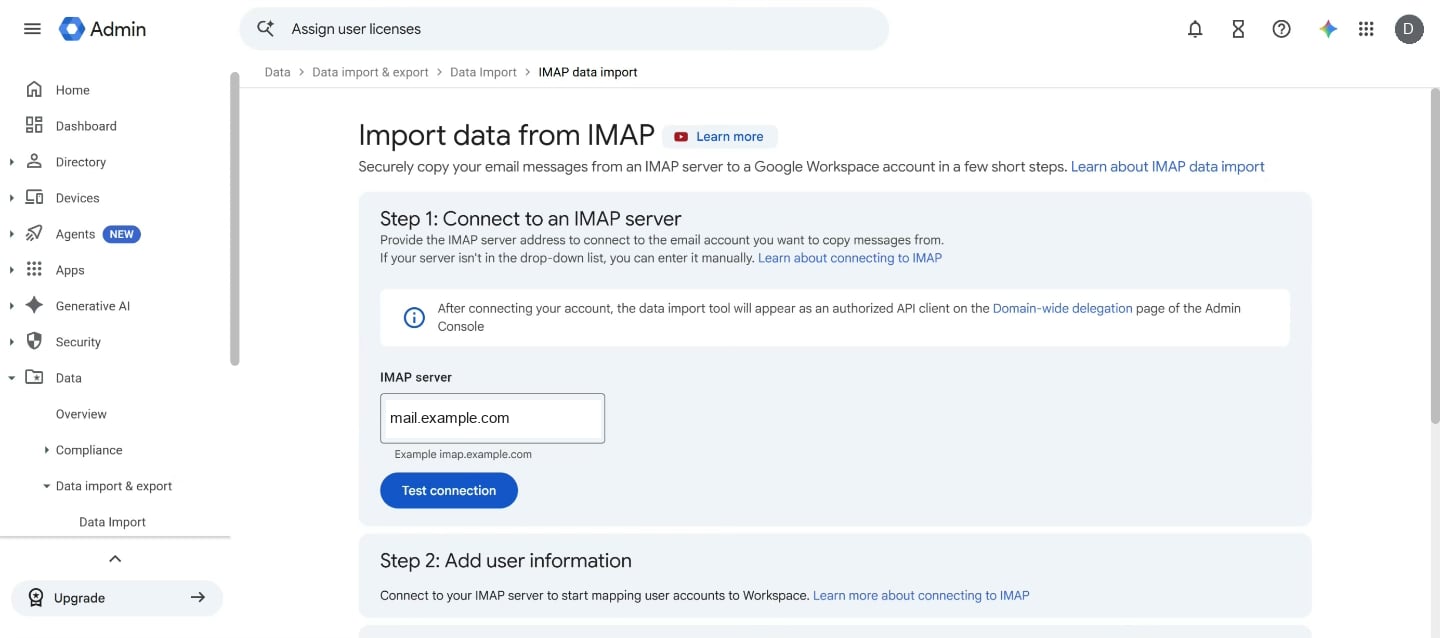
Step 1 with an old email server entered. Test connection is below the field. The server name is an example.
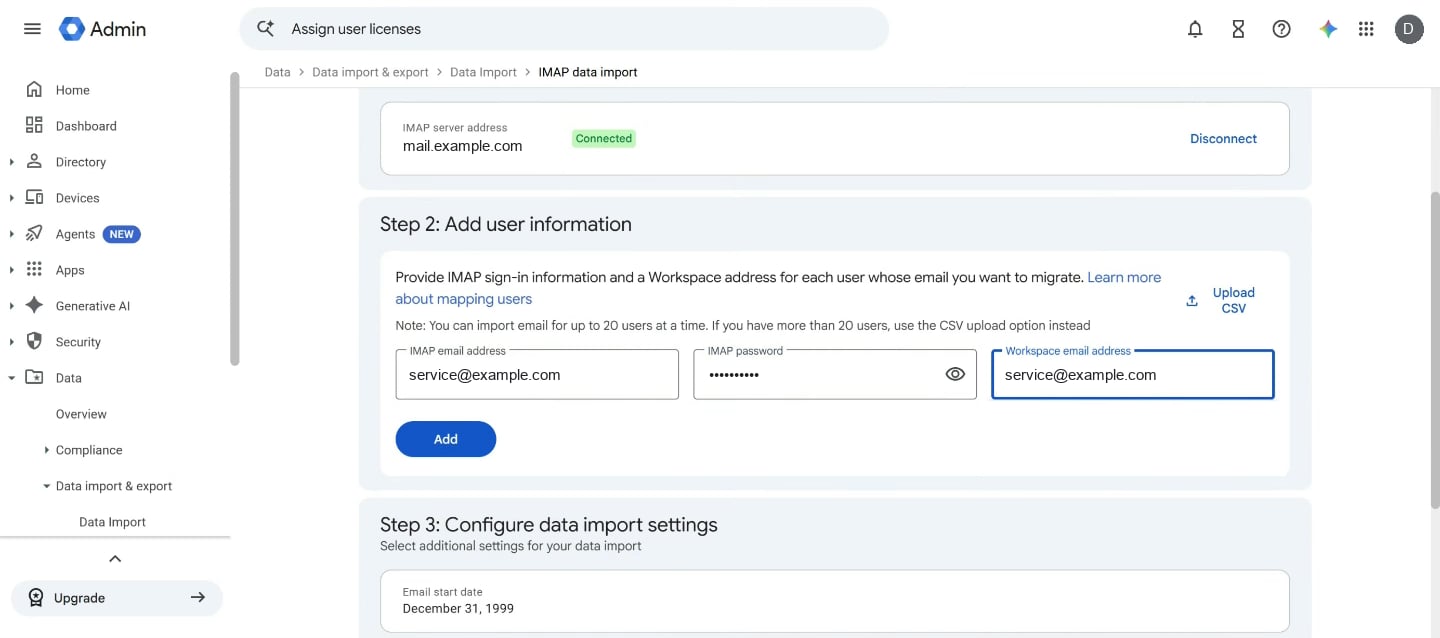
The server shows Connected. One mailbox is filled in, and Add is active. The addresses are examples.
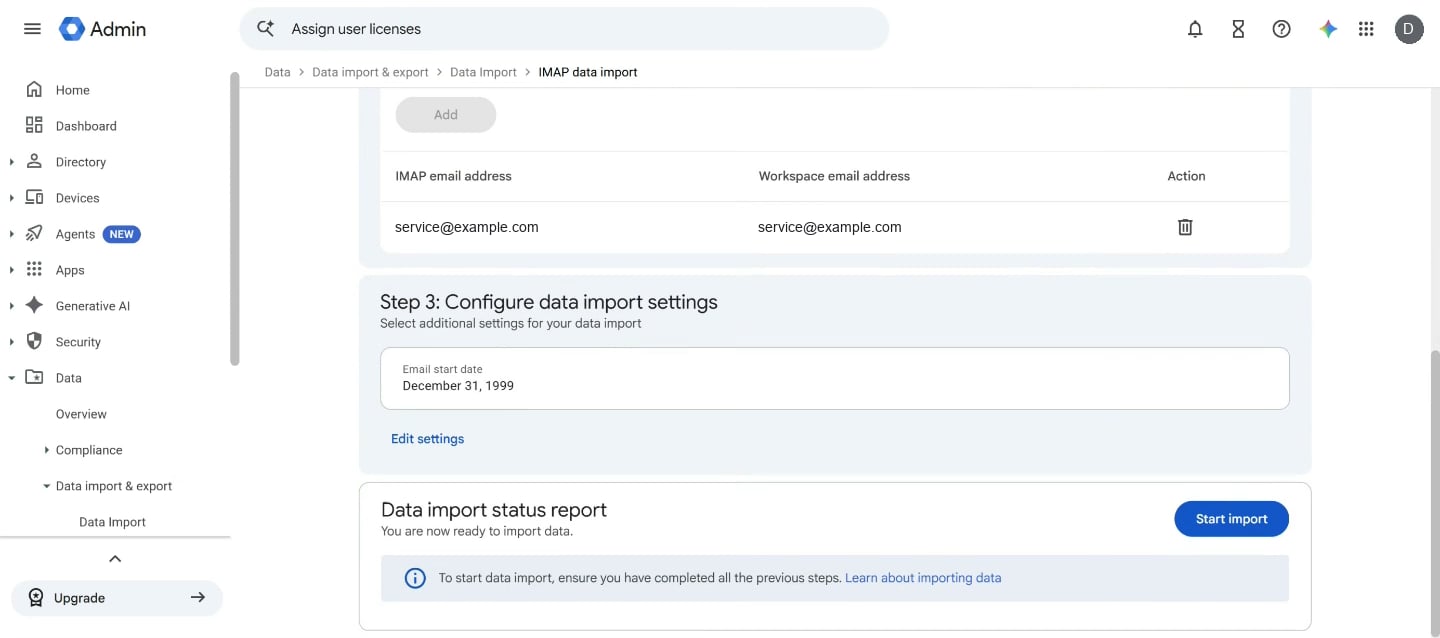
One mailbox is in the list. Step 3 shows the email start date. Start import is active.
Add more than 20 mailboxes
The form takes up to 20 mailboxes at a time. For more, click Upload CSV and upload a CSV file with three columns:Source ImapUser, Source ImapPassword and TargetGUser.
Check the copy’s progress
The status report updates every 10 seconds. The Successful count shows how many items have copied, and Failed shows how many did not. Stop import ends the copy. Large mailboxes take hours or days. Your team keeps using email as usual while it copies.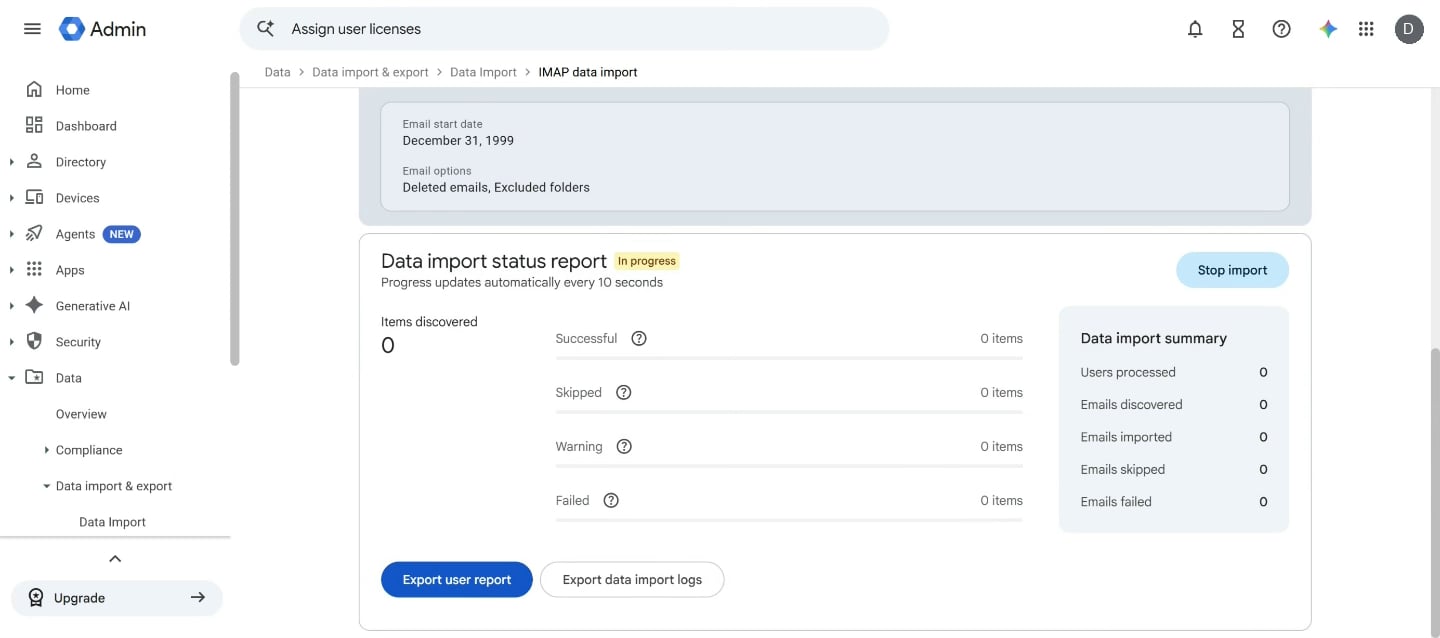
The import has just started. The counts rise as mail copies.
Copy the last messages after you switch
After you switch your mail records, run a delta import from the same import page. It copies the email that reached your old mailboxes during the change.If it doesn’t work
Still need help?
Contact support through the contact form, or call 855-400-4521.Where to go next
Moving your email to a new provider
Get ready, switch your mail records, and check that it worked.
Moving your email to Microsoft 365
The copy steps for Microsoft 365, also called Office 365.
Moving your email to another provider
Use your provider’s import tool, or an email app on a computer.