

The email or text message
The email shows no prices and no counts. It says the report is ready and links to it. The text message carries your shop name, the vehicle, and the link. A customer sees a price only after they open the report. For every element of the email, see the report email format.The report page
The services sit under Dealer Service Recommendations. The section asks the customer to review and approve or decline each recommended service. Two groups split the list.
You rate an inspection item OK, Suggested, or Required. A service carries its own priority toggle — REQ or SUG. A service you write by hand has a priority you set, but no item rating behind it unless you link one.
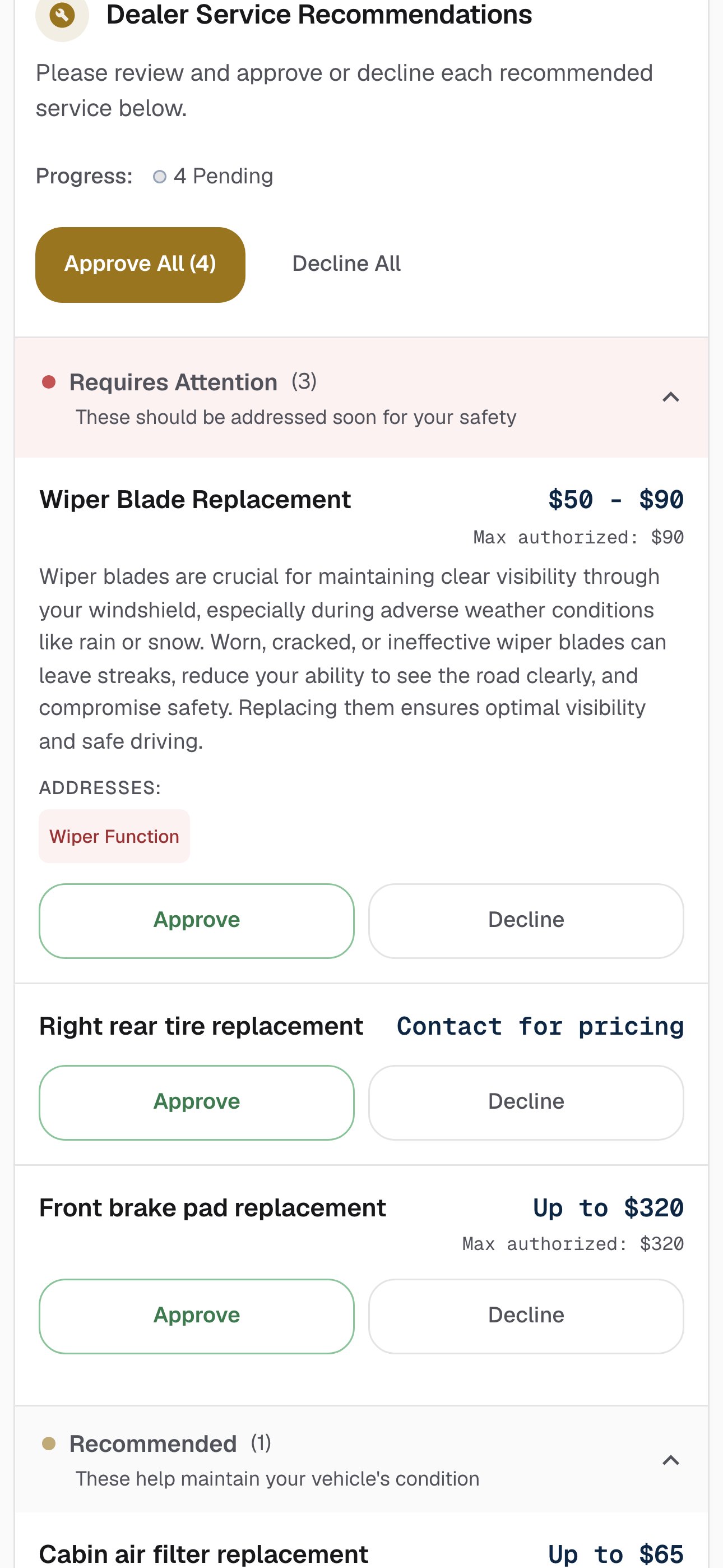
Dealer Service Recommendations on a phone, with the two groups and one service that carries no price.
What the price reads
Each service carries its own price line. What the customer reads follows what you entered in the dialog.
The report rounds each price to whole dollars. A service priced above X line under its price, taken from its high figure. That line reads $0 on a service the customer declines.
Approving and declining
The customer answers each service with Approve or Decline. Two buttons answer the whole list at once: Approve All, which carries the count in its label, and Decline All. The count is the number of services on the report, not the number still waiting for an answer. A total line tracks the answers. It reads Maximum Authorized, followed by the sum of the approved prices. One Approve does not finish the flow. After the customer answers every service, a consent step shows the maximum authorized amount, and a confirmation screen follows.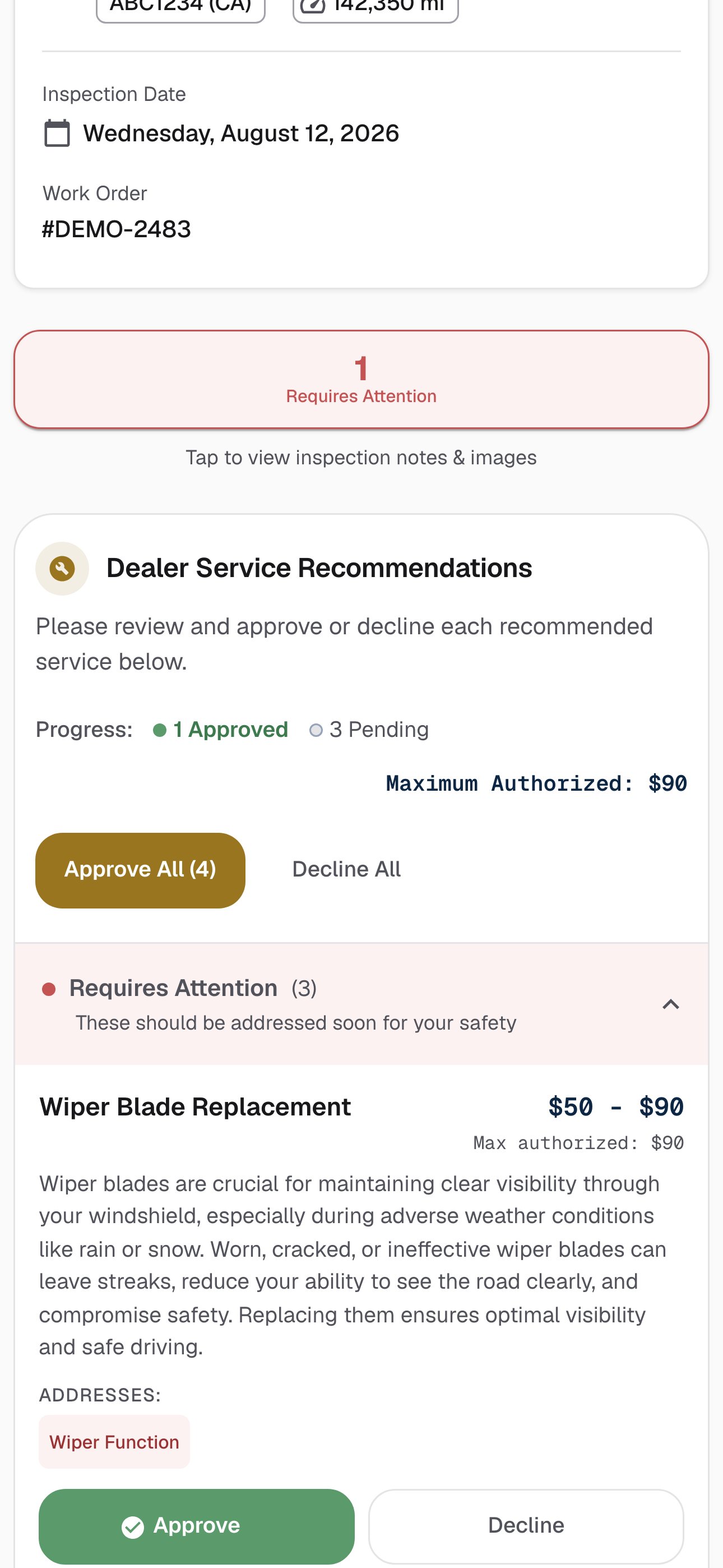
One service approved. The total line reads Maximum Authorized, and the progress line counts the answers.
Where to go next
Recommended services
Write a service by hand, or leave its price empty.
Performing an inspection
Rate items, draft the summary, and set your own prices.
How it works
What the AI reads, and why its prices are national averages.
Managing notifications
Choose who at the shop hears about an approval.