

Add a service for a tire that passes on tread depth
When: A tire needs replacement for damage the tread depth cannot show — a puncture in the shoulder, or a cut sidewall. DVI sets the tread status from the measurement you enter. Steer tires use higher limits than the other tires. The View status threshold logic link sits with the tire tread items in the inspection form. Tap it to read the limits DVI applies. No setting changes them, and the status badge stays read-only. The quickest path is the Tire Condition item. It is a separate item, with the same status buttons, notes, and photos. Rate it Required, and the AI drafts a service from it. The AI prices what it drafts. To send that work without a price, keep the draft and clear every price box on its card. An empty field shows Contact for pricing. The draft keeps its item link and its explanation. See send a service without a price below. REQ places the service under Requires Attention, which tells the customer “soon”, not “stop driving”. When the vehicle is unsafe, write that in the service description and call the customer. To write the service yourself instead, fill in mileage and the customer name first. DVI asks Add a Walkthrough Video? when you have not recorded one. Choose Continue Without Video. A card you write starts empty — give it a description and a linked item, or it reaches the customer as a bare name. Remove a duplicate AI draft with the trash icon on its card.1
Tap Review & Send Report
The AI Inspection Report dialog opens.
2
Find Service Recommendations
It sits below Inspection Summary.
3
Select Add Service
The name field reads “Service name (e.g., Front Brake Service)”.
4
Describe the work for the customer
Name the tire position and the damage — this text is what they read.
5
Select Link inspection items
Attach the tire item, so the customer sees the finding behind the service.
6
Set the priority toggle to REQ
SUG is the other value, and the default. Choose it for work that can wait.
The service you wrote sits in Service Recommendations with a REQ badge, beside anything Auto-Generate Services drafted.

Service Recommendations holding four services — the first card carries the TireTutor AI Agent credit.
Send a service without a price
When: You cannot price the work yet, and you want the customer to call the shop. Leave the price field empty. This works on an AI draft too — clear every price box its card shows. DVI has no setting that hides the price on every service, so empty the field on each service you send without one. What you enter — the service card with nothing in the price field:
A service written by hand, set to Required, with the price field left empty. The gray 0 is the field's own placeholder — nothing is typed in it.
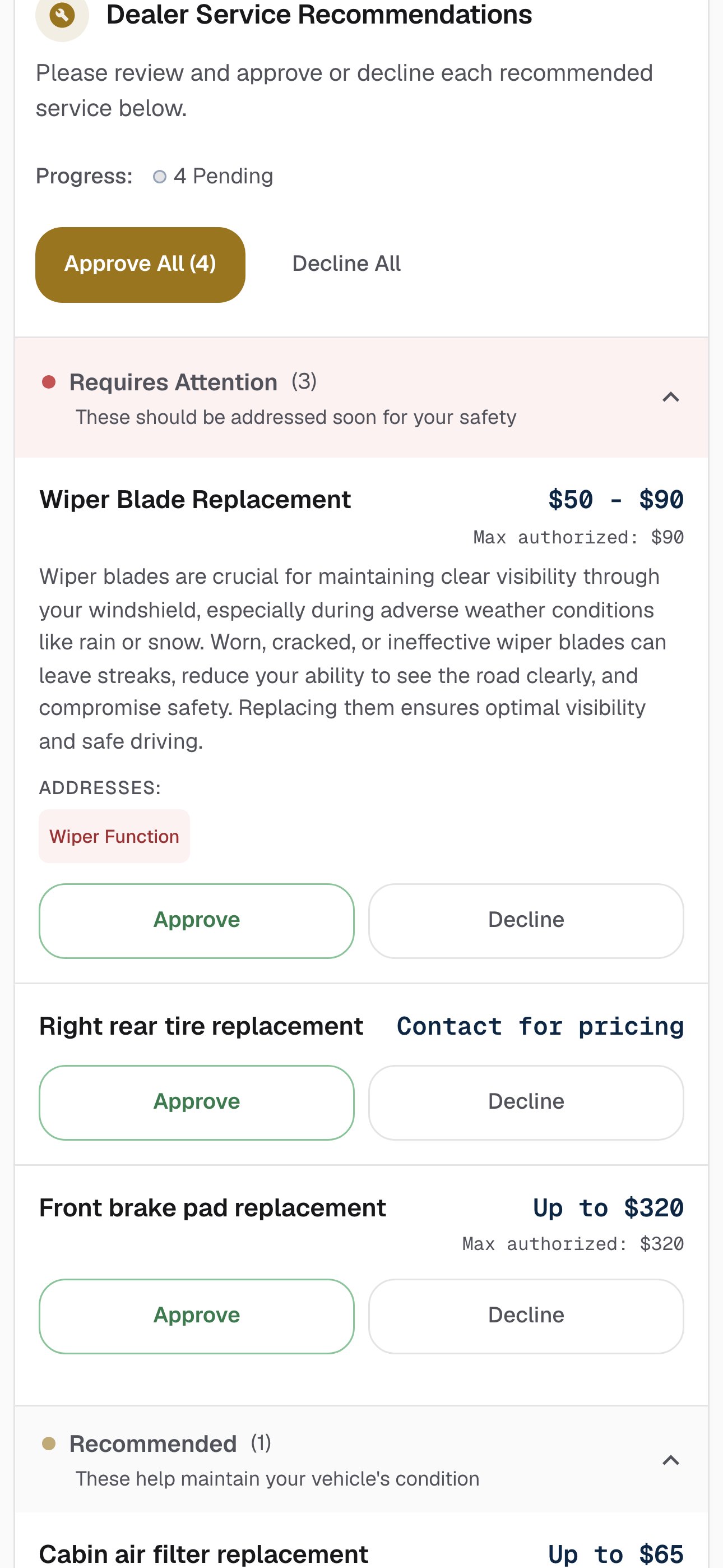
The customer report. The priced service shows its price; the service sent without one reads Contact for pricing.
Where to go next
Performing an inspection
Rate items, draft the summary, and set your own prices.
Customer report
What the customer sees, and what an approval commits them to.
How it works
What the AI reads, and why its prices are national averages.