

Connect Square
You need Admin or Owner access to this shop or its dealer to connect Square or change the location mapping. Otherwise, ask an Owner or Admin at your shop. Open Settings → Integrations. Find the Square panel.1
Connect your Square account
Select Set up Square.
2
Complete the Square connection
Complete the connection in Square.
3
Return to TireTutor
Return to TireTutor. The Square panel shows Connected, Warning, or Not Connected.
4
Check the location mapping
Read the Square location line in the Square panel.
5
Change the mapping if needed
If the location shows Not set or the wrong location, select Change location.
6
Choose the location
In Map Square location, select the correct Square location. A location already mapped to another shop is unavailable.
7
Save the mapping
Select Save.
8
Run Connection health
Select Connection health.
9
Review the checks
Review each row in Square connection health.
10
Complete the fixes
Follow the action on each row that needs attention.
11
Check again
Select I’ve verified in Square — re-check after completing the fixes.
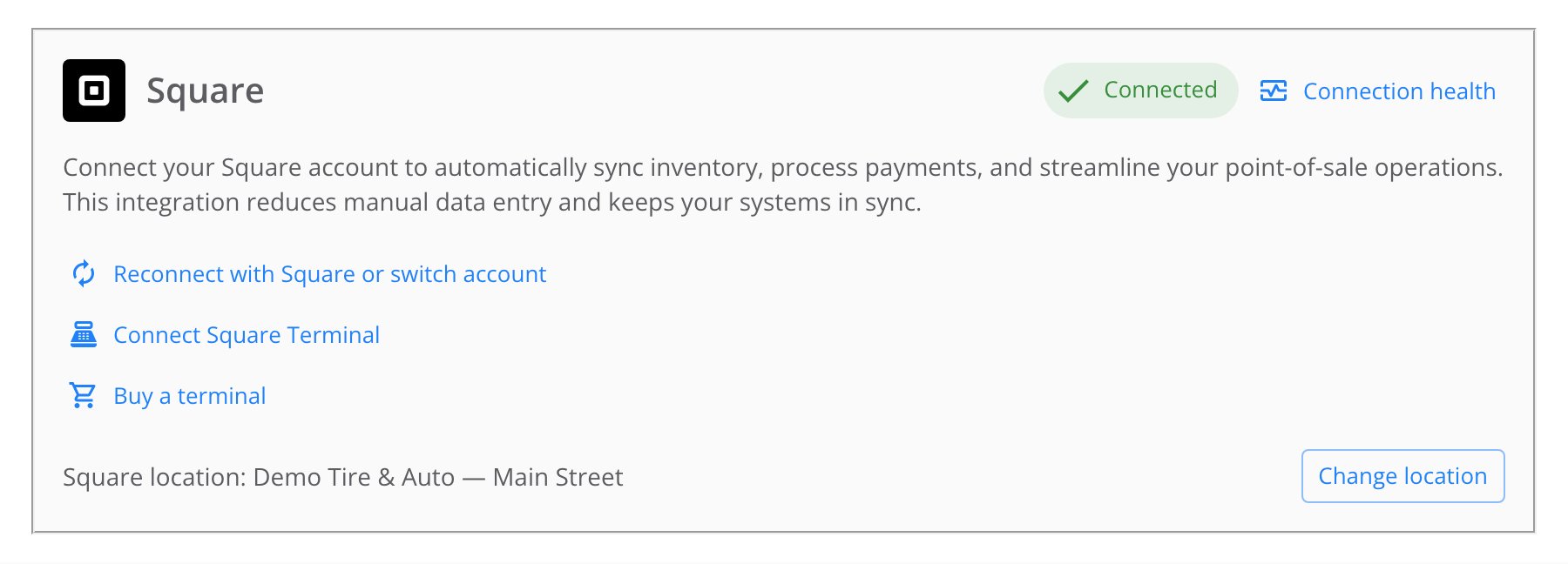
The Square panel after setup — Connected, a location mapped, and Connection health a click away.
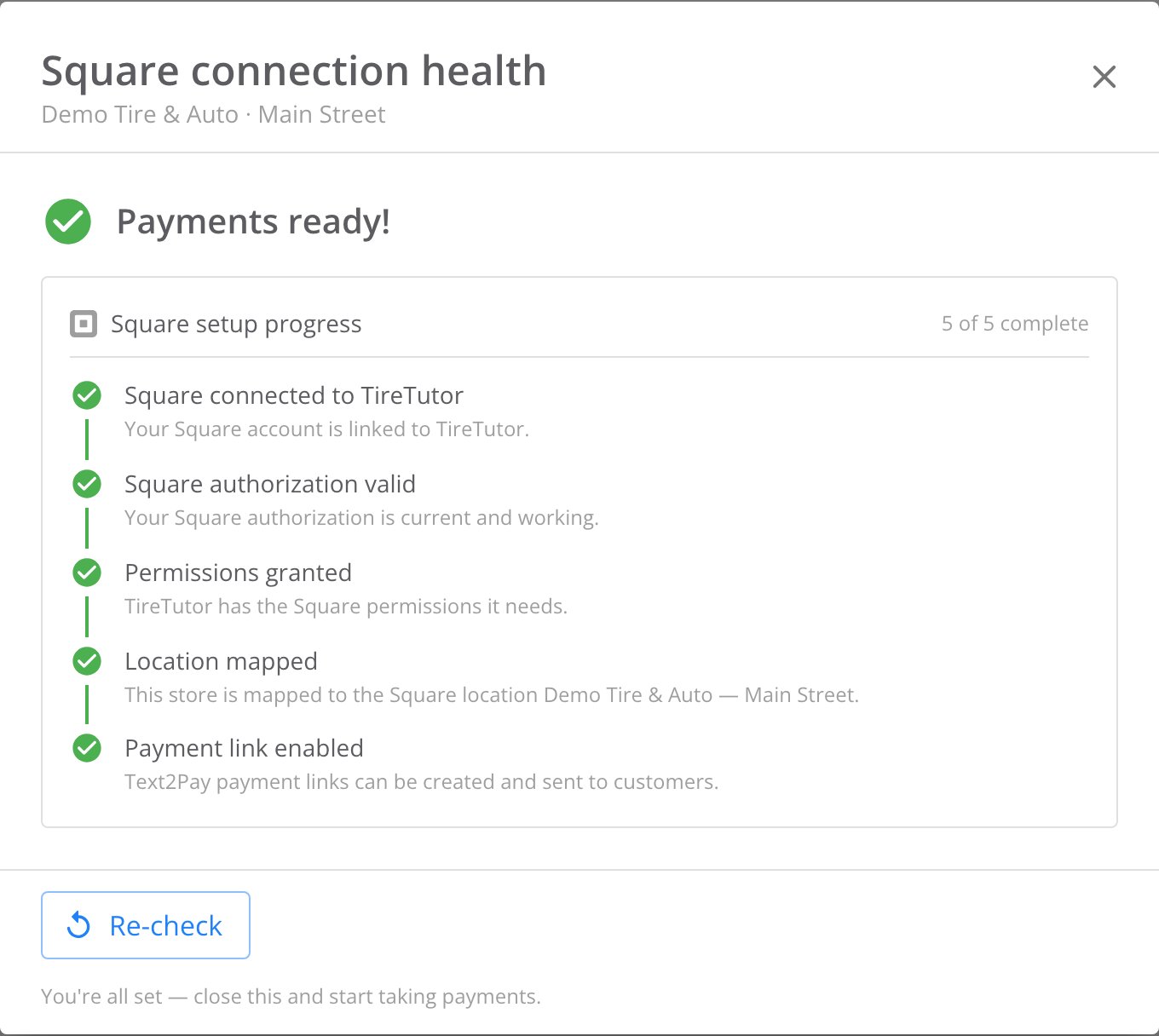
A healthy Connection health run — every required check green, payment links ready.
Square connection health shows Payments ready! Payment links work before you pair a terminal.
When Connection health flags something
The Square panel shows one of these status chips:- Connected: the required checks passed.
- Warning: the Square connection works, but a required check needs attention.
- Not Connected: connect or reconnect Square.
Read the checklist
TireTutor runs nine checks in this order:- Square connected to TireTutor
- Square authorization valid
- Permissions granted
- Merchant active
- Location mapped
- Location capable
- Payments observed
- Payment link enabled
- Terminal connected
Follow the fix on each row
A row can show a fix with a button or link. Follow the action shown on each check.- A button opens the step in TireTutor: the Square connection, Map Square location, or Connect Square Terminal.
- A link opens Square or a guide in a new tab. Finish the fix there, then return to TireTutor.
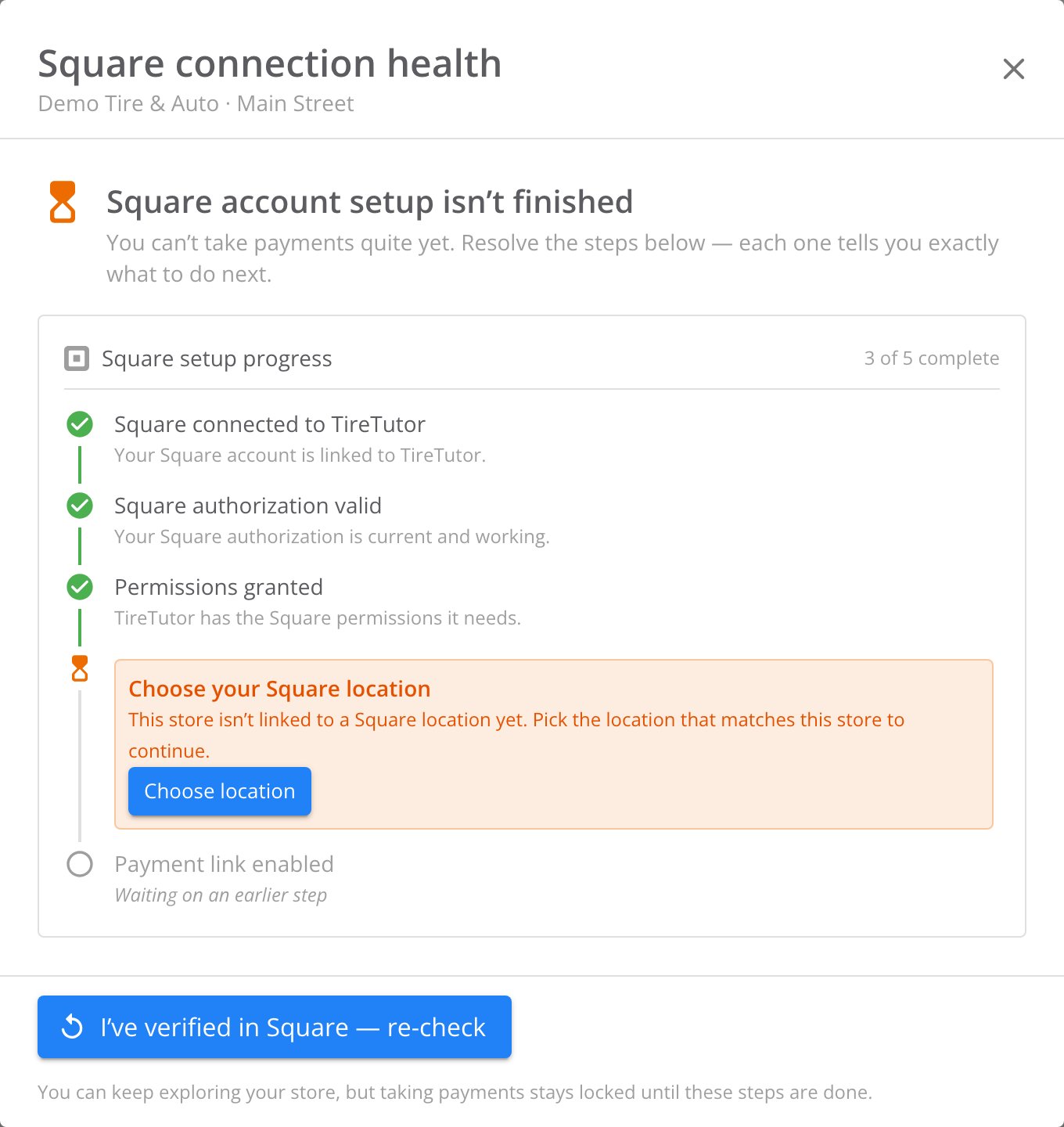
Connection health naming what's missing — here, the shop's Square location.
Follow the payment warnings
TireTutor also shows setup warnings outside Settings:- Finish setup to start taking payments or Payment setup needs attention appears in the app banner. Select View details to open Square connection health.
- Process Payment is unavailable on a work order when a required check fails. Select Please complete Square setup to open the same dialog.
Where to go next
Square Terminal
Pair a terminal and choose which device takes a payment.
Text to Pay and Tap to Pay
Take payment without a paired terminal.