

Open the vehicle dialog
1
Open the order
Open the work order or estimate.
2
Open Vehicle Details
Find Vehicle Details.
3
Change the vehicle
Select Change Vehicle.
4
Choose New Vehicle
In Select Vehicle, select New Vehicle.
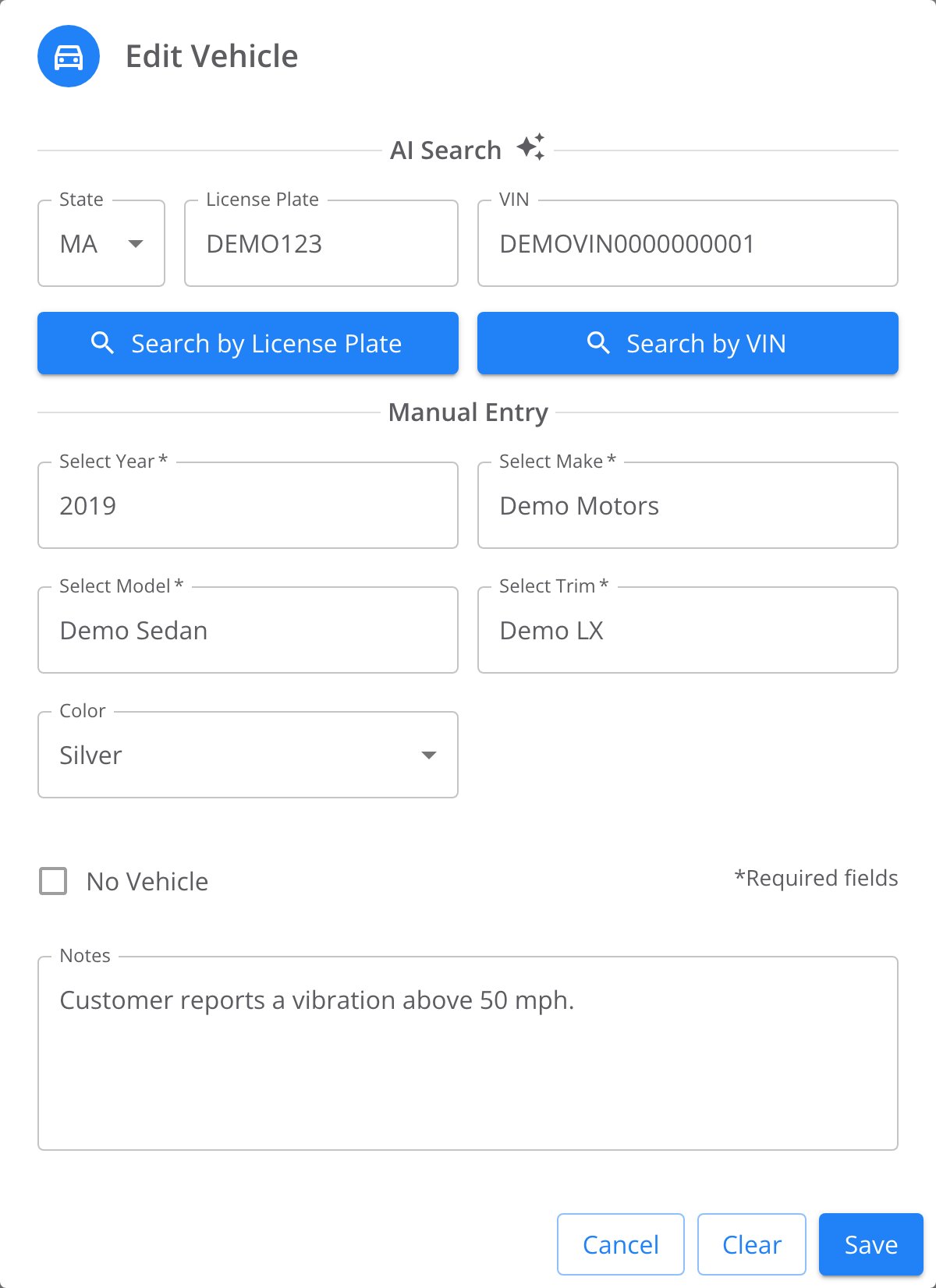
The Edit Vehicle dialog after a lookup has filled the form. AI Search sits above Manual Entry; Cancel, Clear and Save are at the bottom.
Look up the vehicle by VIN
1
Enter the VIN
Enter 13 to 17 characters in VIN.
2
Search by VIN
Select Search by VIN.
3
Fill the form
When the match alert appears, select Fill Form.
4
Review the details
Check Select Year, Select Make, Select Model, and Select Trim.
Look up the vehicle by license plate
1
Select the state
Choose the plate’s state in State.
2
Enter the plate
Enter the plate number in License Plate.
3
Search by license plate
Select Search by License Plate.
4
Fill the form
When the match alert appears, select Fill Form.
5
Review the details
Check the VIN and the fields under Manual Entry.
Enter the vehicle manually
1
Select the vehicle
Complete Select Year, Select Make, Select Model, and Select Trim in order.
2
Add the remaining details
Complete Color and Notes when you have those details.
3
Complete the required fields
When you open the dialog from a work order, it also shows a Mileage In field. Some shops require VIN and Mileage In on work orders. The dialog shows an error on Save when a required field is empty. A state and license plate also satisfy the VIN requirement. The picture above shows the dialog opened from a quote, without Mileage In.
4
Save the vehicle
Select Save.
TireTutor shows Successful submission. The vehicle appears in Vehicle Details on the order.
Where to go next
Assigning staff to a work order
Add a service writer and technician to the work order.
Overview
Understand how estimates, work orders, and payments fit together.