

Search for tires
If your shop has Tire Catalog turned on, open Products › Tire Catalog. The catalog searches by tire size or by SKU.Search by tire size
1
Open Tire Size
Select Tire Size.
2
Search by size
Search for the tire size.
Search by SKU
1
Open SKU
Select SKU.
2
Enter the SKU
Enter the product code in Search for an SKU.
3
Run the SKU search
Press Enter.
Choose tires to compare
1
Select the tires
Select the checkbox for each tire that you want to compare.
2
Open the comparison
Select Compare Quote Prices.
Review the comparison
The Compare Tires dialog shows Per Unit, Installed, and Set of 4 prices. Quantity starts at 4.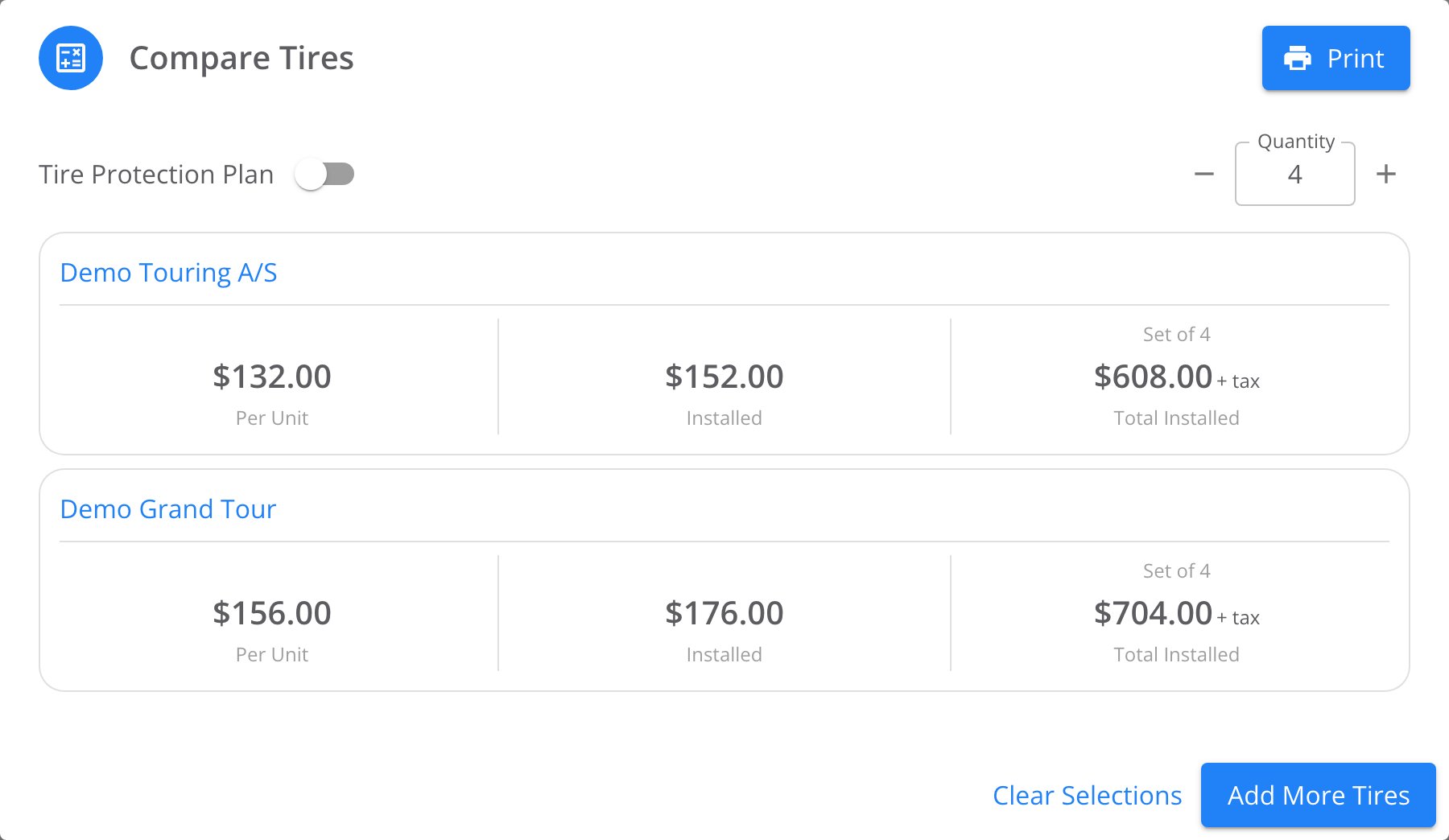
Two tires side by side in Compare Tires. Print sits in the title bar; Quantity sets the size of the set.
Print the comparison
1
Check the tire choices
Review each tire and its prices in Compare Tires.
2
Print the comparison
Select Print in the dialog’s title bar.
- Image
- Name
- Tire Size
- SKU
- Unit Price
- Installed Price
- QTY
- Total Price (without tax)
The browser print dialog opens with the selected tires and shop details in the preview.
Where to go next
Sending estimates to customers
Send an estimate for the customer to review.
Overview
Understand how estimates, work orders, and payments fit together.