

What you see
When one of Noah’s quotes arrives, a chime plays and a green notification appears at the top right, reading 1 new tire quote arrived!. It closes itself after 10 seconds, or you can close it yourself.- Click the notification to open that quote.
- When several arrive together, the notification counts them and clicking it opens the Tire Quotes list.
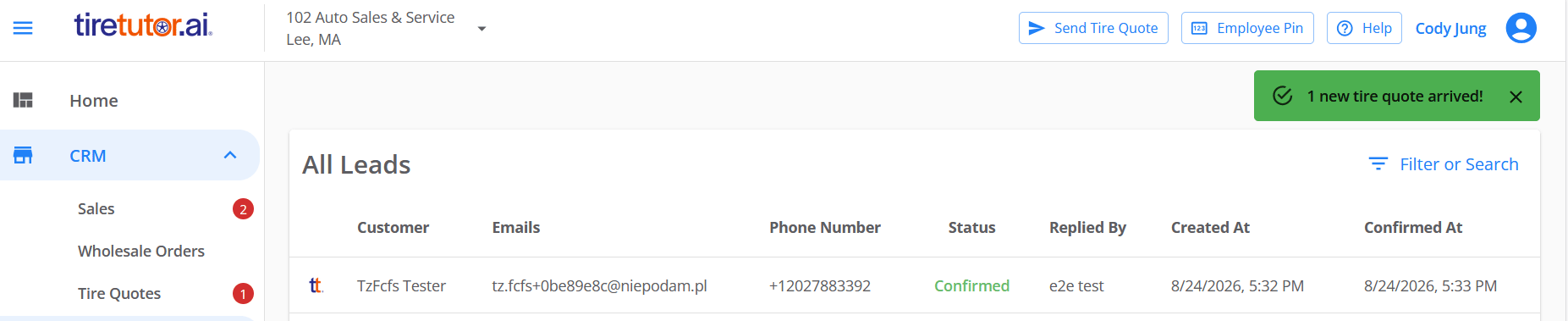
The notification at the top right, and the red counter on Tire Quotes in the CRM section.
You keep the count even if you miss the notification
The notification disappears after 10 seconds, but the counter does not. A closed laptop or a signed-out session means no chime and no notification, and the red counter still shows the quotes waiting for you the next time you sign in.How the count clears
- Open the Tire Quotes page and the counter clears. Every quote in the list counts as seen, including ones you did not open.
- Open a single quote from a notification and only that quote clears. The others stay counted until you look at them.
- Each shop keeps its own count. Switching shops shows that shop’s number.
When you’re working in another tab
If you clicked Allow when your browser asked to show notifications, a browser alert appears as well. Click it to open the quote — or the Tire Quotes list, when several arrived together. If you dismissed that permission request, turn notifications back on for TireTutor in your browser’s site settings.Get the most out of it
- Keep TireTutor open in a browser near the counter.
- Keep the CRM section of the menu expanded. The notification cannot show while you have that section folded away.
- Click anywhere in TireTutor after opening it. Browsers keep sound off until you interact with the page at least once, and every new quote plays a chime.