

Switch the shared screen to your login
When: Someone else’s login is on the shared computer, and you want to work under your own name.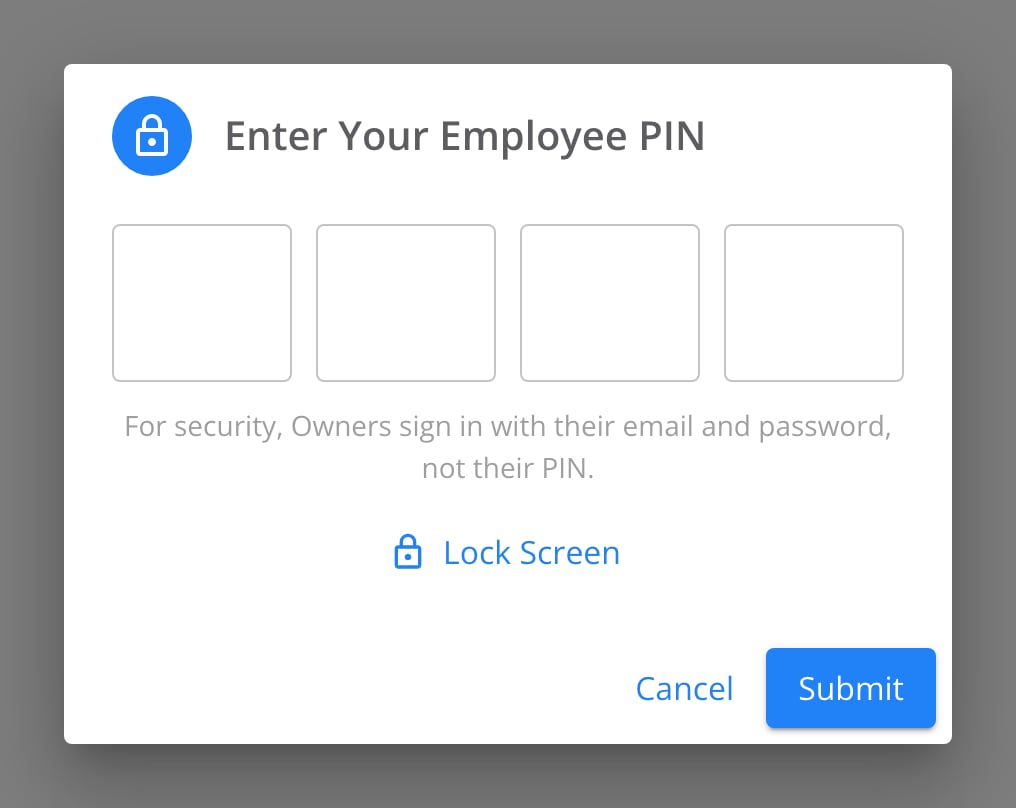
The Employee Pin dialog.
1
Select Employee Pin at the top of the page
The Enter Your Employee PIN dialog opens.
2
Type your four digits
The screen switches to your login. The dashboard records everything you do under your name.
You see your own settings, not the last person’s. The screen stays on your login until someone else switches it or signs out.
Lock the screen when you step away
When: You leave the shared computer for a moment.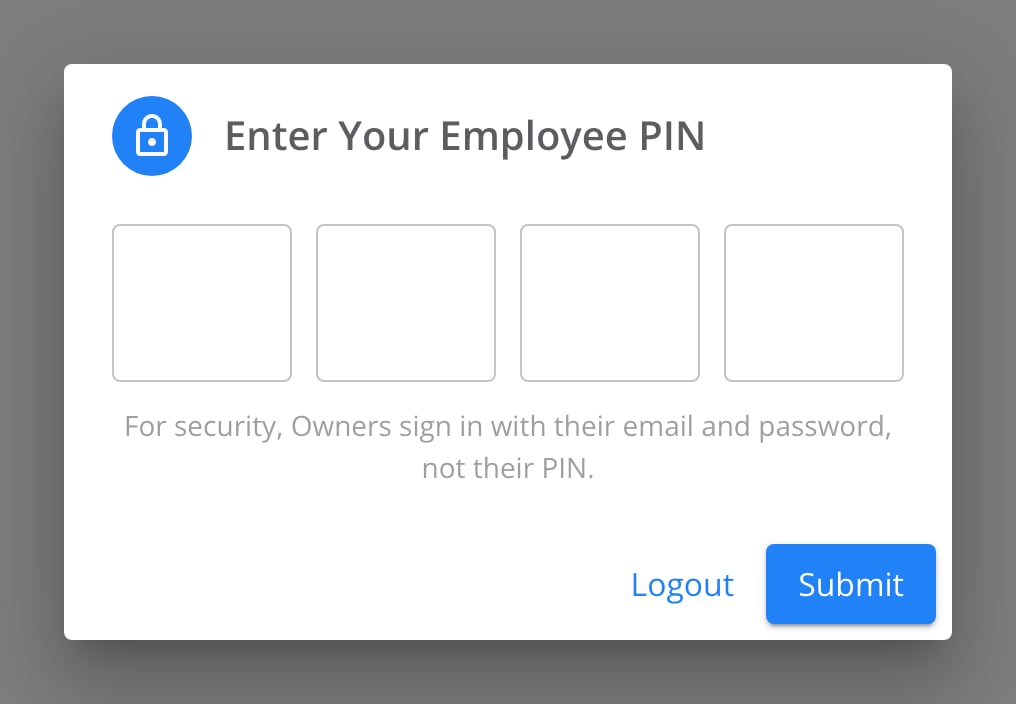
After Lock Screen, the dialog has no Cancel button.
1
Select Employee Pin at the top of the page
2
Select Lock Screen
The screen locks. Nobody can work under your name.
Sign in as an Owner
When: You’re an Owner and need your own login on the shared computer. By default, an Owner’s PIN clocks the Owner in and out, but it doesn’t switch the screen. The dialog shows Incorrect Pin, the same message as for a wrong PIN. This way, someone who guesses PINs can’t tell that they found an Owner’s PIN.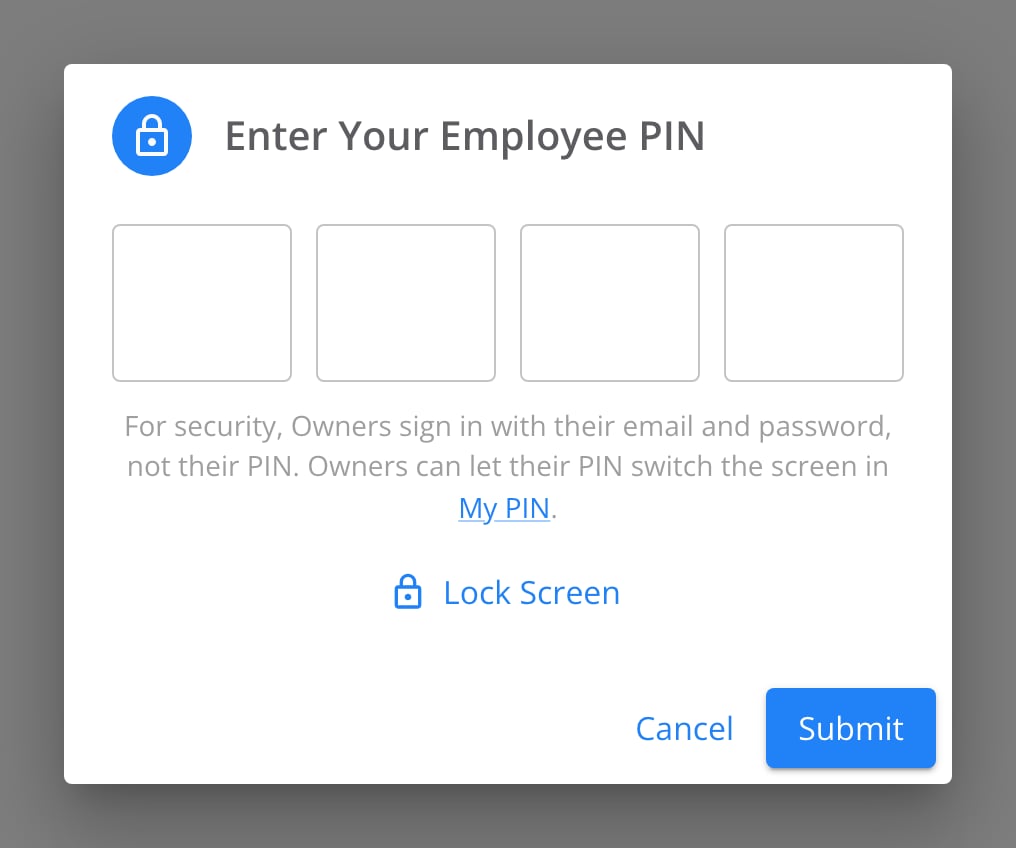
What a dealership Owner sees. Everyone else sees only the first sentence.
1
Select Logout in the account menu at the top right
On a locked screen, select Logout in the dialog instead.
2
Sign in with your email address and password
The screen opens on your login.
Unlock the PIN screen
When: Too many wrong PINs locked the Employee Pin dialog. After 10 wrong PINs in 15 minutes, the dialog stops taking PINs.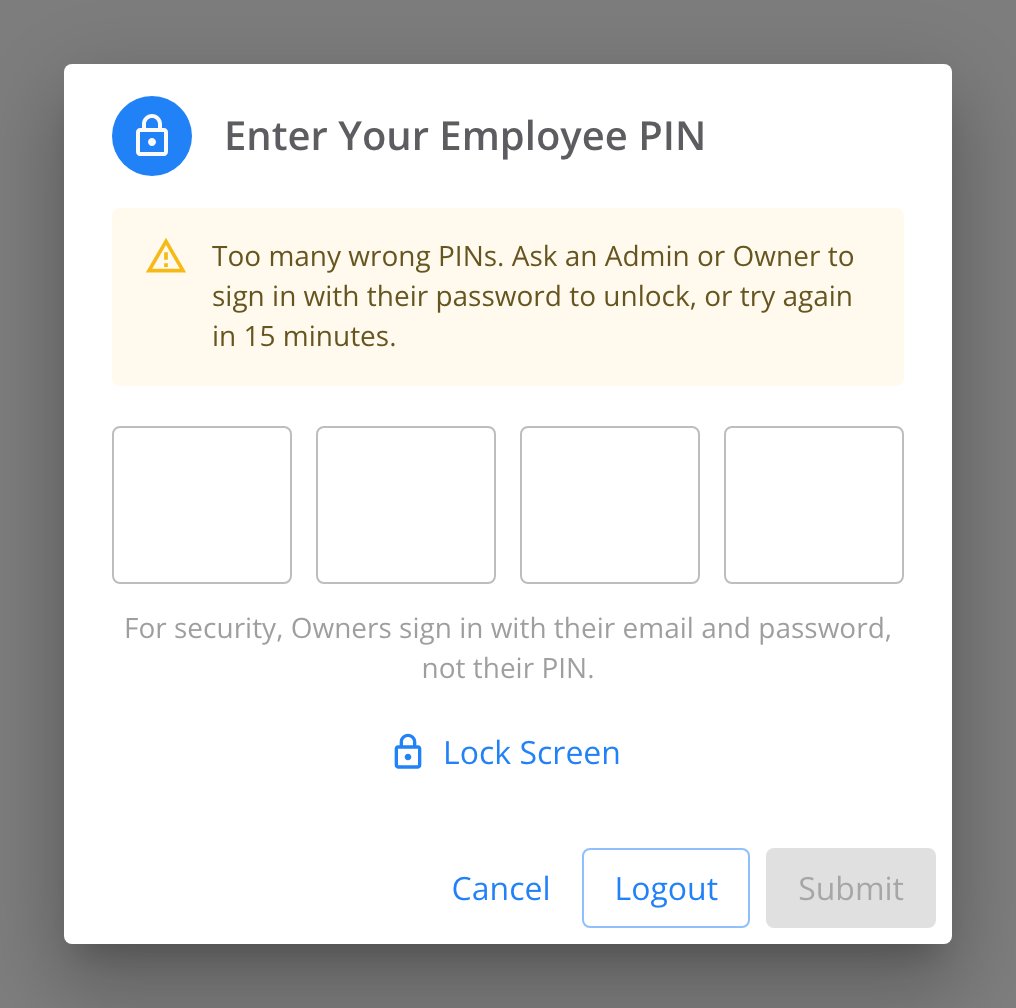
The 10th wrong PIN locks the dialog.
- An Owner or Administrator of your dealership, or of one of its stores, selects Logout. Then they sign in with their email and password. PIN entry unlocks right away.
- Wait 15 minutes.
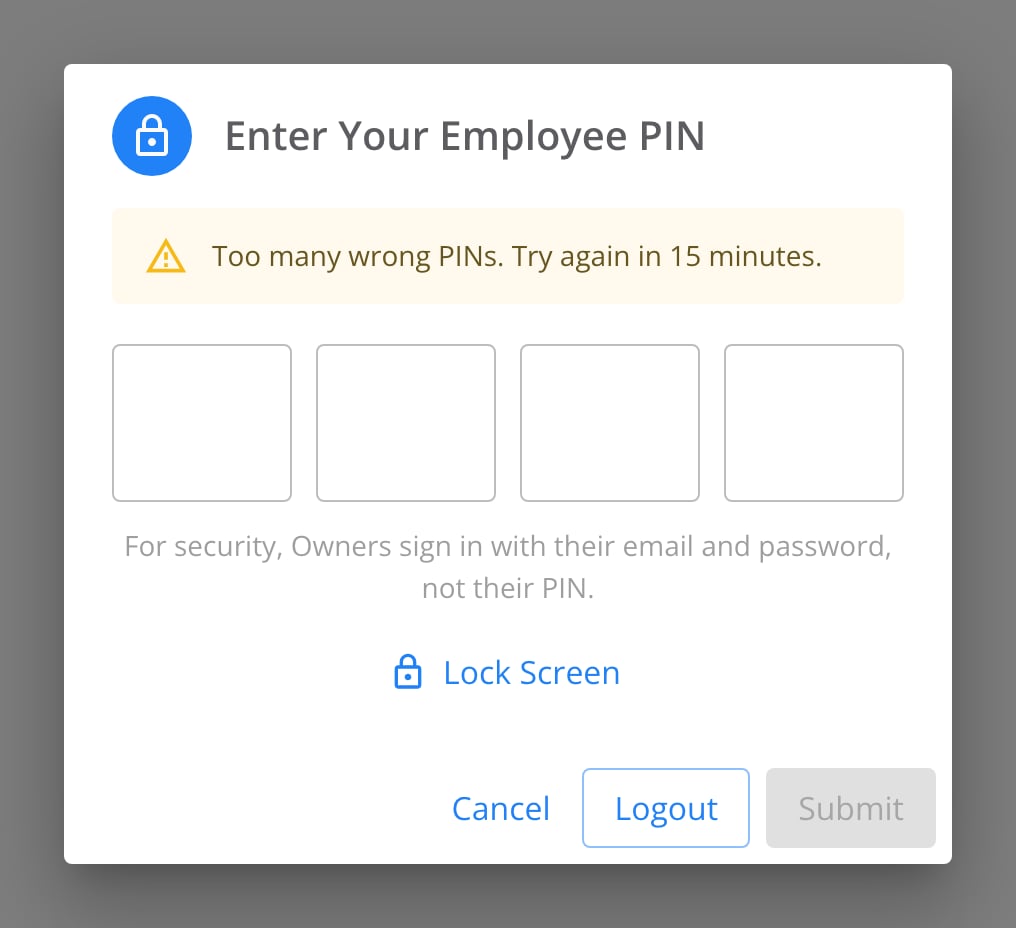
A second lock within 15 minutes. Only waiting unlocks it.
Fix an Incorrect Pin message
The dialog shows Incorrect Pin for each PIN in this table. The screen stays on the login that was there. Each one counts toward the lock, so don’t keep trying the same PIN.Still need help?
Contact support through the contact form, or call 855-400-4521.Where to go next
Clocking in with a PIN
Clock in and out with your PIN, and have an Admin or Owner approve a punch.
Managing employee PINs
Give each person a PIN, link it to their login, and set your own PIN.