Put a Book online button on your store’s Google listing, choose the services customers can book, and answer each request.
Every task on this page starts in the Google Book Online section. The section is in Shop Settings → Stores in your TireTutor dashboard. Each store has its own section. Overview explains what the button does and what your customers see.
Your store must unlock Google Book Online before you can turn it on. A store unlocks at $25,000 or 15 transactions through TireTutor POS in the last 30 days. Until then, the section reads Locked.Anyone at your store can open the section. Only an Owner or Administrator of the store can save a change. If you’re not one, ask an Owner or Administrator of the store to make it. A dealership Owner or Administrator sees each person’s role under Employees → Manage Users, as Managing your team shows.
Find Google Book Online for your store
When: You want to see if your store has Google Book Online. Every other task on this page also starts here.
1
Select the account icon at the top right
The icon sits next to your name. A menu opens.You can also use Shop Settings in the left side menu. If it opens a list, select More Settings. Both ways open the same settings page.
2
Select Shop Settings
The account menu, with Shop Settings outlined.
The settings page opens on Profile.
3
Select Stores, under Organization
Stores is in the menu on the left of the settings page.
The settings menu, with Stores outlined under Organization.
The page shows one section for each of your stores. The store’s name is the heading.
4
Select the Google Book Online heading in your store's section
The heading is near the end of the store’s section. A locked store shows Locked on the heading before you open it.
The Google Book Online heading, outlined, before you open it.
The section opens. It shows one of three things:
Locked, with two progress bars. Your store has not met a goal yet.
Status: Disabled, with an Edit button. Your store has unlocked Google Book Online. It is off.
Status: Enabled, with your Selected Services. Customers can book from Google.
Check how close your store is to unlocking
When: The section reads Locked and you want to know what your store still needs.
Volume through TireTutor POS shows your dollars out of $25,000. Transactions through TireTutor POS shows your count out of 15. Both cover the last 30 days. A Closest tag, a small label, marks the goal you are nearer to. With no progress yet, the tag sits on transactions.A transaction is a work order you complete in TireTutor POS. It must have a payment on it. Volume is the sum of those payments. The numbers update about every 15 minutes.
A locked store. It has $4,250 of $25,000 and 9 out of 15 transactions, so the transactions goal is the closest.
You only need to finish one bar. When either bar fills, Locked goes away. An Edit button shows. Your store stays unlocked after that, even in a slow month.
Turn on Google Book Online and choose your services
When: Your store has unlocked Google Book Online and you want customers to book from Google.
An unlocked store with Google Book Online off. Edit is outlined.
The Edit Google Book Online Settings dialog opens.
3
Turn on the switch at the top of the dialog
Its label is Enable Google Book Online.
4
Check each service customers can book
Check at least one. Customers can only pick from the services you check.
The dialog with the switch on and three services checked.
The dialog shows a message when the switch is on and no service is checked. It says At least one service must be selected to enable Google Book Online.Update stays grayed out until you check one.
The switch is on, but no service is checked. Update is grayed out.
5
Select Update
The dialog closes.If your role at this store is User, the dialog stays open with a red message. It says Admin or Owner permission required for this store. TireTutor saves nothing. Ask an Owner or Administrator of the store to do these steps.
What a person with the User role sees after they select Update.
Status reads Enabled. Selected Services lists what you checked. The Book online button can take up to 48 hours to show on your Google listing.
Google Book Online is on for this store, with three services.
Change the services customers can book
When: You add a service to your store, or stop offering one.
Edit is on the right of Status. The Edit Google Book Online Settings dialog opens.
3
Check or uncheck services
Leave the switch on. Keep at least one service checked.
4
Select Update
The dialog closes.
Selected Services shows the new list. Your booking page offers the new list right away. Google can take up to 48 hours to show the change.
Answer a booking request
When: A customer asked for a visit from Google and waits for your answer.A booking from Google is a request, not a set appointment. You get an email when one comes in, and the request shows in your leads.
1
Open CRM → Leads
The new request is in the list, on the page titled All Leads. A request from Google has a Google icon at the start of its row. Its Status reads New.
The Leads list with a new request from Google.
2
Open the lead
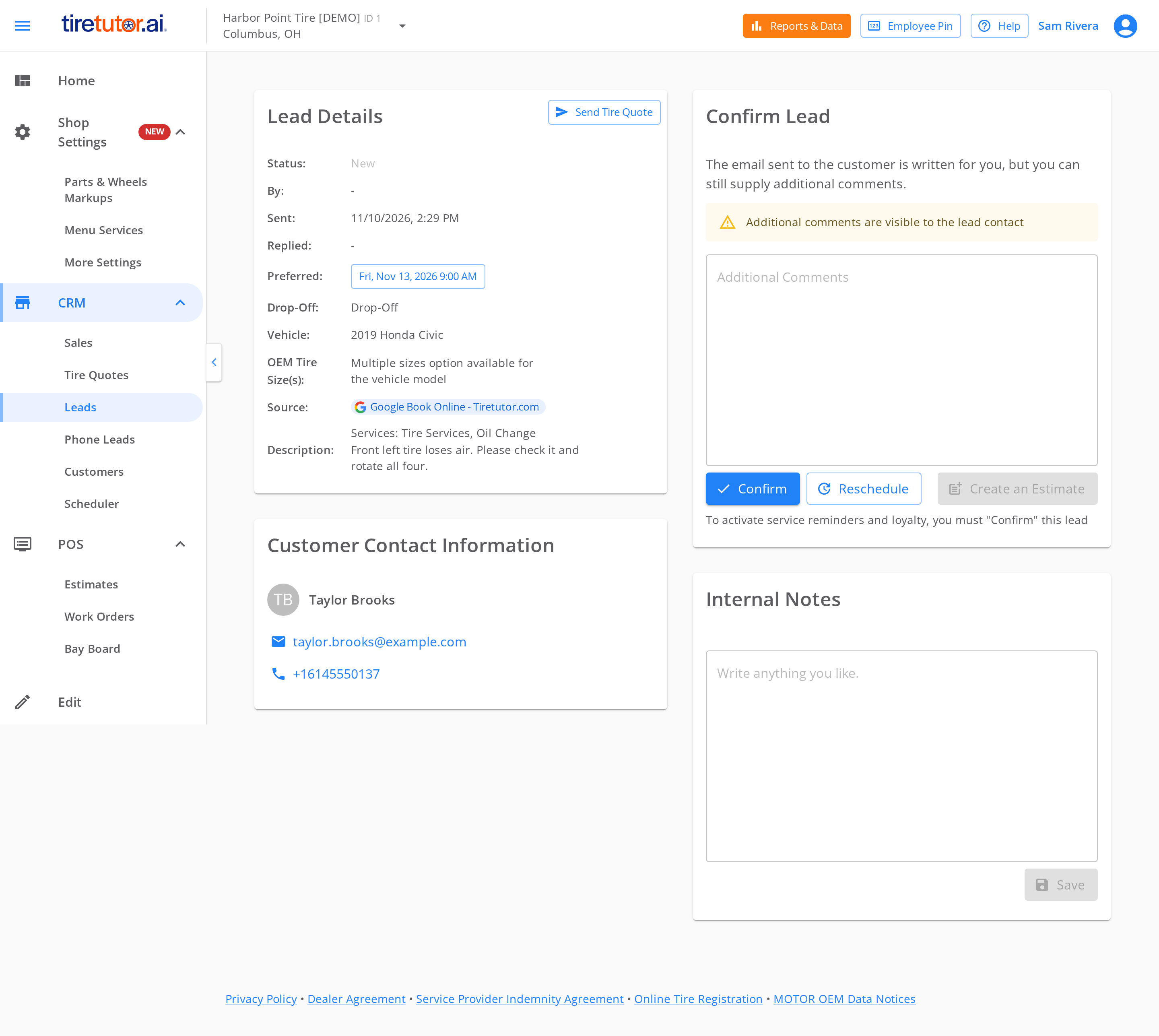
The lead shows the customer’s name, phone, email and vehicle. It also shows the services, the date and the time they asked for.
A booking request from Google, open. The Source row names Google Book Online.
3
Select Confirm or Reschedule
Both buttons are on the Confirm Lead card. Anything you type in Additional Comments goes to the customer.Select Confirm if the time works. TireTutor tells the customer that you confirmed the appointment.Select Reschedule if it doesn’t. Reschedule does not pick a new time. TireTutor tells the customer that the time isn’t available and that your store contacts them. Call or email the customer to agree on a new time.
The lead shows your answer and your name. Its Status reads Confirmed, or Rejected after Reschedule. The customer gets your answer by email and by text message.
Turn off Google Book Online
When: You want to stop taking bookings from Google at this store.
The Edit Google Book Online Settings dialog opens.
3
Turn off the switch at the top of the dialog
Leave the services as they are. They stay checked for the next time you turn it on.
The dialog with the switch off. The services keep their check marks.
4
Select Update
The dialog closes.
Status reads Disabled. Your booking page changes right away. It tells customers that Google Book Online is not available for this store. Google removes the Book online button within 48 hours. Your store stays unlocked. You can turn it back on at any time.
The section after you turn Google Book Online off.
Admin or Owner permission required for this store. (in the dialog, after you select Update)
Your role at this store is User, so your change was not saved. Ask an Owner or Administrator of the store to make the change.
At least one service must be selected to enable Google Book Online.
Check at least one service, then select Update.
Status reads Enabled, but Google shows no Book online button after 48 hours
Check that your store has a street address, city and ZIP code, and that they match your Google Business Profile. If they match, contact support. Google has not linked your store to your Google Business Profile, and we fix the link for you.
Your store is a mobile or service-area business, and Google shows no button
Google links a store by its address. A profile that hides its address does not link by itself. Contact support.
A bar looks lower than you expect
The bars count the last 30 days only, and only completed work orders with a payment. Older work drops off.
A customer says the booking page shows no times
The page offers times inside your store hours only. It hides a time when any lead at your store asks for a time close to it. It also skips the first days when your Service Request scheduling has a time offset. Times a customer can pick has the rules. Check your hours first.
A request came in after you turned it off
A customer who opened the booking page before you turned it off can still send that one request. Answer it like any other lead.
Still need help?
Contact support through the contact form, or call 855-400-4521.Say which store you mean. Say whether its Status reads Enabled.
Where to go next
Overview
What Google Book Online does, what your customers see, and how a store unlocks it.
Dealer and Store settings
Update the details customers see for your dealership and each store.
{"docsConfig":{"theme":"mint","$schema":"https://mintlify.com/docs.json","name":"TireTutor Help Center","colors":{"primary":"#2563EB","light":"#3B82F6","dark":"#1E40AF"},"logo":{"light":"https://mintcdn.com/tiretutor/t5zlRZTZFstXTcb9/logo/tiretutor-ai.png?fit=max\u0026auto=format\u0026n=t5zlRZTZFstXTcb9\u0026q=85\u0026s=78a888043867a07384c42a045cb2ca6b","dark":"https://mintcdn.com/tiretutor/t5zlRZTZFstXTcb9/logo/tiretutor-ai-dark.png?fit=max\u0026auto=format\u0026n=t5zlRZTZFstXTcb9\u0026q=85\u0026s=6cdfb9d35662c4f3398f72d522e798eb","href":"https://www.tiretutor.ai"},"favicon":"https://mintcdn.com/tiretutor/I6aLT08sS3awDfeZ/favicon-tt.svg?fit=max\u0026auto=format\u0026n=I6aLT08sS3awDfeZ\u0026q=85\u0026s=92ea207762b55bfb1ef630350e459a9c","navbar":{"links":[{"href":"https://www.tiretutor.ai/contact-us","label":"Contact us"}],"primary":{"type":"button","label":"Sign in","href":"https://dealers.tiretutor.com/login"}},"footer":{},"styling":{"latex":true},"navigation":{"pages":[]}},"deployment":{"deploymentMetadataValue":{"subdomain":"tiretutor","hasAudioNarration":false,"actualSubdomain":"tiretutor","customDomains":["help.tiretutor.ai"],"gitSource":{"type":"github","owner":"tiretutorinc","repo":"tt-docs","deployBranch":"main","contentDirectory":"public","isPrivate":true,"mountPath":"","label":""},"feedback":{"thumbs":true,"edits":true,"issues":true,"agentFeedback":true},"entitlements":{},"buildId":"6aff830c622942866f0b746a","clientVersion":"0.0.4248","searchFilterCounts":[{"language":"default","tag":"For Dealers","count":123},{"language":"default","tag":"Knowledge Base","count":48},{"language":"default","tag":"Point of Sale","count":31},{"language":"default","tag":"Dealer CRM","count":28},{"language":"default","tag":"How-to","count":21},{"language":"default","tag":"AI App Hub","count":19},{"language":"default","tag":"Settings","count":13},{"language":"default","tag":"Work orders and estimates","count":13},{"language":"default","tag":"Getting paid","count":11},{"language":"default","tag":"Pricing","count":11}],"searchSettings":{"showContentSnippets":true,"maxResults":8}},"assistantConfig":{},"basePath":"","hasChatPermissions":false,"hasWebMcpPermissions":false,"toggles":[{"name":"kill-isr","enabled":true,"variant":{"name":"disabled","enabled":false,"feature_enabled":true},"impressionData":false},{"name":"custom-rbac-roles","enabled":true,"variant":{"name":"disabled","enabled":false,"feature_enabled":true},"impressionData":false},{"name":"agent-mintlify-slack","enabled":true,"variant":{"name":"disabled","enabled":false,"feature_enabled":true},"impressionData":false},{"name":"agent-integrations-settings","enabled":true,"variant":{"name":"disabled","enabled":false,"feature_enabled":true},"impressionData":false},{"name":"rbac-expansion","enabled":true,"variant":{"name":"disabled","enabled":false,"feature_enabled":true},"impressionData":false},{"name":"automations-pr-grouping","enabled":true,"variant":{"name":"disabled","enabled":false,"feature_enabled":true},"impressionData":false},{"name":"custom-prefix","enabled":true,"variant":{"name":"disabled","enabled":false,"feature_enabled":true},"impressionData":false},{"name":"analytics-v7","enabled":true,"variant":{"name":"disabled","enabled":false,"feature_enabled":true},"impressionData":false},{"name":"user-flows-analytics","enabled":true,"variant":{"name":"disabled","enabled":false,"feature_enabled":true},"impressionData":false},{"name":"no-publish-flow","enabled":true,"variant":{"name":"disabled","enabled":false,"feature_enabled":true},"impressionData":false},{"name":"workos-onboarding","enabled":true,"variant":{"name":"disabled","enabled":false,"feature_enabled":true},"impressionData":false},{"name":"snapshot-serving-live","enabled":true,"variant":{"name":"disabled","enabled":false,"feature_enabled":true},"impressionData":false},{"name":"stripTemperatureMiddleware","enabled":true,"variant":{"name":"disabled","enabled":false,"feature_enabled":true},"impressionData":false},{"name":"support-platform-pylon-zendesk","enabled":true,"variant":{"name":"disabled","enabled":false,"feature_enabled":true},"impressionData":false},{"name":"snapshot-serving","enabled":true,"variant":{"name":"disabled","enabled":false,"feature_enabled":true},"impressionData":false},{"name":"instant-rollback","enabled":true,"variant":{"name":"disabled","enabled":false,"feature_enabled":true},"impressionData":false},{"name":"granular-notifications-server","enabled":true,"variant":{"name":"disabled","enabled":false,"feature_enabled":true},"impressionData":false},{"name":"granular-notifications","enabled":true,"variant":{"name":"disabled","enabled":false,"feature_enabled":true},"impressionData":false},{"name":"automations-fable","enabled":true,"variant":{"name":"disabled","enabled":false,"feature_enabled":true},"impressionData":false},{"name":"fixed-ai-action-pricing","enabled":true,"variant":{"name":"disabled","enabled":false,"feature_enabled":true},"impressionData":false},{"name":"site-roles","enabled":true,"variant":{"name":"disabled","enabled":false,"feature_enabled":true},"impressionData":false},{"name":"automation-resolve-merge-conflict","enabled":true,"variant":{"name":"disabled","enabled":false,"feature_enabled":true},"impressionData":false},{"name":"scoped-publishing","enabled":true,"variant":{"name":"disabled","enabled":false,"feature_enabled":true},"impressionData":false},{"name":"mintql","enabled":true,"variant":{"name":"disabled","enabled":false,"feature_enabled":true},"impressionData":false},{"name":"page-level-analytics","enabled":true,"variant":{"name":"disabled","enabled":false,"feature_enabled":true},"impressionData":false},{"name":"editor-version-history-v2","enabled":true,"variant":{"name":"disabled","enabled":false,"feature_enabled":true},"impressionData":false},{"name":"billing-page-v2","enabled":true,"variant":{"name":"disabled","enabled":false,"feature_enabled":true},"impressionData":false},{"name":"full-page-search","enabled":true,"variant":{"name":"disabled","enabled":false,"feature_enabled":true},"impressionData":false},{"name":"workspace-projects","enabled":true,"variant":{"name":"disabled","enabled":false,"feature_enabled":true},"impressionData":false},{"name":"assistant-v5","enabled":true,"variant":{"name":"disabled","enabled":false,"feature_enabled":true},"impressionData":false},{"name":"fork-pr-previews","enabled":true,"variant":{"name":"disabled","enabled":false,"feature_enabled":true},"impressionData":false},{"name":"revalidation-jwt","enabled":true,"variant":{"name":"disabled","enabled":false,"feature_enabled":true},"impressionData":false},{"name":"workos-sso-scim","enabled":true,"variant":{"name":"disabled","enabled":false,"feature_enabled":true},"impressionData":false},{"name":"hobby-abuse-scan","enabled":true,"variant":{"name":"disabled","enabled":false,"feature_enabled":true},"impressionData":false},{"name":"dashboard-inbox","enabled":true,"variant":{"name":"disabled","enabled":false,"feature_enabled":true},"impressionData":false},{"name":"workos-signup","enabled":true,"variant":{"name":"disabled","enabled":false,"feature_enabled":true},"impressionData":false},{"name":"turbopuffer-dual-write","enabled":true,"variant":{"name":"disabled","enabled":false,"feature_enabled":true},"impressionData":false},{"name":"workos-enabled","enabled":true,"variant":{"name":"disabled","enabled":false,"feature_enabled":true},"impressionData":false},{"name":"approve-review-flow","enabled":true,"variant":{"name":"disabled","enabled":false,"feature_enabled":true},"impressionData":false},{"name":"editor-metadata","enabled":true,"variant":{"name":"disabled","enabled":false,"feature_enabled":true},"impressionData":false},{"name":"sso-setup-deadline-banner","enabled":true,"variant":{"name":"disabled","enabled":false,"feature_enabled":true},"impressionData":false},{"name":"turbopuffer-serve","enabled":true,"variant":{"name":"disabled","enabled":false,"feature_enabled":true},"impressionData":false},{"name":"live-agents","enabled":true,"variant":{"name":"disabled","enabled":false,"feature_enabled":true},"impressionData":false},{"name":"starter-pricing","enabled":true,"variant":{"name":"control","enabled":true,"payload":{"type":"string","value":"control"},"feature_enabled":true},"impressionData":false},{"name":"llms-txt-v2","enabled":true,"variant":{"name":"disabled","enabled":false,"feature_enabled":true},"impressionData":false},{"name":"wildcard-email-auth","enabled":true,"variant":{"name":"disabled","enabled":false,"feature_enabled":true},"impressionData":false}],"privacy":{"consentBanner":{"enabled":true}},"googleFontsInlined":false},"customCss":[]}
{"page":{"pagePath":"dealers/google-book-online/managing-google-book-online","slug":"/dealers/google-book-online/managing-google-book-online","pageMetadata":{"title":"Managing bookings from Google","description":"Put a Book online button on your store's Google listing, choose the services customers can book, and answer each request.","keywords":["Enable Google Book Online","Edit Google Book Online Settings","Shop Settings","Stores","Locked","Selected Services","turn on Google booking","choose booking services","turn off Google booking","no Book online button on Google","Admin or Owner permission required","At least one service must be selected","answer a booking request","Confirm Lead","Reschedule","Google booking for my shop"],"audience":"dealer","href":"/dealers/google-book-online/managing-google-book-online"},"description":{"compiledSource":"\"use strict\";\nconst {jsx: _jsx} = arguments[0];\nconst {useMDXComponents: _provideComponents} = arguments[0];\nfunction _createMdxContent(props) {\n const _components = {\n p: \"p\",\n ..._provideComponents(),\n ...props.components\n };\n return _jsx(_components.p, {\n children: \"Put a Book online button on your store’s Google listing, choose the services customers can book, and answer each request.\"\n });\n}\nfunction MDXContent(props = {}) {\n const {wrapper: MDXLayout} = {\n ..._provideComponents(),\n ...props.components\n };\n return MDXLayout ? _jsx(MDXLayout, {\n ...props,\n children: _jsx(_createMdxContent, {\n ...props\n })\n }) : _createMdxContent(props);\n}\nreturn {\n default: MDXContent\n};\n","frontmatter":{},"scope":{}},"pageType":"default","mdx":{"mdxSource":{"compiledSource":"\"use strict\";const{Fragment:_Fragment,jsx:_jsx,jsxs:_jsxs}=arguments[0];const{useMDXComponents:_provideComponents}=arguments[0];function _createMdxContent(props){const _components={a:`a`,li:`li`,p:`p`,strong:`strong`,tbody:`tbody`,td:`td`,th:`th`,thead:`thead`,tr:`tr`,ul:`ul`,..._provideComponents(),...props.components},{Card,Check,Columns,Frame,Heading,Note,OptimizedImage,Step,Steps,Table,Visibility}=_components;if(!Card)_missingMdxReference(`Card`,true);if(!Check)_missingMdxReference(`Check`,true);if(!Columns)_missingMdxReference(`Columns`,true);if(!Frame)_missingMdxReference(`Frame`,true);if(!Heading)_missingMdxReference(`Heading`,true);if(!Note)_missingMdxReference(`Note`,true);if(!OptimizedImage)_missingMdxReference(`OptimizedImage`,true);if(!Step)_missingMdxReference(`Step`,true);if(!Steps)_missingMdxReference(`Steps`,true);if(!Table)_missingMdxReference(`Table`,true);if(!Visibility)_missingMdxReference(`Visibility`,true);return _jsxs(_Fragment,{children:[_jsxs(_components.p,{children:[`Every task on this page starts in the `,_jsx(_components.strong,{children:`Google Book Online`}),` section. The section is in `,_jsx(_components.a,{href:`https://dealers.tiretutor.com/settings/organization/stores`,children:_jsx(_components.strong,{children:`Shop Settings → Stores`})}),` in your TireTutor dashboard. Each store has its own section. `,_jsx(_components.a,{href:`/dealers/google-book-online/overview`,children:`Overview`}),` explains what the button does and what your customers see.`]}),`\n`,_jsxs(Note,{children:[_jsxs(_components.p,{children:[`Your store must unlock Google Book Online before you can turn it on. A store unlocks at $25,000 or 15 transactions through TireTutor POS in the last 30 days. Until then, the section reads `,_jsx(_components.strong,{children:`Locked`}),`.`]}),_jsxs(_components.p,{children:[`Anyone at your store can open the section. Only an Owner or Administrator of the store can save a change. If you’re not one, ask an Owner or Administrator of the store to make it. A dealership Owner or Administrator sees each person’s role under `,_jsx(_components.strong,{children:`Employees → Manage Users`}),`, as `,_jsx(_components.a,{href:`/dealers/crm/managing-your-team`,children:`Managing your team`}),` shows.`]})]}),`\n`,_jsx(Heading,{level:`2`,id:`find-google-book-online-for-your-store`,children:`Find Google Book Online for your store`}),`\n`,_jsxs(_components.p,{children:[_jsx(_components.strong,{children:`When:`}),` You want to see if your store has Google Book Online. Every other task on this page also starts here.`]}),`\n`,_jsxs(Steps,{children:[_jsxs(Step,{title:`Select the account icon at the top right`,children:[_jsx(_components.p,{children:`The icon sits next to your name. A menu opens.`}),_jsxs(_components.p,{children:[`You can also use `,_jsx(_components.strong,{children:`Shop Settings`}),` in the left side menu. If it opens a list, select `,_jsx(_components.strong,{children:`More Settings`}),`. Both ways open the same settings page.`]})]}),_jsxs(Step,{title:`Select Shop Settings`,children:[_jsx(Frame,{caption:`The account menu, with Shop Settings outlined.`,children:_jsx(OptimizedImage,{src:`https://mintcdn.com/tiretutor/jlyCtzwhmoYOlHOt/images/google-book-online/dashboard-user-menu-shop-settings-desktop.png?fit=max\u0026auto=format\u0026n=jlyCtzwhmoYOlHOt\u0026q=85\u0026s=0689b71d60defec3a998f0d93b56a46e`,alt:`The dashboard home page with the account menu open at the top right. Shop Settings has an orange outline.`,\"data-og-width\":`2880`,width:`2880`,\"data-og-height\":`840`,height:`840`,\"data-path\":`images/google-book-online/dashboard-user-menu-shop-settings-desktop.png`,\"data-optimize\":`true`,\"data-opv\":`3`,srcset:`https://mintcdn.com/tiretutor/jlyCtzwhmoYOlHOt/images/google-book-online/dashboard-user-menu-shop-settings-desktop.png?w=280\u0026fit=max\u0026auto=format\u0026n=jlyCtzwhmoYOlHOt\u0026q=85\u0026s=81f622c5fbead301dccf36a140e1676f 280w, https://mintcdn.com/tiretutor/jlyCtzwhmoYOlHOt/images/google-book-online/dashboard-user-menu-shop-settings-desktop.png?w=560\u0026fit=max\u0026auto=format\u0026n=jlyCtzwhmoYOlHOt\u0026q=85\u0026s=049bebb24cdc442bf2d3286aaa8c6bfa 560w, https://mintcdn.com/tiretutor/jlyCtzwhmoYOlHOt/images/google-book-online/dashboard-user-menu-shop-settings-desktop.png?w=840\u0026fit=max\u0026auto=format\u0026n=jlyCtzwhmoYOlHOt\u0026q=85\u0026s=e65f190b6fd44fcbbe3ad6f1de10a33b 840w, https://mintcdn.com/tiretutor/jlyCtzwhmoYOlHOt/images/google-book-online/dashboard-user-menu-shop-settings-desktop.png?w=1100\u0026fit=max\u0026auto=format\u0026n=jlyCtzwhmoYOlHOt\u0026q=85\u0026s=f0c3b89d2f2ab9d93335a3d2f060cc63 1100w, https://mintcdn.com/tiretutor/jlyCtzwhmoYOlHOt/images/google-book-online/dashboard-user-menu-shop-settings-desktop.png?w=1650\u0026fit=max\u0026auto=format\u0026n=jlyCtzwhmoYOlHOt\u0026q=85\u0026s=f1638c1ba03a2a31f9b289480788d059 1650w, https://mintcdn.com/tiretutor/jlyCtzwhmoYOlHOt/images/google-book-online/dashboard-user-menu-shop-settings-desktop.png?w=2500\u0026fit=max\u0026auto=format\u0026n=jlyCtzwhmoYOlHOt\u0026q=85\u0026s=a9b4666961ac4b7301119c1ff5f2a77a 2500w`})}),_jsxs(_components.p,{children:[`The settings page opens on `,_jsx(_components.strong,{children:`Profile`}),`.`]})]}),_jsxs(Step,{title:`Select Stores, under Organization`,children:[_jsxs(_components.p,{children:[_jsx(_components.strong,{children:`Stores`}),` is in the menu on the left of the settings page.`]}),_jsx(Frame,{caption:`The settings menu, with Stores outlined under Organization.`,children:_jsx(OptimizedImage,{src:`https://mintcdn.com/tiretutor/jlyCtzwhmoYOlHOt/images/google-book-online/dashboard-settings-stores-link-desktop.png?fit=max\u0026auto=format\u0026n=jlyCtzwhmoYOlHOt\u0026q=85\u0026s=81006c21f771d9fd21a6afff0142c585`,alt:`The settings page. The left menu lists Organization with Dealers and Stores under it. Stores has an orange outline.`,\"data-og-width\":`2880`,width:`2880`,\"data-og-height\":`1800`,height:`1800`,\"data-path\":`images/google-book-online/dashboard-settings-stores-link-desktop.png`,\"data-optimize\":`true`,\"data-opv\":`3`,srcset:`https://mintcdn.com/tiretutor/jlyCtzwhmoYOlHOt/images/google-book-online/dashboard-settings-stores-link-desktop.png?w=280\u0026fit=max\u0026auto=format\u0026n=jlyCtzwhmoYOlHOt\u0026q=85\u0026s=6a11642af87c92abf0d63f737d34e32a 280w, https://mintcdn.com/tiretutor/jlyCtzwhmoYOlHOt/images/google-book-online/dashboard-settings-stores-link-desktop.png?w=560\u0026fit=max\u0026auto=format\u0026n=jlyCtzwhmoYOlHOt\u0026q=85\u0026s=f7790f69832ebdfb2a534d6f9e2f98dc 560w, https://mintcdn.com/tiretutor/jlyCtzwhmoYOlHOt/images/google-book-online/dashboard-settings-stores-link-desktop.png?w=840\u0026fit=max\u0026auto=format\u0026n=jlyCtzwhmoYOlHOt\u0026q=85\u0026s=909dd71056d9a4205950a4984e3d3440 840w, https://mintcdn.com/tiretutor/jlyCtzwhmoYOlHOt/images/google-book-online/dashboard-settings-stores-link-desktop.png?w=1100\u0026fit=max\u0026auto=format\u0026n=jlyCtzwhmoYOlHOt\u0026q=85\u0026s=7865564ead3ba7e57e685fe3f0e31499 1100w, https://mintcdn.com/tiretutor/jlyCtzwhmoYOlHOt/images/google-book-online/dashboard-settings-stores-link-desktop.png?w=1650\u0026fit=max\u0026auto=format\u0026n=jlyCtzwhmoYOlHOt\u0026q=85\u0026s=c7e4e3ff6b49e3ac587a14276131acea 1650w, https://mintcdn.com/tiretutor/jlyCtzwhmoYOlHOt/images/google-book-online/dashboard-settings-stores-link-desktop.png?w=2500\u0026fit=max\u0026auto=format\u0026n=jlyCtzwhmoYOlHOt\u0026q=85\u0026s=2ffe132f4f2d4a47e23e279696f32414 2500w`})}),_jsx(_components.p,{children:`The page shows one section for each of your stores. The store’s name is the heading.`})]}),_jsxs(Step,{title:`Select the Google Book Online heading in your store's section`,children:[_jsxs(_components.p,{children:[`The heading is near the end of the store’s section. A locked store shows `,_jsx(_components.strong,{children:`Locked`}),` on the heading before you open it.`]}),_jsx(Frame,{caption:`The Google Book Online heading, outlined, before you open it.`,children:_jsx(OptimizedImage,{src:`https://mintcdn.com/tiretutor/jlyCtzwhmoYOlHOt/images/google-book-online/store-settings-gbo-heading-desktop.png?fit=max\u0026auto=format\u0026n=jlyCtzwhmoYOlHOt\u0026q=85\u0026s=eb1d8365471ee6ddc1cb41e7974c9415`,alt:`A store's section on the Stores page. The closed Google Book Online heading near the end of the section has an orange outline.`,\"data-og-width\":`2880`,width:`2880`,\"data-og-height\":`1800`,height:`1800`,\"data-path\":`images/google-book-online/store-settings-gbo-heading-desktop.png`,\"data-optimize\":`true`,\"data-opv\":`3`,srcset:`https://mintcdn.com/tiretutor/jlyCtzwhmoYOlHOt/images/google-book-online/store-settings-gbo-heading-desktop.png?w=280\u0026fit=max\u0026auto=format\u0026n=jlyCtzwhmoYOlHOt\u0026q=85\u0026s=8804089aafdb8957ba0556b29a0be742 280w, https://mintcdn.com/tiretutor/jlyCtzwhmoYOlHOt/images/google-book-online/store-settings-gbo-heading-desktop.png?w=560\u0026fit=max\u0026auto=format\u0026n=jlyCtzwhmoYOlHOt\u0026q=85\u0026s=02fecc4d694c44e59e2b3f4d6d33f37e 560w, https://mintcdn.com/tiretutor/jlyCtzwhmoYOlHOt/images/google-book-online/store-settings-gbo-heading-desktop.png?w=840\u0026fit=max\u0026auto=format\u0026n=jlyCtzwhmoYOlHOt\u0026q=85\u0026s=995b49734e2ac62bdf16ce68ef277f7f 840w, https://mintcdn.com/tiretutor/jlyCtzwhmoYOlHOt/images/google-book-online/store-settings-gbo-heading-desktop.png?w=1100\u0026fit=max\u0026auto=format\u0026n=jlyCtzwhmoYOlHOt\u0026q=85\u0026s=1ccbbbe5913302586d7fb8a5f1c3d7f7 1100w, https://mintcdn.com/tiretutor/jlyCtzwhmoYOlHOt/images/google-book-online/store-settings-gbo-heading-desktop.png?w=1650\u0026fit=max\u0026auto=format\u0026n=jlyCtzwhmoYOlHOt\u0026q=85\u0026s=236a120eb70c68637f0e908ec85ed90c 1650w, https://mintcdn.com/tiretutor/jlyCtzwhmoYOlHOt/images/google-book-online/store-settings-gbo-heading-desktop.png?w=2500\u0026fit=max\u0026auto=format\u0026n=jlyCtzwhmoYOlHOt\u0026q=85\u0026s=6dc7baedde0f3e7351992962f5dfb468 2500w`})})]})]}),`\n`,_jsxs(Check,{children:[_jsx(_components.p,{children:`The section opens. It shows one of three things:`}),_jsxs(_components.ul,{children:[`\n`,_jsxs(_components.li,{children:[_jsx(_components.strong,{children:`Locked`}),`, with two progress bars. Your store has not met a goal yet.`]}),`\n`]}),_jsxs(_components.ul,{children:[`\n`,_jsxs(_components.li,{children:[_jsx(_components.strong,{children:`Status: Disabled`}),`, with an `,_jsx(_components.strong,{children:`Edit`}),` button. Your store has unlocked Google Book Online. It is off.`]}),`\n`]}),_jsxs(_components.ul,{children:[`\n`,_jsxs(_components.li,{children:[_jsx(_components.strong,{children:`Status: Enabled`}),`, with your `,_jsx(_components.strong,{children:`Selected Services`}),`. Customers can book from Google.`]}),`\n`]})]}),`\n`,_jsx(Heading,{level:`2`,id:`check-how-close-your-store-is-to-unlocking`,children:`Check how close your store is to unlocking`}),`\n`,_jsxs(_components.p,{children:[_jsx(_components.strong,{children:`When:`}),` The section reads `,_jsx(_components.strong,{children:`Locked`}),` and you want to know what your store still needs.`]}),`\n`,_jsxs(Steps,{children:[_jsx(Step,{title:`Open Google Book Online for your store`,children:_jsxs(_components.p,{children:[`Follow `,_jsx(_components.a,{href:`#find-google-book-online-for-your-store`,children:`Find Google Book Online for your store`}),`.`]})}),_jsxs(Step,{title:`Read the two progress bars`,children:[_jsxs(_components.p,{children:[_jsx(_components.strong,{children:`Volume through TireTutor POS`}),` shows your dollars out of $25,000. `,_jsx(_components.strong,{children:`Transactions through TireTutor POS`}),` shows your count out of 15. Both cover the last 30 days. A `,_jsx(_components.strong,{children:`Closest`}),` tag, a small label, marks the goal you are nearer to. With no progress yet, the tag sits on transactions.`]}),_jsx(_components.p,{children:`A transaction is a work order you complete in TireTutor POS. It must have a payment on it. Volume is the sum of those payments. The numbers update about every 15 minutes.`}),_jsx(Frame,{caption:`A locked store. It has $4,250 of $25,000 and 9 out of 15 transactions, so the transactions goal is the closest.`,children:_jsx(OptimizedImage,{src:`https://mintcdn.com/tiretutor/jlyCtzwhmoYOlHOt/images/google-book-online/store-settings-gbo-locked-desktop.png?fit=max\u0026auto=format\u0026n=jlyCtzwhmoYOlHOt\u0026q=85\u0026s=43d50c0793238cd68cdebe4cc3e420ba`,alt:`The Google Book Online section with a Locked tag. Two progress bars follow. Volume through TireTutor POS is at $4,250 of $25,000. Transactions through TireTutor POS is at 9 out of 15, with a Closest tag.`,\"data-og-width\":`1352`,width:`1352`,\"data-og-height\":`746`,height:`746`,\"data-path\":`images/google-book-online/store-settings-gbo-locked-desktop.png`,\"data-optimize\":`true`,\"data-opv\":`3`,srcset:`https://mintcdn.com/tiretutor/jlyCtzwhmoYOlHOt/images/google-book-online/store-settings-gbo-locked-desktop.png?w=280\u0026fit=max\u0026auto=format\u0026n=jlyCtzwhmoYOlHOt\u0026q=85\u0026s=31322972c3376d474024697f54ccd026 280w, https://mintcdn.com/tiretutor/jlyCtzwhmoYOlHOt/images/google-book-online/store-settings-gbo-locked-desktop.png?w=560\u0026fit=max\u0026auto=format\u0026n=jlyCtzwhmoYOlHOt\u0026q=85\u0026s=d626dec45fbf178596a4fc455604bd9d 560w, https://mintcdn.com/tiretutor/jlyCtzwhmoYOlHOt/images/google-book-online/store-settings-gbo-locked-desktop.png?w=840\u0026fit=max\u0026auto=format\u0026n=jlyCtzwhmoYOlHOt\u0026q=85\u0026s=59ec26ae65e1686601fce7cc1345ca1d 840w, https://mintcdn.com/tiretutor/jlyCtzwhmoYOlHOt/images/google-book-online/store-settings-gbo-locked-desktop.png?w=1100\u0026fit=max\u0026auto=format\u0026n=jlyCtzwhmoYOlHOt\u0026q=85\u0026s=fa387b05f34f777a2c36aabc36e234b0 1100w, https://mintcdn.com/tiretutor/jlyCtzwhmoYOlHOt/images/google-book-online/store-settings-gbo-locked-desktop.png?w=1650\u0026fit=max\u0026auto=format\u0026n=jlyCtzwhmoYOlHOt\u0026q=85\u0026s=0b1b408042ba11a44dfcfcdade09f37b 1650w, https://mintcdn.com/tiretutor/jlyCtzwhmoYOlHOt/images/google-book-online/store-settings-gbo-locked-desktop.png?w=2500\u0026fit=max\u0026auto=format\u0026n=jlyCtzwhmoYOlHOt\u0026q=85\u0026s=2e756a59870949ce5927156ebaa77392 2500w`})})]})]}),`\n`,_jsx(Check,{children:_jsxs(_components.p,{children:[`You only need to finish one bar. When either bar fills, `,_jsx(_components.strong,{children:`Locked`}),` goes away. An `,_jsx(_components.strong,{children:`Edit`}),` button shows. Your store stays unlocked after that, even in a slow month.`]})}),`\n`,_jsx(Heading,{level:`2`,id:`turn-on-google-book-online-and-choose-your-services`,children:`Turn on Google Book Online and choose your services`}),`\n`,_jsxs(_components.p,{children:[_jsx(_components.strong,{children:`When:`}),` Your store has unlocked Google Book Online and you want customers to book from Google.`]}),`\n`,_jsx(`video`,{controls:true,title:`Turning on Google Book Online for a store`,className:`mint-w-full mint-aspect-video mint-rounded-xl`,src:`https://media.tiretutor.ai/public/google-book-online/gbo-turn-on-walkthrough-desktop.28a0bd5eb1.mp4`,children:_jsx(_components.p,{children:`Your browser can’t play this video. The written steps below cover the same flow.`})}),`\n`,_jsxs(Steps,{children:[_jsx(Step,{title:`Open Google Book Online for your store`,children:_jsxs(_components.p,{children:[`Follow `,_jsx(_components.a,{href:`#find-google-book-online-for-your-store`,children:`Find Google Book Online for your store`}),`.`]})}),_jsxs(Step,{title:`Select Edit`,children:[_jsxs(_components.p,{children:[_jsx(_components.strong,{children:`Edit`}),` is on the right of `,_jsx(_components.strong,{children:`Status`}),`.`]}),_jsx(Frame,{caption:`An unlocked store with Google Book Online off. Edit is outlined.`,children:_jsx(OptimizedImage,{src:`https://mintcdn.com/tiretutor/jlyCtzwhmoYOlHOt/images/google-book-online/store-settings-gbo-unlocked-off-desktop.png?fit=max\u0026auto=format\u0026n=jlyCtzwhmoYOlHOt\u0026q=85\u0026s=8f4f9e9936c1e69e431b384e4776109b`,alt:`The Google Book Online section. Status reads Disabled. The Edit button on the right has an orange outline.`,\"data-og-width\":`1352`,width:`1352`,\"data-og-height\":`378`,height:`378`,\"data-path\":`images/google-book-online/store-settings-gbo-unlocked-off-desktop.png`,\"data-optimize\":`true`,\"data-opv\":`3`,srcset:`https://mintcdn.com/tiretutor/jlyCtzwhmoYOlHOt/images/google-book-online/store-settings-gbo-unlocked-off-desktop.png?w=280\u0026fit=max\u0026auto=format\u0026n=jlyCtzwhmoYOlHOt\u0026q=85\u0026s=dad4d0e47210519dd95d3bbd253a0d00 280w, https://mintcdn.com/tiretutor/jlyCtzwhmoYOlHOt/images/google-book-online/store-settings-gbo-unlocked-off-desktop.png?w=560\u0026fit=max\u0026auto=format\u0026n=jlyCtzwhmoYOlHOt\u0026q=85\u0026s=347ff235157a48b492a460de48a42a99 560w, https://mintcdn.com/tiretutor/jlyCtzwhmoYOlHOt/images/google-book-online/store-settings-gbo-unlocked-off-desktop.png?w=840\u0026fit=max\u0026auto=format\u0026n=jlyCtzwhmoYOlHOt\u0026q=85\u0026s=c7a94b520dbf67fadd2f5e466a194952 840w, https://mintcdn.com/tiretutor/jlyCtzwhmoYOlHOt/images/google-book-online/store-settings-gbo-unlocked-off-desktop.png?w=1100\u0026fit=max\u0026auto=format\u0026n=jlyCtzwhmoYOlHOt\u0026q=85\u0026s=0a0441f472c85634aa2c680f531008d9 1100w, https://mintcdn.com/tiretutor/jlyCtzwhmoYOlHOt/images/google-book-online/store-settings-gbo-unlocked-off-desktop.png?w=1650\u0026fit=max\u0026auto=format\u0026n=jlyCtzwhmoYOlHOt\u0026q=85\u0026s=c6d94806d77c6fdbe037b67fb411f95a 1650w, https://mintcdn.com/tiretutor/jlyCtzwhmoYOlHOt/images/google-book-online/store-settings-gbo-unlocked-off-desktop.png?w=2500\u0026fit=max\u0026auto=format\u0026n=jlyCtzwhmoYOlHOt\u0026q=85\u0026s=52817a22c367efbf68ae5a818f9f6e68 2500w`})}),_jsxs(_components.p,{children:[`The `,_jsx(_components.strong,{children:`Edit Google Book Online Settings`}),` dialog opens.`]})]}),_jsx(Step,{title:`Turn on the switch at the top of the dialog`,children:_jsxs(_components.p,{children:[`Its label is `,_jsx(_components.strong,{children:`Enable Google Book Online`}),`.`]})}),_jsxs(Step,{title:`Check each service customers can book`,children:[_jsx(_components.p,{children:`Check at least one. Customers can only pick from the services you check.`}),_jsx(Frame,{caption:`The dialog with the switch on and three services checked.`,children:_jsx(OptimizedImage,{src:`https://mintcdn.com/tiretutor/jlyCtzwhmoYOlHOt/images/google-book-online/gbo-settings-dialog-services-desktop.png?fit=max\u0026auto=format\u0026n=jlyCtzwhmoYOlHOt\u0026q=85\u0026s=7a70e1baa33473961e096ef78b9ff702`,alt:`The Edit Google Book Online Settings dialog. The switch at the top is on. Under Services, Tire Services, Oil Change and Brakes have check marks. Cancel and Update sit at the bottom.`,\"data-og-width\":`1440`,width:`1440`,\"data-og-height\":`2044`,height:`2044`,\"data-path\":`images/google-book-online/gbo-settings-dialog-services-desktop.png`,\"data-optimize\":`true`,\"data-opv\":`3`,srcset:`https://mintcdn.com/tiretutor/jlyCtzwhmoYOlHOt/images/google-book-online/gbo-settings-dialog-services-desktop.png?w=280\u0026fit=max\u0026auto=format\u0026n=jlyCtzwhmoYOlHOt\u0026q=85\u0026s=4571c319e78d384520f4bebec72b52f6 280w, https://mintcdn.com/tiretutor/jlyCtzwhmoYOlHOt/images/google-book-online/gbo-settings-dialog-services-desktop.png?w=560\u0026fit=max\u0026auto=format\u0026n=jlyCtzwhmoYOlHOt\u0026q=85\u0026s=ebaaeb2b1d5a8afbd7381d3bbed182cf 560w, https://mintcdn.com/tiretutor/jlyCtzwhmoYOlHOt/images/google-book-online/gbo-settings-dialog-services-desktop.png?w=840\u0026fit=max\u0026auto=format\u0026n=jlyCtzwhmoYOlHOt\u0026q=85\u0026s=e5445e75d0c179b79befcb238a1b7977 840w, https://mintcdn.com/tiretutor/jlyCtzwhmoYOlHOt/images/google-book-online/gbo-settings-dialog-services-desktop.png?w=1100\u0026fit=max\u0026auto=format\u0026n=jlyCtzwhmoYOlHOt\u0026q=85\u0026s=4d02518d8e3860e00abd2fc9bfbc0924 1100w, https://mintcdn.com/tiretutor/jlyCtzwhmoYOlHOt/images/google-book-online/gbo-settings-dialog-services-desktop.png?w=1650\u0026fit=max\u0026auto=format\u0026n=jlyCtzwhmoYOlHOt\u0026q=85\u0026s=f5cfbcc9aacb7caf409f28c3b068c925 1650w, https://mintcdn.com/tiretutor/jlyCtzwhmoYOlHOt/images/google-book-online/gbo-settings-dialog-services-desktop.png?w=2500\u0026fit=max\u0026auto=format\u0026n=jlyCtzwhmoYOlHOt\u0026q=85\u0026s=ed9e2f765fe09828aeb2c6f6106e21cc 2500w`})}),_jsxs(_components.p,{children:[`The dialog shows a message when the switch is on and no service is checked. It says `,_jsx(_components.strong,{children:`At least one service must be selected to enable Google Book Online.`}),` `,_jsx(_components.strong,{children:`Update`}),` stays grayed out until you check one.`]}),_jsx(Frame,{caption:`The switch is on, but no service is checked. Update is grayed out.`,children:_jsx(OptimizedImage,{src:`https://mintcdn.com/tiretutor/jlyCtzwhmoYOlHOt/images/google-book-online/gbo-settings-dialog-no-service-desktop.png?fit=max\u0026auto=format\u0026n=jlyCtzwhmoYOlHOt\u0026q=85\u0026s=352db43c4e7f32bcc4cd5ef306f27ce7`,alt:`The same dialog with the switch on and every service unchecked. A yellow message says at least one service must be selected. The Update button is gray.`,\"data-og-width\":`1440`,width:`1440`,\"data-og-height\":`2164`,height:`2164`,\"data-path\":`images/google-book-online/gbo-settings-dialog-no-service-desktop.png`,\"data-optimize\":`true`,\"data-opv\":`3`,srcset:`https://mintcdn.com/tiretutor/jlyCtzwhmoYOlHOt/images/google-book-online/gbo-settings-dialog-no-service-desktop.png?w=280\u0026fit=max\u0026auto=format\u0026n=jlyCtzwhmoYOlHOt\u0026q=85\u0026s=19ac03abbeda13a09f0198f882b48f0f 280w, https://mintcdn.com/tiretutor/jlyCtzwhmoYOlHOt/images/google-book-online/gbo-settings-dialog-no-service-desktop.png?w=560\u0026fit=max\u0026auto=format\u0026n=jlyCtzwhmoYOlHOt\u0026q=85\u0026s=40d2c7fbe68338594699185898ea3aed 560w, https://mintcdn.com/tiretutor/jlyCtzwhmoYOlHOt/images/google-book-online/gbo-settings-dialog-no-service-desktop.png?w=840\u0026fit=max\u0026auto=format\u0026n=jlyCtzwhmoYOlHOt\u0026q=85\u0026s=351300d3e07791985f79fcf5565b76fb 840w, https://mintcdn.com/tiretutor/jlyCtzwhmoYOlHOt/images/google-book-online/gbo-settings-dialog-no-service-desktop.png?w=1100\u0026fit=max\u0026auto=format\u0026n=jlyCtzwhmoYOlHOt\u0026q=85\u0026s=e81e1f712e184ff7e4d3492219b0247c 1100w, https://mintcdn.com/tiretutor/jlyCtzwhmoYOlHOt/images/google-book-online/gbo-settings-dialog-no-service-desktop.png?w=1650\u0026fit=max\u0026auto=format\u0026n=jlyCtzwhmoYOlHOt\u0026q=85\u0026s=e418f096fc1450841e654a64944fdf28 1650w, https://mintcdn.com/tiretutor/jlyCtzwhmoYOlHOt/images/google-book-online/gbo-settings-dialog-no-service-desktop.png?w=2500\u0026fit=max\u0026auto=format\u0026n=jlyCtzwhmoYOlHOt\u0026q=85\u0026s=b1c8cddf3d8a8320ac827839ddf425f7 2500w`})})]}),_jsxs(Step,{title:`Select Update`,children:[_jsx(_components.p,{children:`The dialog closes.`}),_jsxs(_components.p,{children:[`If your role at this store is User, the dialog stays open with a red message. It says `,_jsx(_components.strong,{children:`Admin or Owner permission required for this store.`}),` TireTutor saves nothing. Ask an Owner or Administrator of the store to do these steps.`]}),_jsx(Frame,{caption:`What a person with the User role sees after they select Update.`,children:_jsx(OptimizedImage,{src:`https://mintcdn.com/tiretutor/jlyCtzwhmoYOlHOt/images/google-book-online/gbo-settings-dialog-permission-error-desktop.png?fit=max\u0026auto=format\u0026n=jlyCtzwhmoYOlHOt\u0026q=85\u0026s=86cb395db49f80f457cae9b75d9f9893`,alt:`The Edit Google Book Online Settings dialog with a red message under the switch. It reads Admin or Owner permission required for this store.`,\"data-og-width\":`1440`,width:`1440`,\"data-og-height\":`2164`,height:`2164`,\"data-path\":`images/google-book-online/gbo-settings-dialog-permission-error-desktop.png`,\"data-optimize\":`true`,\"data-opv\":`3`,srcset:`https://mintcdn.com/tiretutor/jlyCtzwhmoYOlHOt/images/google-book-online/gbo-settings-dialog-permission-error-desktop.png?w=280\u0026fit=max\u0026auto=format\u0026n=jlyCtzwhmoYOlHOt\u0026q=85\u0026s=8f50ec277779fd9248a208122b93e9a9 280w, https://mintcdn.com/tiretutor/jlyCtzwhmoYOlHOt/images/google-book-online/gbo-settings-dialog-permission-error-desktop.png?w=560\u0026fit=max\u0026auto=format\u0026n=jlyCtzwhmoYOlHOt\u0026q=85\u0026s=3e66c7144b8bac320e6b0963131d4b7b 560w, https://mintcdn.com/tiretutor/jlyCtzwhmoYOlHOt/images/google-book-online/gbo-settings-dialog-permission-error-desktop.png?w=840\u0026fit=max\u0026auto=format\u0026n=jlyCtzwhmoYOlHOt\u0026q=85\u0026s=ad84cf738ad6e114191778eb620ae0cf 840w, https://mintcdn.com/tiretutor/jlyCtzwhmoYOlHOt/images/google-book-online/gbo-settings-dialog-permission-error-desktop.png?w=1100\u0026fit=max\u0026auto=format\u0026n=jlyCtzwhmoYOlHOt\u0026q=85\u0026s=9c7ad0963bed08737c5de31b8b4daaa5 1100w, https://mintcdn.com/tiretutor/jlyCtzwhmoYOlHOt/images/google-book-online/gbo-settings-dialog-permission-error-desktop.png?w=1650\u0026fit=max\u0026auto=format\u0026n=jlyCtzwhmoYOlHOt\u0026q=85\u0026s=893ba45840b44d42c9a2e2ee6a147c99 1650w, https://mintcdn.com/tiretutor/jlyCtzwhmoYOlHOt/images/google-book-online/gbo-settings-dialog-permission-error-desktop.png?w=2500\u0026fit=max\u0026auto=format\u0026n=jlyCtzwhmoYOlHOt\u0026q=85\u0026s=f75d32d8b627ca1f7041088eefeb5701 2500w`})})]})]}),`\n`,_jsx(Check,{children:_jsxs(_components.p,{children:[_jsx(_components.strong,{children:`Status`}),` reads `,_jsx(_components.strong,{children:`Enabled`}),`. `,_jsx(_components.strong,{children:`Selected Services`}),` lists what you checked. The `,_jsx(_components.strong,{children:`Book online`}),` button can take up to 48 hours to show on your Google listing.`]})}),`\n`,_jsx(Frame,{caption:`Google Book Online is on for this store, with three services.`,children:_jsx(OptimizedImage,{src:`https://mintcdn.com/tiretutor/jlyCtzwhmoYOlHOt/images/google-book-online/store-settings-gbo-on-desktop.png?fit=max\u0026auto=format\u0026n=jlyCtzwhmoYOlHOt\u0026q=85\u0026s=aec83b12c9a5a1b586ee294ea32ac35a`,alt:`The Google Book Online section. Status reads Enabled in green. Selected Services lists Brakes, Oil Change and Tire Services. A note says changes can take up to 48 hours to appear on the Google Business Profile.`,\"data-og-width\":`1352`,width:`1352`,\"data-og-height\":`746`,height:`746`,\"data-path\":`images/google-book-online/store-settings-gbo-on-desktop.png`,\"data-optimize\":`true`,\"data-opv\":`3`,srcset:`https://mintcdn.com/tiretutor/jlyCtzwhmoYOlHOt/images/google-book-online/store-settings-gbo-on-desktop.png?w=280\u0026fit=max\u0026auto=format\u0026n=jlyCtzwhmoYOlHOt\u0026q=85\u0026s=f12b0ff6cf6b35915f50e88348978717 280w, https://mintcdn.com/tiretutor/jlyCtzwhmoYOlHOt/images/google-book-online/store-settings-gbo-on-desktop.png?w=560\u0026fit=max\u0026auto=format\u0026n=jlyCtzwhmoYOlHOt\u0026q=85\u0026s=9942ed8eed7dd12a3d248dfe5ababb99 560w, https://mintcdn.com/tiretutor/jlyCtzwhmoYOlHOt/images/google-book-online/store-settings-gbo-on-desktop.png?w=840\u0026fit=max\u0026auto=format\u0026n=jlyCtzwhmoYOlHOt\u0026q=85\u0026s=c821bec8e6878f7e26bae39404900850 840w, https://mintcdn.com/tiretutor/jlyCtzwhmoYOlHOt/images/google-book-online/store-settings-gbo-on-desktop.png?w=1100\u0026fit=max\u0026auto=format\u0026n=jlyCtzwhmoYOlHOt\u0026q=85\u0026s=3ce7268fd38f2153b4dcec342540c645 1100w, https://mintcdn.com/tiretutor/jlyCtzwhmoYOlHOt/images/google-book-online/store-settings-gbo-on-desktop.png?w=1650\u0026fit=max\u0026auto=format\u0026n=jlyCtzwhmoYOlHOt\u0026q=85\u0026s=1731fdffb19df386a244e5e8d1ab042d 1650w, https://mintcdn.com/tiretutor/jlyCtzwhmoYOlHOt/images/google-book-online/store-settings-gbo-on-desktop.png?w=2500\u0026fit=max\u0026auto=format\u0026n=jlyCtzwhmoYOlHOt\u0026q=85\u0026s=53e01bc367eaa380f2f98d364c435d67 2500w`})}),`\n`,_jsx(Heading,{level:`2`,id:`change-the-services-customers-can-book`,children:`Change the services customers can book`}),`\n`,_jsxs(_components.p,{children:[_jsx(_components.strong,{children:`When:`}),` You add a service to your store, or stop offering one.`]}),`\n`,_jsxs(Steps,{children:[_jsx(Step,{title:`Open Google Book Online for your store`,children:_jsxs(_components.p,{children:[`Follow `,_jsx(_components.a,{href:`#find-google-book-online-for-your-store`,children:`Find Google Book Online for your store`}),`.`]})}),_jsx(Step,{title:`Select Edit`,children:_jsxs(_components.p,{children:[_jsx(_components.strong,{children:`Edit`}),` is on the right of `,_jsx(_components.strong,{children:`Status`}),`. The `,_jsx(_components.strong,{children:`Edit Google Book Online Settings`}),` dialog opens.`]})}),_jsx(Step,{title:`Check or uncheck services`,children:_jsx(_components.p,{children:`Leave the switch on. Keep at least one service checked.`})}),_jsx(Step,{title:`Select Update`,children:_jsx(_components.p,{children:`The dialog closes.`})})]}),`\n`,_jsx(Check,{children:_jsxs(_components.p,{children:[_jsx(_components.strong,{children:`Selected Services`}),` shows the new list. Your booking page offers the new list right away. Google can take up to 48 hours to show the change.`]})}),`\n`,_jsx(Heading,{level:`2`,id:`answer-a-booking-request`,children:`Answer a booking request`}),`\n`,_jsxs(_components.p,{children:[_jsx(_components.strong,{children:`When:`}),` A customer asked for a visit from Google and waits for your answer.`]}),`\n`,_jsx(_components.p,{children:`A booking from Google is a request, not a set appointment. You get an email when one comes in, and the request shows in your leads.`}),`\n`,_jsxs(Steps,{children:[_jsxs(Step,{title:`Open CRM → Leads`,children:[_jsxs(_components.p,{children:[`The new request is in the list, on the page titled `,_jsx(_components.strong,{children:`All Leads`}),`. A request from Google has a Google icon at the start of its row. Its `,_jsx(_components.strong,{children:`Status`}),` reads `,_jsx(_components.strong,{children:`New`}),`.`]}),_jsx(Frame,{caption:`The Leads list with a new request from Google.`,children:_jsx(OptimizedImage,{src:`https://mintcdn.com/tiretutor/jlyCtzwhmoYOlHOt/images/google-book-online/leads-list-gbo-lead-desktop.png?fit=max\u0026auto=format\u0026n=jlyCtzwhmoYOlHOt\u0026q=85\u0026s=699d7d7000ff0586e0d81df49344f776`,alt:`The All Leads page. The row for Taylor Brooks starts with a Google icon, and its Status reads New.`,\"data-og-width\":`2880`,width:`2880`,\"data-og-height\":`1800`,height:`1800`,\"data-path\":`images/google-book-online/leads-list-gbo-lead-desktop.png`,\"data-optimize\":`true`,\"data-opv\":`3`,srcset:`https://mintcdn.com/tiretutor/jlyCtzwhmoYOlHOt/images/google-book-online/leads-list-gbo-lead-desktop.png?w=280\u0026fit=max\u0026auto=format\u0026n=jlyCtzwhmoYOlHOt\u0026q=85\u0026s=3c4b313a15ffa123f23c6ca001d99974 280w, https://mintcdn.com/tiretutor/jlyCtzwhmoYOlHOt/images/google-book-online/leads-list-gbo-lead-desktop.png?w=560\u0026fit=max\u0026auto=format\u0026n=jlyCtzwhmoYOlHOt\u0026q=85\u0026s=a7eb0bad94c674670a5423e3f5f8222b 560w, https://mintcdn.com/tiretutor/jlyCtzwhmoYOlHOt/images/google-book-online/leads-list-gbo-lead-desktop.png?w=840\u0026fit=max\u0026auto=format\u0026n=jlyCtzwhmoYOlHOt\u0026q=85\u0026s=63f338941126912c616ebc240d4429a8 840w, https://mintcdn.com/tiretutor/jlyCtzwhmoYOlHOt/images/google-book-online/leads-list-gbo-lead-desktop.png?w=1100\u0026fit=max\u0026auto=format\u0026n=jlyCtzwhmoYOlHOt\u0026q=85\u0026s=47cb71739b4678d18bf74866c7205d47 1100w, https://mintcdn.com/tiretutor/jlyCtzwhmoYOlHOt/images/google-book-online/leads-list-gbo-lead-desktop.png?w=1650\u0026fit=max\u0026auto=format\u0026n=jlyCtzwhmoYOlHOt\u0026q=85\u0026s=5adcf154b786e244f8b9e8f1f5bb9ada 1650w, https://mintcdn.com/tiretutor/jlyCtzwhmoYOlHOt/images/google-book-online/leads-list-gbo-lead-desktop.png?w=2500\u0026fit=max\u0026auto=format\u0026n=jlyCtzwhmoYOlHOt\u0026q=85\u0026s=b2e50354d5c4a560098c1f8ab116acf9 2500w`})})]}),_jsxs(Step,{title:`Open the lead`,children:[_jsx(_components.p,{children:`The lead shows the customer’s name, phone, email and vehicle. It also shows the services, the date and the time they asked for.`}),_jsx(Frame,{caption:`A booking request from Google, open. The Source row names Google Book Online.`,children:_jsx(OptimizedImage,{src:`https://mintcdn.com/tiretutor/jlyCtzwhmoYOlHOt/images/google-book-online/lead-details-gbo-source-desktop.png?fit=max\u0026auto=format\u0026n=jlyCtzwhmoYOlHOt\u0026q=85\u0026s=ed2fd2f8d3ebe2d73df82f519d0f653d`,alt:`A lead for Taylor Brooks. The Source row reads Google Book Online - Tiretutor.com. The description starts with a Services line. The Confirm Lead card has Confirm and Reschedule buttons.`,\"data-og-width\":`2880`,width:`2880`,\"data-og-height\":`2574`,height:`2574`,\"data-path\":`images/google-book-online/lead-details-gbo-source-desktop.png`,\"data-optimize\":`true`,\"data-opv\":`3`,srcset:`https://mintcdn.com/tiretutor/jlyCtzwhmoYOlHOt/images/google-book-online/lead-details-gbo-source-desktop.png?w=280\u0026fit=max\u0026auto=format\u0026n=jlyCtzwhmoYOlHOt\u0026q=85\u0026s=fd4c515be95f5aae23a2af3ccb60cdf4 280w, https://mintcdn.com/tiretutor/jlyCtzwhmoYOlHOt/images/google-book-online/lead-details-gbo-source-desktop.png?w=560\u0026fit=max\u0026auto=format\u0026n=jlyCtzwhmoYOlHOt\u0026q=85\u0026s=61e06d975eb08773d85c111e9d146ffc 560w, https://mintcdn.com/tiretutor/jlyCtzwhmoYOlHOt/images/google-book-online/lead-details-gbo-source-desktop.png?w=840\u0026fit=max\u0026auto=format\u0026n=jlyCtzwhmoYOlHOt\u0026q=85\u0026s=b0f0c0aefeda60f82bc16feb8ad9145f 840w, https://mintcdn.com/tiretutor/jlyCtzwhmoYOlHOt/images/google-book-online/lead-details-gbo-source-desktop.png?w=1100\u0026fit=max\u0026auto=format\u0026n=jlyCtzwhmoYOlHOt\u0026q=85\u0026s=b8c49a3d25cd7504d10d03deed9f75d4 1100w, https://mintcdn.com/tiretutor/jlyCtzwhmoYOlHOt/images/google-book-online/lead-details-gbo-source-desktop.png?w=1650\u0026fit=max\u0026auto=format\u0026n=jlyCtzwhmoYOlHOt\u0026q=85\u0026s=4c6fd4224a0661f96b7363212dbe61da 1650w, https://mintcdn.com/tiretutor/jlyCtzwhmoYOlHOt/images/google-book-online/lead-details-gbo-source-desktop.png?w=2500\u0026fit=max\u0026auto=format\u0026n=jlyCtzwhmoYOlHOt\u0026q=85\u0026s=d04e9031c0c93e71f00b5be1caadf083 2500w`})})]}),_jsxs(Step,{title:`Select Confirm or Reschedule`,children:[_jsxs(_components.p,{children:[`Both buttons are on the `,_jsx(_components.strong,{children:`Confirm Lead`}),` card. Anything you type in `,_jsx(_components.strong,{children:`Additional Comments`}),` goes to the customer.`]}),_jsxs(_components.p,{children:[`Select `,_jsx(_components.strong,{children:`Confirm`}),` if the time works. TireTutor tells the customer that you confirmed the appointment.`]}),_jsxs(_components.p,{children:[`Select `,_jsx(_components.strong,{children:`Reschedule`}),` if it doesn’t. `,_jsx(_components.strong,{children:`Reschedule`}),` does not pick a new time. TireTutor tells the customer that the time isn’t available and that your store contacts them. Call or email the customer to agree on a new time.`]})]})]}),`\n`,_jsx(Check,{children:_jsxs(_components.p,{children:[`The lead shows your answer and your name. Its `,_jsx(_components.strong,{children:`Status`}),` reads `,_jsx(_components.strong,{children:`Confirmed`}),`, or `,_jsx(_components.strong,{children:`Rejected`}),` after `,_jsx(_components.strong,{children:`Reschedule`}),`. The customer gets your answer by email and by text message.`]})}),`\n`,_jsx(Heading,{level:`2`,id:`turn-off-google-book-online`,children:`Turn off Google Book Online`}),`\n`,_jsxs(_components.p,{children:[_jsx(_components.strong,{children:`When:`}),` You want to stop taking bookings from Google at this store.`]}),`\n`,_jsxs(Steps,{children:[_jsx(Step,{title:`Open Google Book Online for your store`,children:_jsxs(_components.p,{children:[`Follow `,_jsx(_components.a,{href:`#find-google-book-online-for-your-store`,children:`Find Google Book Online for your store`}),`.`]})}),_jsx(Step,{title:`Select Edit`,children:_jsxs(_components.p,{children:[`The `,_jsx(_components.strong,{children:`Edit Google Book Online Settings`}),` dialog opens.`]})}),_jsxs(Step,{title:`Turn off the switch at the top of the dialog`,children:[_jsx(_components.p,{children:`Leave the services as they are. They stay checked for the next time you turn it on.`}),_jsx(Frame,{caption:`The dialog with the switch off. The services keep their check marks.`,children:_jsx(OptimizedImage,{src:`https://mintcdn.com/tiretutor/jlyCtzwhmoYOlHOt/images/google-book-online/gbo-settings-dialog-switch-off-desktop.png?fit=max\u0026auto=format\u0026n=jlyCtzwhmoYOlHOt\u0026q=85\u0026s=625e9d92c122901d0989ed405ce7cc0d`,alt:`The Edit Google Book Online Settings dialog with its switch off. The service checkboxes keep their check marks. Cancel and Update sit at the bottom.`,\"data-og-width\":`1440`,width:`1440`,\"data-og-height\":`2044`,height:`2044`,\"data-path\":`images/google-book-online/gbo-settings-dialog-switch-off-desktop.png`,\"data-optimize\":`true`,\"data-opv\":`3`,srcset:`https://mintcdn.com/tiretutor/jlyCtzwhmoYOlHOt/images/google-book-online/gbo-settings-dialog-switch-off-desktop.png?w=280\u0026fit=max\u0026auto=format\u0026n=jlyCtzwhmoYOlHOt\u0026q=85\u0026s=bbe678e0f5a727c0420e81d3e97feed0 280w, https://mintcdn.com/tiretutor/jlyCtzwhmoYOlHOt/images/google-book-online/gbo-settings-dialog-switch-off-desktop.png?w=560\u0026fit=max\u0026auto=format\u0026n=jlyCtzwhmoYOlHOt\u0026q=85\u0026s=51ba8c9d539ca3c4ae36832acf581b61 560w, https://mintcdn.com/tiretutor/jlyCtzwhmoYOlHOt/images/google-book-online/gbo-settings-dialog-switch-off-desktop.png?w=840\u0026fit=max\u0026auto=format\u0026n=jlyCtzwhmoYOlHOt\u0026q=85\u0026s=9134ab0e094d8a3a7fd290a31c4f43e3 840w, https://mintcdn.com/tiretutor/jlyCtzwhmoYOlHOt/images/google-book-online/gbo-settings-dialog-switch-off-desktop.png?w=1100\u0026fit=max\u0026auto=format\u0026n=jlyCtzwhmoYOlHOt\u0026q=85\u0026s=f60c8b271426a17b541644509fb50bca 1100w, https://mintcdn.com/tiretutor/jlyCtzwhmoYOlHOt/images/google-book-online/gbo-settings-dialog-switch-off-desktop.png?w=1650\u0026fit=max\u0026auto=format\u0026n=jlyCtzwhmoYOlHOt\u0026q=85\u0026s=6eabe424147cbcae4ff7c7e84daecebd 1650w, https://mintcdn.com/tiretutor/jlyCtzwhmoYOlHOt/images/google-book-online/gbo-settings-dialog-switch-off-desktop.png?w=2500\u0026fit=max\u0026auto=format\u0026n=jlyCtzwhmoYOlHOt\u0026q=85\u0026s=7211df83af4fc78bf4679987dd625aef 2500w`})})]}),_jsx(Step,{title:`Select Update`,children:_jsx(_components.p,{children:`The dialog closes.`})})]}),`\n`,_jsx(Check,{children:_jsxs(_components.p,{children:[_jsx(_components.strong,{children:`Status`}),` reads `,_jsx(_components.strong,{children:`Disabled`}),`. Your booking page changes right away. It tells customers that Google Book Online is not available for this store. Google removes the `,_jsx(_components.strong,{children:`Book online`}),` button within 48 hours. Your store stays unlocked. You can turn it back on at any time.`]})}),`\n`,_jsx(Frame,{caption:`The section after you turn Google Book Online off.`,children:_jsx(OptimizedImage,{src:`https://mintcdn.com/tiretutor/jlyCtzwhmoYOlHOt/images/google-book-online/store-settings-gbo-disabled-desktop.png?fit=max\u0026auto=format\u0026n=jlyCtzwhmoYOlHOt\u0026q=85\u0026s=4a49aa4240f1e0448c85e2b800fd7458`,alt:`The Google Book Online section. Status reads Disabled, and the Edit button sits on the right. A note says changes can take up to 48 hours to appear on the Google Business Profile.`,\"data-og-width\":`1352`,width:`1352`,\"data-og-height\":`378`,height:`378`,\"data-path\":`images/google-book-online/store-settings-gbo-disabled-desktop.png`,\"data-optimize\":`true`,\"data-opv\":`3`,srcset:`https://mintcdn.com/tiretutor/jlyCtzwhmoYOlHOt/images/google-book-online/store-settings-gbo-disabled-desktop.png?w=280\u0026fit=max\u0026auto=format\u0026n=jlyCtzwhmoYOlHOt\u0026q=85\u0026s=0cc5d970fe0c9c81a5592bc4536af216 280w, https://mintcdn.com/tiretutor/jlyCtzwhmoYOlHOt/images/google-book-online/store-settings-gbo-disabled-desktop.png?w=560\u0026fit=max\u0026auto=format\u0026n=jlyCtzwhmoYOlHOt\u0026q=85\u0026s=6f21e101f8f464f32fc858dd1f8aa141 560w, https://mintcdn.com/tiretutor/jlyCtzwhmoYOlHOt/images/google-book-online/store-settings-gbo-disabled-desktop.png?w=840\u0026fit=max\u0026auto=format\u0026n=jlyCtzwhmoYOlHOt\u0026q=85\u0026s=d12e601e6e14afd0438bad3ee9f1398a 840w, https://mintcdn.com/tiretutor/jlyCtzwhmoYOlHOt/images/google-book-online/store-settings-gbo-disabled-desktop.png?w=1100\u0026fit=max\u0026auto=format\u0026n=jlyCtzwhmoYOlHOt\u0026q=85\u0026s=03106a3826c2c3136fa5098c712f8e11 1100w, https://mintcdn.com/tiretutor/jlyCtzwhmoYOlHOt/images/google-book-online/store-settings-gbo-disabled-desktop.png?w=1650\u0026fit=max\u0026auto=format\u0026n=jlyCtzwhmoYOlHOt\u0026q=85\u0026s=39f6c4ce57c8ced4370fa527d64c61c6 1650w, https://mintcdn.com/tiretutor/jlyCtzwhmoYOlHOt/images/google-book-online/store-settings-gbo-disabled-desktop.png?w=2500\u0026fit=max\u0026auto=format\u0026n=jlyCtzwhmoYOlHOt\u0026q=85\u0026s=4e70be2af4208539c24ff280799ba202 2500w`})}),`\n`,_jsx(Heading,{level:`2`,id:`if-it-doesn’t-work`,children:`If it doesn’t work`}),`\n`,_jsxs(Table,{children:[_jsx(_components.thead,{children:_jsxs(_components.tr,{children:[_jsx(_components.th,{children:`What you see`}),_jsx(_components.th,{children:`What to do`})]})}),_jsxs(_components.tbody,{children:[_jsxs(_components.tr,{children:[_jsxs(_components.td,{children:[`The section reads `,_jsx(_components.strong,{children:`Locked`}),` and has no `,_jsx(_components.strong,{children:`Edit`}),` button`]}),_jsxs(_components.td,{children:[`Your store has not met a goal yet. Follow `,_jsx(_components.a,{href:`#check-how-close-your-store-is-to-unlocking`,children:`Check how close your store is to unlocking`}),`.`]})]}),_jsxs(_components.tr,{children:[_jsxs(_components.td,{children:[_jsx(_components.strong,{children:`Admin or Owner permission required for this store.`}),` (in the dialog, after you select `,_jsx(_components.strong,{children:`Update`}),`)`]}),_jsx(_components.td,{children:`Your role at this store is User, so your change was not saved. Ask an Owner or Administrator of the store to make the change.`})]}),_jsxs(_components.tr,{children:[_jsx(_components.td,{children:_jsx(_components.strong,{children:`At least one service must be selected to enable Google Book Online.`})}),_jsxs(_components.td,{children:[`Check at least one service, then select `,_jsx(_components.strong,{children:`Update`}),`.`]})]}),_jsxs(_components.tr,{children:[_jsxs(_components.td,{children:[_jsx(_components.strong,{children:`Status`}),` reads `,_jsx(_components.strong,{children:`Enabled`}),`, but Google shows no `,_jsx(_components.strong,{children:`Book online`}),` button after 48 hours`]}),_jsx(_components.td,{children:`Check that your store has a street address, city and ZIP code, and that they match your Google Business Profile. If they match, contact support. Google has not linked your store to your Google Business Profile, and we fix the link for you.`})]}),_jsxs(_components.tr,{children:[_jsx(_components.td,{children:`Your store is a mobile or service-area business, and Google shows no button`}),_jsx(_components.td,{children:`Google links a store by its address. A profile that hides its address does not link by itself. Contact support.`})]}),_jsxs(_components.tr,{children:[_jsx(_components.td,{children:`A bar looks lower than you expect`}),_jsx(_components.td,{children:`The bars count the last 30 days only, and only completed work orders with a payment. Older work drops off.`})]}),_jsxs(_components.tr,{children:[_jsx(_components.td,{children:`A customer says the booking page shows no times`}),_jsxs(_components.td,{children:[`The page offers times inside your store hours only. It hides a time when any lead at your store asks for a time close to it. It also skips the first days when your `,_jsx(_components.strong,{children:`Service Request`}),` scheduling has a time offset. `,_jsx(_components.a,{href:`/dealers/google-book-online/overview#times-a-customer-can-pick`,children:`Times a customer can pick`}),` has the rules. Check your hours first.`]})]}),_jsxs(_components.tr,{children:[_jsx(_components.td,{children:`A request came in after you turned it off`}),_jsx(_components.td,{children:`A customer who opened the booking page before you turned it off can still send that one request. Answer it like any other lead.`})]})]})]}),`\n`,_jsxs(Visibility,{for:`humans`,children:[_jsx(Heading,{level:`2`,id:`still-need-help`,children:`Still need help?`}),_jsxs(_components.p,{children:[`Contact support through the `,_jsx(_components.a,{href:`https://tiretutor.com/contact`,children:`contact form`}),`, or call `,_jsx(_components.a,{href:`tel:+18554004521`,children:`855-400-4521`}),`.`]}),_jsxs(_components.p,{children:[`Say which store you mean. Say whether its `,_jsx(_components.strong,{children:`Status`}),` reads Enabled.`]}),_jsx(Heading,{level:`2`,id:`where-to-go-next`,children:`Where to go next`}),_jsxs(Columns,{cols:2,children:[_jsx(Card,{title:`Overview`,icon:`calendar-check`,href:`/dealers/google-book-online/overview`,children:_jsx(_components.p,{children:`What Google Book Online does, what your customers see, and how a store unlocks it.`})}),_jsx(Card,{title:`Dealer and Store settings`,icon:`store`,href:`/dealers/settings/dealer-and-store-settings`,children:_jsx(_components.p,{children:`Update the details customers see for your dealership and each store.`})})]})]})]})}function MDXContent(props={}){const{wrapper:MDXLayout}={..._provideComponents(),...props.components};return MDXLayout?_jsx(MDXLayout,{...props,children:_jsx(_createMdxContent,{...props})}):_createMdxContent(props)}return{default:MDXContent};function _missingMdxReference(id,component){throw new Error(`Expected `+(component?`component`:`object`)+\" `\"+id+\"` to be defined: you likely forgot to import, pass, or provide it.\")}","frontmatter":{},"scope":{"config":{},"pageMetadata":{"title":"Managing bookings from Google","description":"Put a Book online button on your store's Google listing, choose the services customers can book, and answer each request.","keywords":["Enable Google Book Online","Edit Google Book Online Settings","Shop Settings","Stores","Locked","Selected Services","turn on Google booking","choose booking services","turn off Google booking","no Book online button on Google","Admin or Owner permission required","At least one service must be selected","answer a booking request","Confirm Lead","Reschedule","Google booking for my shop"],"audience":"dealer","href":"/dealers/google-book-online/managing-google-book-online"}}},"mdxSourceWithNoJs":null},"mdxExtracts":{"tableOfContents":[{"title":"Find Google Book Online for your store","slug":"find-google-book-online-for-your-store","depth":2,"children":[]},{"title":"Check how close your store is to unlocking","slug":"check-how-close-your-store-is-to-unlocking","depth":2,"children":[]},{"title":"Turn on Google Book Online and choose your services","slug":"turn-on-google-book-online-and-choose-your-services","depth":2,"children":[]},{"title":"Change the services customers can book","slug":"change-the-services-customers-can-book","depth":2,"children":[]},{"title":"Answer a booking request","slug":"answer-a-booking-request","depth":2,"children":[]},{"title":"Turn off Google Book Online","slug":"turn-off-google-book-online","depth":2,"children":[]},{"title":"If it doesn’t work","slug":"if-it-doesn’t-work","depth":2,"children":[]},{"title":"Still need help?","slug":"still-need-help","depth":2,"children":[]},{"title":"Where to go next","slug":"where-to-go-next","depth":2,"children":[]}],"codeExamples":{}},"jsLinks":[],"dynamicCss":".mint-aspect-video {\n aspect-ratio: 16 / 9\n}\n.mint-w-full {\n width: 100%\n}\n.mint-rounded-xl {\n border-radius: 0.75rem\n}","subdomain":"tiretutor","siteName":"TireTutor Help Center","title":"Managing bookings from Google - TireTutor Help Center","navMaps":{"firstHrefInVersion":{},"firstHrefInLanguage":{}},"lastModified":"2026-11-11T22:11:26.476Z","originalFileLocation":"dealers/google-book-online/managing-google-book-online.mdx"},"headHtml":"\u003cscript data-mint-head>(function(){var d=document.documentElement,p=null;if(!p){try{p=localStorage.getItem(\"isDarkMode\")}catch(e){}if(p==='true')p='dark';else if(p==='false')p='light';if(p!=='light'\u0026\u0026p!=='dark'\u0026\u0026p!=='system')p=\"system\"}var r=p==='system'?(matchMedia(\"(prefers-color-scheme: dark)\").matches?'dark':'light'):p;d.classList.remove(r==='dark'?'light':'dark');d.classList.add(r);d.setAttribute(\"data-theme-preference\",p)})();\u003c/script>\u003cmeta data-mint-head name=\"description\" content=\"Put a Book online button on your store\u0026#x27;s Google listing, choose the services customers can book, and answer each request.\">\u003cmeta data-mint-head name=\"application-name\" content=\"TireTutor Help Center\">\u003cmeta data-mint-head name=\"generator\" content=\"Mintlify\">\u003clink data-mint-head rel=\"icon\" type=\"image/png\" sizes=\"192x192\" href=\"/mintlify-assets/_mintlify/favicons/tiretutor/0m8aGYjTkuHPuQpQ/_generated/favicon/android-chrome-192x192.png\" media=\"(prefers-color-scheme: light)\">\u003clink data-mint-head rel=\"apple-touch-icon\" type=\"image/png\" sizes=\"180x180\" href=\"/mintlify-assets/_mintlify/favicons/tiretutor/0m8aGYjTkuHPuQpQ/_generated/favicon/apple-touch-icon.png\">\u003clink data-mint-head rel=\"icon\" type=\"image/png\" sizes=\"16x16\" href=\"/mintlify-assets/_mintlify/favicons/tiretutor/0m8aGYjTkuHPuQpQ/_generated/favicon/favicon-16x16.png\" media=\"(prefers-color-scheme: light)\">\u003clink data-mint-head rel=\"icon\" type=\"image/png\" sizes=\"32x32\" href=\"/mintlify-assets/_mintlify/favicons/tiretutor/0m8aGYjTkuHPuQpQ/_generated/favicon/favicon-32x32.png\" media=\"(prefers-color-scheme: light)\">\u003clink data-mint-head rel=\"shortcut icon\" type=\"image/x-icon\" href=\"/mintlify-assets/_mintlify/favicons/tiretutor/0m8aGYjTkuHPuQpQ/_generated/favicon/favicon.ico\" media=\"(prefers-color-scheme: light)\">\u003clink data-mint-head rel=\"icon\" type=\"image/png\" sizes=\"192x192\" href=\"/mintlify-assets/_mintlify/favicons/tiretutor/0m8aGYjTkuHPuQpQ/_generated/favicon-dark/android-chrome-192x192.png\" media=\"(prefers-color-scheme: dark)\">\u003clink data-mint-head rel=\"icon\" type=\"image/png\" sizes=\"16x16\" href=\"/mintlify-assets/_mintlify/favicons/tiretutor/0m8aGYjTkuHPuQpQ/_generated/favicon-dark/favicon-16x16.png\" media=\"(prefers-color-scheme: dark)\">\u003clink data-mint-head rel=\"icon\" type=\"image/png\" sizes=\"32x32\" href=\"/mintlify-assets/_mintlify/favicons/tiretutor/0m8aGYjTkuHPuQpQ/_generated/favicon-dark/favicon-32x32.png\" media=\"(prefers-color-scheme: dark)\">\u003clink data-mint-head rel=\"shortcut icon\" type=\"image/x-icon\" href=\"/mintlify-assets/_mintlify/favicons/tiretutor/0m8aGYjTkuHPuQpQ/_generated/favicon-dark/favicon.ico\" media=\"(prefers-color-scheme: dark)\">\u003cmeta data-mint-head property=\"og:title\" content=\"Managing bookings from Google - TireTutor Help Center\">\u003cmeta data-mint-head property=\"og:description\" content=\"Put a Book online button on your store\u0026#x27;s Google listing, choose the services customers can book, and answer each request.\">\u003cmeta data-mint-head property=\"og:site_name\" content=\"TireTutor Help Center\">\u003cmeta data-mint-head property=\"og:url\" content=\"https://help.tiretutor.ai/dealers/google-book-online/managing-google-book-online\">\u003cmeta data-mint-head property=\"og:type\" content=\"website\">\u003cmeta data-mint-head property=\"og:image\" content=\"https://tiretutor.mintlify.site/_mintlify/api/og/v2?division=Google+Book+Online\u0026amp;title=Managing+bookings+from+Google\u0026amp;description=Put+a+Book+online+button+on+your+store%27s+Google+listing%2C+choose+the+services+customers+can+book%2C+and+answer+each+request.\u0026amp;theme=36fb3f506f50fac9d48e4ee3\u0026amp;signature=0f3f8e25e8edfdfef6b9089cd95b5fa84292898e9577d406bce28c2c6906490e\">\u003cmeta data-mint-head property=\"og:image:width\" content=\"1200\">\u003cmeta data-mint-head property=\"og:image:height\" content=\"630\">\u003cmeta data-mint-head name=\"twitter:card\" content=\"summary_large_image\">\u003cmeta data-mint-head name=\"twitter:title\" content=\"Managing bookings from Google - TireTutor Help Center\">\u003cmeta data-mint-head name=\"twitter:description\" content=\"Put a Book online button on your store\u0026#x27;s Google listing, choose the services customers can book, and answer each request.\">\u003cmeta data-mint-head name=\"twitter:image\" content=\"https://tiretutor.mintlify.site/_mintlify/api/og/v2?division=Google+Book+Online\u0026amp;title=Managing+bookings+from+Google\u0026amp;description=Put+a+Book+online+button+on+your+store%27s+Google+listing%2C+choose+the+services+customers+can+book%2C+and+answer+each+request.\u0026amp;theme=36fb3f506f50fac9d48e4ee3\u0026amp;signature=0f3f8e25e8edfdfef6b9089cd95b5fa84292898e9577d406bce28c2c6906490e\">\u003cmeta data-mint-head name=\"twitter:image:width\" content=\"1200\">\u003cmeta data-mint-head name=\"twitter:image:height\" content=\"630\">\u003cmeta data-mint-head name=\"msapplication-config\" content=\"/mintlify-assets/_mintlify/favicons/tiretutor/0m8aGYjTkuHPuQpQ/_generated/favicon/browserconfig.xml\">\u003cmeta data-mint-head name=\"apple-mobile-web-app-title\" content=\"TireTutor Help Center\">\u003cmeta data-mint-head name=\"msapplication-TileColor\" content=\"#2563EB\">\u003clink data-mint-head rel=\"canonical\" href=\"https://help.tiretutor.ai/dealers/google-book-online/managing-google-book-online\">\u003clink data-mint-head rel=\"alternate\" type=\"application/xml\" href=\"/sitemap.xml\">\u003clink data-mint-head rel=\"alternate\" type=\"text/markdown\" href=\"/dealers/google-book-online/managing-google-book-online.md\">\u003cscript data-mint-head type=\"application/ld+json\">{\"@context\":\"https://schema.org\",\"@graph\":[{\"@type\":\"Organization\",\"@id\":\"https://help.tiretutor.ai/#organization\",\"name\":\"TireTutor Help Center\",\"url\":\"https://help.tiretutor.ai\",\"logo\":{\"@type\":\"ImageObject\",\"url\":\"https://mintcdn.com/tiretutor/t5zlRZTZFstXTcb9/logo/tiretutor-ai.png?fit=max\u0026auto=format\u0026n=t5zlRZTZFstXTcb9\u0026q=85\u0026s=78a888043867a07384c42a045cb2ca6b\"}},{\"@type\":\"WebSite\",\"@id\":\"https://help.tiretutor.ai#website\",\"name\":\"TireTutor Help Center\",\"url\":\"https://help.tiretutor.ai\",\"publisher\":{\"@id\":\"https://help.tiretutor.ai/#organization\"}},{\"@type\":\"WebPage\",\"@id\":\"https://help.tiretutor.ai/dealers/google-book-online/managing-google-book-online#webpage\",\"url\":\"https://help.tiretutor.ai/dealers/google-book-online/managing-google-book-online\",\"name\":\"Managing bookings from Google\",\"description\":\"Put a Book online button on your store's Google listing, choose the services customers can book, and answer each request.\",\"dateModified\":\"2026-11-11T22:11:26.476Z\",\"isPartOf\":{\"@id\":\"https://help.tiretutor.ai#website\"},\"breadcrumb\":{\"@id\":\"https://help.tiretutor.ai/dealers/google-book-online/managing-google-book-online#breadcrumb\"}},{\"@type\":\"BreadcrumbList\",\"@id\":\"https://help.tiretutor.ai/dealers/google-book-online/managing-google-book-online#breadcrumb\",\"itemListElement\":[{\"@type\":\"ListItem\",\"position\":1,\"name\":\"Dealer CRM\",\"item\":\"https://help.tiretutor.ai/dealers/crm/managing-customers\"},{\"@type\":\"ListItem\",\"position\":2,\"name\":\"Google Book Online\",\"item\":\"https://help.tiretutor.ai/dealers/google-book-online/overview\"},{\"@type\":\"ListItem\",\"position\":3,\"name\":\"Managing bookings from Google\",\"item\":\"https://help.tiretutor.ai/dealers/google-book-online/managing-google-book-online\"}]},{\"@type\":[\"Article\",\"TechArticle\"],\"@id\":\"https://help.tiretutor.ai/dealers/google-book-online/managing-google-book-online#article\",\"headline\":\"Managing bookings from Google\",\"name\":\"Managing bookings from Google\",\"description\":\"Put a Book online button on your store's Google listing, choose the services customers can book, and answer each request.\",\"url\":\"https://help.tiretutor.ai/dealers/google-book-online/managing-google-book-online\",\"mainEntityOfPage\":{\"@id\":\"https://help.tiretutor.ai/dealers/google-book-online/managing-google-book-online#webpage\"},\"dateModified\":\"2026-11-11T22:11:26.476Z\",\"keywords\":\"Enable Google Book Online, Edit Google Book Online Settings, Shop Settings, Stores, Locked, Selected Services, turn on Google booking, choose booking services, turn off Google booking, no Book online button on Google, Admin or Owner permission required, At least one service must be selected, answer a booking request, Confirm Lead, Reschedule, Google booking for my shop\",\"publisher\":{\"@id\":\"https://help.tiretutor.ai/#organization\"},\"isPartOf\":{\"@id\":\"https://help.tiretutor.ai#website\"}}]}\u003c/script>\u003cscript data-mint-head type=\"application/ld+json\">{\"@context\":\"https://schema.org\",\"@type\":\"WebSite\",\"name\":\"TireTutor Help Center\",\"publisher\":{\"@type\":\"Organization\",\"name\":\"TireTutor Help Center\"},\"provider\":{\"@type\":\"Organization\",\"name\":\"Mintlify\",\"url\":\"https://mintlify.com\"}}\u003c/script>","agentPointerHref":"/dealers/google-book-online/managing-google-book-online.md","siteName":"TireTutor Help Center","nav":{"global":null,"tabs":[{"tab":"Home","pages":[{"title":"Home","href":""}]},{"tab":"For Dealers","groups":[{"group":"Start here","pages":[{"title":"What you can do","href":"/dealers"},{"title":"TireTutor Training Videos","href":"/dealers/training-videos"}]},{"group":"Getting started","pages":[{"title":"Create your TireTutor account","href":"/dealers/settings/creating-your-account"},{"title":"Claim your dealer account","href":"/dealers/settings/claiming-your-dealer-account"},{"title":"Claim your dealer account from your link","href":"/dealers/settings/claiming-your-dealer-account-from-your-link"},{"title":"Set up your store after you sign up","href":"/dealers/settings/setting-up-your-shop"},{"title":"Order tires as a Tire One dealer","href":"/dealers/onboarding/ordering-tires-as-a-tire-one-dealer"},{"title":"Use your setup checklist","href":"/dealers/onboarding/using-your-setup-checklist"},{"title":"Get help on any page","href":"/dealers/onboarding/getting-help-on-any-page"}]},{"group":"Point of Sale","pages":[{"title":"Overview","href":"/dealers/pos/overview"},{"group":"Work orders and estimates","expanded":true,"pages":[{"title":"Creating a work order","href":"/dealers/pos/managing-work-orders"},{"title":"Adding a vehicle","href":"/dealers/pos/adding-a-vehicle"},{"title":"Managing service search results","href":"/dealers/pos/managing-service-search-results"},{"title":"Service charges","href":"/dealers/pos/service-charges"},{"title":"Finding your discount rules","href":"/dealers/pos/managing-discount-rules"},{"title":"Printing tire comparisons","href":"/dealers/pos/printing-tire-comparisons"},{"title":"Sending estimates to customers","href":"/dealers/pos/sending-estimates"},{"title":"Customer authorizations","href":"/dealers/pos/managing-customer-authorizations"},{"title":"Assigning staff to a work order","href":"/dealers/pos/managing-staff-attribution"},{"title":"Planning work on the Bay Board","href":"/dealers/pos/managing-shop-load"},{"title":"Viewing gross profit","href":"/dealers/pos/viewing-gross-profit"},{"title":"Reopening a work order","href":"/dealers/pos/reopening-work-orders"},{"title":"Voiding a work order","href":"/dealers/pos/voiding-work-orders"}]},{"group":"Parts and tires","expanded":true,"pages":[{"title":"Ordering parts with PartsTech","href":"/dealers/pos/ordering-parts-with-partstech"},{"title":"Finding parts on Amazon","href":"/dealers/pos/using-amazon-linkout"},{"title":"Managing non-catalog tires","href":"/dealers/pos/managing-non-catalog-tires"},{"title":"Managing product images","href":"/dealers/pos/managing-product-images"}]},{"group":"Getting paid","expanded":true,"pages":[{"title":"Square setup","href":"/dealers/pos/square-setup"},{"title":"Square Terminal","href":"/dealers/pos/square-terminal"},{"title":"Taking payments","href":"/dealers/pos/taking-payments"},{"title":"Taking deposits","href":"/dealers/pos/taking-deposits"},{"group":"Digital invoices and payments","expanded":true,"pages":[{"title":"Overview","href":"/dealers/pos/digital-invoices-overview"},{"title":"Text to Pay and Tap to Pay","href":"/dealers/pos/managing-payment-links"},{"title":"Taking a card over the phone","href":"/dealers/pos/taking-phone-payments"}]},{"title":"Taking charge account payments","href":"/dealers/pos/taking-charge-account-payments"},{"title":"Managing national accounts","href":"/dealers/pos/managing-national-accounts"},{"title":"Square messaging","href":"/dealers/pos/square-messaging"},{"title":"Payment disputes","href":"/dealers/pos/managing-payment-disputes"}]},{"group":"Reports","expanded":true,"pages":[{"title":"Viewing reports","href":"/dealers/pos/viewing-reports"},{"title":"Exporting reports","href":"/dealers/pos/exporting-reports"}]}]},{"group":"Pricing","pages":[{"title":"Overview","href":"/dealers/pricing/overview"},{"title":"Getting started","href":"/dealers/pricing/getting-started"},{"title":"Switching from a custom pricing feed","href":"/dealers/pricing/switching-from-a-custom-pricing-feed"},{"title":"Choose a tire markup preset","href":"/dealers/pricing/choosing-a-tire-markup-preset"},{"title":"Get prices in the Tire Catalog","href":"/dealers/pricing/getting-prices-in-the-tire-catalog"},{"title":"Find your distributor's tires in the Tire Catalog","href":"/dealers/pricing/managing-the-distributors-filter"},{"title":"Managing your installation fee","href":"/dealers/pricing/managing-installation-fees"},{"title":"Managing parts and wheel markups","href":"/dealers/pricing/managing-parts-and-wheel-markups"},{"title":"Pricing one store differently","href":"/dealers/pricing/managing-store-pricing"},{"title":"How your price is calculated","href":"/dealers/pricing/how-it-works"},{"title":"Markup reference","href":"/dealers/pricing/reference"}]},{"group":"Accounting","pages":[{"title":"Overview","href":"/dealers/accounting/overview"},{"title":"Sort sales into QuickBooks accounts","href":"/dealers/accounting/managing-quickbooks-income-accounts"}]},{"group":"Dealer CRM","pages":[{"title":"Managing customers","href":"/dealers/crm/managing-customers"},{"title":"Messaging a customer about a lead","href":"/dealers/crm/messaging-a-lead"},{"title":"Customizing the menu","href":"/dealers/crm/customizing-the-menu"},{"group":"Team and time clock","icon":"users","expanded":true,"pages":[{"title":"Managing your team","href":"/dealers/crm/managing-your-team"},{"title":"Managing employee PINs","href":"/dealers/crm/managing-employee-pins"},{"title":"Switching to your login with a PIN","href":"/dealers/crm/switching-to-your-login-with-a-pin"},{"title":"Clocking in with a PIN","href":"/dealers/crm/tracking-time-with-a-pin"}]},{"group":"Online orders","icon":"cart-shopping","expanded":true,"pages":[{"title":"Finding your online orders","href":"/dealers/online-orders/finding-your-orders"},{"title":"Reviewing online orders","href":"/dealers/online-orders/reviewing-online-orders"},{"title":"Order sources","href":"/dealers/online-orders/order-source-reference"},{"title":"Ordering tires for an order","href":"/dealers/online-orders/ordering-tires-for-an-order"},{"title":"Managing online order taxes","href":"/dealers/online-orders/managing-online-order-taxes"},{"title":"Refunding an order","href":"/dealers/online-orders/refunding-an-order"}]},{"group":"Notifications","expanded":true,"pages":[{"title":"How it works","href":"/dealers/crm-notifications/how-it-works"},{"title":"Managing customer replies","href":"/dealers/crm-notifications/managing-customer-replies"},{"title":"Managing alert sounds","href":"/dealers/crm-notifications/managing-alert-sounds"}]},{"group":"Customer Marketing","icon":"envelope","expanded":true,"pages":[{"title":"Overview","href":"/dealers/sms-remarketing/overview"},{"title":"Getting started","href":"/dealers/sms-remarketing/getting-started"},{"title":"Service names that trigger reminders","href":"/dealers/sms-remarketing/service-naming"},{"title":"How it works","href":"/dealers/sms-remarketing/how-it-works"},{"title":"Managing opt-outs","href":"/dealers/sms-remarketing/managing-opt-outs"},{"title":"Reference","href":"/dealers/sms-remarketing/reference"}]},{"group":"Scheduler","icon":"calendar-days","expanded":true,"pages":[{"title":"Overview","href":"/dealers/scheduler/overview"},{"title":"Filtering the schedule","href":"/dealers/scheduler/filtering-the-schedule"},{"title":"Asking AI about your schedule","href":"/dealers/scheduler/asking-ai-about-your-schedule"},{"title":"Managing arrival-order scheduling","href":"/dealers/scheduler/managing-arrival-order"}]},{"group":"Google Book Online","icon":"calendar-check","expanded":true,"pages":[{"title":"Overview","description":"Customers who find your store on Google Search or Maps book a service visit from a Book online button, and the request lands in your leads.","href":"/dealers/google-book-online/overview"},{"title":"Managing bookings from Google","href":"/dealers/google-book-online/managing-google-book-online"}]}]},{"group":"Website","pages":[{"title":"Overview","description":"Understand your TireTutor website and the editor your store uses to change its content, menus, images, and branding.","href":"/dealers/website/overview"},{"title":"Getting started","href":"/dealers/website/getting-started"},{"title":"Managing pages and menus","href":"/dealers/website/managing-pages"},{"title":"Managing page content and images","href":"/dealers/website/managing-page-content"},{"title":"Managing site settings","href":"/dealers/website/managing-site-settings"},{"title":"Managing store details","href":"/dealers/website/managing-shop-details"},{"title":"Managing your setup guide and site health","href":"/dealers/website/managing-site-health"},{"title":"Managing your domain","href":"/dealers/website/managing-your-domain"},{"title":"Your rebates page","href":"/dealers/website/rebates-page"},{"title":"Reference","href":"/dealers/website/reference"}]},{"group":"AI App Hub","pages":[{"group":"Custom Car Agent","icon":"car","expanded":true,"pages":[{"title":"Overview","href":"/dealers/wheel-visualizer"},{"title":"Sending a design to a customer","href":"/dealers/wheel-visualizer/sending-a-design"}]},{"group":"Digital Vehicle Inspection","icon":"clipboard-check","expanded":true,"pages":[{"title":"Overview","href":"/dealers/dvi/overview"},{"title":"Getting started","href":"/dealers/dvi/getting-started"},{"title":"Performing an inspection","href":"/dealers/dvi/performing-inspections"},{"title":"Recommended services","href":"/dealers/dvi/recommended-services"},{"title":"Customer report","href":"/dealers/dvi/customer-report"},{"title":"Managing notifications","href":"/dealers/dvi/managing-notifications"},{"title":"How the AI features work","href":"/dealers/dvi/how-it-works"},{"title":"Notification reference","href":"/dealers/dvi/reference"}]},{"group":"Marketing Agent","icon":"bullhorn","expanded":true,"pages":[{"title":"Overview","href":"/dealers/marketing-agent/overview"},{"title":"Getting started","href":"/dealers/marketing-agent/getting-started"},{"title":"Managing advertising","href":"/dealers/marketing-agent/managing-advertising"}]},{"group":"Phone Agent","icon":"phone","expanded":true,"pages":[{"title":"Overview","href":"/dealers/ai-phone-agent/overview"},{"title":"Changing transfer number","href":"/dealers/ai-phone-agent/transfer-number"},{"title":"Transfer call notifications","href":"/dealers/ai-phone-agent/transfer-notifications"},{"title":"Tire quote notifications","href":"/dealers/ai-phone-agent/quote-notifications"}]},{"group":"Tutor AI","icon":"sparkles","expanded":true,"pages":[{"title":"Overview","href":"/dealers/tutor/overview"},{"title":"Getting started","href":"/dealers/tutor/getting-started"}]}]},{"group":"Settings","pages":[{"title":"Dealer and Store settings","href":"/dealers/settings/dealer-and-store-settings"},{"title":"Connect your distributors","href":"/dealers/settings/managing-distributors"},{"title":"Connect K\u0026M Tire with your account number","href":"/dealers/settings/managing-km-tire-requests"},{"title":"Turn on CARFAX","href":"/dealers/settings/turning-on-carfax"},{"group":"Email security","icon":"shield-check","expanded":true,"pages":[{"title":"Overview","href":"/dealers/email-security/overview"},{"title":"Checking your setup","href":"/dealers/email-security/getting-started"},{"title":"Getting the records set up","href":"/dealers/email-security/managing-email-security"},{"title":"Records and further reading","href":"/dealers/email-security/reference"}]},{"group":"Email transfer","icon":"envelope","expanded":true,"pages":[{"title":"Moving your email to a new provider","sidebarTitle":"Moving your email","href":"/dealers/email-transfer/managing-email-transfer"},{"title":"Fixing email that stops at Google's daily limit","sidebarTitle":"Daily sending limit","href":"/dealers/email-transfer/managing-google-sending-limits"},{"group":"Provider-specific instructions","expanded":true,"pages":[{"title":"Moving your email to Google Workspace","sidebarTitle":"Google Workspace","href":"/dealers/email-transfer/moving-to-google-workspace"},{"title":"Moving your email to Microsoft 365","sidebarTitle":"Microsoft 365","href":"/dealers/email-transfer/moving-to-microsoft-365"},{"title":"Moving your email to another provider","sidebarTitle":"Another provider","href":"/dealers/email-transfer/moving-to-another-provider"}]}]}]}]},{"tab":"For Wholesalers","pages":[{"title":"For Wholesalers","href":"/wholesalers/overview"}]},{"tab":"Knowledge Base","pages":[{"title":"Knowledge Base","href":"/resources/getting-started/best-practices-responding-to-your-leads"}]}]},"basePath":"","title":"Managing bookings from Google - TireTutor Help Center","deploymentId":"dpl_2pTxFtyBudBMYZiCw1MyvoA1wxpd","buildId":"dpl_2pTxFtyBudBMYZiCw1MyvoA1wxpd","dynamics":["07c022d89b","a74be98ba7","a9bb46feb3"],"chunks":["Frame-B0oVBAXA.js","DynamicMarkdown-BvJIe00T.js","zoom-image-lightbox-BXthlMNf.js","lightbox-handle-r17bVUz3.js","Markdown-CK5C-fmV.js","AssistantPageLink-Cw134Dd-.js","dist-3xM3Qrc7.js","lib-DMeTj1gb.js","lib-B8HbPgcC.js","katex-Dbtb6Wk7.js","html-void-elements-mCSPHezU.js","marked.esm-CZWythHk.js"]}