

Clock in and out with your PIN
When: You start or end a shift.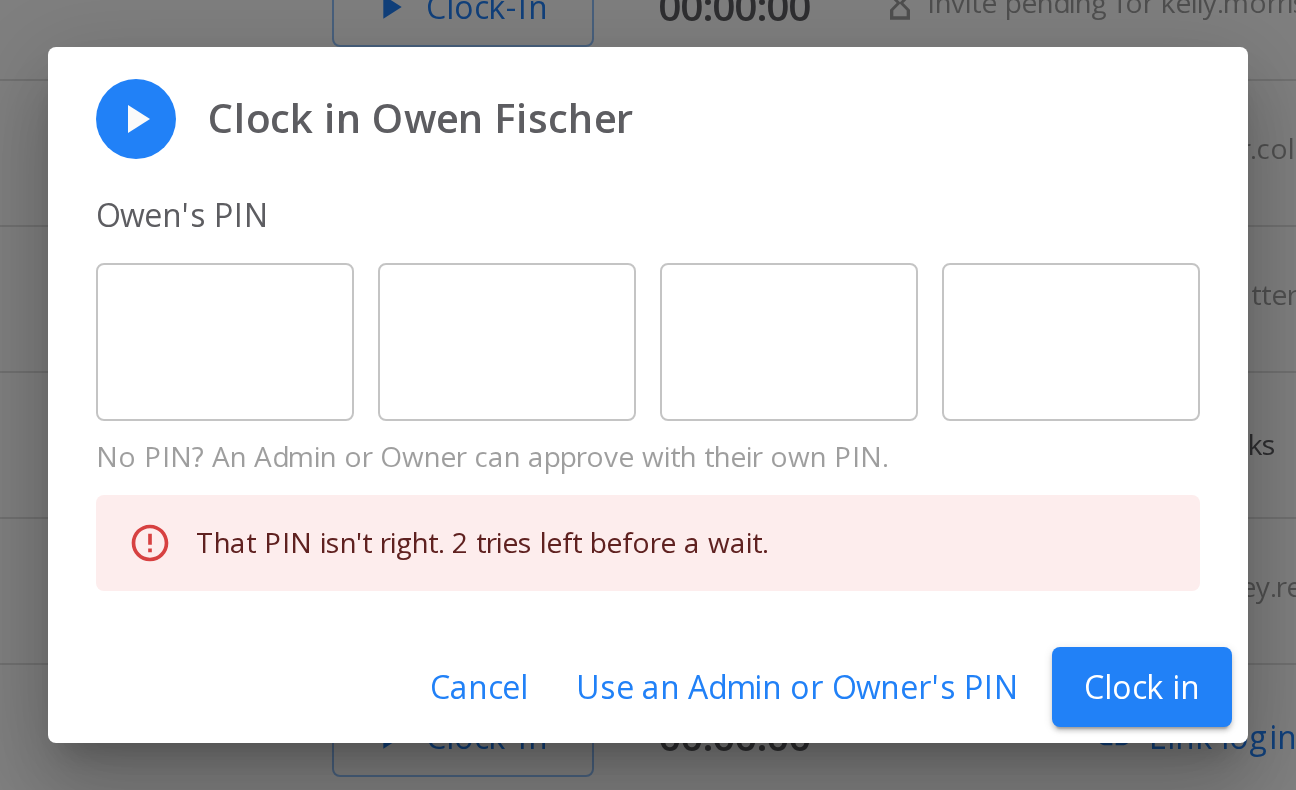
The Clock-In PIN dialog after a wrong PIN.
1
Select Clock-In in your row
The dialog asks for your PIN.
2
Type your four digits
3
Select Clock in
Your row moves to Clocked In, and your time starts.
Approve a punch with an Admin or Owner’s PIN
When: A person has no PIN yet, or can’t remember it, and needs to clock in or out now.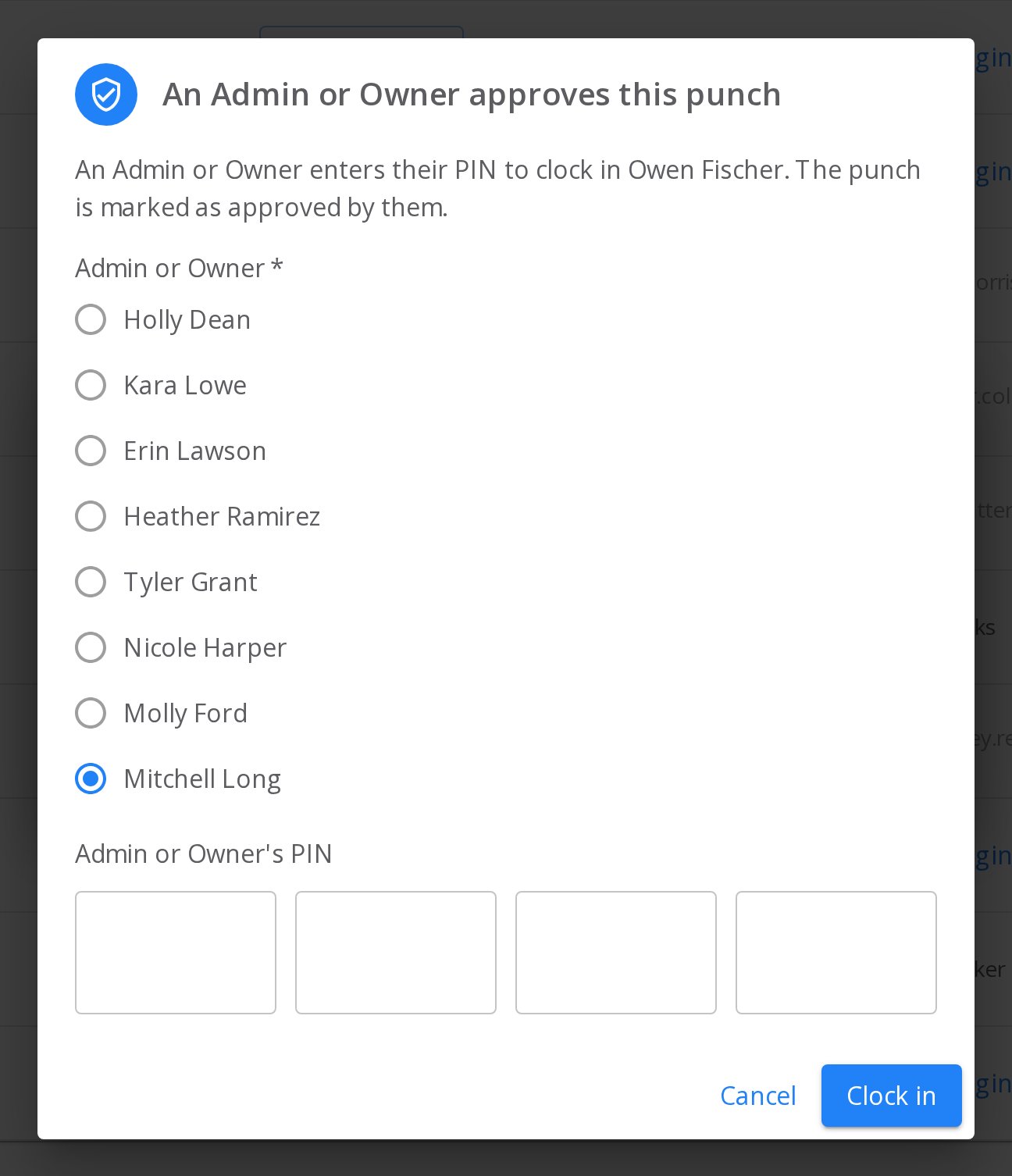
The An Admin or Owner approves this punch dialog, with an Administrator picked.
1
Select Clock-In or Clock-Out in their row
2
Select Use an Admin or Owner's PIN
The An Admin or Owner approves this punch dialog opens.
3
Pick the Admin or Owner
4
Have them type their own PIN
5
Select Clock in or Clock out
The dashboard saves the punch and marks it as approved by that person.
Confirm a change with an Admin or Owner’s PIN
When: You give, reset or remove a PIN, link or unlink a login, or change hours. An Admin or Owner’s PIN confirms these changes:- Giving, resetting, or removing someone’s PIN
- Linking or unlinking an employee and a login
- Changing or deleting hours in Employee History
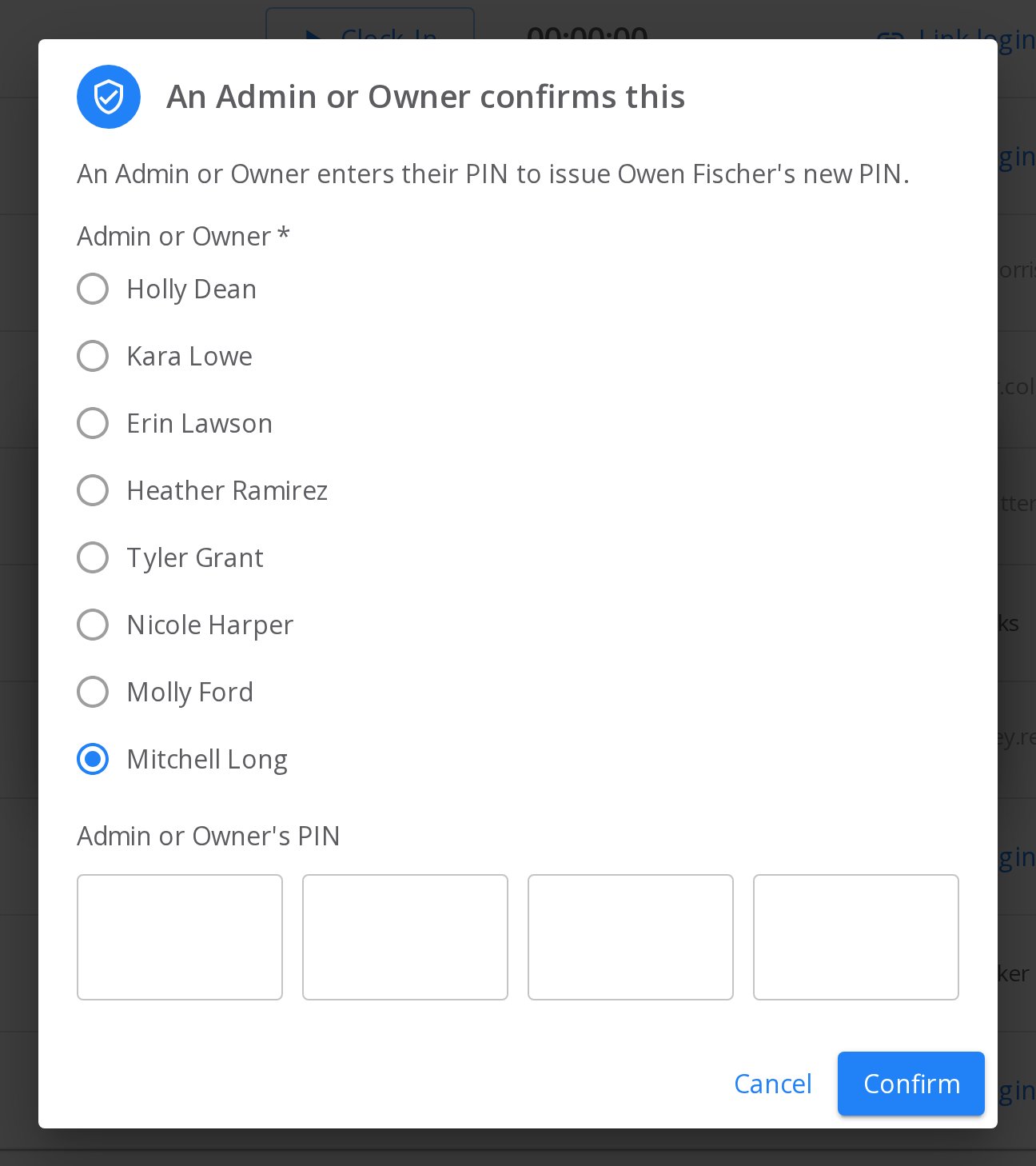
The An Admin or Owner confirms this dialog, here for a new PIN.
1
Pick the Admin or Owner
2
Have them type their own PIN
3
Select Confirm
Check how each punch was made
When: You review hours and want to know who approved a punch. Only Owners and Administrators of your dealership, or of the store selected at the top left, see Employee History. An Owner or Administrator of one store sees it only while that store is selected. Everyone else has no Employee History in the menu. Open Employees → Employee History. Each clock-in and clock-out time has a tag under it. A tag is a small label that says how the person punched.
One shift on Employee History: clocked in with an Own PIN, clocked out with an Administrator's approval.
What each tag means
To list only the shifts an Admin or Owner approved, turn on Approved changes only. If none match the dates you picked, the list says No approved changes in this range.
Know what an Owner’s PIN does
An Owner’s PIN clocks the Owner in and out, and approves punches and changes. By default, it doesn’t switch the shared screen. See Let Owner PINs switch the screen.Fix problems
Still need help?
Contact support through the contact form, or call 855-400-4521.Where to go next
Managing employee PINs
Give each person a PIN, link it to their login, and set your own PIN.
Switching to your login with a PIN
Switch the shared screen to your login, and unlock it after too many tries.
Managing your team
Invite people to your stores and choose what each person can do.