

TireTutor turns on online orders for any store that asks. If CRM has no Online Orders, ask for them on the upgrade page.
Open an order
1
Go to Online Orders
In the left menu, open CRM and select Online Orders. If you do not see it, Finding your online orders shows where your orders are.
2
Select the order
Select the order’s row in the list. The order page opens.
Check the order overview
The Order # card shows:- Placed at: the date and time the customer placed the order.
- Source: where the order came from. Order sources explains each source.
- Payment: a chip that shows whether the customer paid. Succeeded means they paid. Incomplete Order means they placed the order, but their payment did not go through. Call them to finish the sale.
- Fulfilment: a chip for how the customer gets the order: In-Store, Mobile, Pick Up, or Shipping.
- Appointment: the date and time the customer booked. It reads Not set when there is no date. Shipped orders do not show it.
Contact the customer
The Customer Contact Information card shows the customer’s name, email, and phone number. Select the email to write to the customer. Select the phone number to call them. Below that, the card shows the Billing Address or Delivery Address. Select an address to open it in Google Maps.Read the charges
The Order Details card has two sections: Customer Payment and Your Earnings.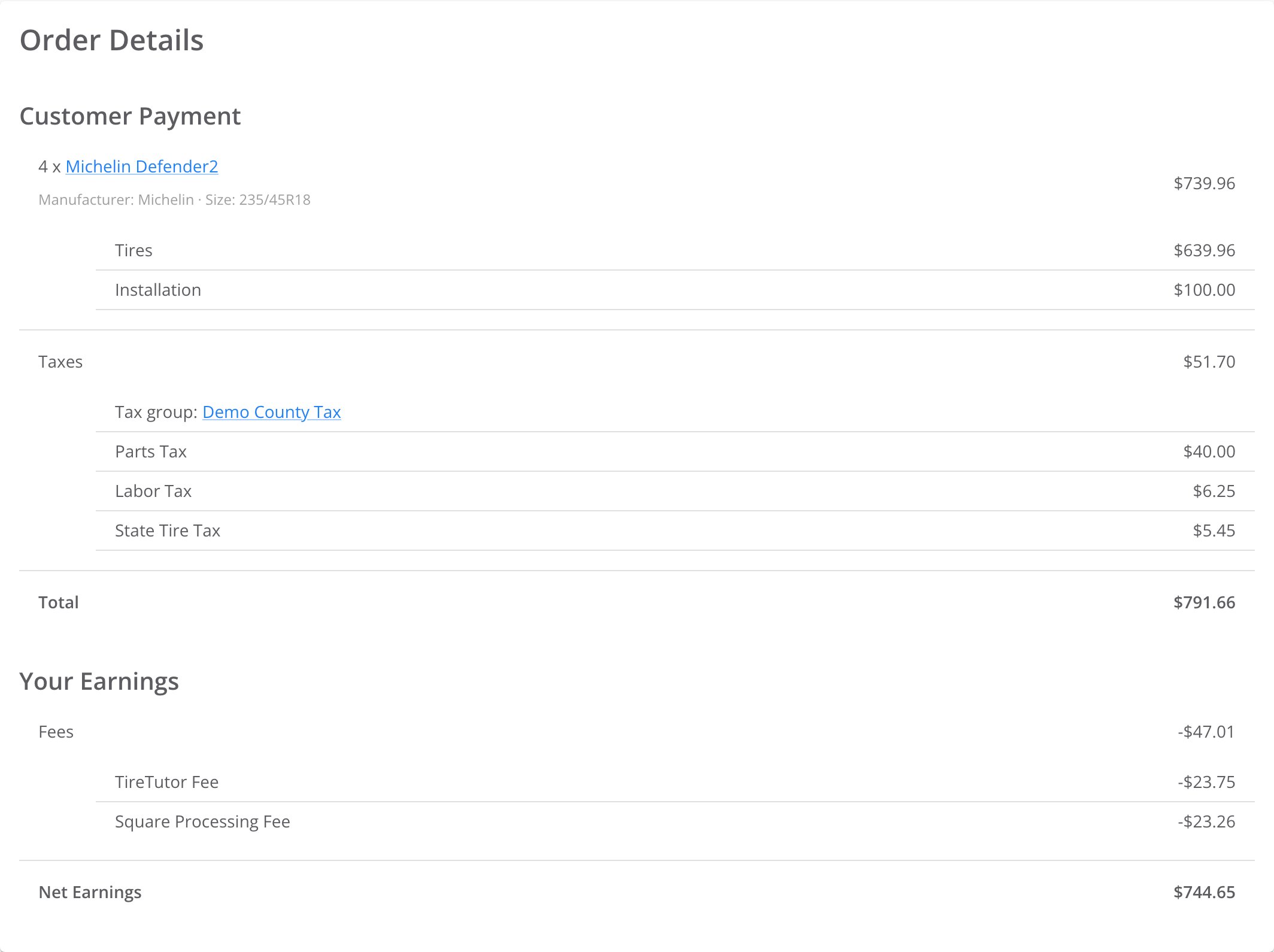
Order Details for four tires with installation. Tires and Installation add up to the line amount of $739.96.
Customer payment
Customer Payment lists each item on the order, with its amount on the right. Each line starts with its quantity, then the item’s name. A tire shows its brand and model, such as 4 x Michelin Defender2. A service or a fee shows its own name. The amount on the right is the total for that line.- A tire from your catalog shows as a link. Select it to open the tire in your Tire Catalog.
- Gray text under an item gives its details. For a tire, that is its manufacturer and size.
- On a shipped order, a Shipping line under the tire shows the cost to ship it.
- A green chip on an item shows a discount and its amount.
- Tires: the tire price multiplied by the quantity.
- Installation: the installation charge multiplied by the quantity. This includes any run-flat charge.
- Discounts: the total of all discounts, when the order has one.
- Shipping: the shipping charge, when the order ships.
- Taxes: the total tax. When your store’s online orders use your tax groups, the first row under it, Tax group:, names the group that set the tax. When it reads None, point at the info icon to see why. The rows below break the tax down into Parts Tax, Labor Tax, State Tire Tax, FET, Fee Tax, and Shipping Tax. A tax row appears only when that tax applies to the order.
- Total: what the customer paid.
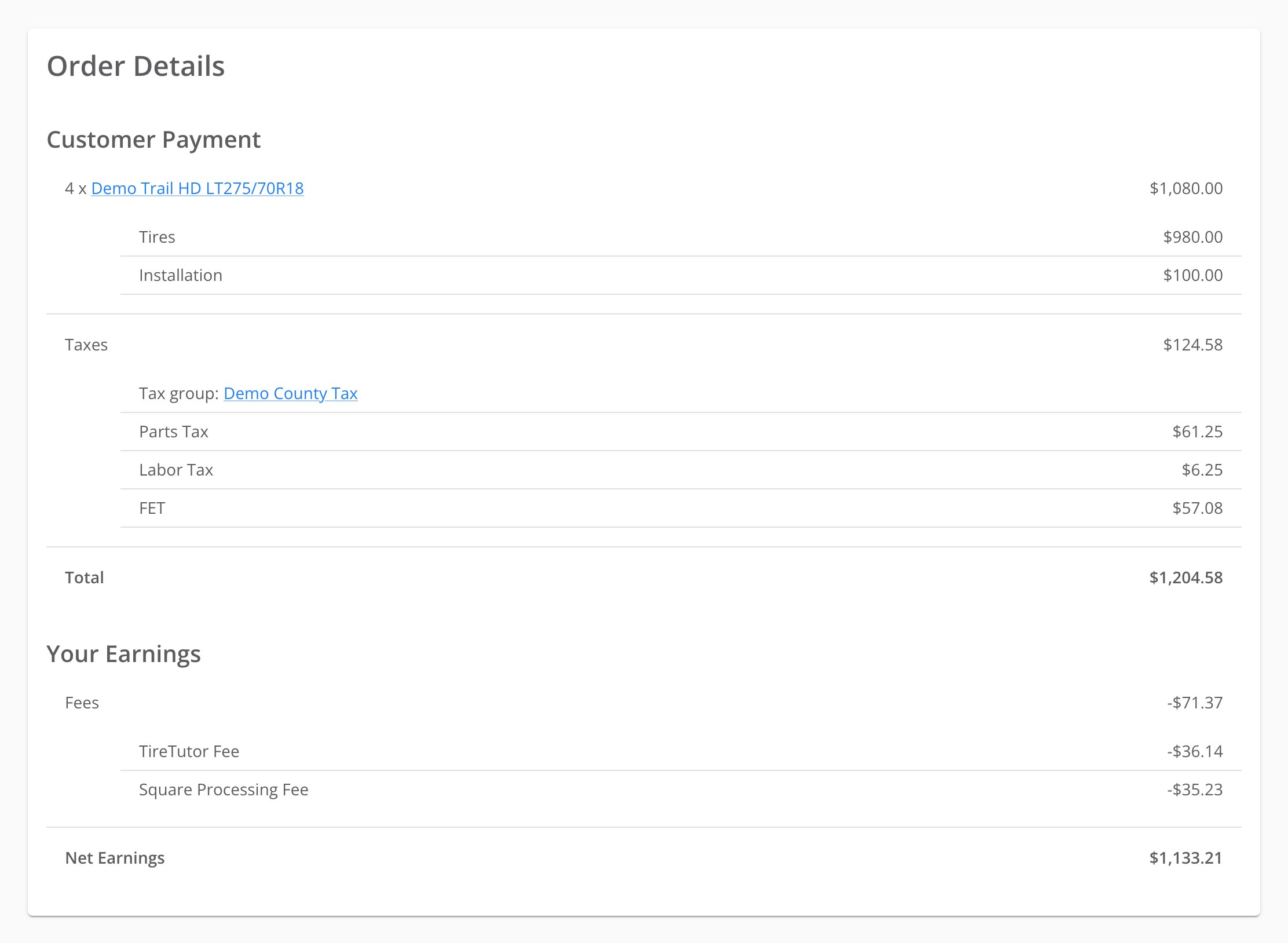
An order with FET. The Taxes rows show the tax group, then Parts Tax, Labor Tax and FET.
Your earnings
Your Earnings shows what you keep from the order.- Fees: the total of the fees taken from the payment. Indented rows show the TireTutor Fee and the Square Processing Fee.
- Net Earnings: the customer’s payment minus the fees.
Convert the order to a work order
Convert an order after the customer pays. An unpaid or canceled order cannot become a work order. Select Convert to Work Order on the Order # card. The order becomes a work order in your Point of Sale.The new work order opens. On the online order, the button now reads Go to Work Order. Select it to open the work order again.
Cancel a pending order
You can cancel an order only while its Payment chip reads Incomplete Order. After the customer pays, Cancel Order does not appear.1
Start the cancel
Select Cancel Order on the Order # card.
2
Confirm
The dialog Cancel this order? opens and says that canceling can’t be undone. Select Cancel Order to confirm, or Keep Order to go back.
Where to go next
Ordering tires for an order
Order the tires before the customer’s appointment.
Order sources
See where each online order came from, and open the quote that led to it.
Scheduler
See online orders with an appointment on your calendar, next to your work orders.
Point of Sale
See how work orders, estimates, and payments fit together.