

Open your checklist
The Checklist tab sits on the right edge of every page. It shows how many rows are done, for example Checklist · 1/5.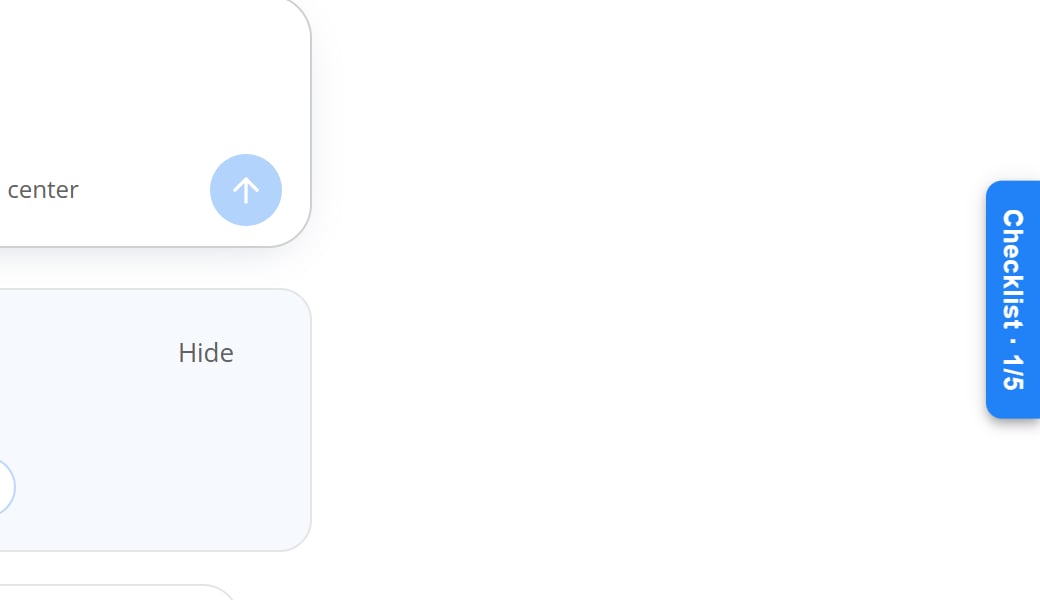
The Checklist tab on the right edge of the page. 1/5 means one of five rows is done.
1
Open the panel
Select the Checklist tab. The Get started panel opens on the
right.
2
Pick the next row
Find the first row without a check mark. Read the line under its title.
3
Select the row's button
The button opens the page for that step.
4
Close the panel
Select the X at the top of the panel, or press Esc. The tab comes
back.
Work through the rows
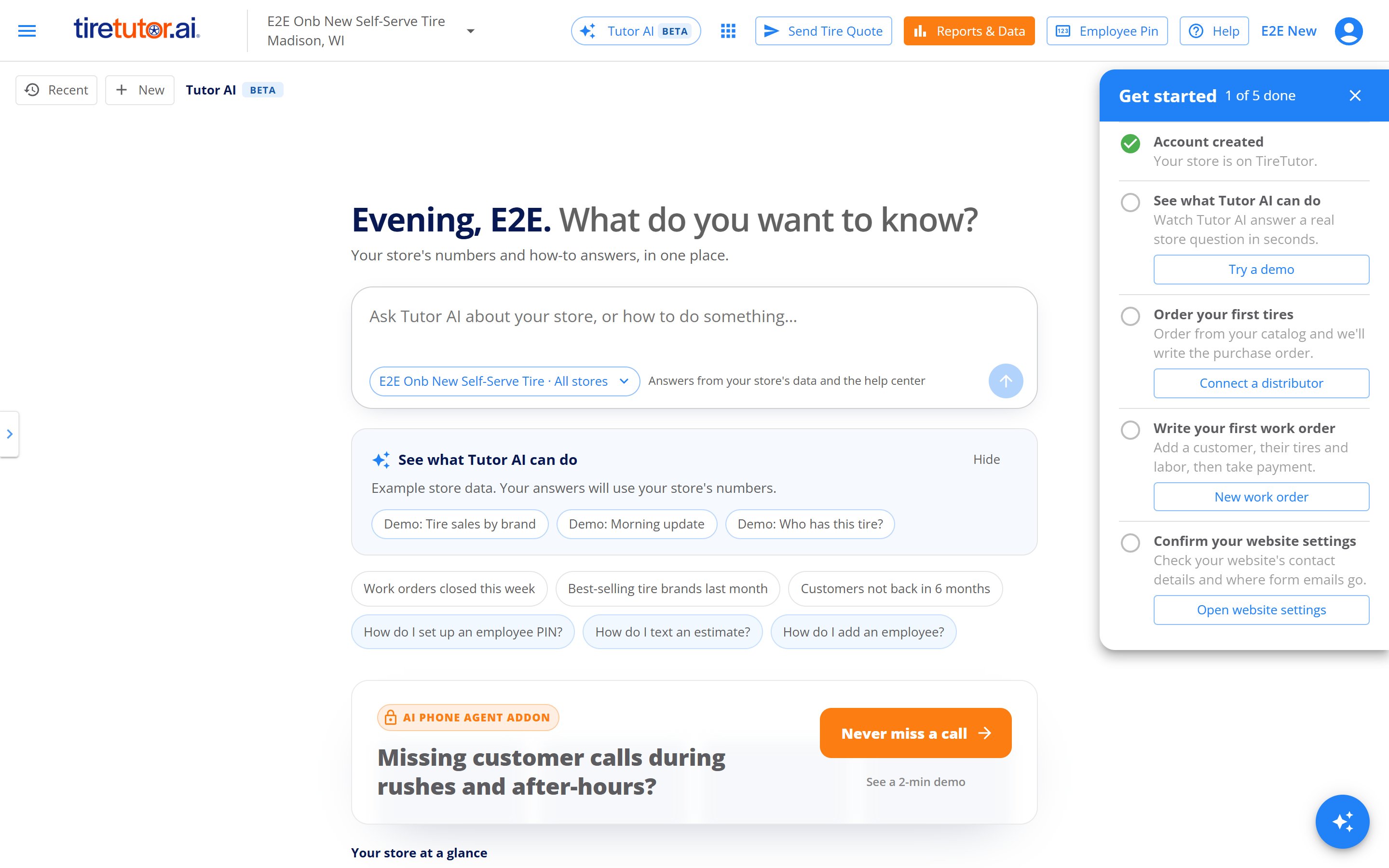
A new store's checklist. Account created is done, and the next row is See what Tutor AI can do.
Confirm your website settings shows only when your dealership has a
TireTutor website.
The demo row and the website row check off for each person. Someone else at
your store sees them open until they do them too.
When every row is done, the tab and the panel go away.
Get ready to order tires
The Order your first tires row changes with your distributor setup.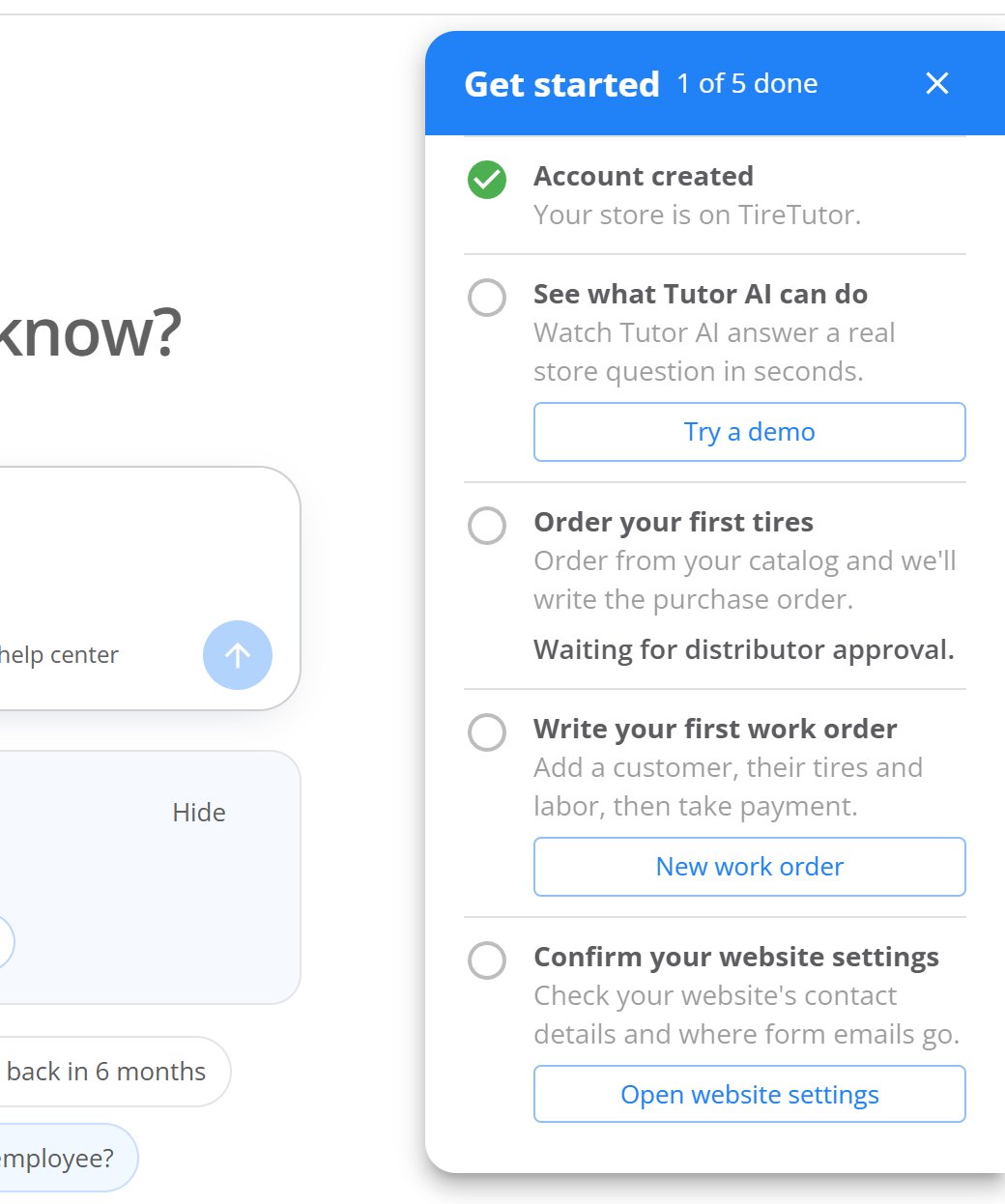
The row while a distributor request waits for approval. It has no button.
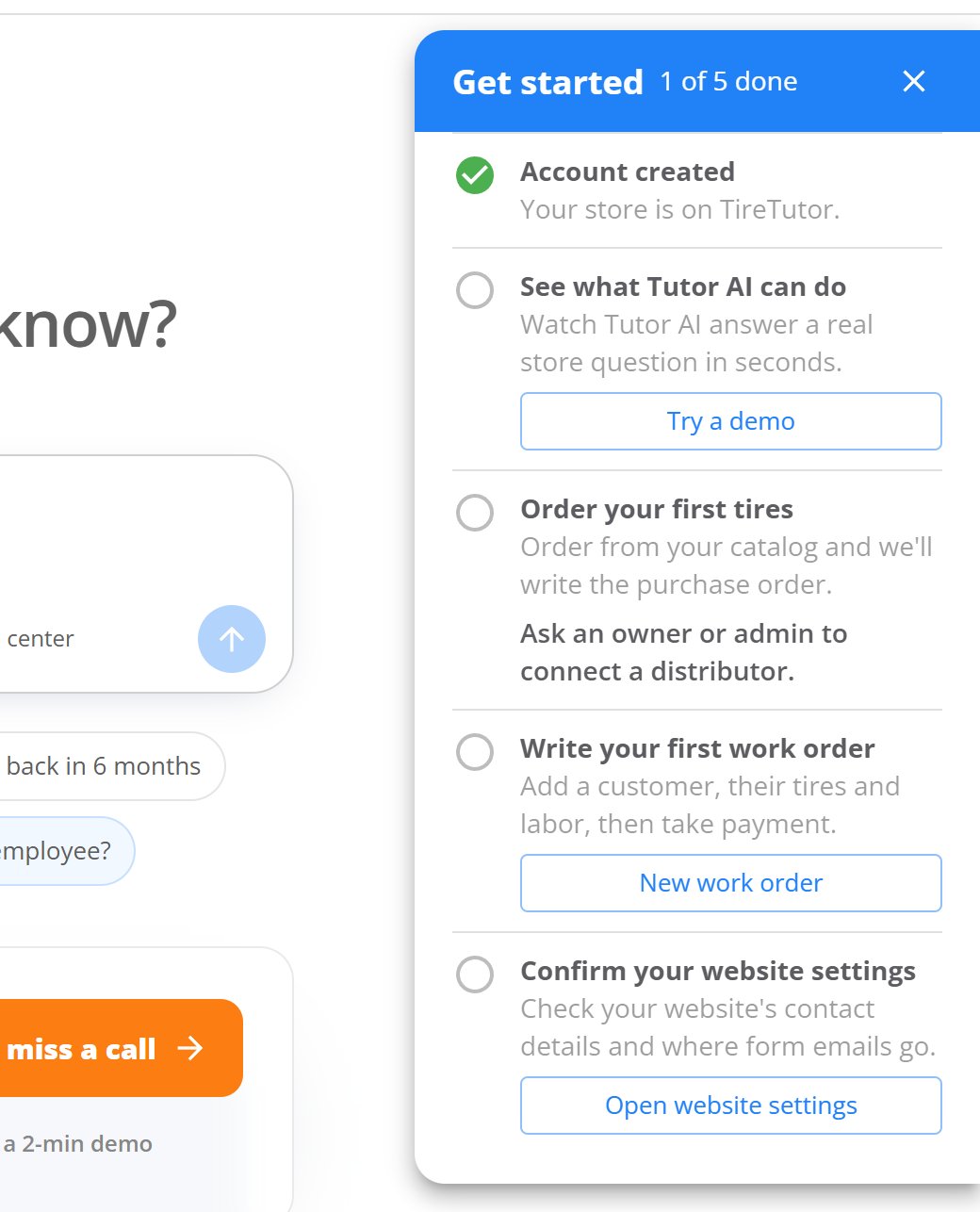
An employee who can't connect a distributor sees this line instead of the button.
Use the checklist for a website-only dealership
If your dealership uses TireTutor only for its website, the checklist has other rows. It stays until someone sets up Full POS.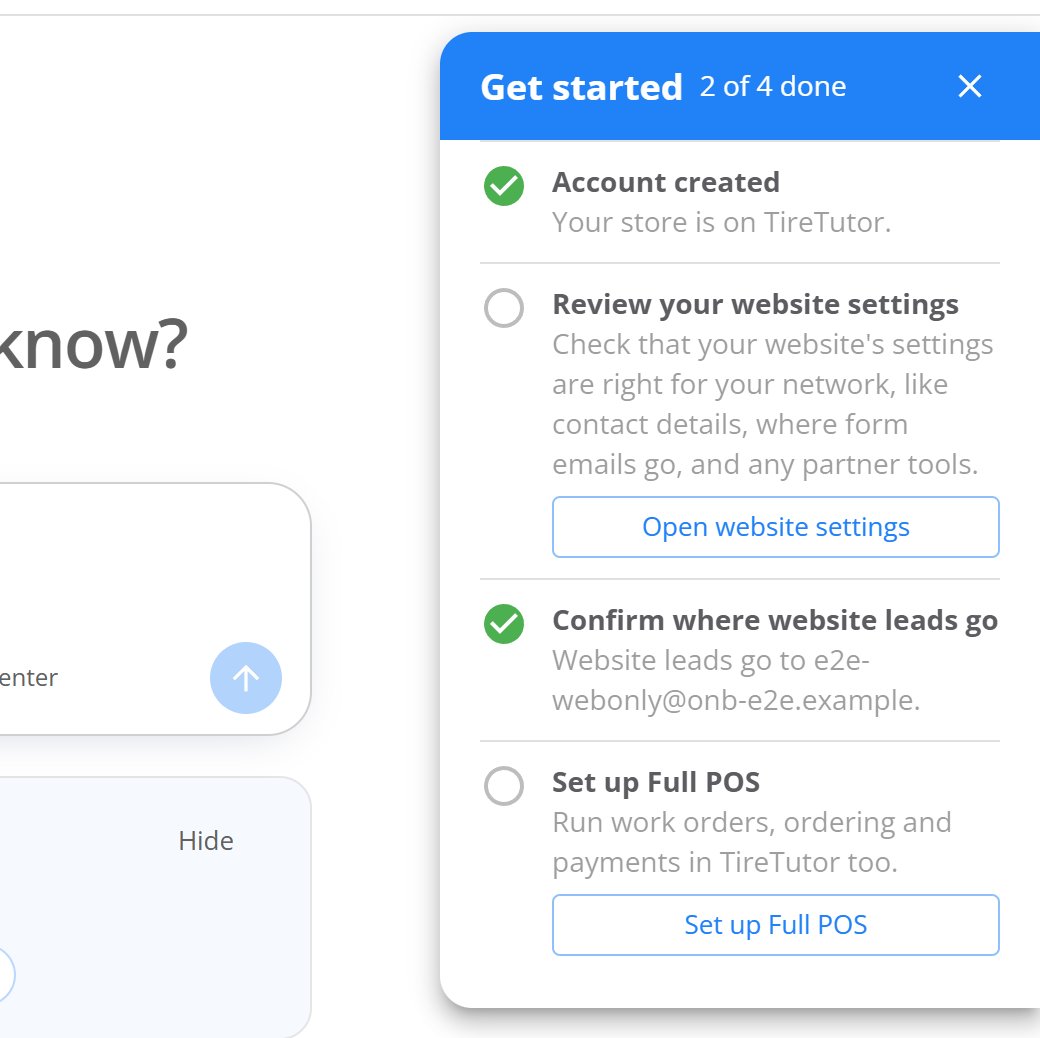
The checklist for a dealership that uses TireTutor only for its website.
Review your website settings shows only when your dealership has a
TireTutor website.
When the store has an email, the row reads Website leads go to and the
first email in the store’s Emails. To change it, open
Settings → Organization → Stores.
Then change Emails.
Set up Full POS
Full POS lets you run work orders, ordering and payments in TireTutor too.1
Select Set up Full POS
In the Set up Full POS row, select Set up Full POS.
2
Check the new rows
The checklist switches to the rows in
Work through the rows.
Try a Tutor AI demo
The See what Tutor AI can do card sits on your home page, above the starter questions. It shows how Tutor AI answers a store question. It uses example data, not your store’s numbers. Everyone at your store sees the card until they hide it.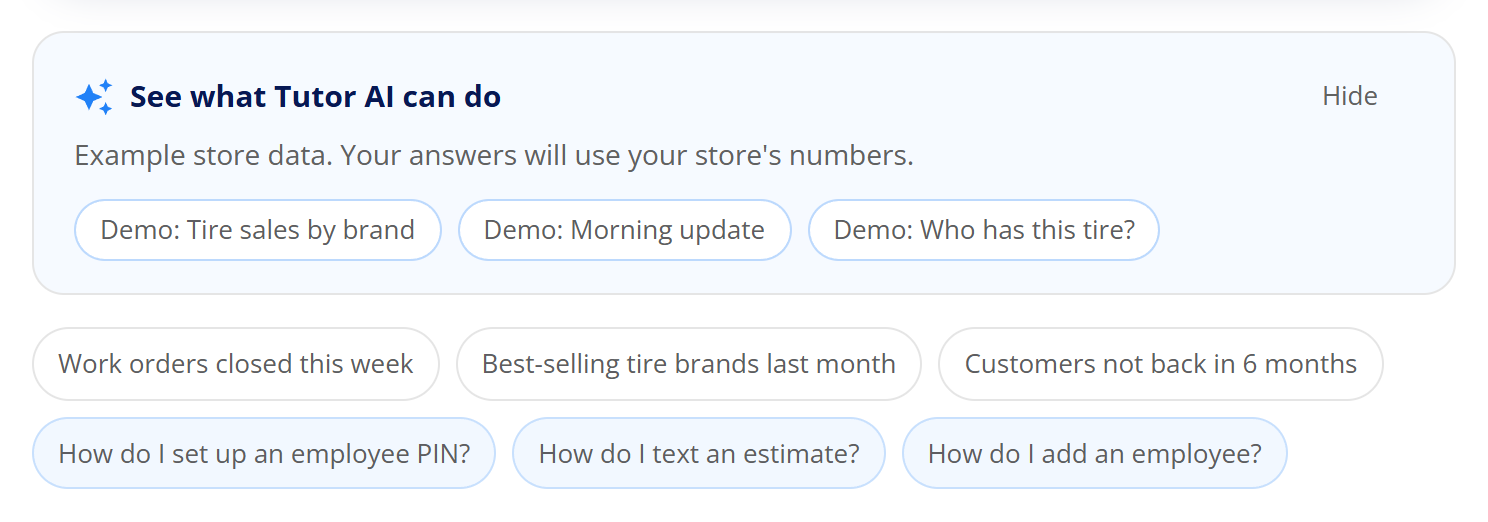
The demo card, above the starter questions on the home page.
1
Open the demo card
On the checklist, select Try a demo. It takes you to the demo card,
with the first demo selected. From another page, it opens your home page
first. The card is above the starter questions.
2
Pick a demo
Press Enter to open the first demo. Or select Demo: Tire sales by
brand, Demo: Morning update or Demo: Who has this tire?
3
Read the answer
Tutor AI answers the example question, with a table.
4
Take your next step
Under the answer, select the button for your store’s next step.
See where each demo leads
Each demo ends with the step that makes the same answer work for your store.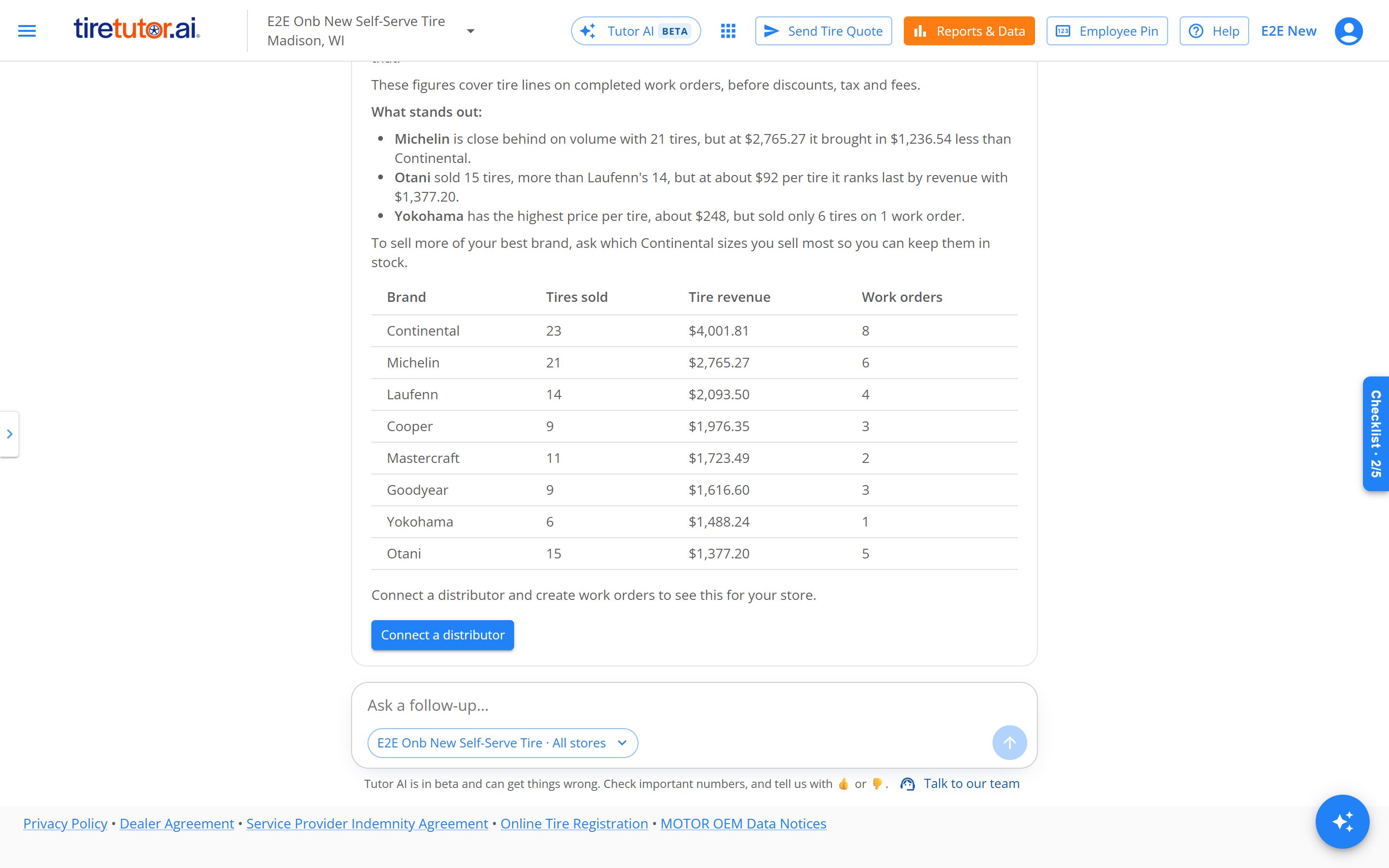
A demo that ends with Connect a distributor.
Hide or show the demo card
To hide the card, select Hide on it. It stays hidden for you on this store. Everyone else at your store still sees it. To show it again, open Settings → Organization → Stores. Turn on Show the Tutor AI demo on the home page for the store. Try a demo on the checklist also shows the card again.
The switch for the demo card, in each store's settings.
How you know it worked
- A row you finished shows a green check mark.
- The tab’s count goes up, for example from Checklist · 1/5 to Checklist · 2/5.
If it doesn’t work
- A row stays open after someone else did it. The demo and website rows check off for each person. Do the step yourself to check it off.
- The order row has no button. Read the line in its place. See Get ready to order tires.
- Set up Full POS shows “Only an owner or admin can start Full POS.” Ask an owner or administrator of your dealership to select it.
Still need help?
Contact support through the contact form, or call 855-400-4521.Where to go next
Get help on any page
Take a tour of a page, and get a guided first work order, estimate, lead and Tire Quote.
Get prices in the Tire Catalog
Connect a distributor, and know when your first prices are still loading.
Get started with Tutor AI
Ask Tutor AI your first question about your own store.
Set up your store after you sign up
Go through every setup step after you create your first store.