

Open the Help menu
Help sits at the top right of every page.1
Select Help
Select Help at the top right. The menu opens.
2
Pick what you need
Select Ask Tutor AI, Tour this page or Help center.
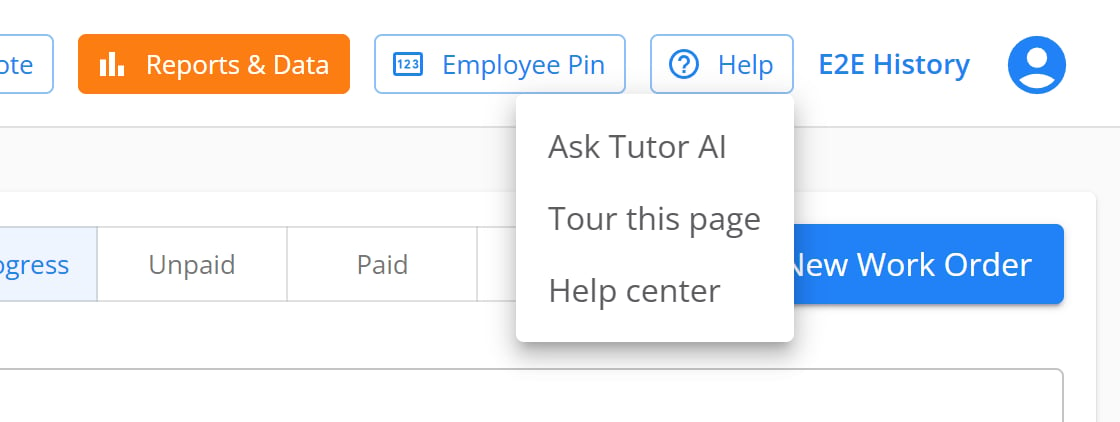
The Help menu on the Work Orders page.
Take a page tour
1
Start the tour
Select Help, then Tour this page.
2
Read the step
A card points at one part of the page.
3
Go to the next step
Select Next. Select Back to see a step again.
4
Finish the tour
On the last step, select Finish.
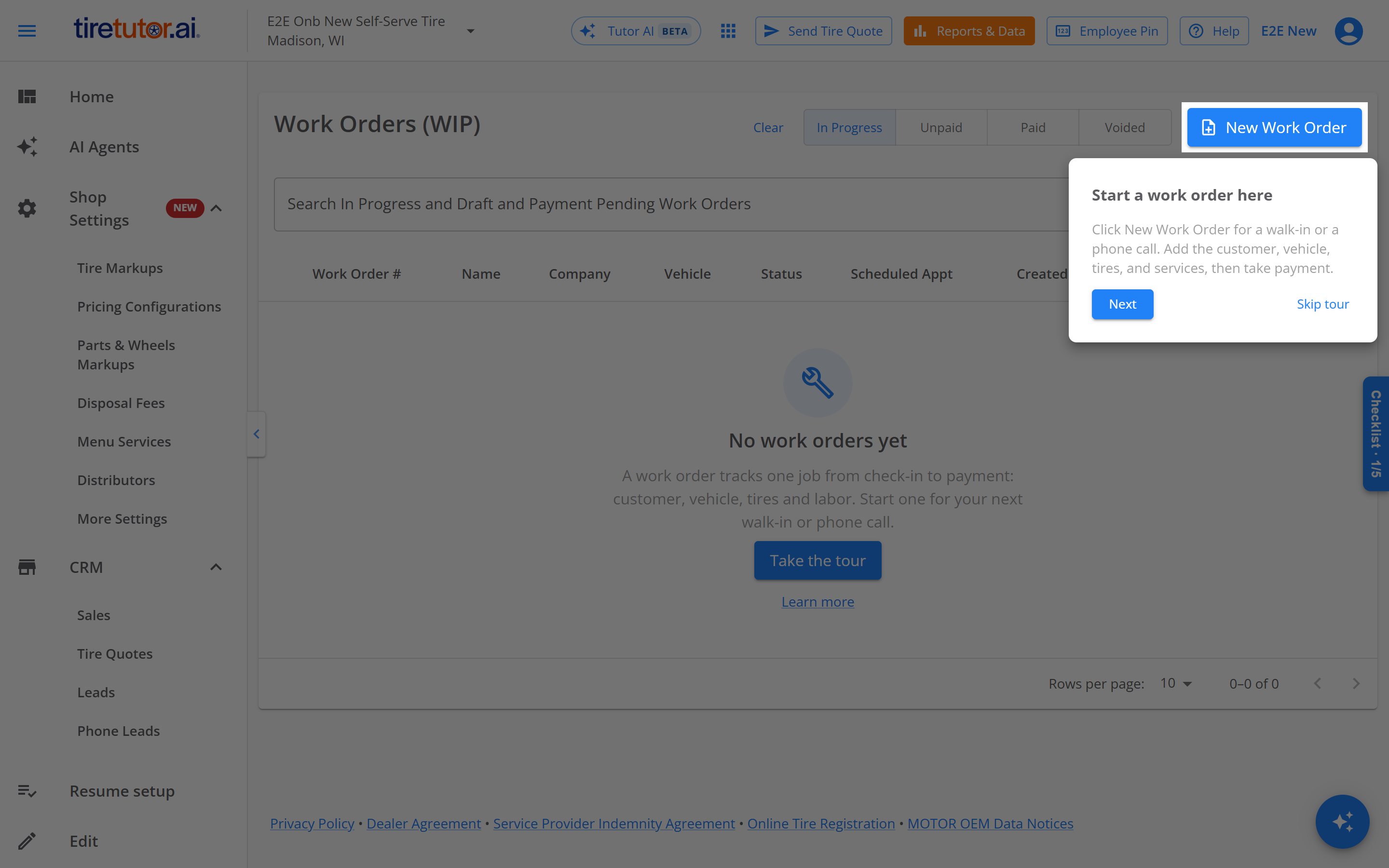
The first step of the Work Orders tour.
Pages with a tour
The home page, the Tire Catalog, work orders, estimates, leads, Tire Quotes, customers, inventory and the scheduler each have a tour. So do online sales and each online sale, online orders, wholesale orders, your next distributor order, vendors, purchase orders, returns (RMAs), the Bay Board, time tracking and employee history. In settings, distributors, Integrations (Square), tire markups, discount rules and menu services have a tour. The distributors tour shows only to an owner or administrator of your dealership or of any of its stores. Only an owner or administrator of your dealership sees the tire markups and menu services tours.Get a guided first record
The first time you open a new, blank record, a short walkthrough starts by itself. It shows each part of the record, so you can fill in a real one afterward. It doesn’t charge, text or email anyone.
Each walkthrough can start by itself only once for each person: the first time
they open a blank one. Use Next, Back
and Skip tour as in a page tour. You can’t use the page behind it until the
walkthrough ends.
To see the walkthrough again, open the work order, estimate or lead. Then select
Help, then Tour this page.
See the steps of each walkthrough
Work order: the customer, the vehicle, the work, your taxes and labor rates, then Process Payment. If Square isn’t set up yet, the last step says Connect Square to take payment, with a Set up Square link. Estimate: the customer, the vehicle, what you would quote, and your taxes and labor rates. Then Send Estimate to Customer, and Approve, which turns the estimate into a work order.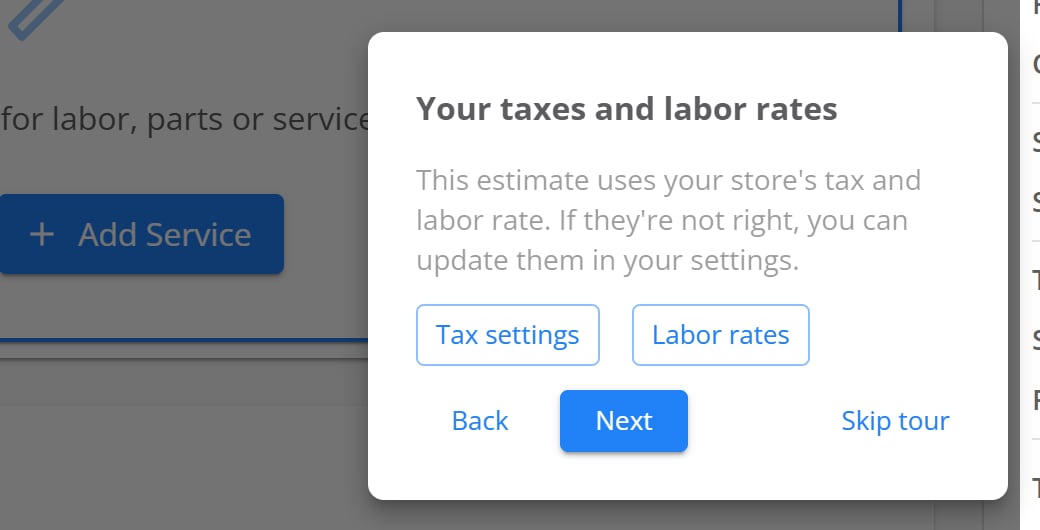
The estimate walkthrough's step about your taxes and labor rates.
Start the Tire Quote walkthrough again
The Tire Quote walkthrough runs inside the Send Tire Quote dialog.1
Open the dialog
Open the Send Tire Quote dialog.
2
Select the question mark
Select the ? icon at the top right of the dialog. When you point at
it, it reads Start tour.
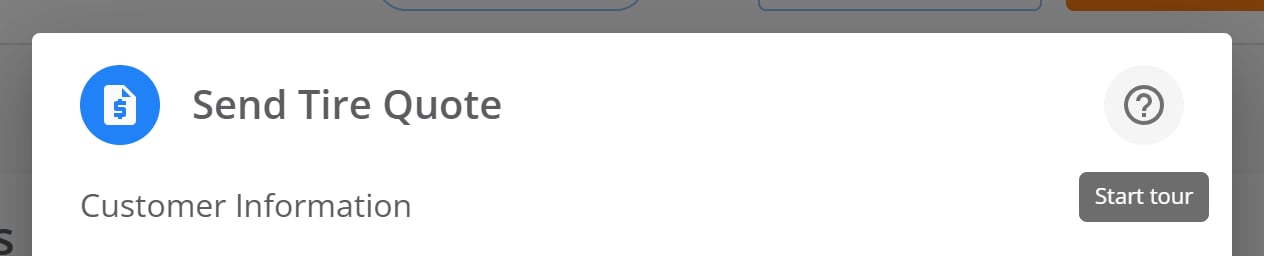
The question mark at the top right of the Send Tire Quote dialog starts its walkthrough.
How you know it worked
- A tour card points at a part of the page, with Next or Finish.
- When the tour ends, the card goes away.
If it doesn’t work
- Help has no Tour this page. The page you are on has no tour. Go to a page in Pages with a tour.
- A step you expected is missing. The tour skips a step when its part of the page isn’t on the screen.
- The walkthrough didn’t start on your first work order. It starts only when the store has no other work orders. Select Help, then Tour this page.
Still need help?
Contact support through the contact form, or call 855-400-4521.Where to go next
Use your setup checklist
See the steps left before your first tire order and your first work order.
Creating a work order
Fill in a real work order from start to payment.
Sending estimates to customers
Email or text an estimate to a customer.