

What it is
Google Book Online puts a Book online button on your store’s Google Business Profile. That is the listing Google shows for your store in Search and Maps. The button opens a TireTutor booking page for your store. The customer picks services, a day and a time. Then they send the request. The request is a lead in your TireTutor dashboard. You confirm it or reschedule it. TireTutor then tells the customer. Three things must be true before the button shows on Google:- Your store has unlocked Google Book Online. How your store unlocks it explains the two goals.
- An Owner or Administrator of the store has turned it on and chosen at least one service. Managing bookings from Google shows how.
- Google has linked your store to your Google Business Profile. Google does this by itself, from your store’s name and address. Your store needs a street address, a city and a ZIP code in TireTutor. It can take up to 48 hours.
How your store unlocks it
Google Book Online is part of Turbo Mode. Turbo Mode is a milestone your store reaches by using TireTutor POS. It also unlocks your TireTutor website and local supplier feeds. The TireTutor team sets those two up for you. A store unlocks Turbo Mode when it meets either goal in the last 30 days:
You need only one of the two. Each store has its own count. A dealership with three stores unlocks each store on its own.
Until your store unlocks, an Unlock Turbo Mode dialog shows your progress when you open your dashboard. Once your store has some progress, a Closest! tag, a small label, marks the goal you are nearer to. Select Got it, I’ll keep going! to close the dialog. It opens again the next time you open your dashboard, once 12 hours have passed.
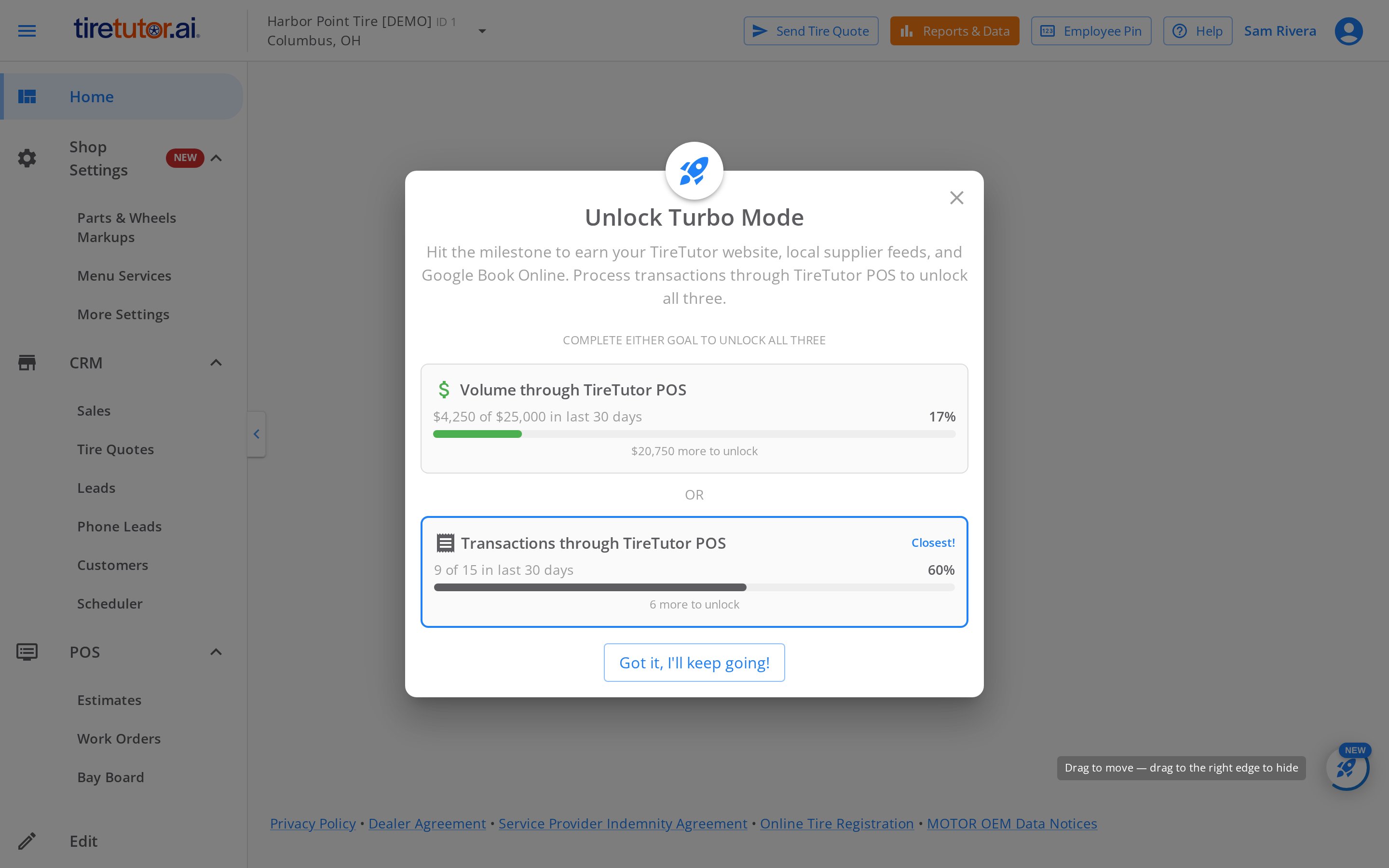
The Unlock Turbo Mode dialog for a store with $4,250 in volume and 9 transactions. The transactions goal is the closest.
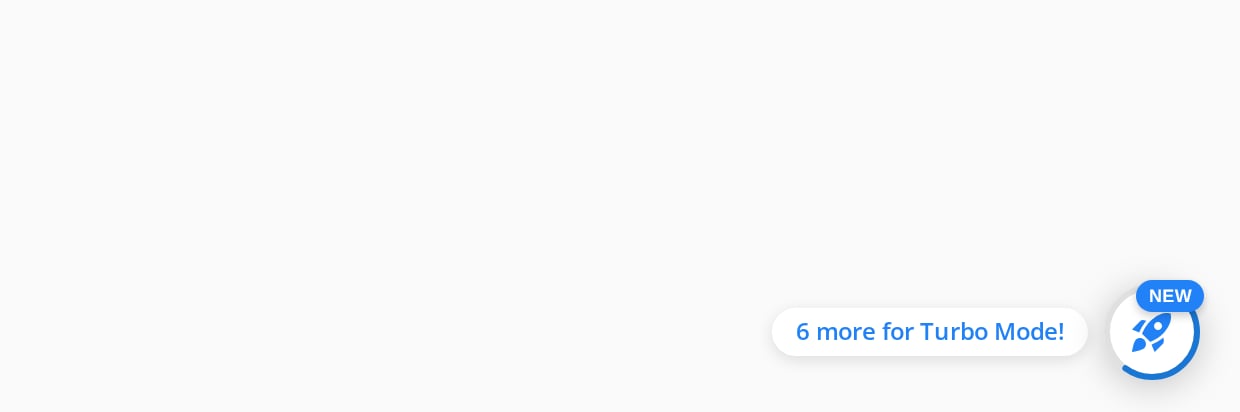
The Turbo Mode button at the bottom right. This store needs 6 more transactions.
What happens when your store unlocks
A Turbo Mode Unlocked! dialog opens on your dashboard. If you closed the Turbo Mode dialog in the last 12 hours, it waits until those 12 hours pass. The dialog lists the steps to turn on Google Book Online. Select Go to Settings to open the Stores page of your settings.
The top of the dialog a store sees once it meets a goal.
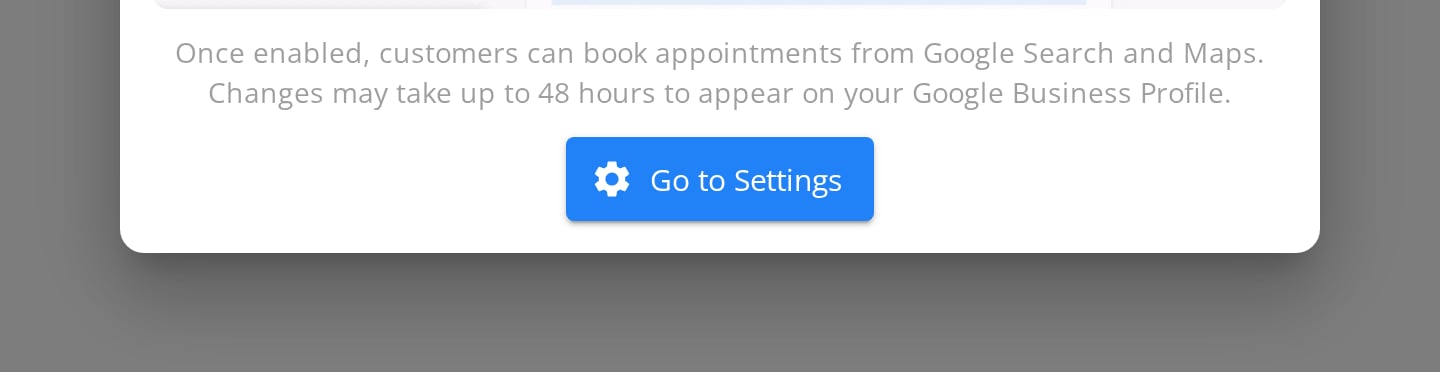
The bottom of the same dialog, with the Go to Settings button.
The Turbo Mode button on an unlocked store that has not turned Google Book Online on yet.
What your customers see
The customer selects Book online on your Google listing. Your booking page opens, with your store’s name and address at the top.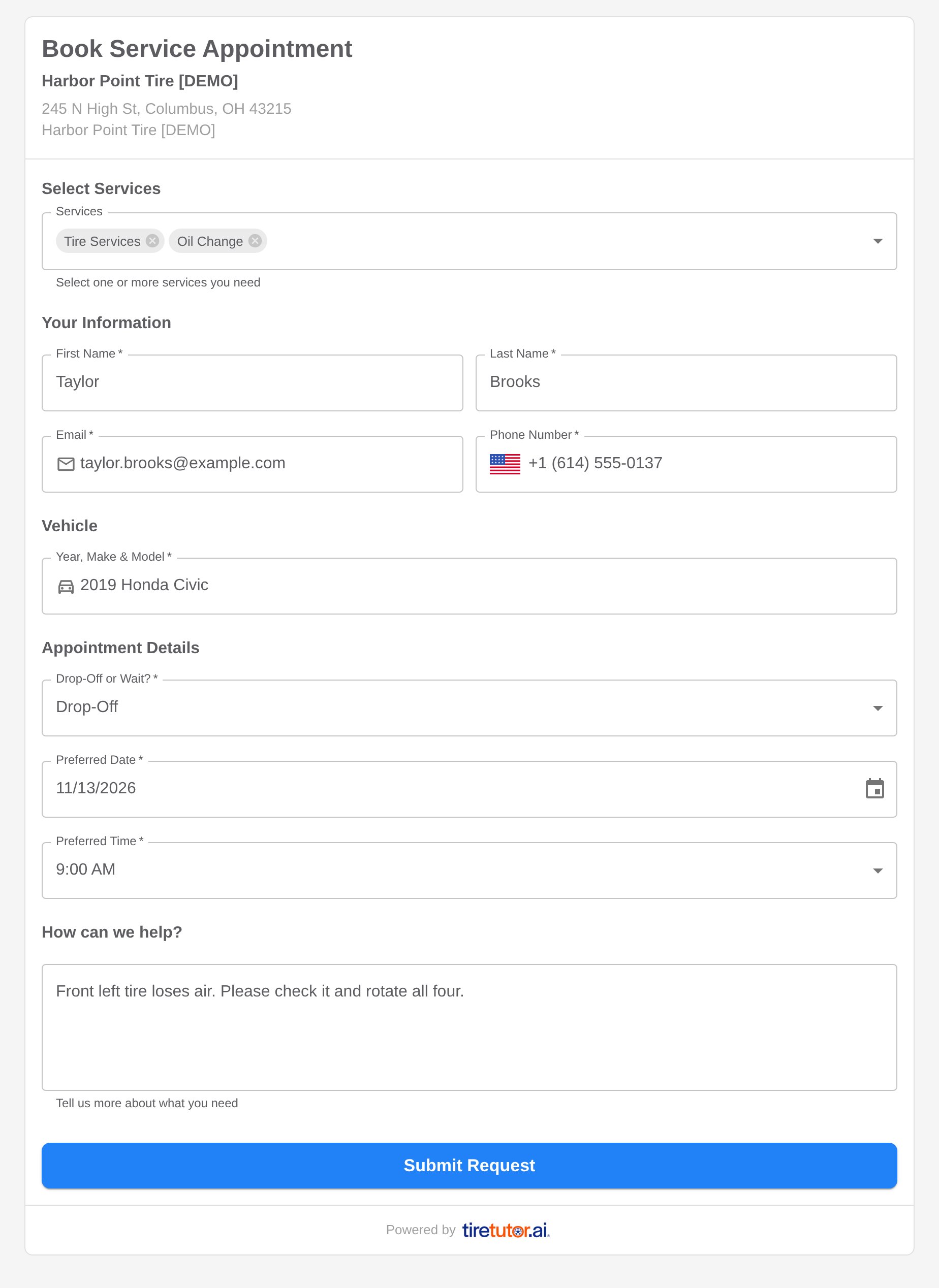
The booking page a customer fills in. It offers only the services you chose.
- Services, from the services you chose
- Their first name, last name, email and phone number
- Year, Make & Model of the vehicle
- Drop-Off or Wait?
- Preferred Date and Preferred Time
- A note about what they need
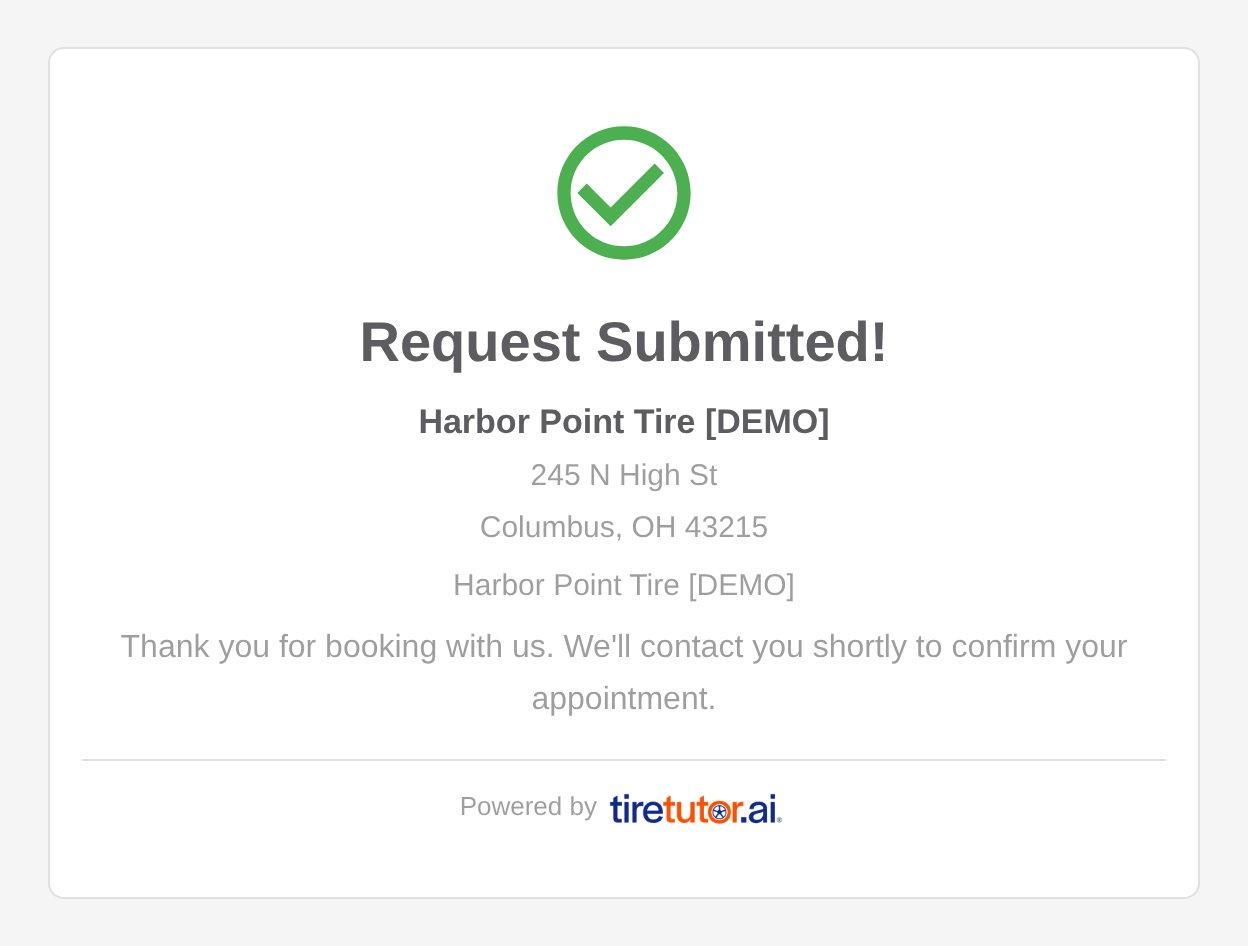
What the customer sees after they send the request.
Times a customer can pick
The booking page offers up to four start times a day: 9:00 AM, 11:00 AM, 1:30 PM and 3:00 PM. A start time shows only when your store is open for the 90 minutes after it. A day with no open time is grayed out. A start time also does not show when a lead at your store already asks for a time close to it. That means any lead, from any source, with a time less than 1 hour before or less than 90 minutes after the start time. A lead you reschedule frees its time. The first day customers can pick is today, plus the time offset of your Service Request scheduling, if you set one. They can pick up to 30 days after that first day. The page uses your store’s time zone. Set your hours under Scheduling Appointment Hours, in your store’s section of Shop Settings → Stores. An entry under Special Appointment Hours replaces the hours of that one day. It can’t open a day your weekly hours mark as closed. That day stays grayed out.What a booking looks like in your dashboard
Each request from Google is a lead under CRM → Leads. Its source reads Google Book Online - Tiretutor.com. The lead holds the customer’s contact details, the vehicle, the services, and the day and time they asked for.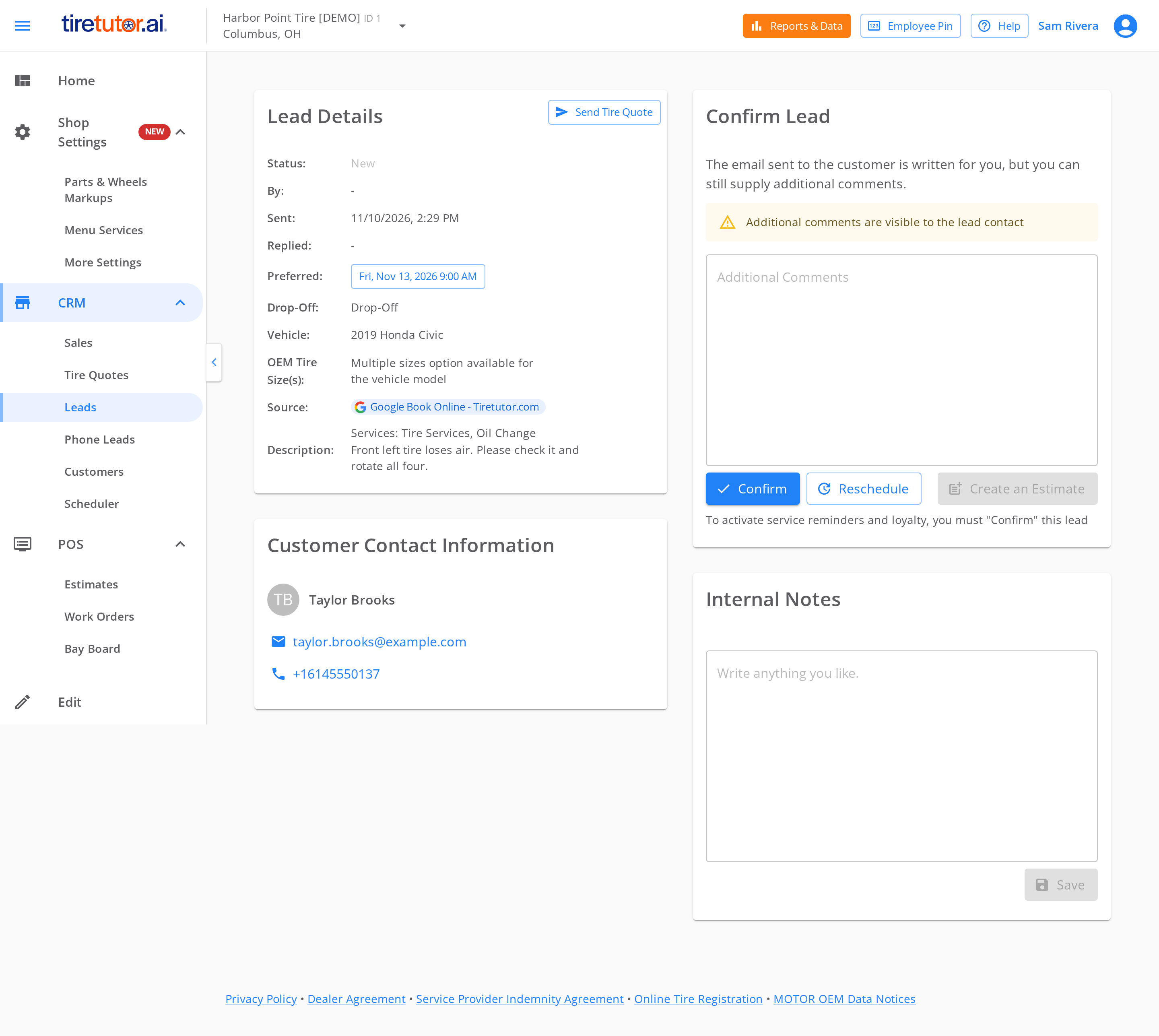
A booking request from Google, open in Leads.
- Your store’s email addresses get an email with the subject Consumer - Customer Lead from TireTutor. It links to the lead.
- The Leads badge in your side menu goes up by one. A message at the top right of your dashboard reads 1 new lead arrived! Select the message to open the lead. How it works explains the badges and alerts.
- The customer gets an email. It says the request is waiting for you to confirm it.
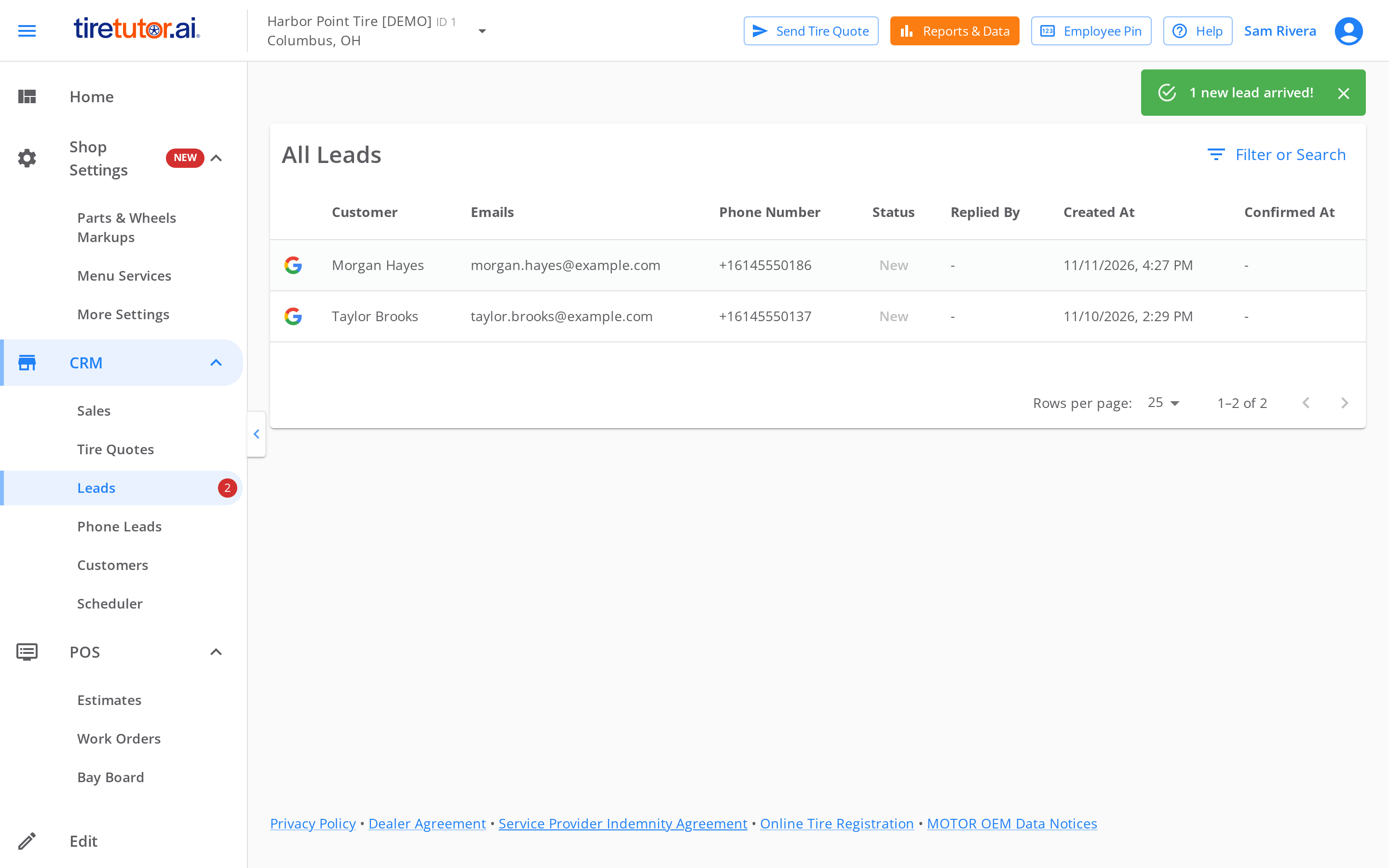
Your dashboard when a booking request comes in: the message at the top right, and the Leads badge.
Questions
How long until the button shows on Google?
Up to 48 hours after you turn it on. TireTutor sends Google its list of stores about once a day. Google then updates your listing.I turned it on, but Google shows no button
Wait 48 hours first. Then check that your store’s street address, city and ZIP code in TireTutor match your Google Business Profile. If they match and there is still no button, Google has not linked your store to your profile. Contact support, and we link it for you.Who can turn it on or change the services?
An Owner or Administrator of the store. Anyone else at the store can open the section and the dialog. When they select Update, they see Admin or Owner permission required for this store. TireTutor saves nothing.Does my store lock again if sales slow down?
No. Once a store unlocks, it stays unlocked.What counts toward the goals?
Work orders you complete in TireTutor POS in the last 30 days, each with a payment on it. Estimates and open work orders don’t count. Each store counts its own work orders.I have more than one store. Do I unlock them all at once?
No. Each store meets a goal on its own. You also turn Google Book Online on for each store on its own. The Turbo Mode dialog shows the store you have selected at the top left.My business is mobile, or has no storefront. Can I use it?
Google links a store to its Google Business Profile by address. A mobile or service-area business that hides its address on Google does not link by itself. Contact support after you turn it on. We link your profile by hand. Google then decides whether your kind of listing can show the button.Does the customer’s time get booked right away?
No. The customer asks for a day and a time. Nothing is set until you select Confirm on the lead.Can I choose which services customers book?
Yes. You choose from a fixed list, such as Tire Services, Oil Change, Brakes and Alignment. Change the services customers can book shows how.Where to go next
Managing bookings from Google
Turn Google Book Online on, choose your services, and answer each request.
Notifications
What the Leads badge counts, and how your dashboard tells you about a new lead.