

- Install at the store, or pick-up: your POS tax group, as on a work order written in the store.
- Shipping: TireTutor’s tax table at the delivery address. It may leave out some state tire taxes.
- Mobile installation: TireTutor’s tax table at the installation address. It may also leave out some state tire taxes. At stores in a beta, your tax group taxes these orders instead. See Check the tax on mobile installation orders.
Save a tax group for in-store and pick-up orders
A store with no tax group cannot take in-store or pick-up orders online. Customers can still place shipping orders. At a store where mobile installation orders use a tax group, customers can’t place those either. See Check the tax on mobile installation orders. The store’s Online orders section shows:Save a tax group first. Online in-store and pick-up orders can’t be placed until this store has one.
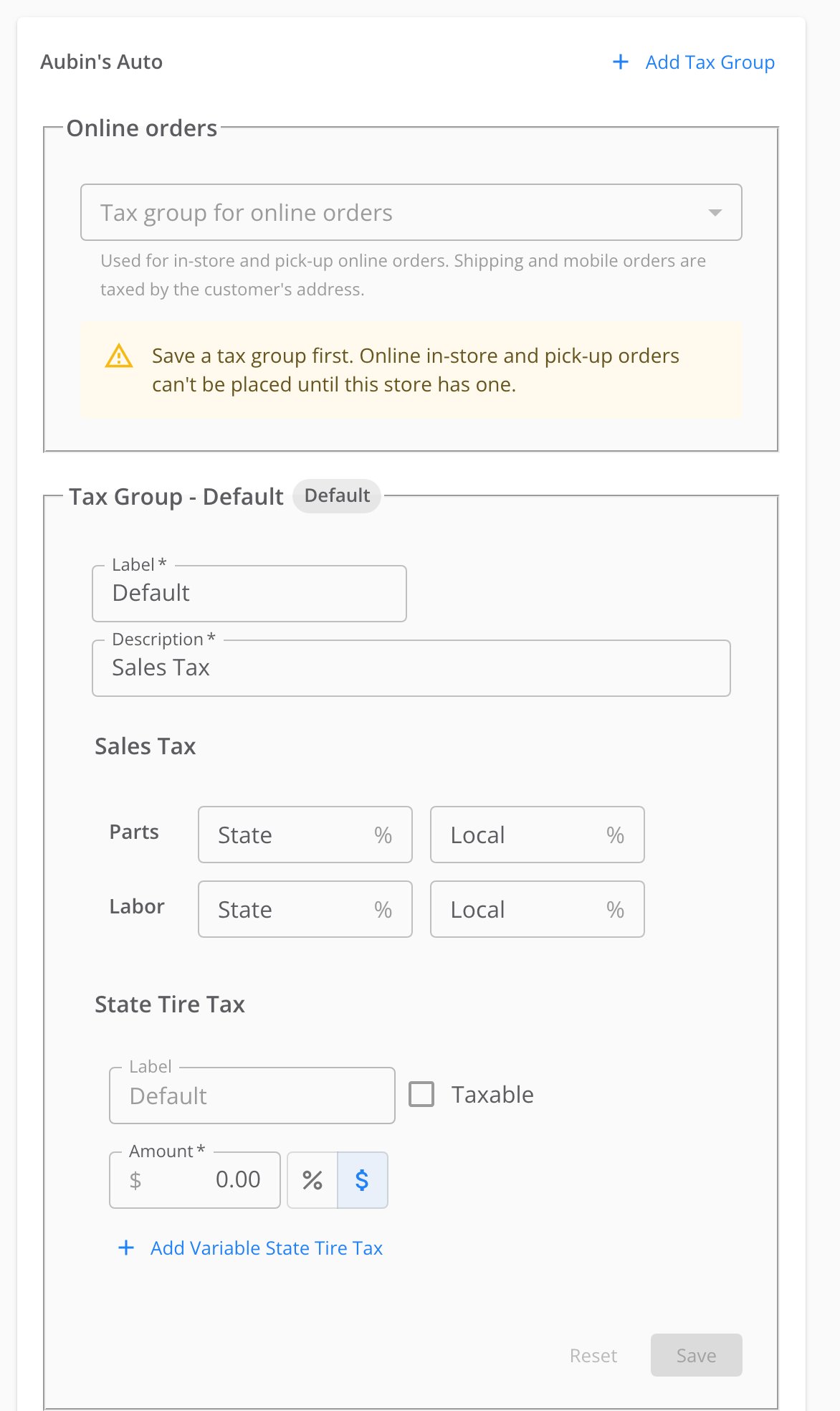
A store with no saved tax group, and the form to save.
- Open Shop Settings → More Settings → Taxes.
- Find Tax Group - Default on the store card.
- Enter your store’s rates.
- Select Save.
Choose the tax group for in-store and pick-up orders
If you do not choose a group, your store’s default tax group sets the tax on these orders. If that group has 0% rates, these orders carry no tax.- Open Shop Settings → More Settings → Taxes.
- Find the store card. Online orders is at the top of it.
- Open Tax group for online orders.
- Select a group. Each group shows its description under its name.
- Select Save.
- In the dialog that opens, check that it names the group you chose.
- Select Use for online orders.
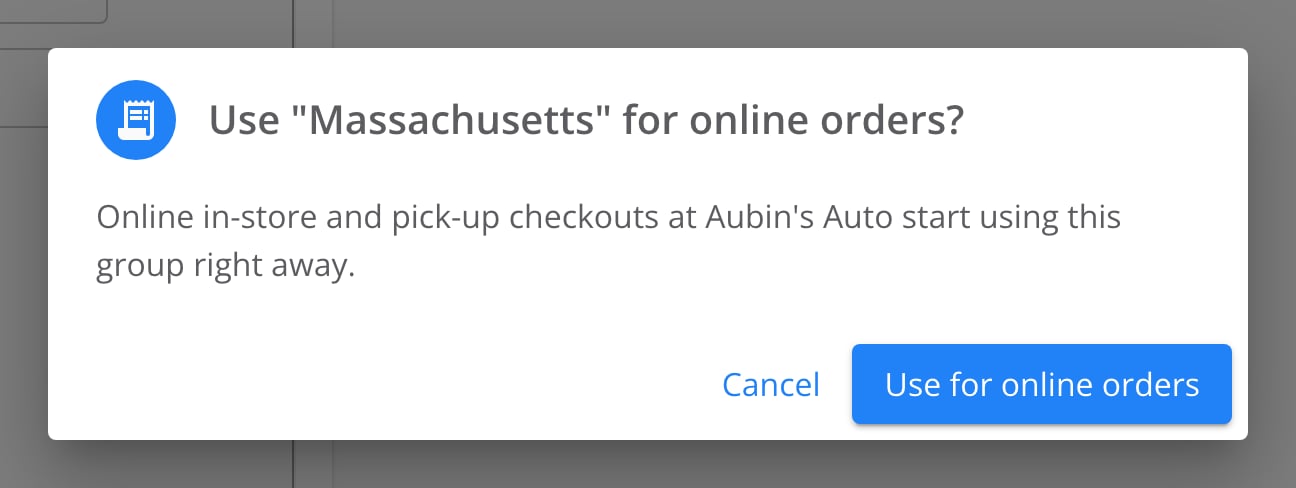
The confirmation that appears when you switch online orders to the Massachusetts group.
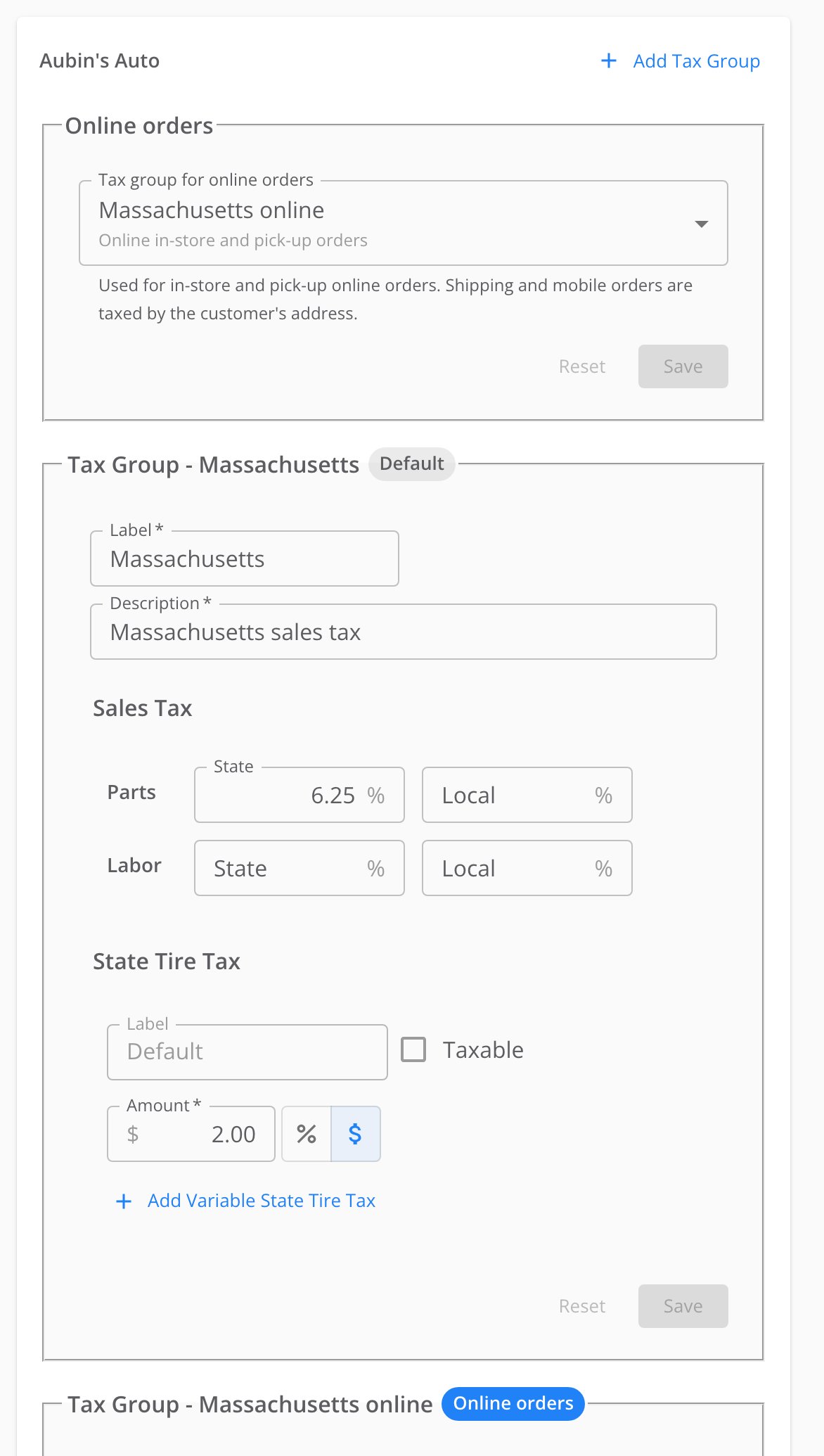
The current group, Massachusetts online, with its Online orders label.
Check the tax on mobile installation orders
See what each part of your tax group taxes
The rates in your tax group are yours to set. TireTutor charges them exactly as you enter them. How to set up tax groups shows how to fill in each field.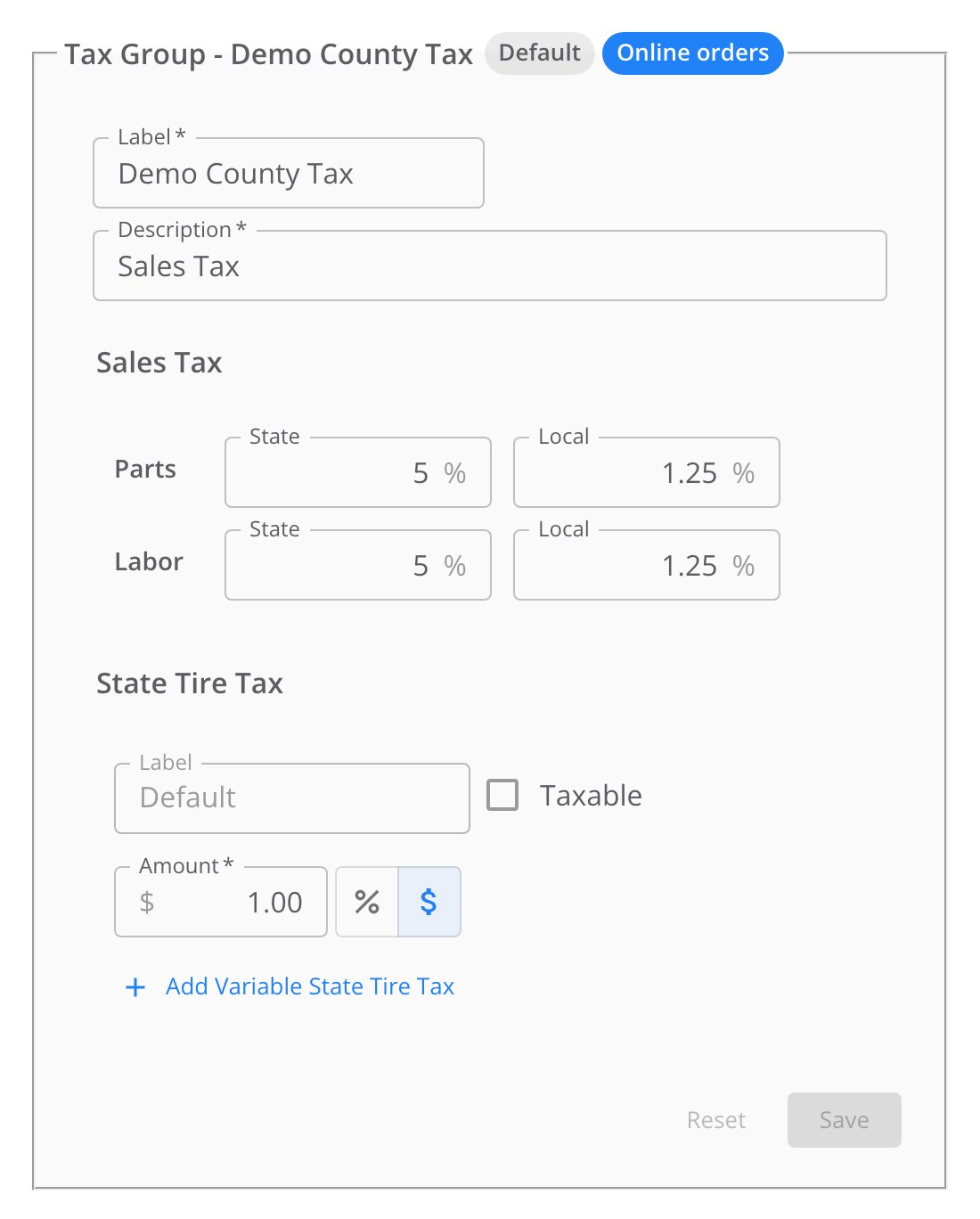
A tax group. Its Parts, Labor and State Tire Tax fields set the tax on a mobile installation order.
- Only the first state tire tax in your group, labeled Default, applies. A variable state tire tax, which you pick on a work order, does not apply to these orders.
- FET is not part of your tax group. See Check the FET on an online order.
- Your disposal fee and shop fees show as their own lines, as in the order below. No rate on the Taxes page taxes them.
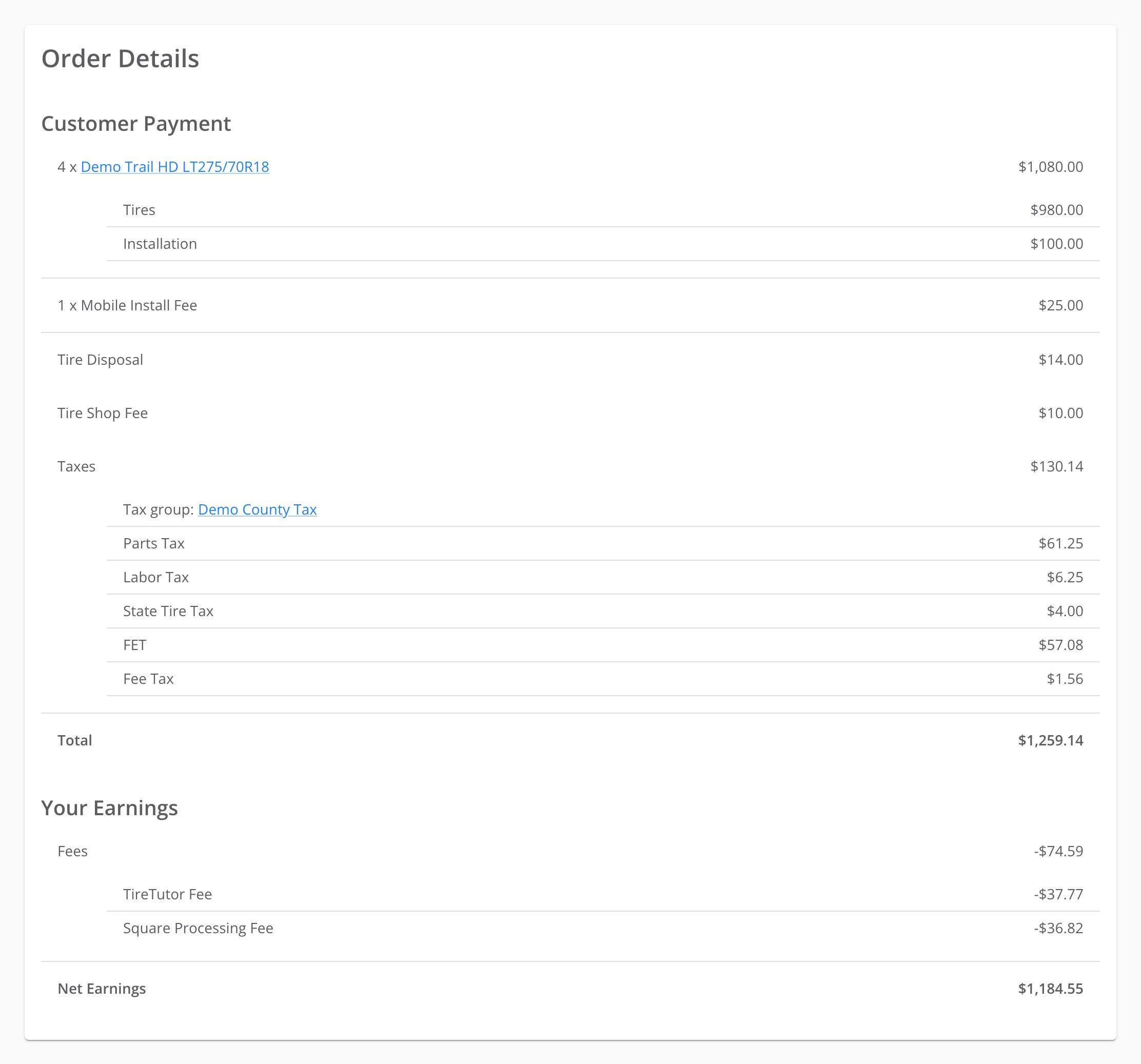
A mobile installation order taxed with the Demo County Tax group.
Check the tax on a job outside your area
Checkout accepts an installation address in another state. The tax you owe on a job depends on the rules of the state where you do it. It can be different from what your group charges:- A job in your state. In some states, the rate depends on where you do the job. It can be different from your store’s rate.
- A job in another state. Your group’s rates apply, not that state’s. You may owe tax to that state.
Check what your customer sees at Square Direct Checkout
The order summary lists the order’s charges, then Tax. Under Tax, it lists each kind of tax that is more than $0.00: Parts tax, Labor tax, Per-tire tax, FET, Fees tax and Shipping tax. On shipping orders, and on mobile installation orders that your tax group does not tax, an ⓘ button sits next to Tax. Select it to see this note:Some state tire taxes may not be included in this total. You may be responsible for paying them.Orders that your tax group taxes do not show the note.
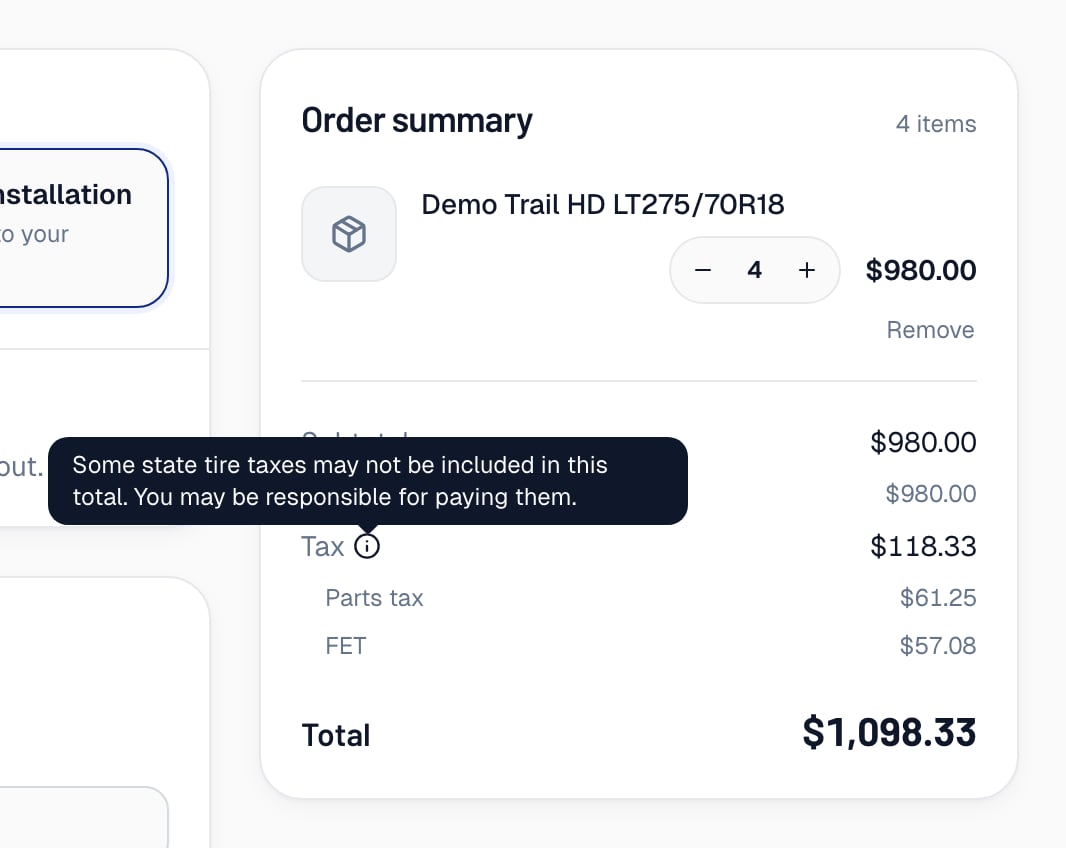
The note on a mobile installation order that TireTutor's tax table taxed. FET has its own line under Tax.
This store isn’t set up to take online orders yet. Please contact the store to place your order.At a store where mobile installation orders use a tax group, the first two messages also stop those orders. They never offer Mobile installation instead. So a store with no tax group that does not offer shipping shows the This store isn’t set up to take online orders yet. message. The first two messages appear on the Fulfillment step. They can also appear on the Checkout step, with a Change fulfillment method button. The second message has a Try again button. Continue to checkout stays unavailable until TireTutor can calculate the tax.
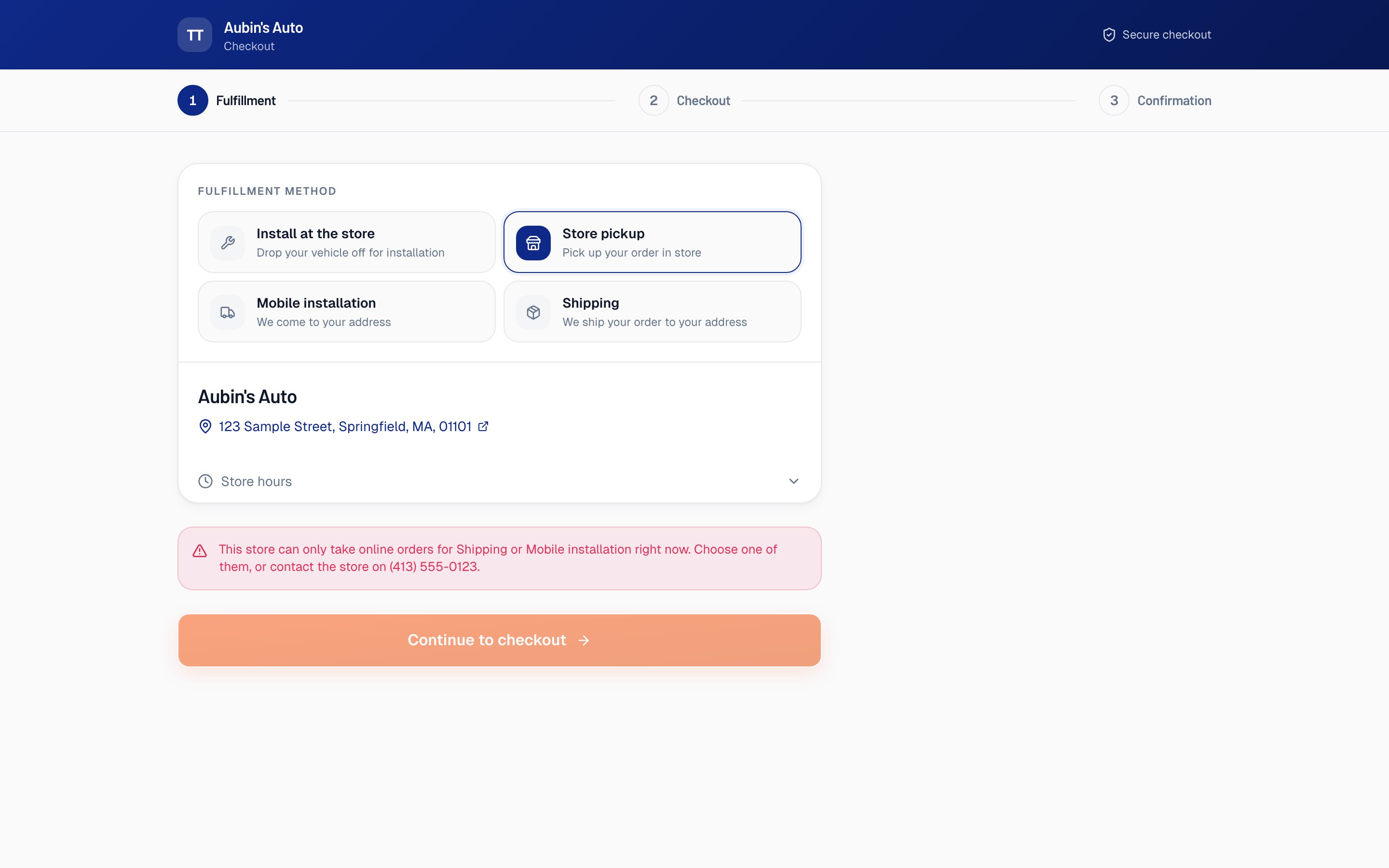
The message a customer sees when the store has no tax group.
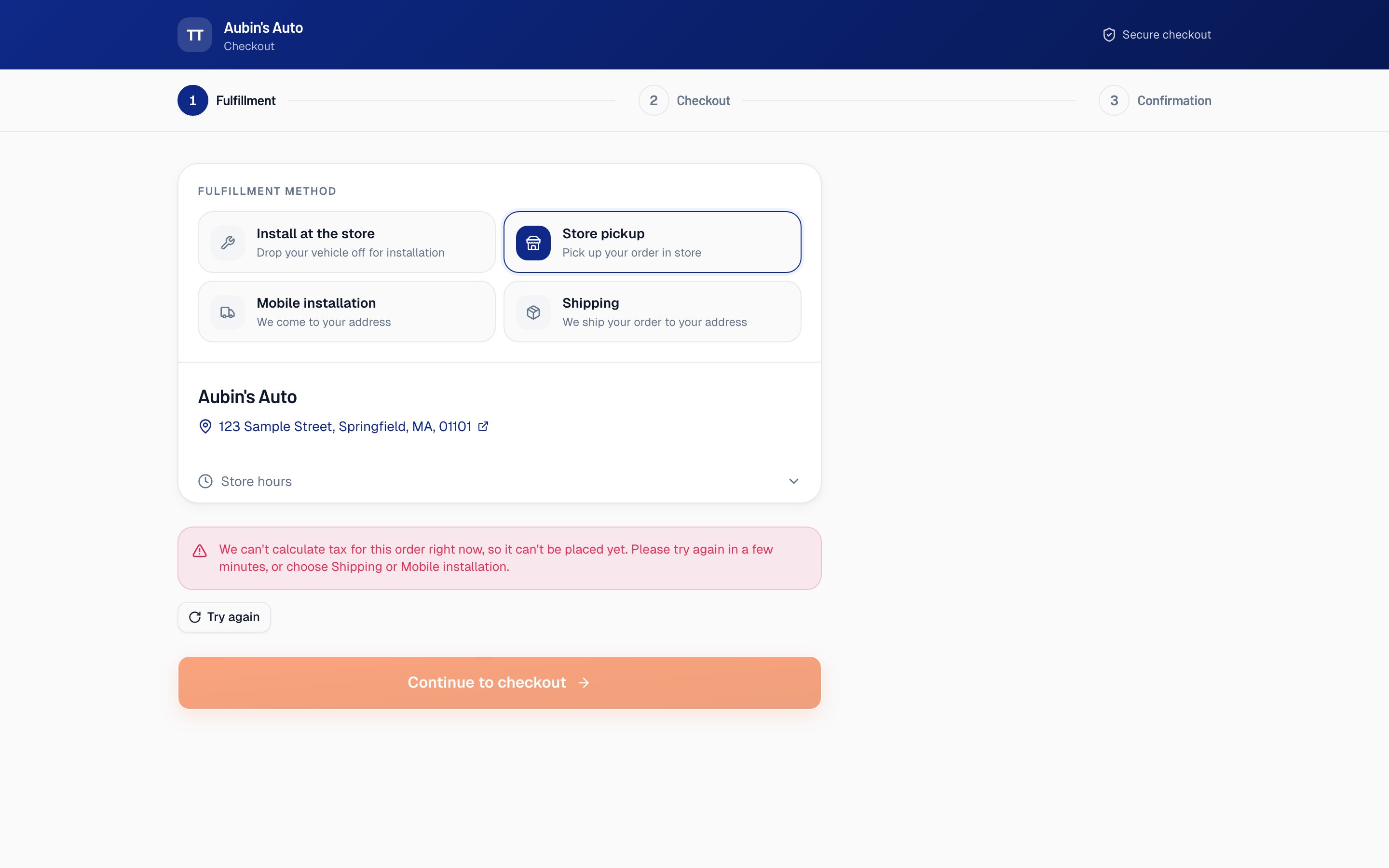
The message a customer sees when TireTutor can't calculate the tax.
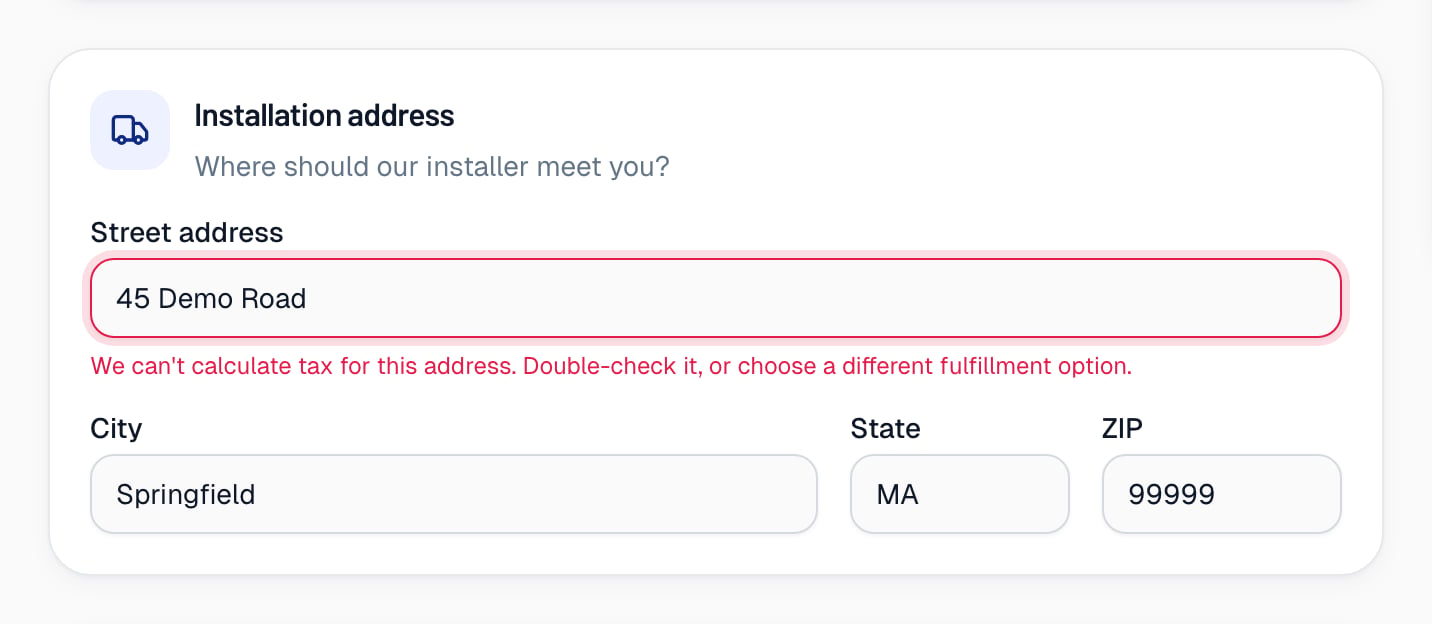
The message a customer sees when TireTutor's tax table has no rate for their address.
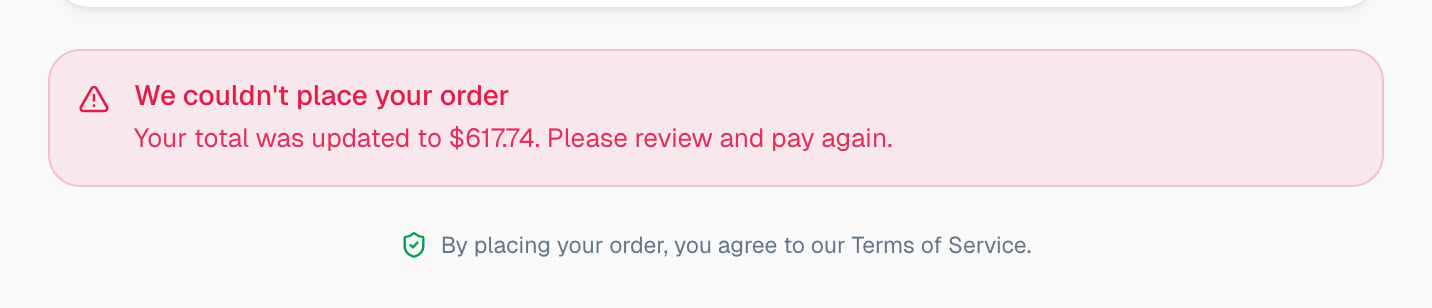
The message a customer sees when the total changed.
Check which tax group taxed an order
- Open the order from CRM → Online Orders.
- Find Tax group: under Taxes.
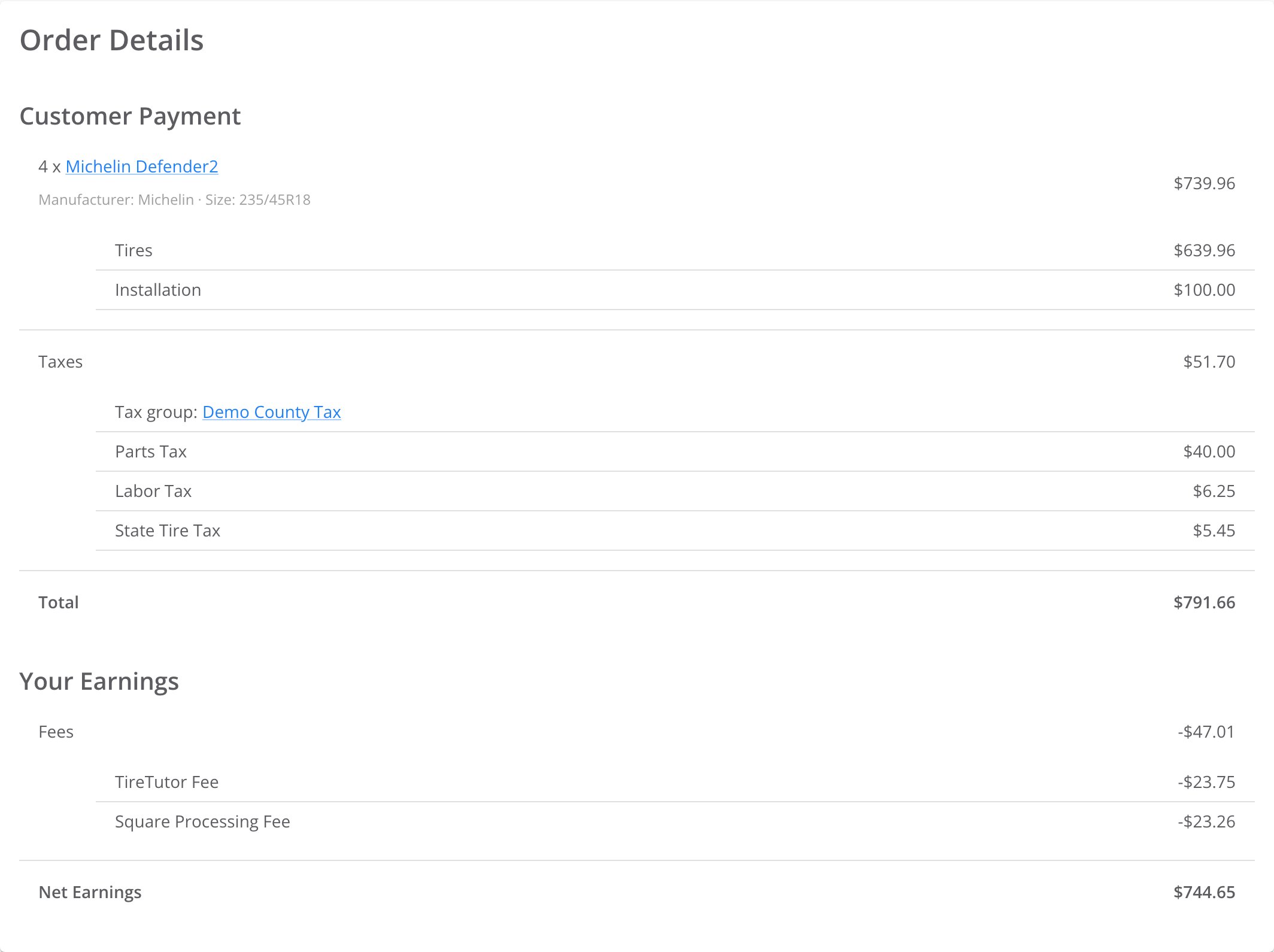
The Tax group: line names Demo County Tax, the group that taxed this order.
- on shipping orders;
- on mobile installation orders that your tax group did not tax;
- on in-store and pick-up orders placed before POS taxes were on for your store.
This mobile installation order was taxed at TireTutor’s rates for your customer’s installation address, not by your tax groups.
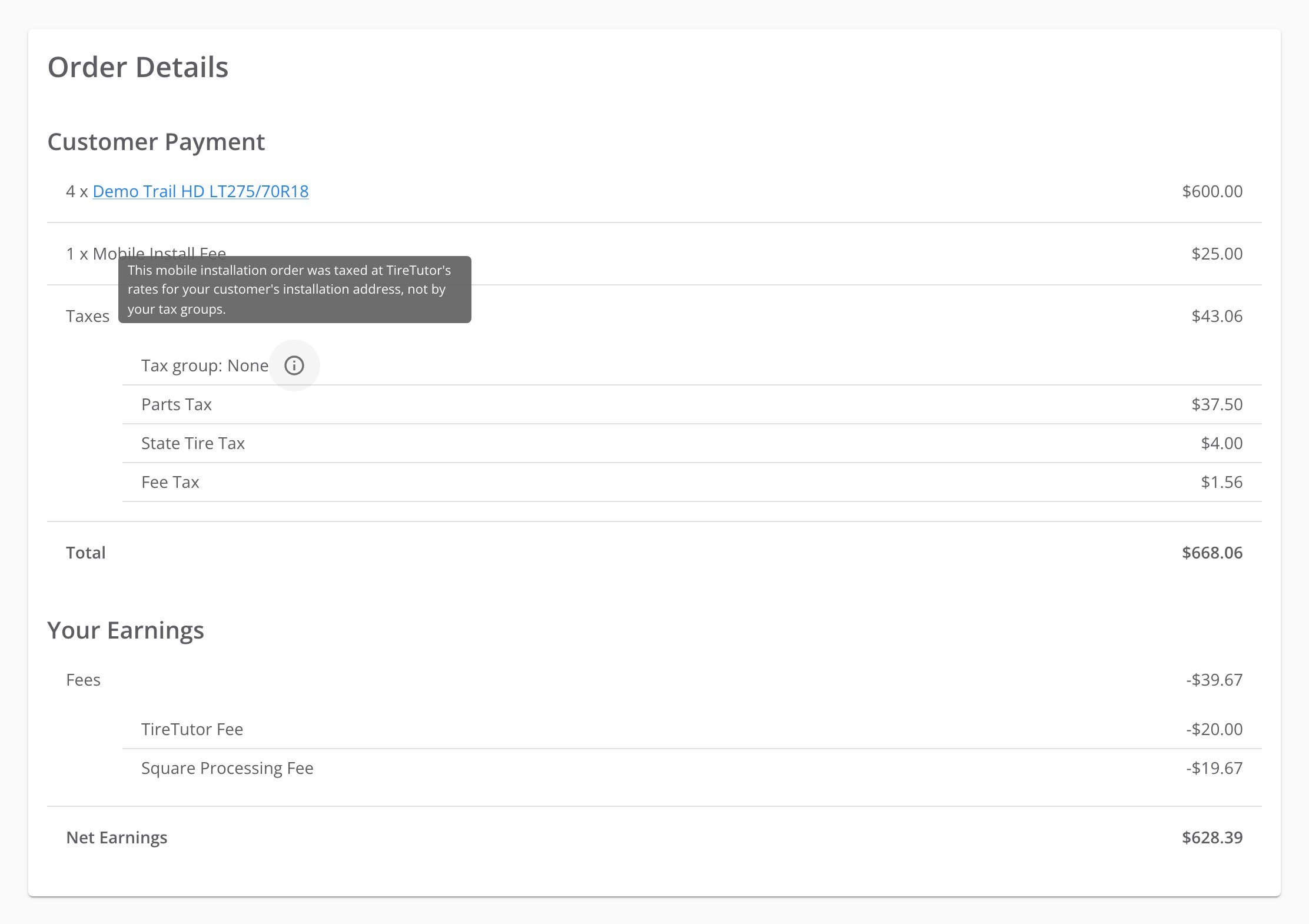
A mobile installation order that TireTutor's tax table taxed.
Check how fees, tire tax and FET are taxed
- Fulfillment fees. The parts rate applies to the fee you set for a fulfillment option. Orders that your tax group taxes use your group’s parts rate. Orders that the tax table taxes use the tax table’s rate. That tax shows as Fees tax at checkout and Fee Tax on the order.
- Shipping charge. A shipping order can also carry Shipping tax on its shipping charge.
- State tire tax. It shows as Per-tire tax at checkout and State Tire Tax on the order.
- Orders that your tax group taxes use your group’s state tire tax, including a cap per tire. If Taxable is on for the state tire tax, its sales tax is part of Parts tax. See How to set up a state tire tax cap.
- Orders that the tax table taxes use the tax table’s set amount per tire, which covers some states only. The order may leave out some state tire taxes.
- Federal excise tax (FET). Each tire’s FET is its own line, with no sales tax on it. See Check the FET on an online order.
- Disposal fees. Online orders do not charge your disposal fee, except at a store where mobile installation orders use a tax group. There, in-store and mobile installation orders charge your disposal fee, the same as a work order.
Check the FET on an online order
FET is the federal excise tax on a tire. Every online order shows each tire’s FET on its own FET line, the same as a work order. This is true for in-store, pick-up, shipping and mobile installation orders.- The amount is the tire’s FET in TireTutor’s catalog, for each tire. A free tire in a buy-3-get-1 offer has FET too.
- Sales tax does not apply to FET.
- A tire with no FET shows no FET line.
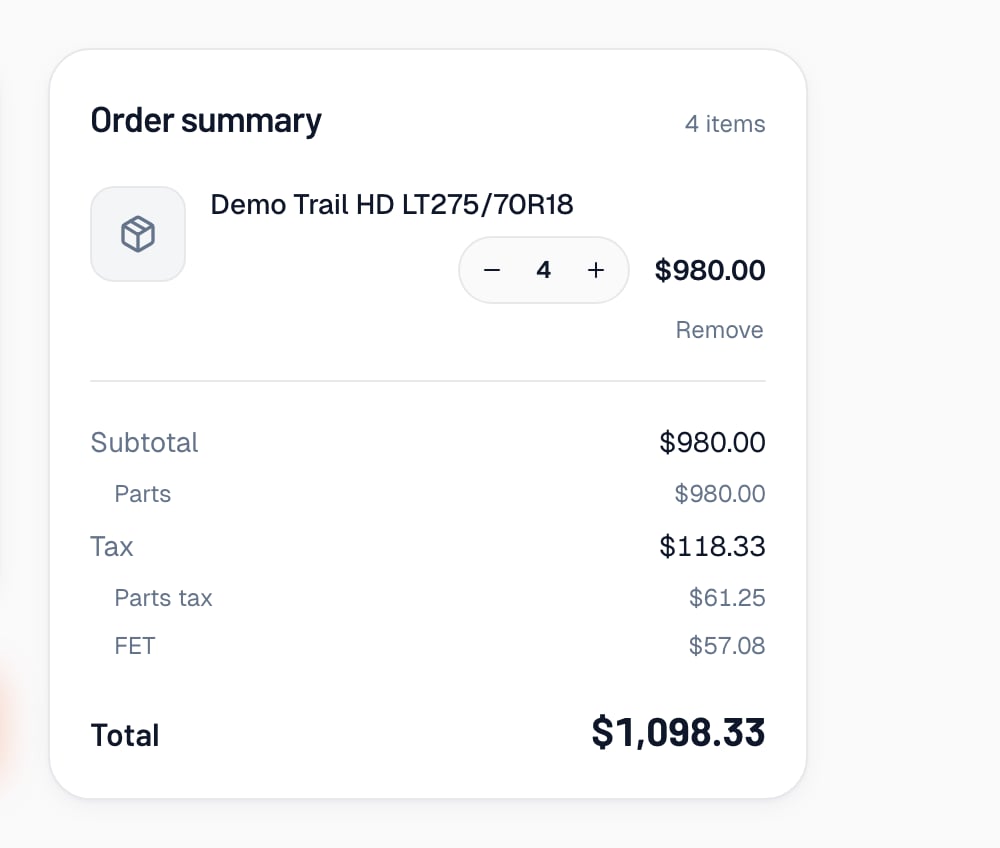
FET on its own line at checkout. The parts tax is on the tires' price only, not on the FET.
Change your group for a tax holiday
TireTutor does not apply tax holidays to the online orders that your tax group taxes. Your tax group decides the tax. Before a holiday, check whether the group your online orders use carries the Default label. If it does, a rate change also applies to your work orders. During the holiday, change the rates in the group your online orders use. Change them back when the holiday ends. Orders that TireTutor’s tax table taxes get the tax holidays TireTutor sets up.Expect tax-exempt customers to pay tax online
A customer who is tax-exempt in your point of sale pays full tax on an online order. The exemption applies only to work orders.Find online order tax in your reports and Square
- The Sales Tax Reporting page in Reports & Data does not include online orders. Each order’s Taxes section in CRM → Online Orders lists its taxes. Use those order pages for your tax records.
- Square shows each online order as one payment, without its items.
How you know it worked
The group you chose has the Online orders label on the Taxes page. The next in-store or pick-up order at that store names that group on its Tax group: line. When mobile installation orders at your store use a tax group, the next mobile installation order names it too.If it doesn’t work
- There is no Online orders section on the Taxes page. You can’t choose the group for your online orders there. Open an order: a Tax group: line names the group that taxed it. If you expected the section, contact support.
- The tax group list is grayed out. Your store has no saved tax group, or you are not an admin of this store or of the dealership. Save the Tax Group - Default form, or ask an Owner or Administrator of the store.
- A customer can’t place an in-store or pick-up order. Check that the store has a tax group. If it does, ask the customer which message they saw. The table in Check what your customer sees at Square Direct Checkout lists what causes each one.
- A customer sees “We can’t calculate tax for this address.” Ask them to check the address. If it is right, contact support with the ZIP code.
- A customer can’t place a mobile installation order. If mobile installation orders at your store use a tax group, check that the store has a saved tax group. Otherwise, ask the customer which message they saw.
- The tax on an order looks wrong. Check the rates in the group on the order’s Tax group: line. If the line reads None, or the order has no Tax group: line, TireTutor’s tax table taxed the order. Contact support with the order and the ZIP code.
- A mobile installation job was in another state. If mobile installation orders at your store use a tax group, your group’s rates taxed it. Ask your accountant whether you owe that state’s tax. See Check the tax on a job outside your area.
- The FET on a tire looks wrong. Contact support with the order and the tire.
- Your customer paid FET twice. Your tire prices may already include FET. Contact support with the order and the tire.