

Start a new work order
1
Open the work orders list
In the side menu, select POS › Work Orders.
2
Select New Work Order
Select New Work Order at the top right of the list.
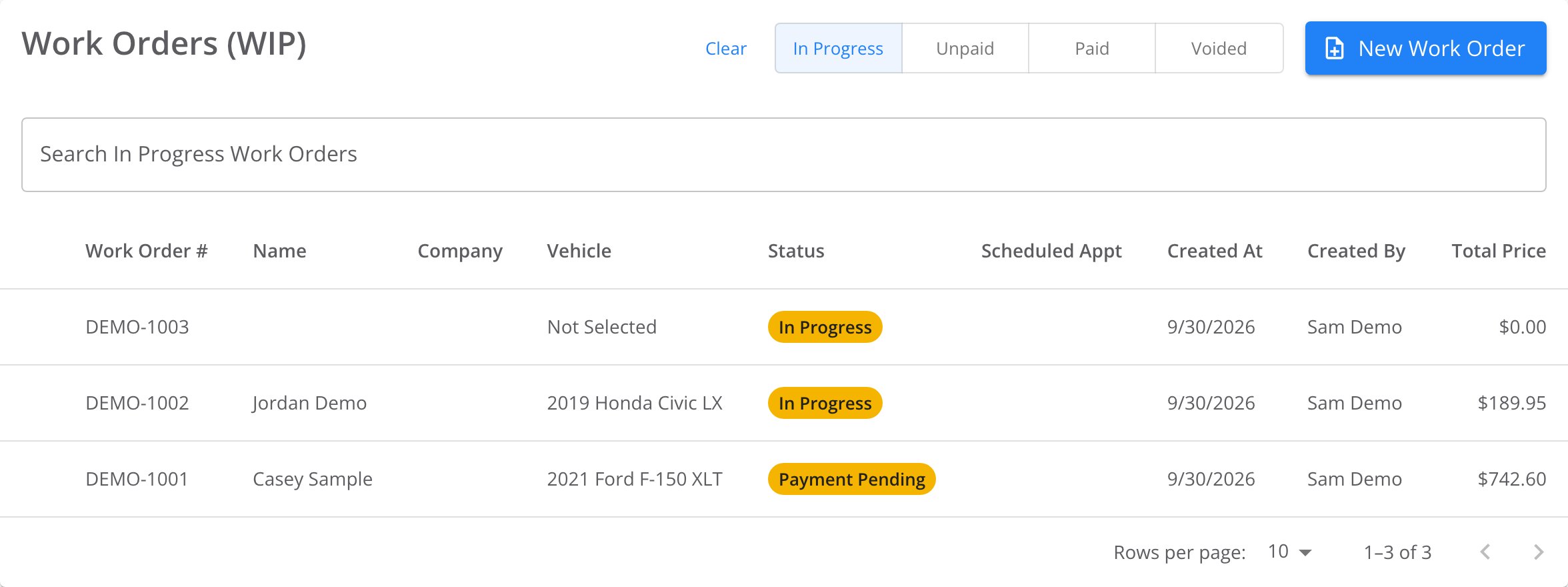
The work orders list. The list shows In Progress orders first. New Work Order is at the top right.
Add the customer
Start in the Customer Details card on the work order.1
Search for the customer
Type in Search by name, phone, or plate.
2
Pick the customer
Select the customer in the list. TireTutor adds them to the work order.
Add a customer who is not in the list
The last entry in the list is the name you typed, marked Add as a Customer.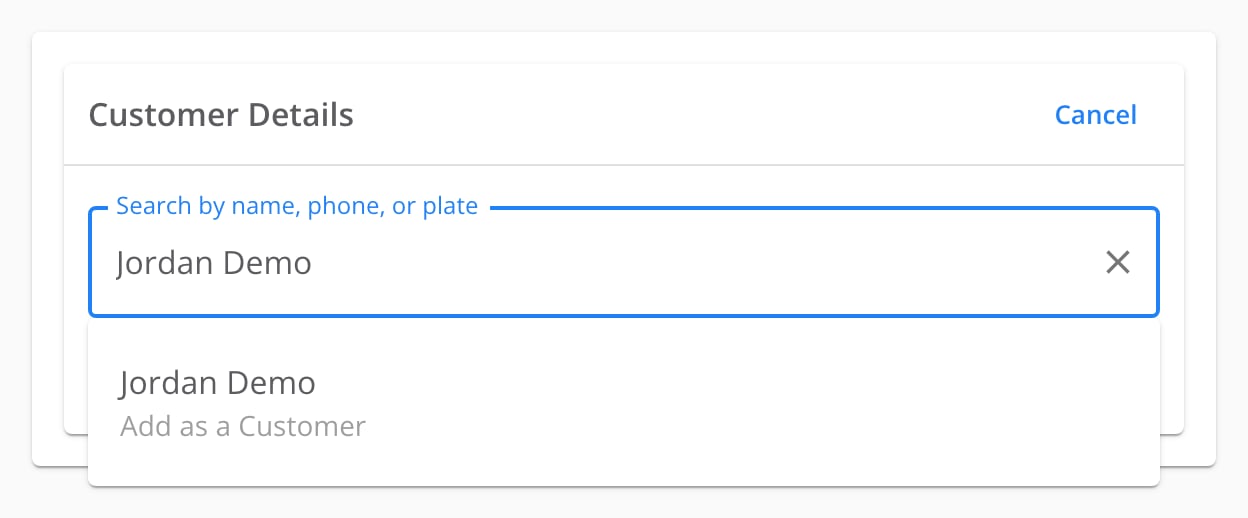
No customer matches the name, so the search offers to add it as a new customer.
1
Type the full name
Type the customer’s first and last name in the search box.
2
Choose Add as a Customer
Select the entry marked Add as a Customer. The Add New Customer dialog opens. First Name and Last Name hold the name you typed.
3
Enter the phone number
Enter the customer’s number in Phone Number.
4
Add the other details
Add an email address or any other details you have. Only the fields marked with an asterisk are required.
5
Check the suggestions
Suggestions lists customers who already have this phone number or email. If the customer is there, select them. TireTutor then uses that record.
6
Save the customer
Select Save.
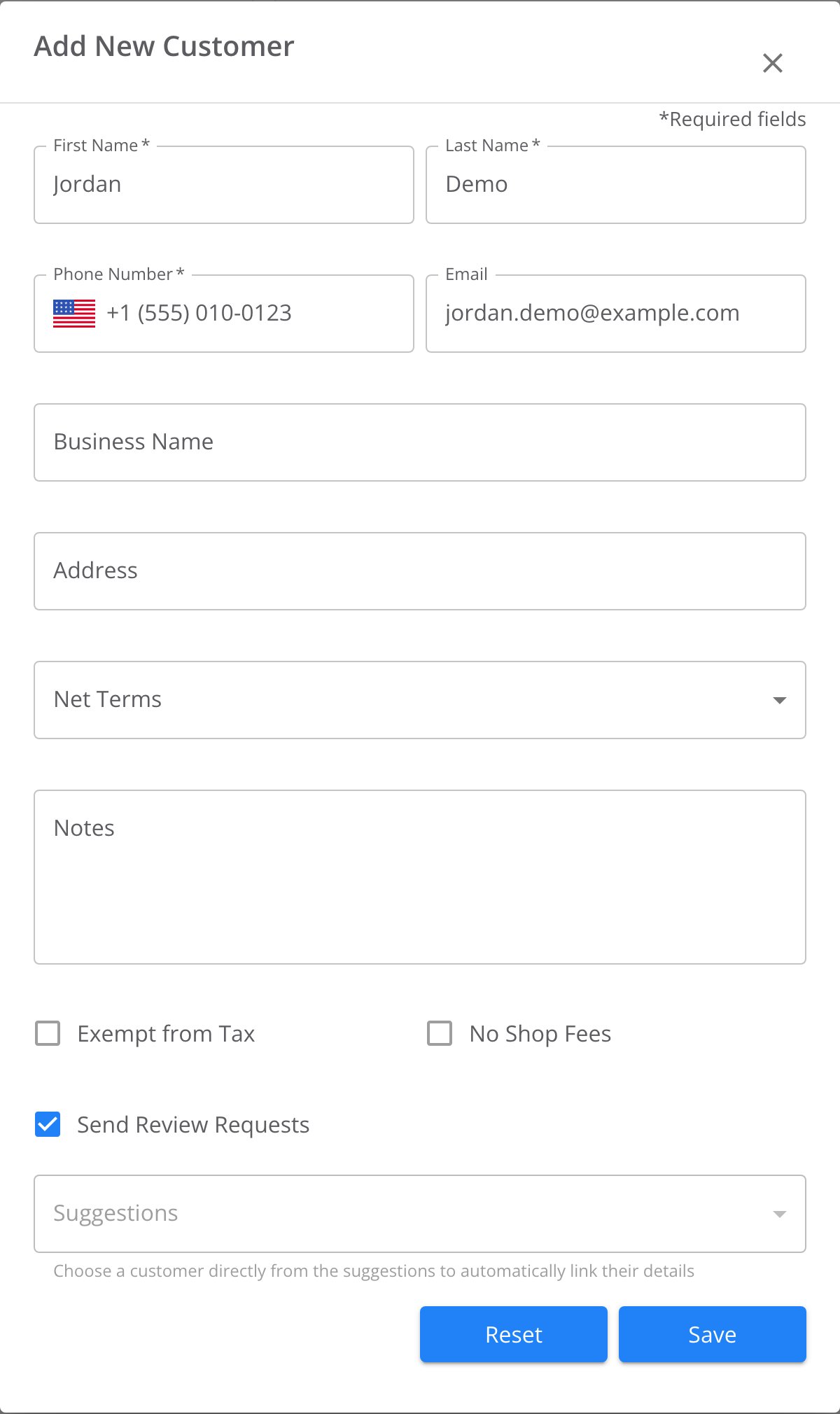
The Add New Customer dialog. First Name, Last Name and Phone Number are required.
Add the vehicle
Start in the Vehicle Details card on the work order.1
Open the vehicle list
Select the Select Vehicle box. It lists the customer’s vehicles.
2
Pick the vehicle
Select the vehicle in the list. If the list does not show it, type the full plate number or VIN.
Add the work
Start in Labor and Parts Lookup on the work order.1
Open the lookup
Select Add Service.
2
Search for the work
Type the labor, part, or service you want in Search.
3
Choose the lines
Select the checkbox beside each line you want to add.
4
Add the service
Select Add Service on that service.
Turn an approved estimate into a work order
Open the estimate. Select Approve. What happens next depends on your store’s customer authorization setting.- Don’t ask: TireTutor turns the estimate into a work order right away. The Approve button changes to View Work Order.
- Any other setting: TireTutor first asks what the customer approved. It then asks Start the work order? Select Convert to work order.
How you know it worked
The work order shows its number at the top, with an In Progress chip. It appears in the Work Orders list under the In Progress filter. The list shows the customer, the vehicle, and the total once you add them.If it doesn’t work
- The customer search finds nobody. Check the spelling, or search by phone number instead. If the customer is new, choose Add as a Customer.
- You see “You are in view-only mode”. The work order belongs to another of your stores. Switch to that store to make changes.
- You still need help. Contact TireTutor support.
Where to go next
Adding a vehicle
Look up a vehicle by VIN or plate, or enter it by hand.
Assigning staff to a work order
Add a service writer and technician to the work order.
Taking payments
Take a card payment, or record cash, check, or Zelle.
Voiding a work order
Void an unpaid work order and find it later.