

What you see
An amber notification appears at the top right, on any TireTutor page that shows the left-hand menu, and stays on screen for 30 seconds. It shows:- The caller’s name. A dash stands in for a last name they didn’t give, and Refused to Give Name if they wouldn’t give a name at all
- A short summary of what they asked for during the call
- A count of any other new leads that arrived at the same time
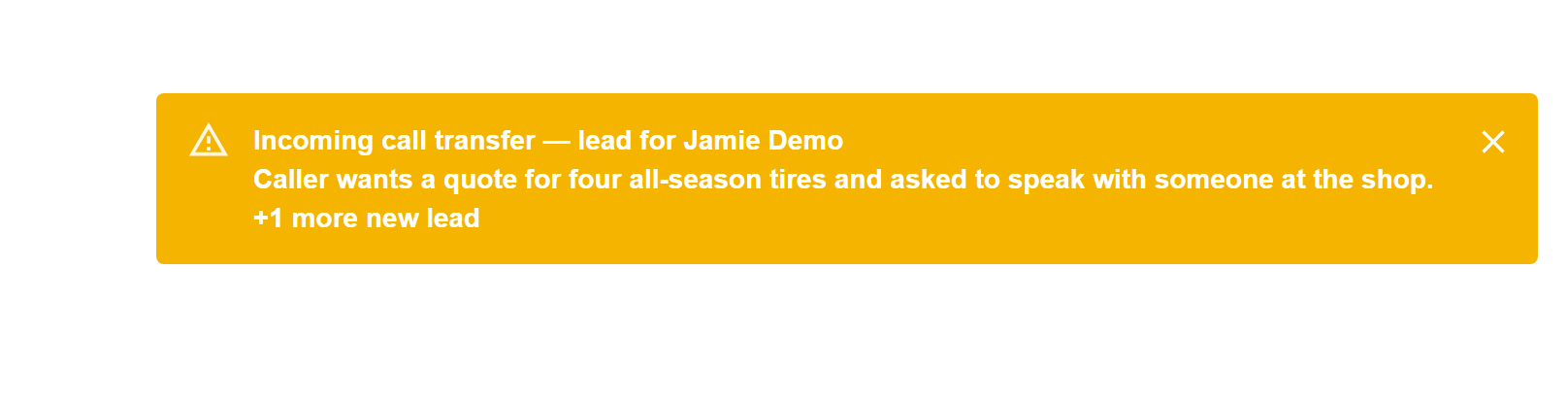
The transfer notification — the caller's name, what they asked for, and any other new leads.
You keep the lead even if you miss it
The notification disappears after 30 seconds, but the lead does not. TireTutor saves the transferred call under Leads with a source that starts with “TireTutor AI Phone - Transfer”, so you can always look up what the caller wanted — even after the call ends. The Leads entry in the CRM menu also carries a red counter — the number of leads at the shop you are viewing that still need a follow-up. It stays up until you handle them, so it outlives every notification on this page. A caller who asks for more help after Noah has submitted their service request transfers with no second lead. That call leaves only the service request, which arrives as a plain new-lead notification rather than a transfer one.When you’re working in another tab
TireTutor still reaches you, two ways. Both fire when new leads arrive at the shop you are viewing after the tab has loaded — any lead, not just a transferred call. Open the lead to see whether someone is waiting on the phone:- The browser tab title flashes with the number of leads that just arrived —
(1) New Lead!,(2) New Leads!, and so on — until you come back to the tab. This needs no setup. - A browser alert appears, if you clicked Allow when your browser asked to show notifications. It only says a lead arrived, and it closes itself after 10 seconds. Click it to open the lead — or the lead list, when several arrived together.
Get the most out of it
- Keep TireTutor open in a browser near the phone.
- Keep the CRM section of the menu expanded. The notification cannot show while you have that section folded away, though the chime still plays.
- Click anywhere in TireTutor after opening it. Browsers keep sound off until you interact with the page at least once, and a chime plays whenever new leads arrive at the shop you are viewing. Mute under Settings → Account → Notifications turns the chime off.