

The AI Marketing Agent needs the tag, a line of TireTutor code, on your
website before it can measure results. Setup walks you through adding it.
Until the tag is in place, your ads stay off and you pay nothing for ad
spend.
What it is
TireTutor runs the ads on your behalf. The agent reads what happens after each ad click — a quote request, a phone call, a work order — and shifts spend toward the ads that produce that work. You can find this in your TireTutor dashboard under Marketing, then AI Marketing Agent.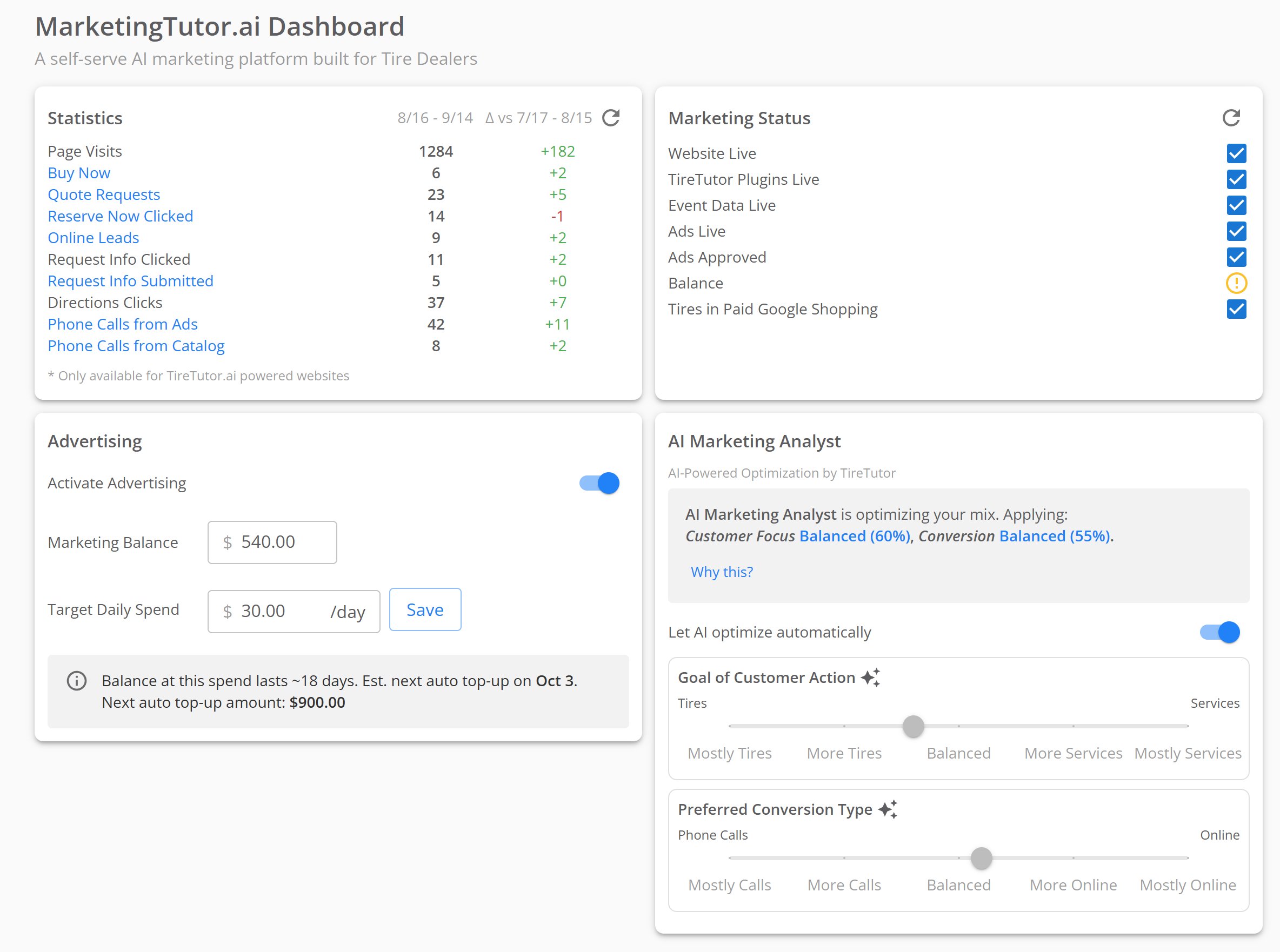
The MarketingTutor.ai Dashboard for a demo shop, with the Statistics, Marketing Status, Advertising and AI Marketing Analyst panels.
What it costs
Two charges apply:
Your FAQs tab answers what the fee covers.
Google needs a balance in your account before it places ads. You pay one
month of your daily budget up front. After that, the agent tops your balance
up as it runs low.
There is no contract. You can pause advertising at any time. The FAQs tab
states the notice you give to cancel the subscription.
What you control
- Your daily budget. Set the amount your shop spends each day. Change it whenever you want.
- The work you want. Two sliders set your goals: tires against services, and phone calls against online bookings.
- The pause switch. Turn advertising off and the spending stops. Your settings stay as you left them.
- The AI Marketing Analyst. Leave it on and it tunes your two sliders for you. Turn it off and your own settings apply for seven days. Select Make permanent to keep them with no end date.
See how your ads are doing
Three views show how your campaign is doing: Statistics, Marketing Status, and ROI Analytics.Statistics
Statistics counts what customers did on your website over the last 30 days, against the 30 days before that. Each action gets a row, from page visits to quote requests to calls from your ads. A row with no activity yet may not appear.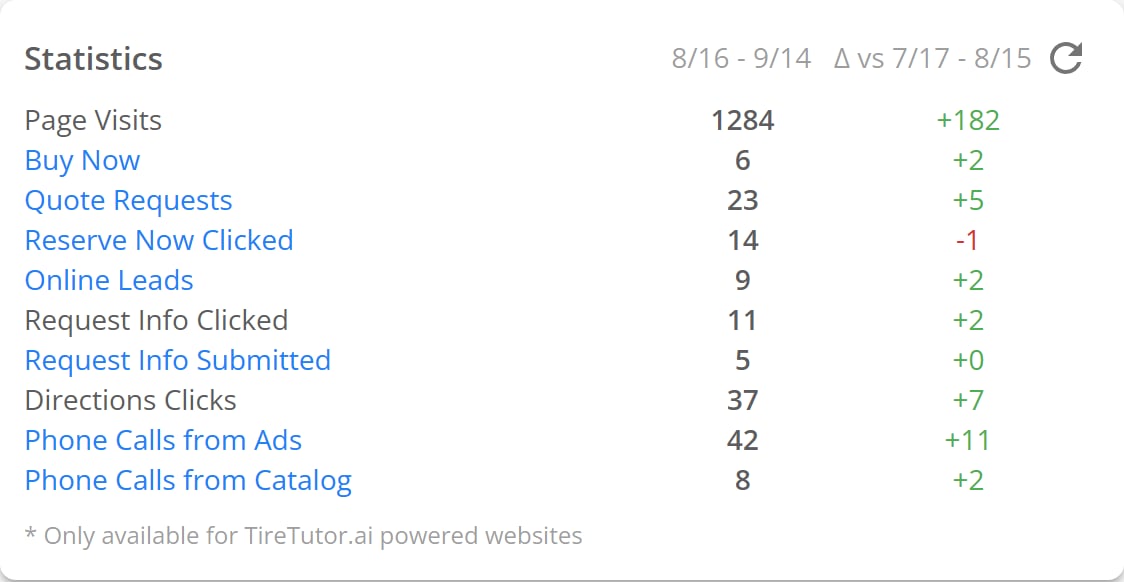
The Statistics panel for a demo shop, with ten rows of website actions for the last 30 days and the change against the 30 days before.
Marketing Status
Marketing Status shows whether your website, your tag, your ads, and your balance are all healthy. A red mark tells you which one to fix. Check whether your ads are running explains every row and mark.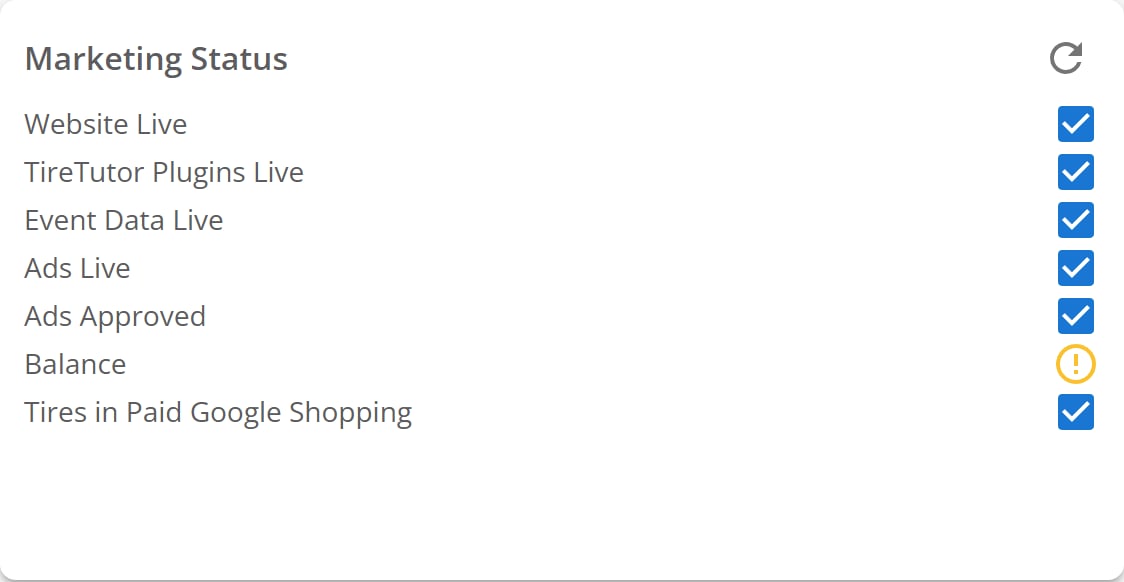
The Marketing Status panel with all seven rows. Six rows show a blue tick, and Balance shows a yellow warning.
ROI Analytics
ROI Analytics sits under Marketing, then ROI Analytics, and opens the Dealer Value Report. Its Return on Investment figure shows what you get back as a multiple of what you spend. A return of 13x means every dollar you spend brings you $13 back in expected work. The report has more charts and data to explore below that figure, such as Traffic Sources, Expected Total Sales Driven by TireTutor Services, and Customers Over Time.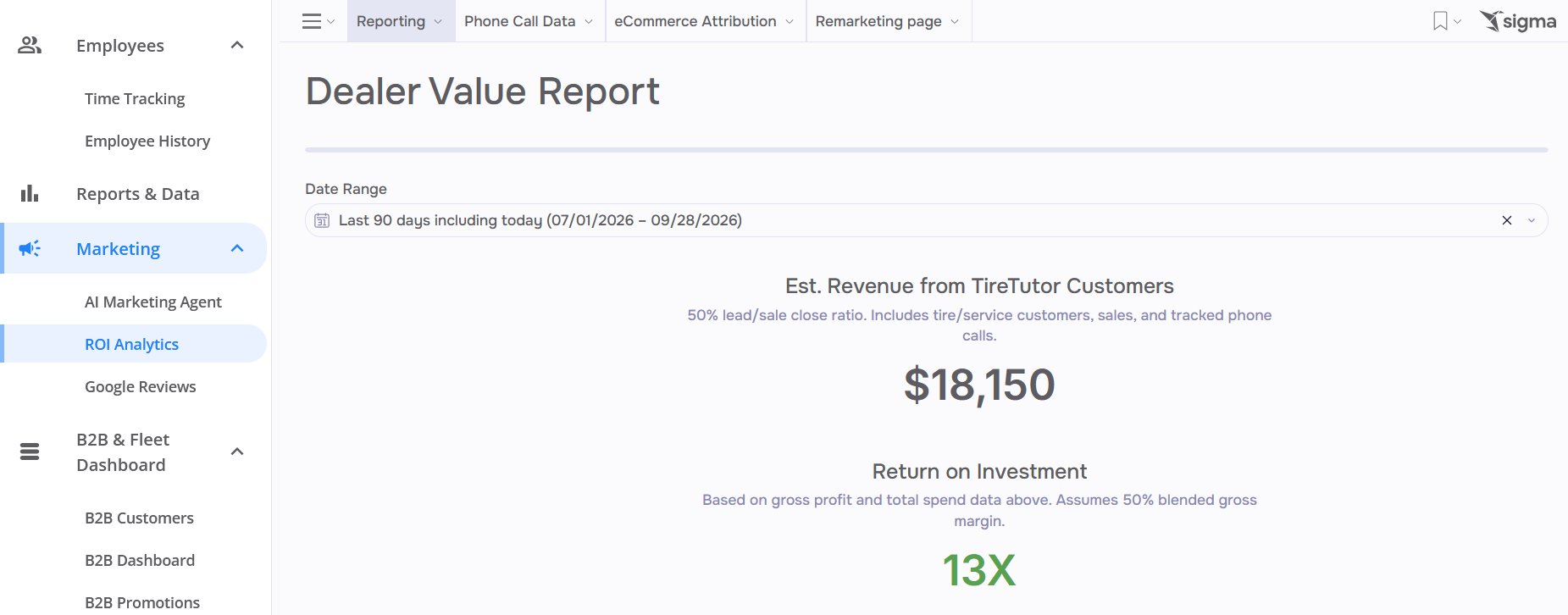
The Dealer Value Report under ROI Analytics for a demo shop, with Est. Revenue from TireTutor Customers and Return on Investment for the last 90 days.
Where to go next
Getting started
The five steps of setup, from sign-up to the website tag.
Managing advertising
Your daily spend, the pause switch, and the status panel.