

Open the conversation on a lead
Open Leads
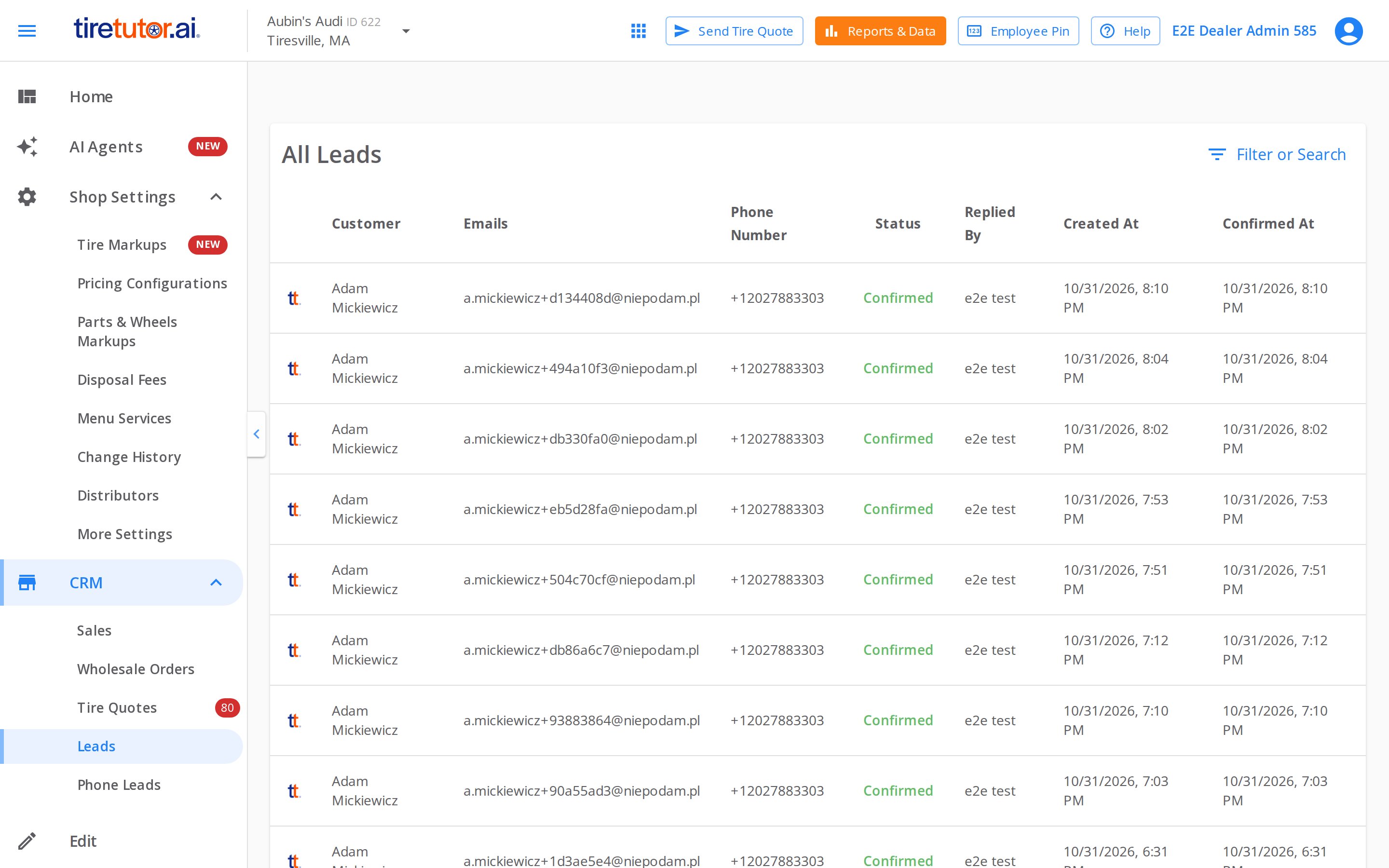
The side menu with CRM open and Leads selected.
Open the lead
Find the Messages with card
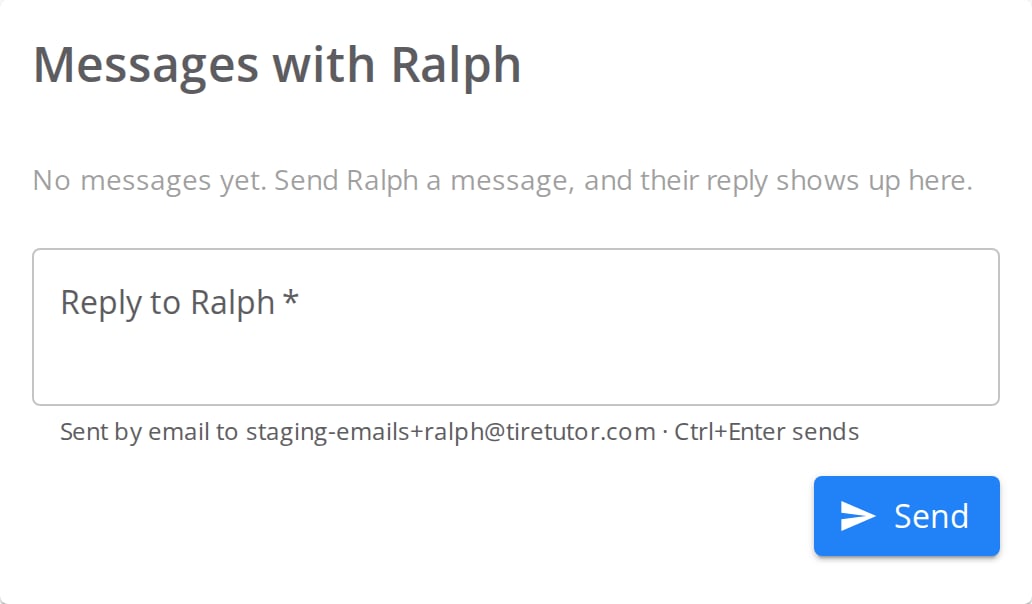
The Messages with card before any message. The line under the box shows where your message goes.
Send a message to the customer
To message a customer, the lead needs their mobile number or email address.Write your message
Send it
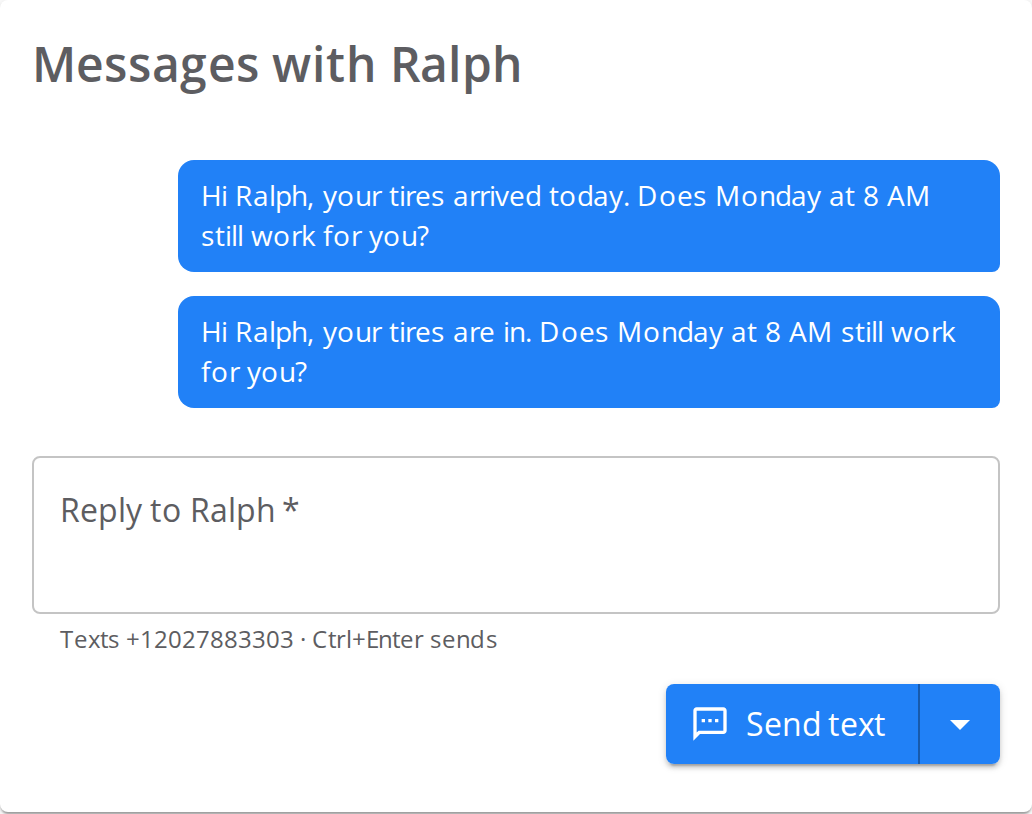
After a send, your message sits on the right side of the card and the box is empty again.
Pick text or email for your next message
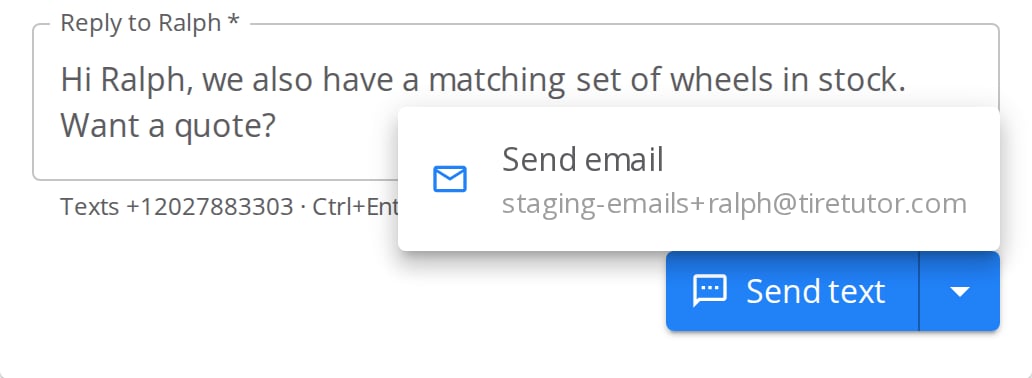
The arrow beside Send text offers the other way to reach the customer.
Check whether your message was delivered
Under each message, a line shows who sent it, when, and how: Text, Email or Web chat. On a message you sent, the line ends with its delivery status:Read the customer’s reply
The customer’s reply appears on the left side of the card, under your message. The card checks for new replies every 30 seconds while the page is on your screen, so you do not need to reload it. The reply also appears in the bell at the top of your dashboard, so you can find it from any page. To see your latest replies in one list, go to Managing customer replies.Message the customer from the estimate or work order
The conversation follows the lead onto its estimate and work order. To make an estimate from the lead, select Confirm, then Create an Estimate, on the Confirm Lead card. The estimate shows the same messages under Messages. That section is in the Order details rail, on the right side of the page. Everything you and the customer wrote on the lead is there. A reply the customer sends later shows up there too.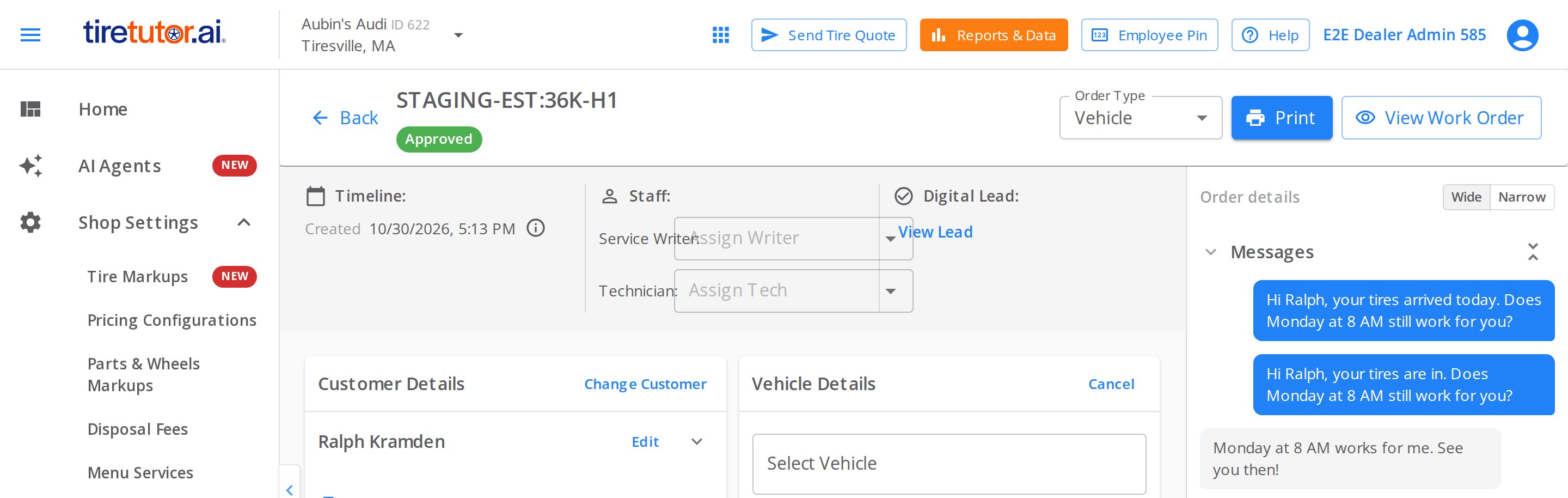
The estimate made from the lead. The Messages section in the Order details rail holds the same conversation as the lead.
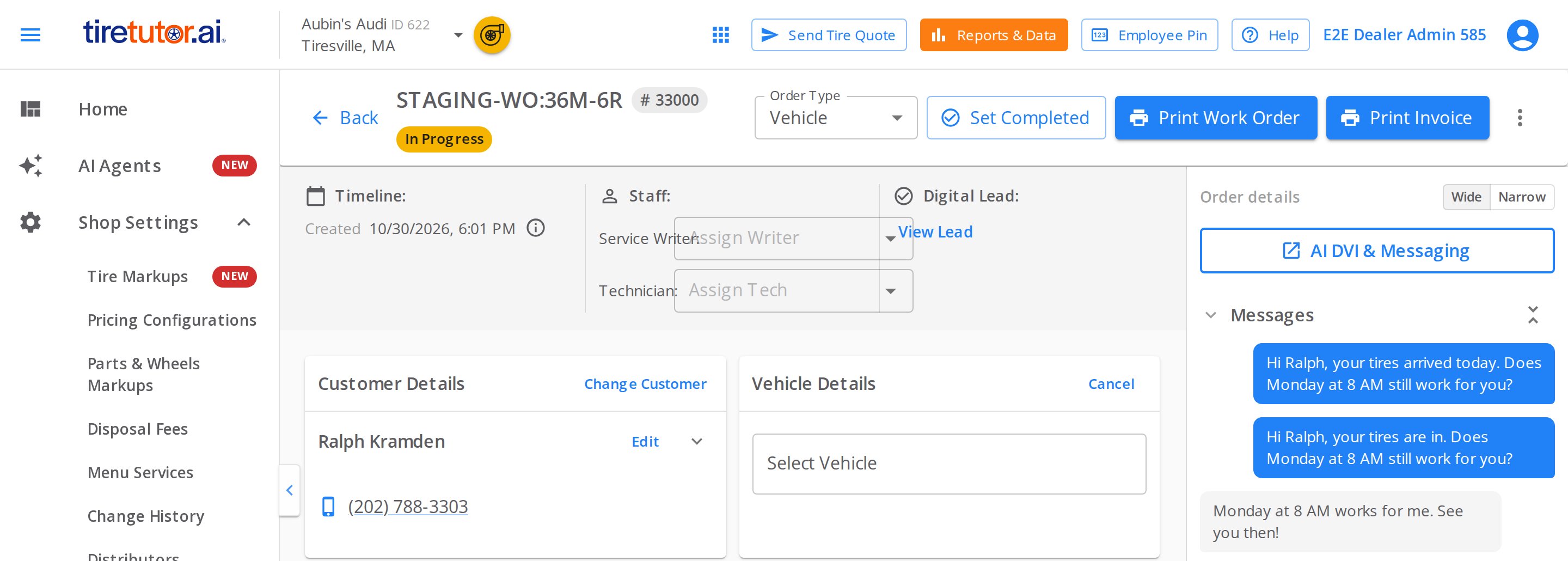
The work order made from that estimate. The same conversation shows under Messages.
See everything the customer wrote before
When a returning customer starts a new job, their earlier messages come with it. The Messages section on a lead, estimate or work order shows every message with that customer: on earlier leads, estimates, work orders and DVI reports, at the stores you can see. Under each message, a line shows where the message came from:- The document: the number of the lead, estimate or work order, or DVI report. Select it to open that document. A DVI report opens in a new tab.
- The vehicle, when the message was about one.
- Who sent it, when, and how, for example TireTutor · Oct 30, 12:16 PM · Email · Delivered.
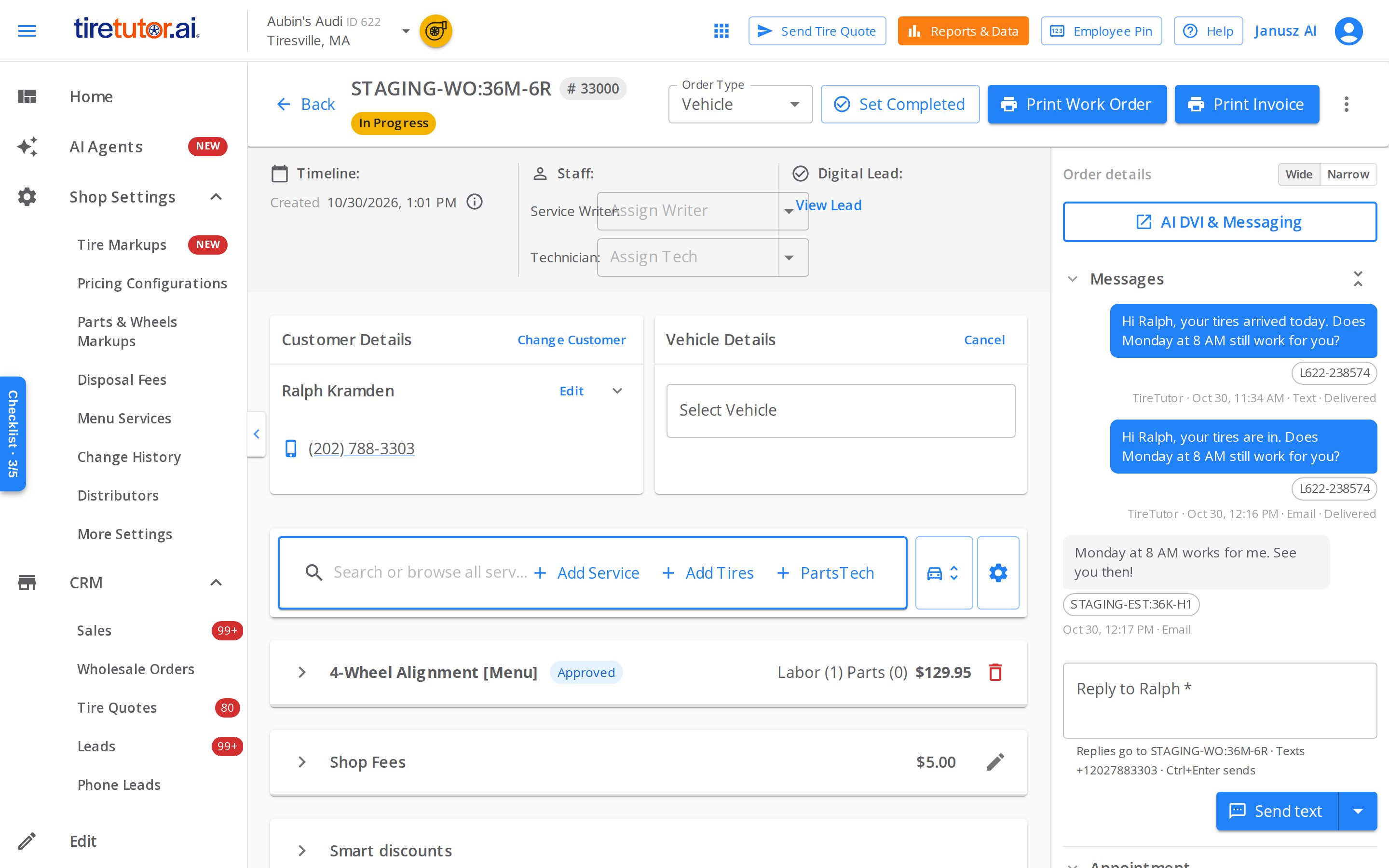
A work order for a returning customer. Each message carries the lead or estimate it was written on.
Know where your reply goes
Your reply always goes to the document you have open, even when the message you are answering came from another job. The line under the Reply to box says so. On an estimate or work order, the line starts Replies go to with that document’s number, then names the phone number or email address your message goes to. On a lead, it starts Replies go to this lead.Read older messages
The section loads the most recent messages, oldest at the top. To see older ones, select Load earlier messages at the top of the list. New replies keep coming in while you read. If the older messages do not load, the section reads Earlier messages could not load. Please try again. Select Load earlier messages again.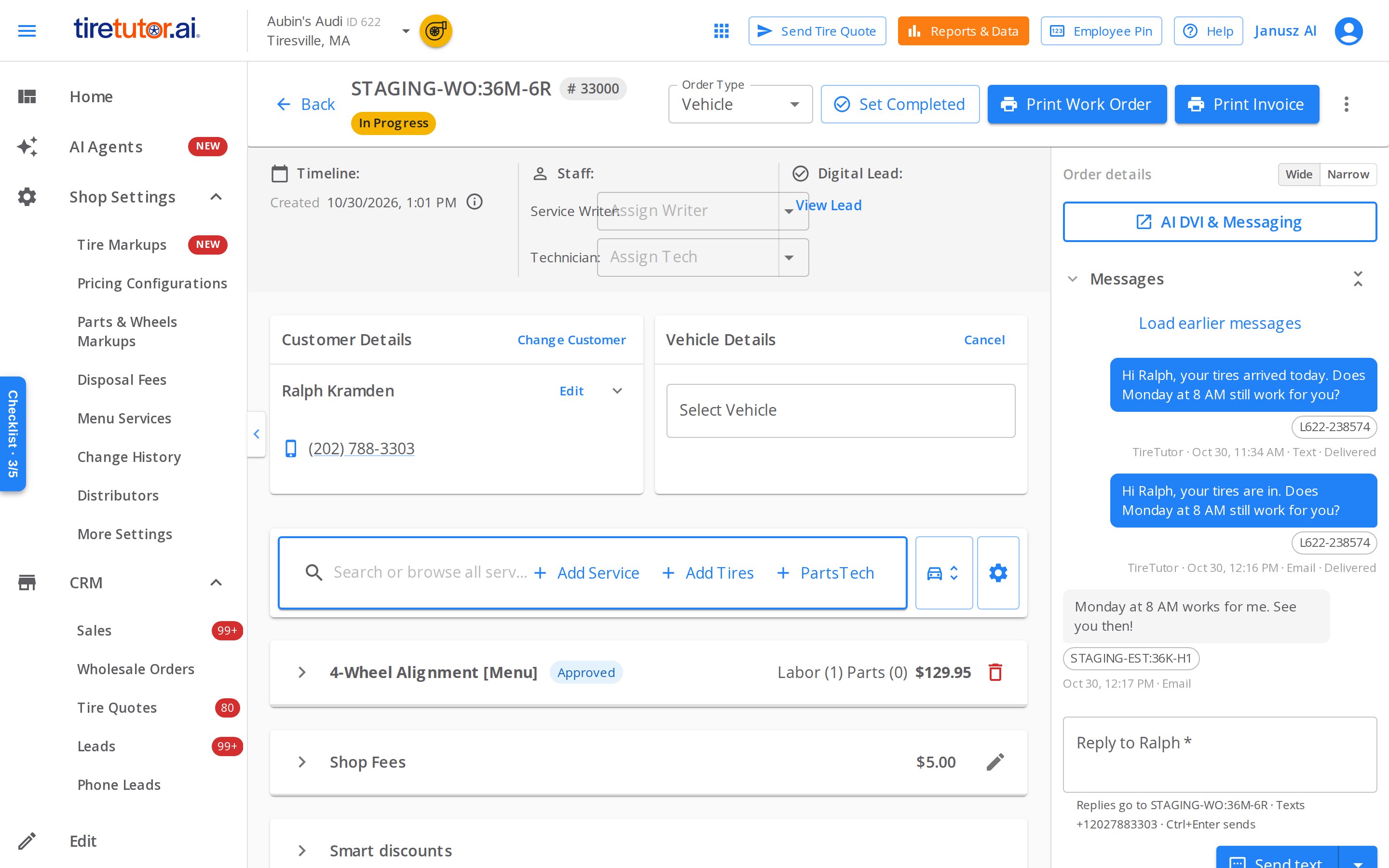
Load earlier messages sits above the oldest message in the section.
Show the messages on a small screen
On a phone, the Order details rail sits to the right of the page. Scroll right to reach Messages.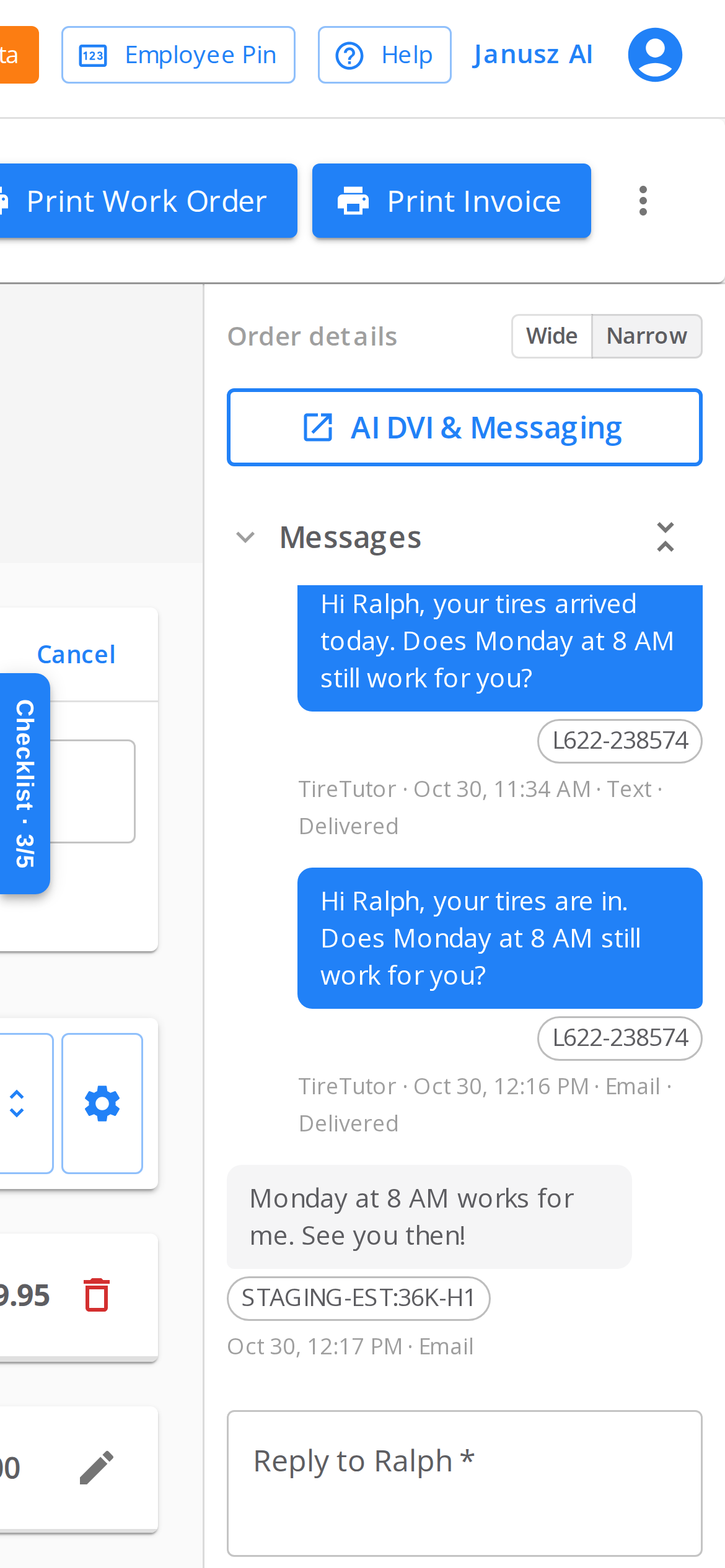
The Messages section on a phone. Each message still shows its document, sender, time and status.
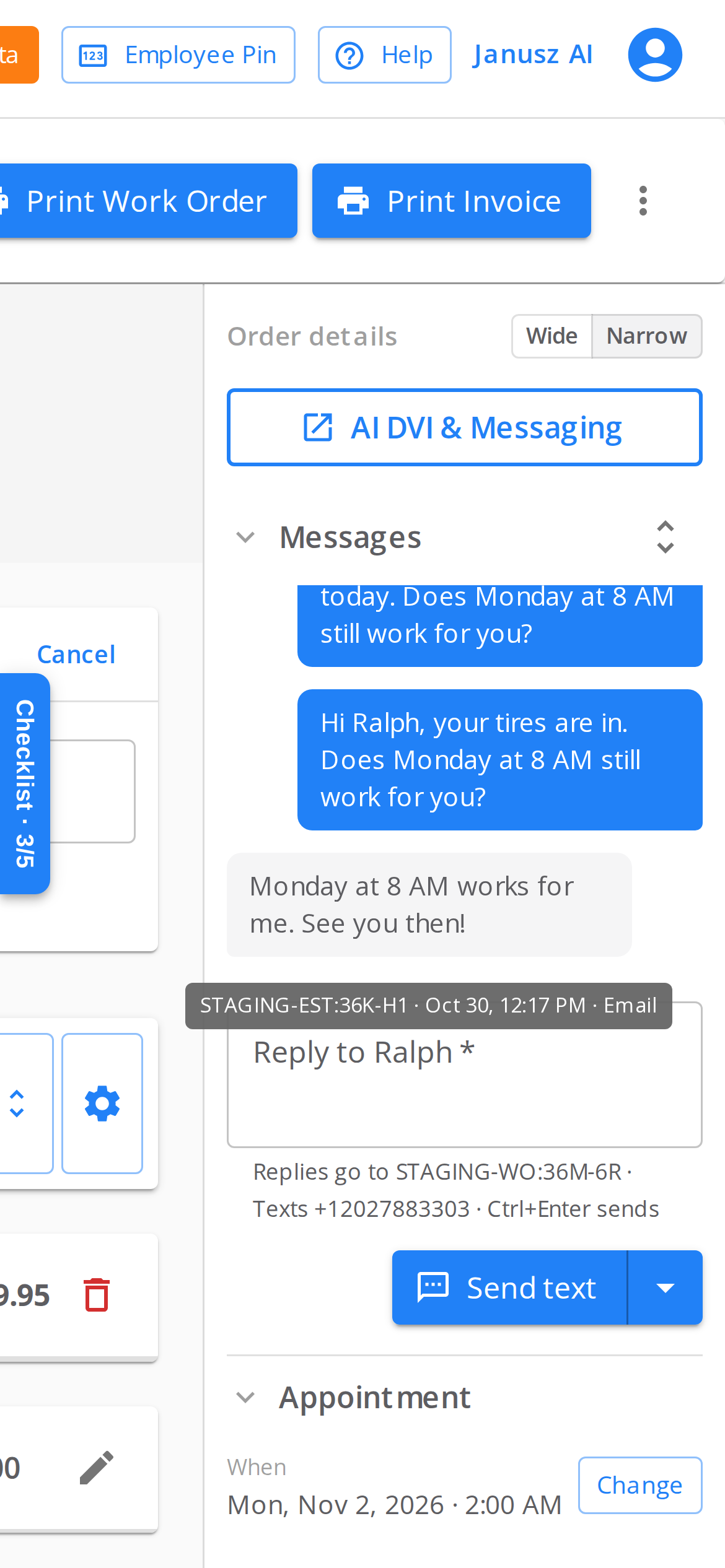
With the lines hidden, select a message to see where and when it was written.
How you know it worked
Your message shows on the right side of the card, with its status on the line under it. Delivered means the text or email service accepted it. Sent means TireTutor sent it but could not confirm delivery. When the customer answers, their reply shows on the left. Once the lead has an estimate or a work order, the same messages show under Messages on that page.Fix a message that didn’t send
When a message does not send, the reason appears under the Reply to box and your text stays in the box.If it doesn’t work
- The card shows a warning instead of messages, such as Messages could not load. We will keep trying in the background. The card tries again every 30 seconds. If the warning stays for more than a minute, contact support with the link to the lead.
- The card reads Activating…. TireTutor is turning on messaging for your store. You can write your message while you wait. Send works once it finishes.
- The card reads “Messaging could not be turned on for this store. Reload to try again.” Reload the page. If the card still reads that, contact support with the link to the lead.
- Your message reads Not delivered. Check the phone number or address under the Reply to box with the customer. If it is wrong, reach them another way, such as by phone.
- The customer says they replied, but nothing appears. Wait 30 seconds for the card to check again. If the reply does not appear, contact support with the link to the lead and the time the customer replied.
- A message has no document label. The message has no lead, estimate or work order on record. It still belongs to this customer.
- A message from another store is missing. You only see messages from the stores you have access to. Ask a dealership Owner to give you access to that store.